
TOTP Authenticator App (Google Authenticator)
Time-based One-Time Password (TOTP) is an industry-standard (RFC 6238) algorithm supported by apps such as Google Authenticator, Microsoft Authenticator, and Authy. It operates entirely offline on the customer's smartphone without relying on cellular networks or SMS delivery.
Configuration
In Stores > Configuration > Webkul > Two Factor Auth:
- Set Send Otp Via to
TOTP/Authenticator. - Enter Title for TOTP Auth (e.g.
Webkul Two Factor Auth).
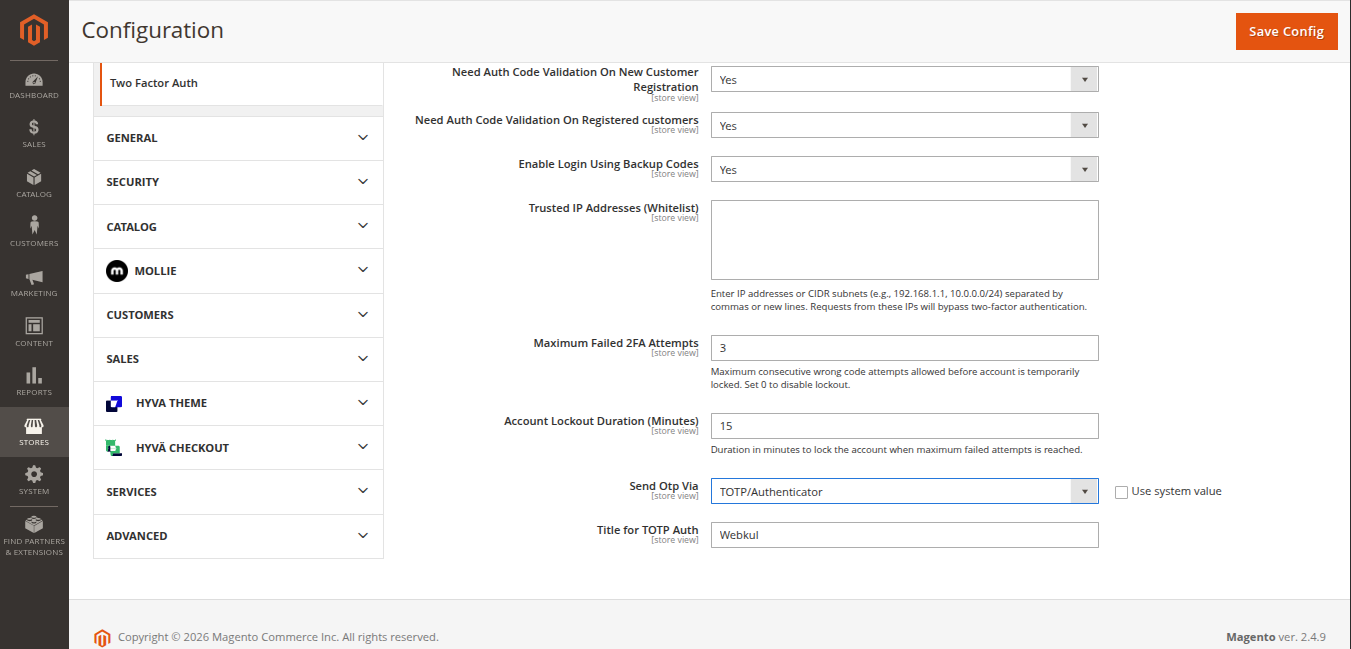
Workflow 1: Registration & Initial QR Code Setup
- The customer enters their registration details on the sign-up page and submits.
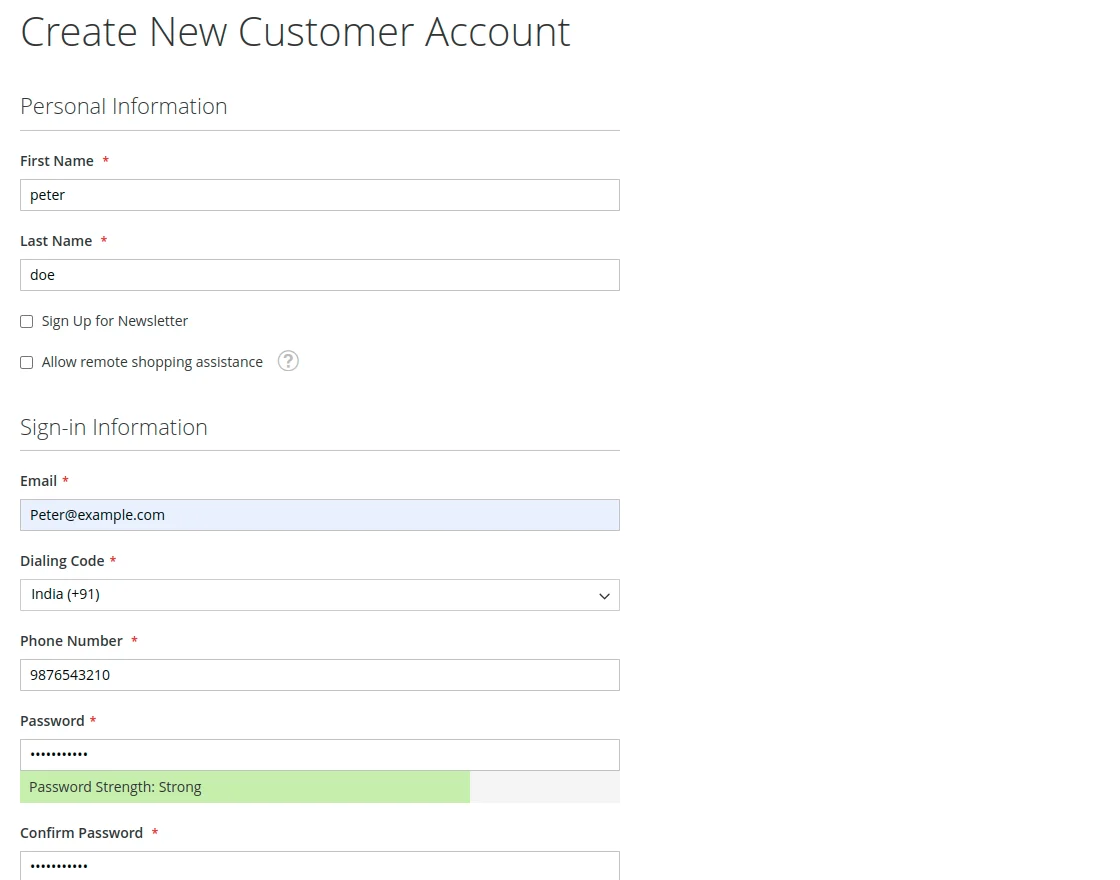
- A 2FA modal opens displaying a unique QR code generated specifically for this customer account.
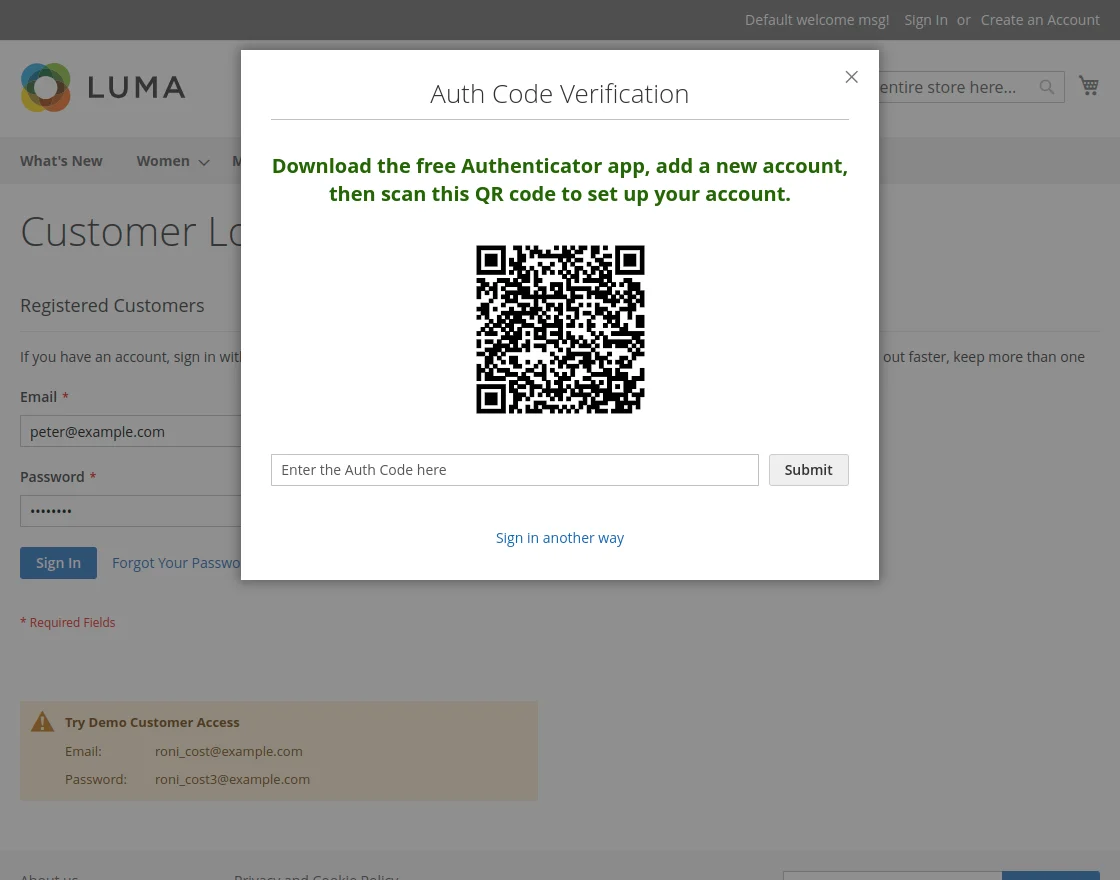
- The customer opens Google Authenticator (or any compatible app) on their smartphone and scans the QR code.
- The app generates an active 6-digit rolling passcode.
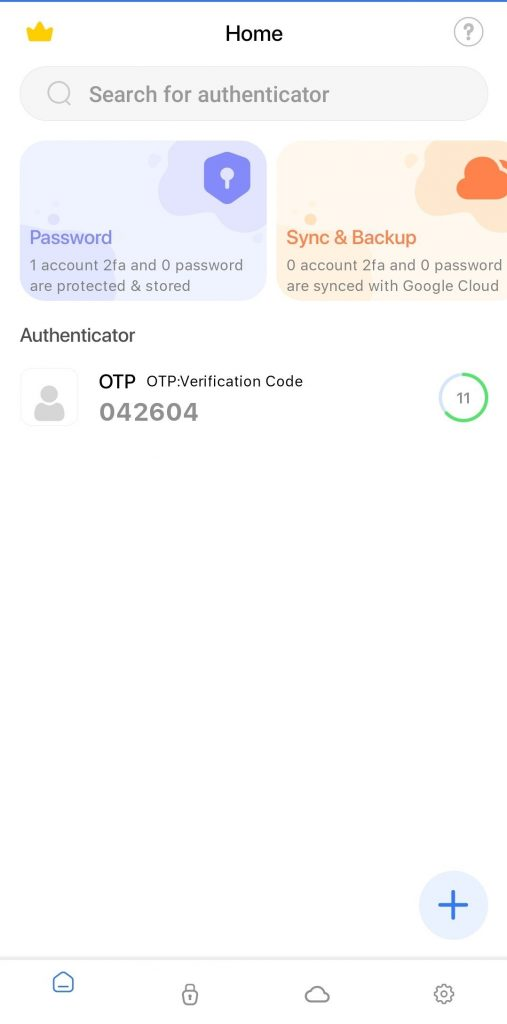
- The customer enters the 6-digit passcode into the verification field and clicks Submit.
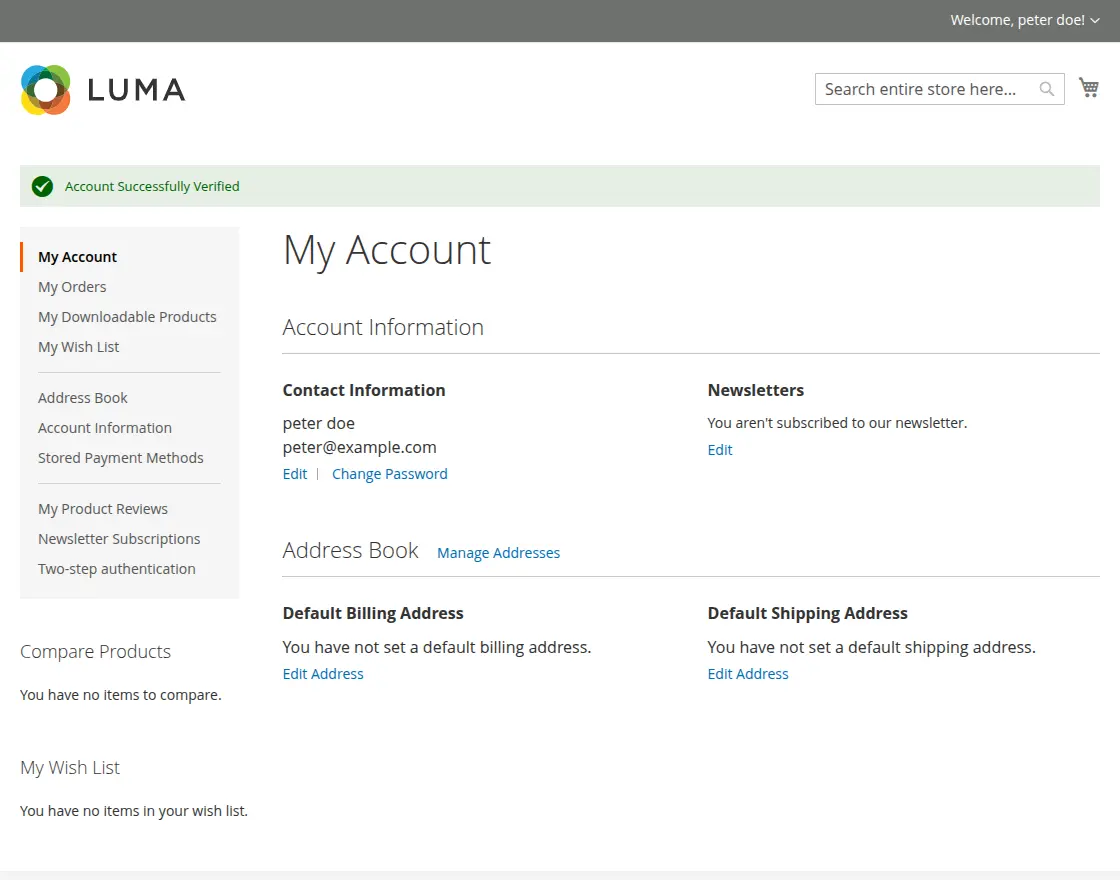
- Once validated, the authenticator seed is permanently bound to the customer account, and registration completes.
Workflow 2: Existing Customer Login
- The customer enters their email address and password on the storefront login page.
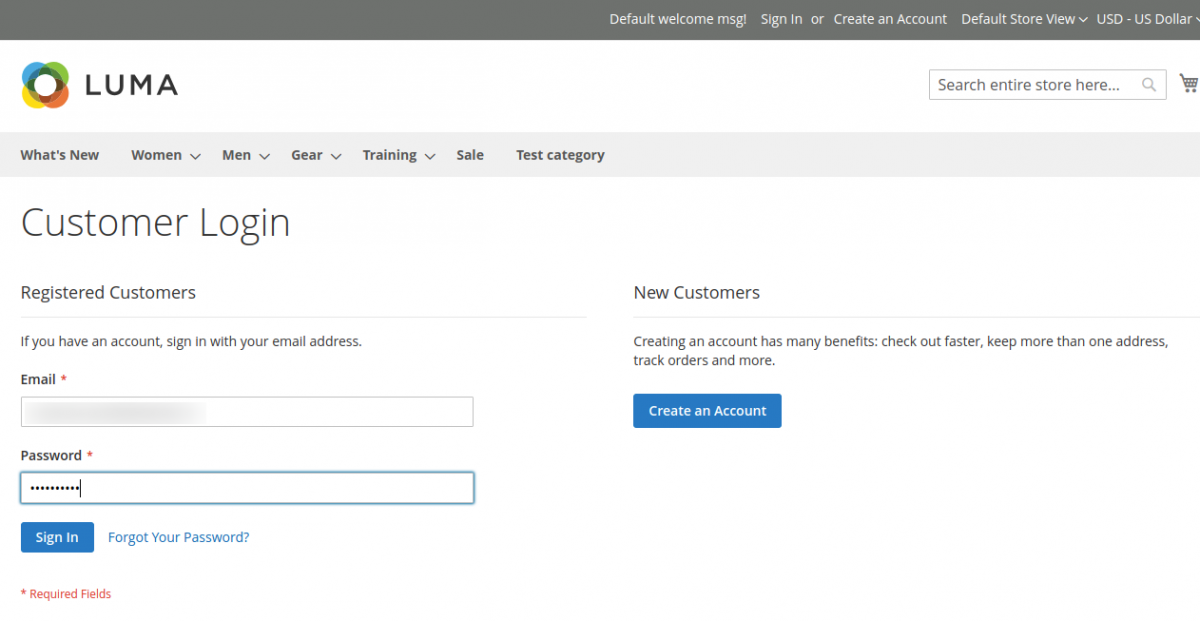
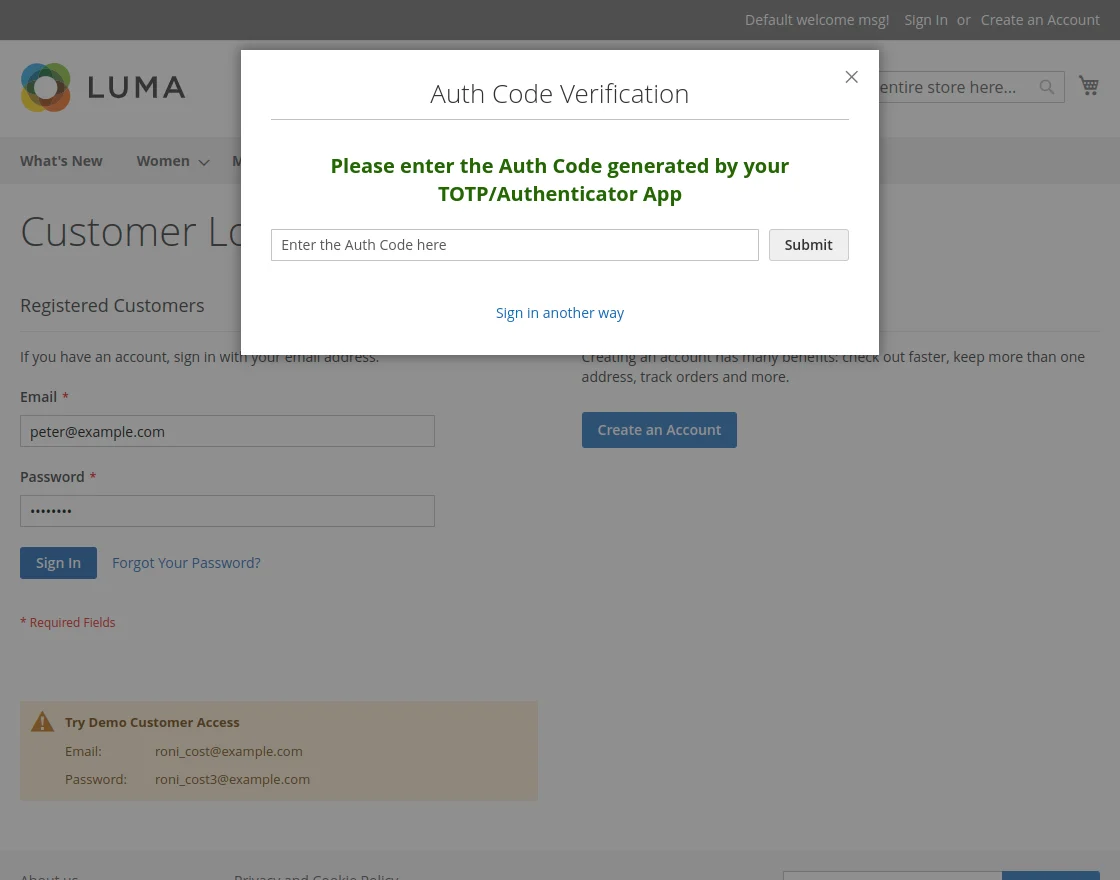
- The 2FA modal prompts for the 6-digit authenticator code.
- The customer opens their Authenticator App to retrieve the current dynamic code.
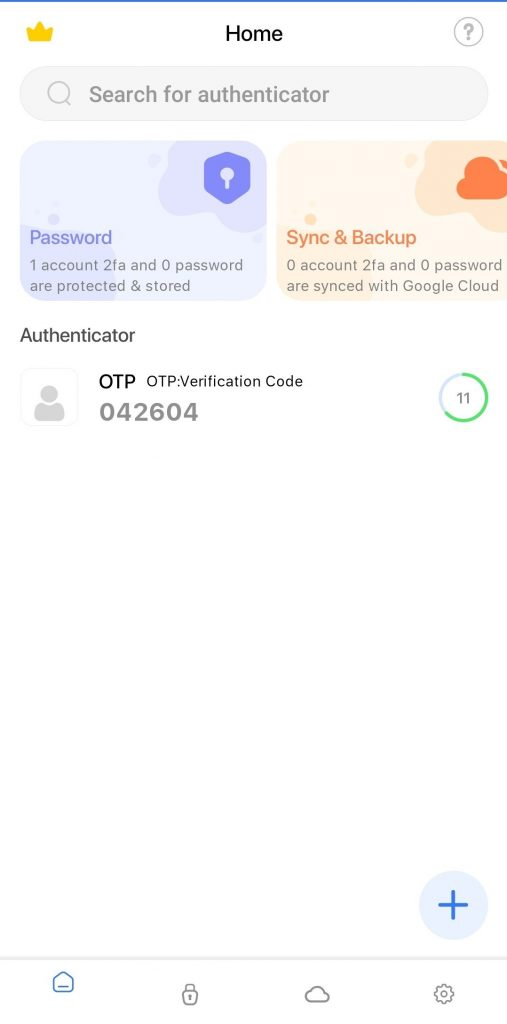
- The customer inputs the code on the storefront.
- The session is verified and the customer is logged in.
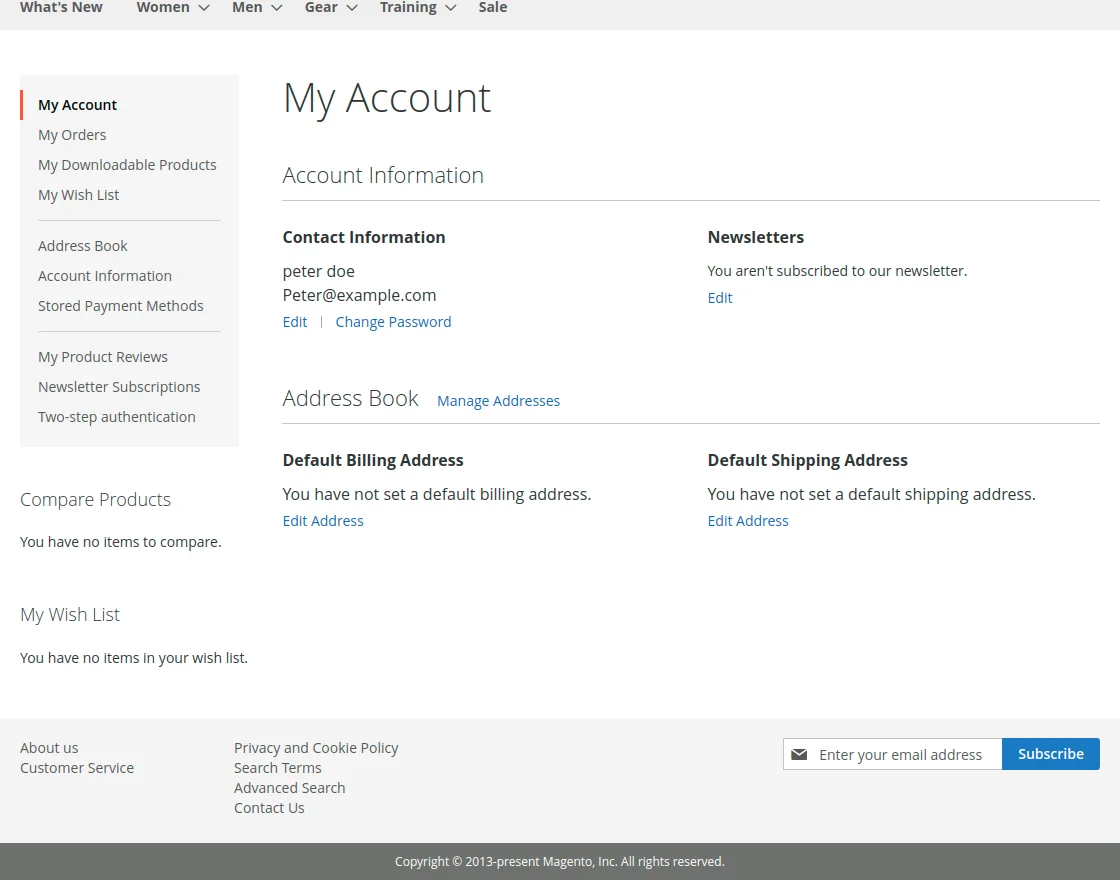
Re-linking / Updating Authenticator App
If a customer changes their phone or wants to re-enroll their authenticator app:
- The customer logs in and navigates to My Account > Two-Step Authentication in the dashboard left menu.
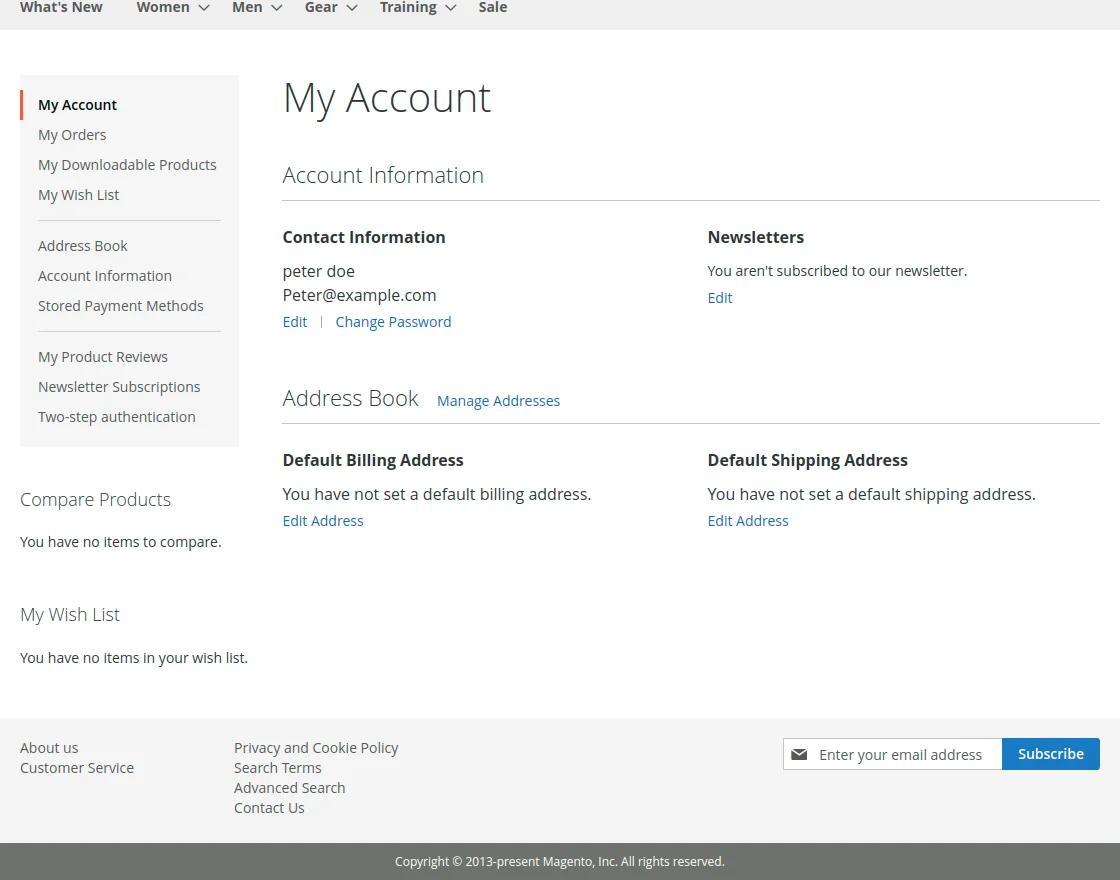
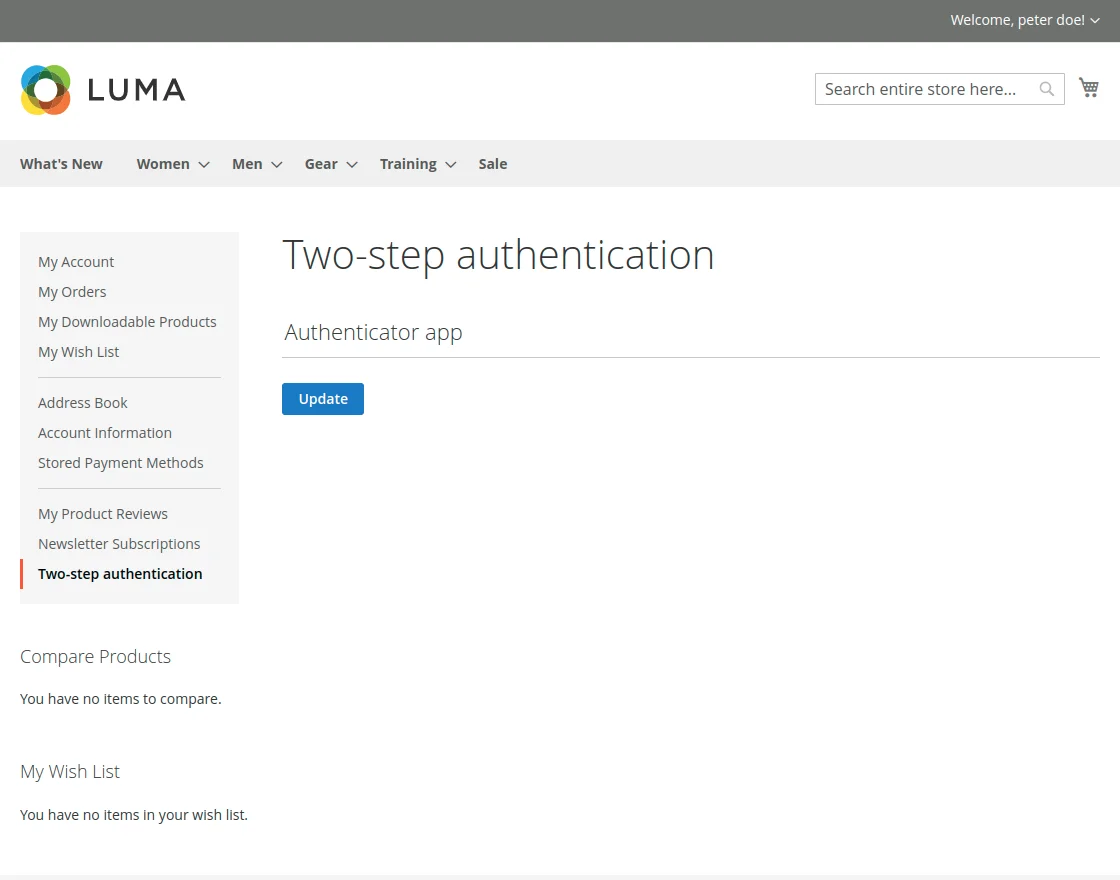
- Click the Update button.
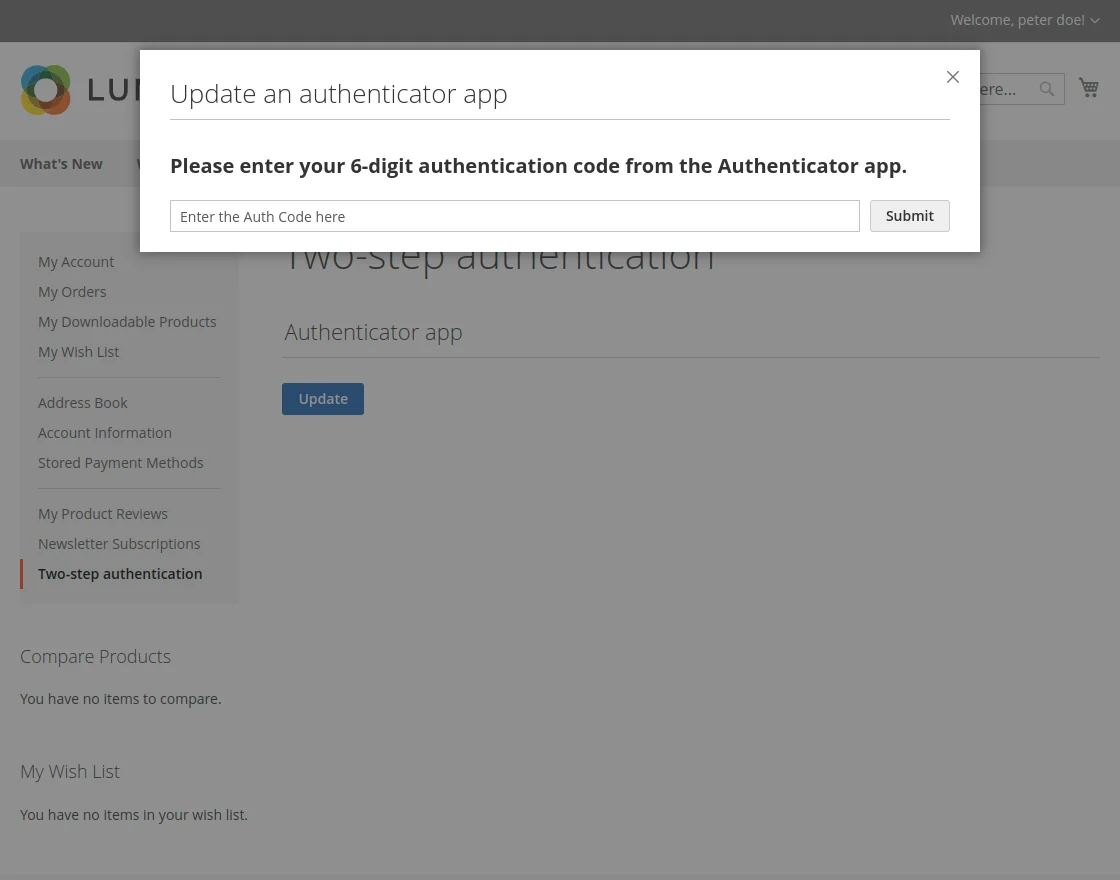
- For security, the customer must verify their identity by entering their current 6-digit code from the existing authenticator app.
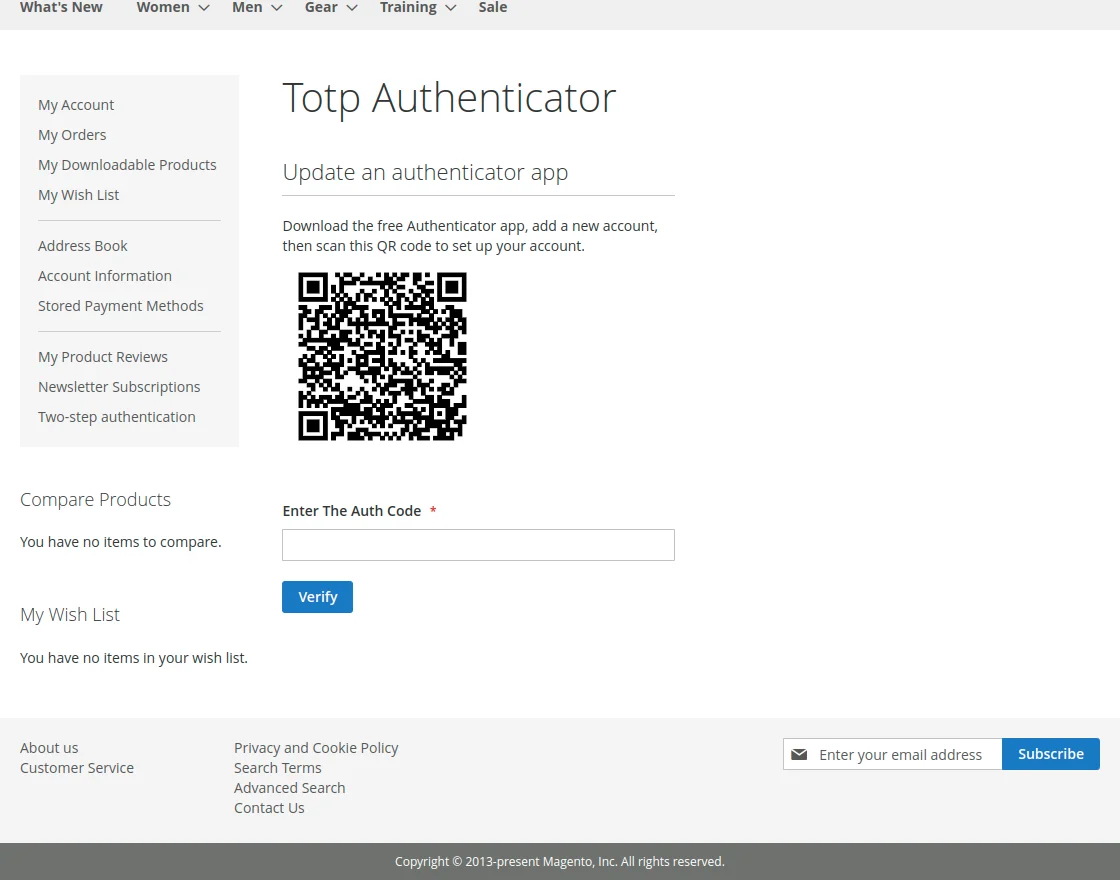
- Once confirmed, a new QR code is displayed.
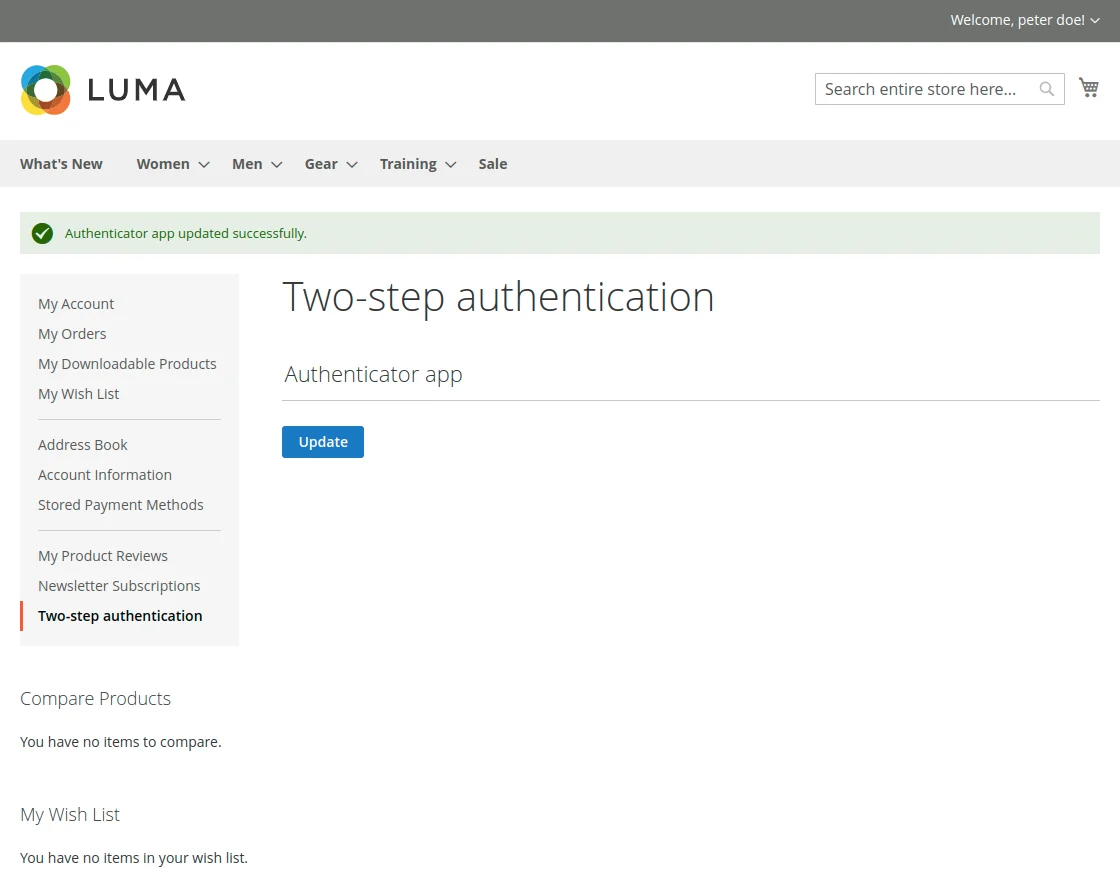
- The customer scans the new QR code with their new device to complete the transfer.