Mobile SMS Authentication (Twilio)
SMS-based authentication delivers high-reliability one-time passcodes (OTP) directly to customer mobile phones via Twilio.
Configuration Summary
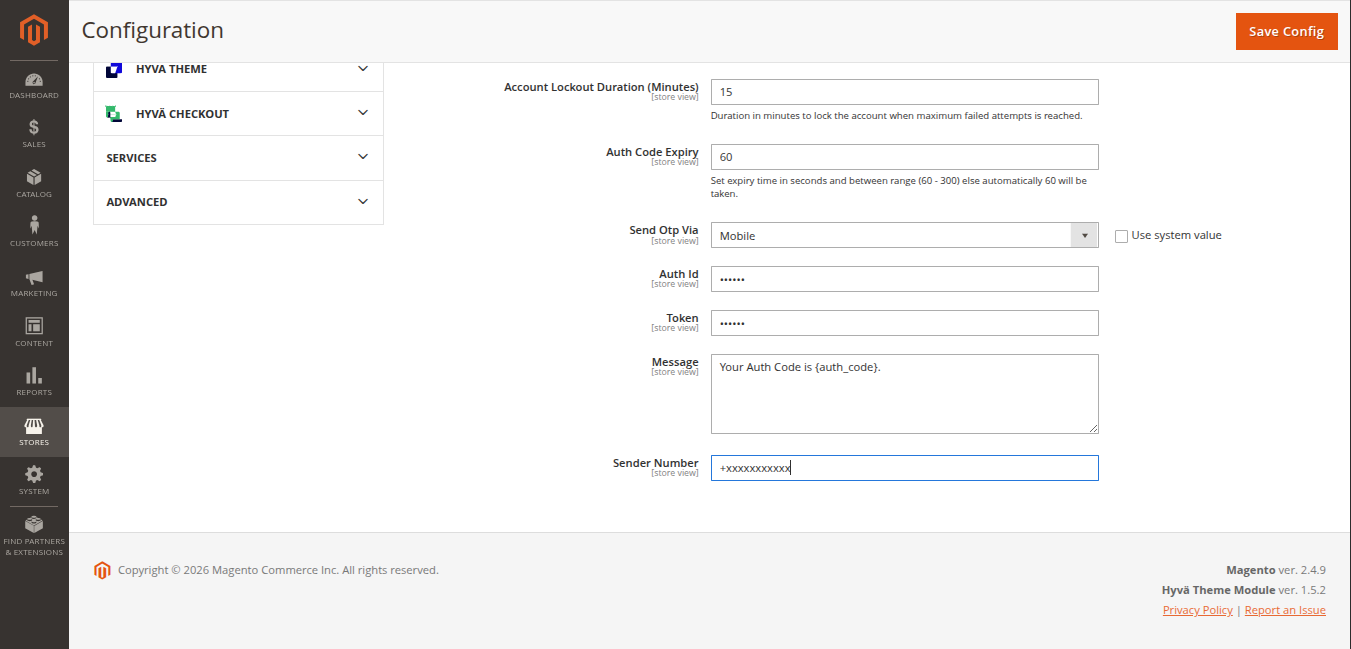
Under Stores > Configuration > Webkul > Two Factor Auth:
- Send Otp Via:
Mobile - Auth ID: Twilio Account SID
- Token: Twilio Auth Token
- Message:
Your Auth Code is {auth_code}. - Sender Number: Twilio phone number
Workflow 1: New Customer Registration
- The customer visits the store registration page and fills in their personal details, email address, password, and mobile number.
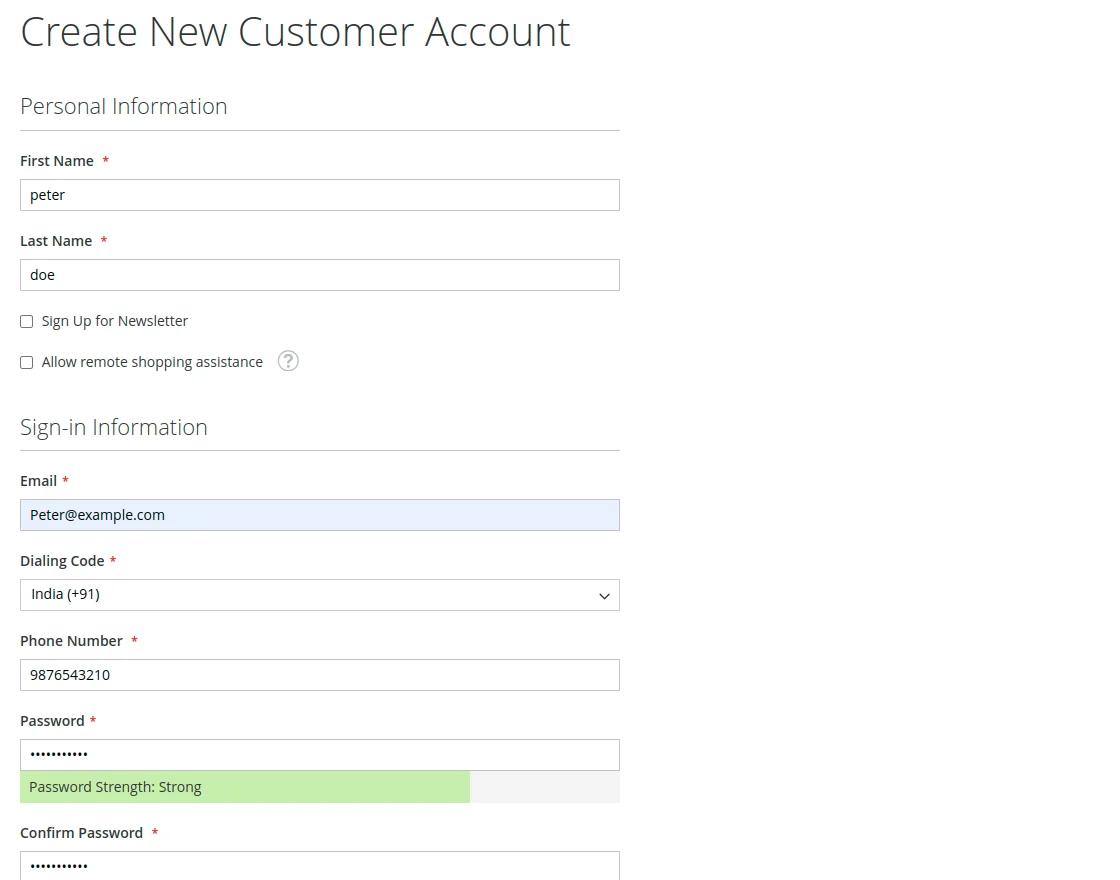
- Upon clicking Create an Account, an SMS OTP is dispatched to the provided phone number.
- A verification prompt appears on screen asking for the one-time code.
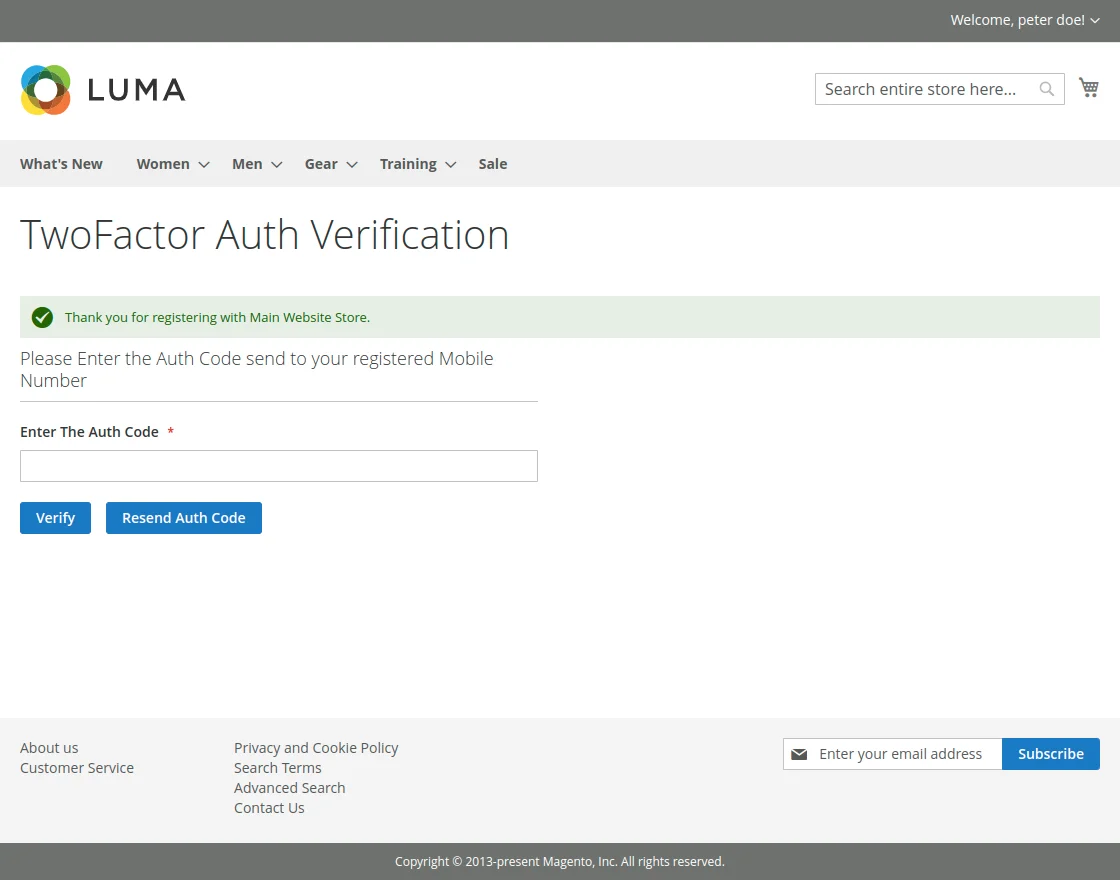
- The customer inputs the SMS OTP and clicks Confirm.
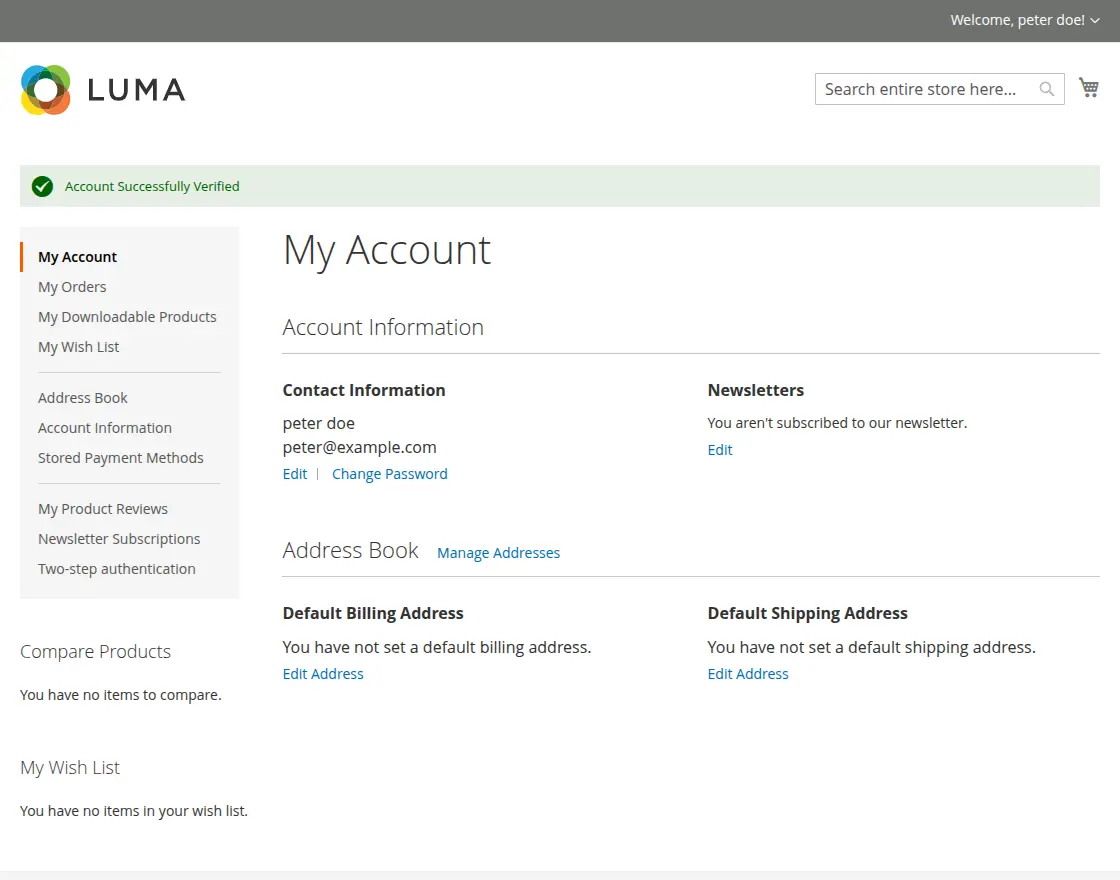
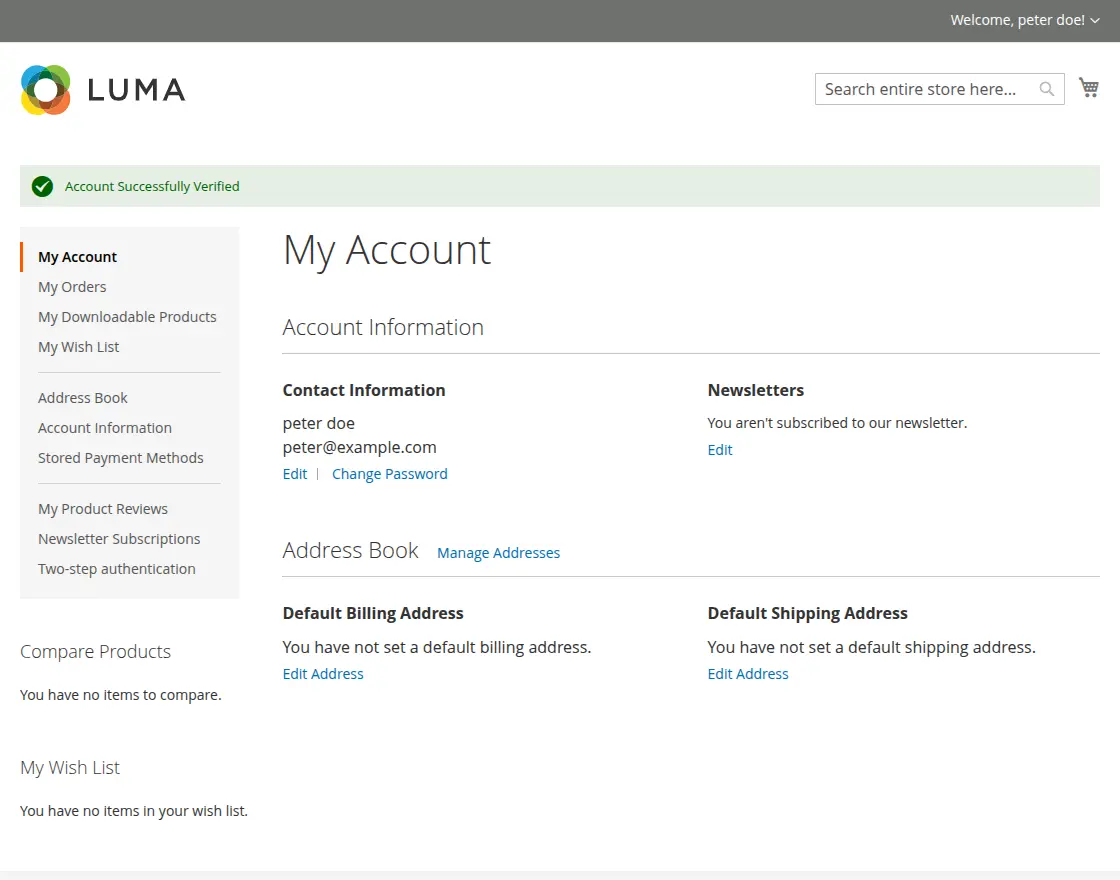
- Once validated, the customer account is created and the user is redirected to the dashboard.
Workflow 2: Existing Customer Login
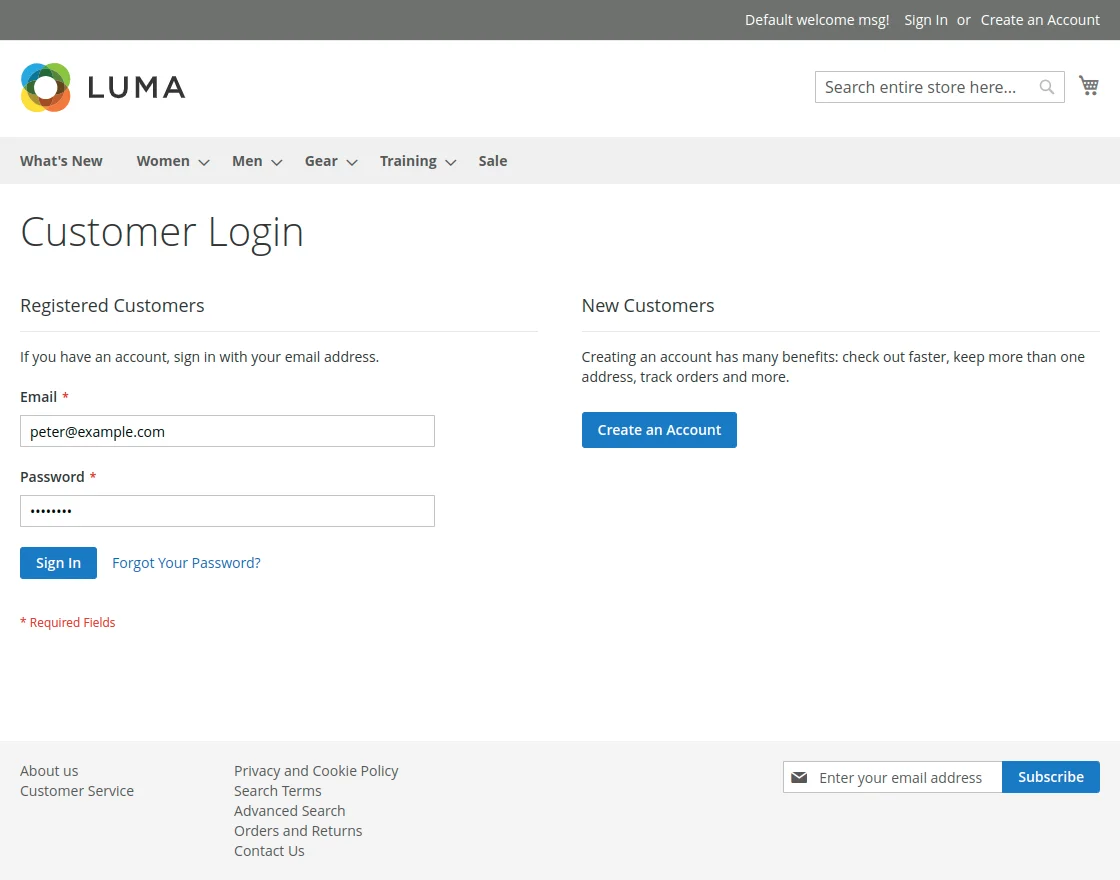
- The customer enters their registered email and password on the sign-in page and clicks Sign In.
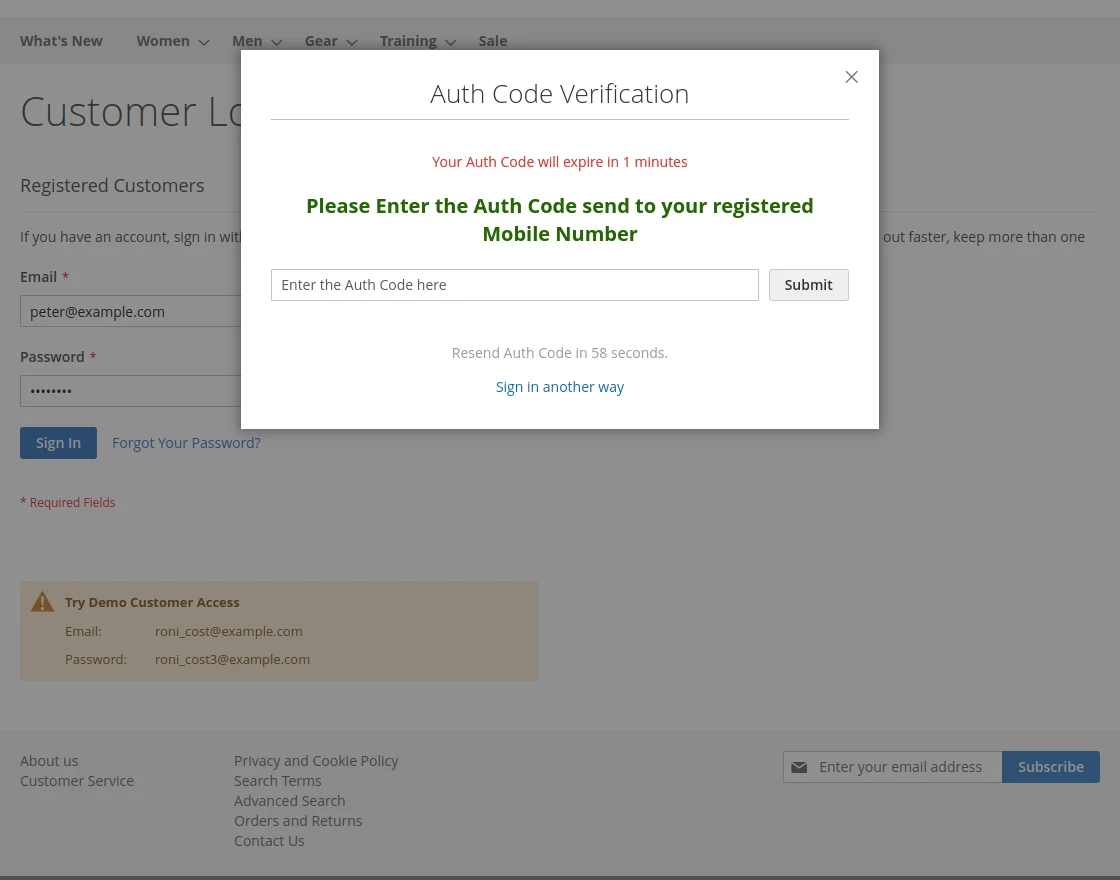
- The 2FA modal opens immediately, prompting for the SMS code sent to their registered mobile phone.
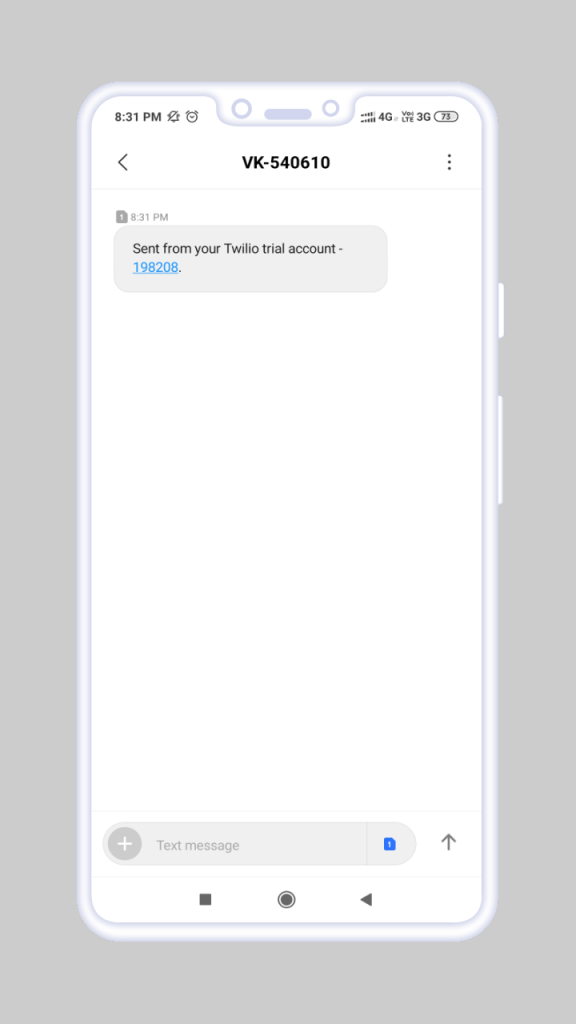
- The customer receives the SMS notification containing the auth code on their mobile device.
- The customer enters the code (supports direct typing or copy-pasting) and submits.
- The session is verified and the customer is logged in.