
Browser Web Push Notification (Firebase FCM)
Browser push notifications deliver real-time 2FA codes directly to shoppers' desktop and mobile browsers via Google Firebase Cloud Messaging (FCM).
Configuration
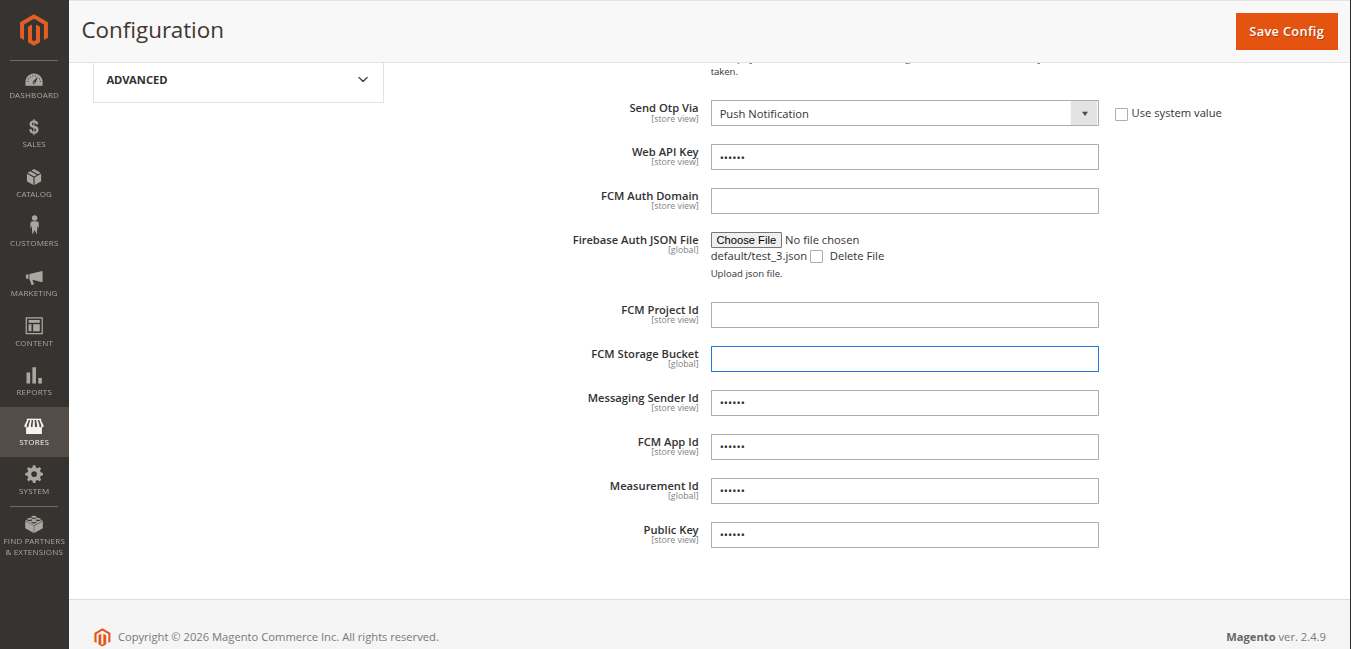
In Stores > Configuration > Webkul > Two Factor Auth:
- Set Send Otp Via to
Push Notification. - Enter your Firebase Web API Key, Project ID, Sender ID, App ID, VAPID Public Key, and upload your Service Account JSON file.
Workflow 1: New Customer Registration
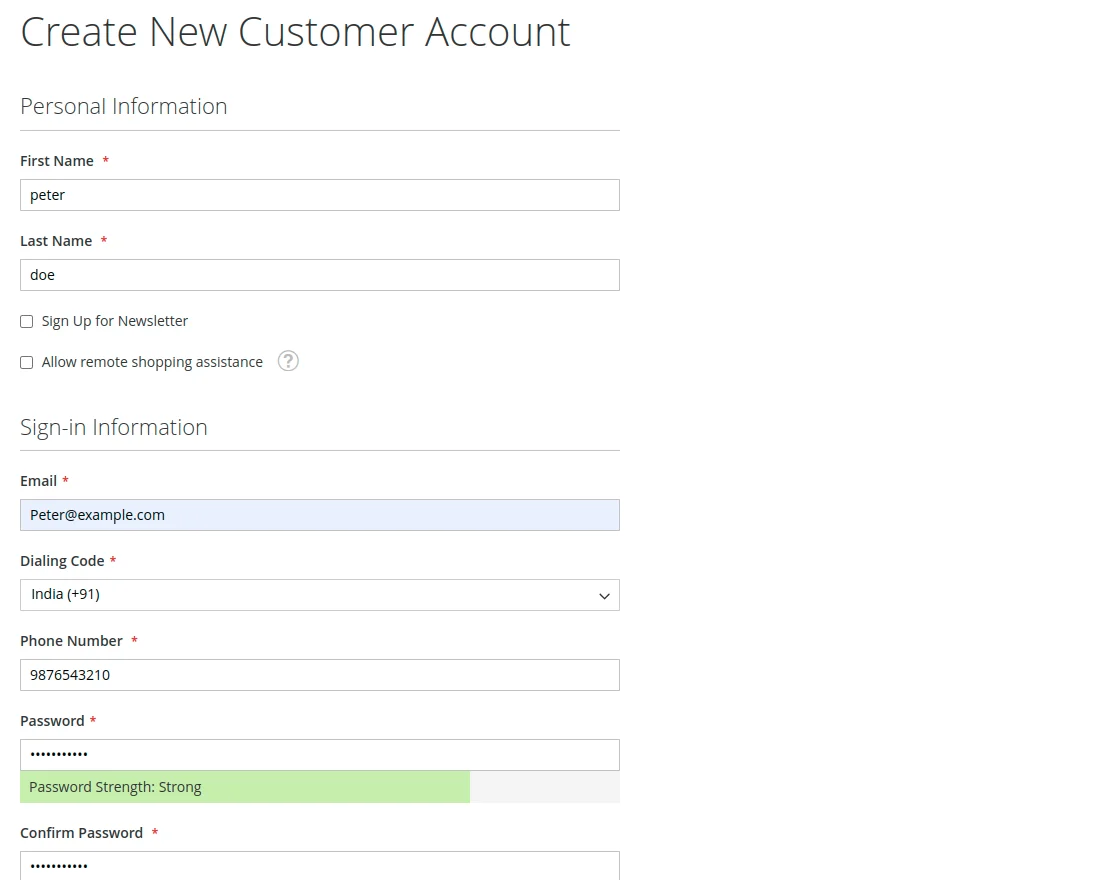
- The customer enters their registration details on the storefront.
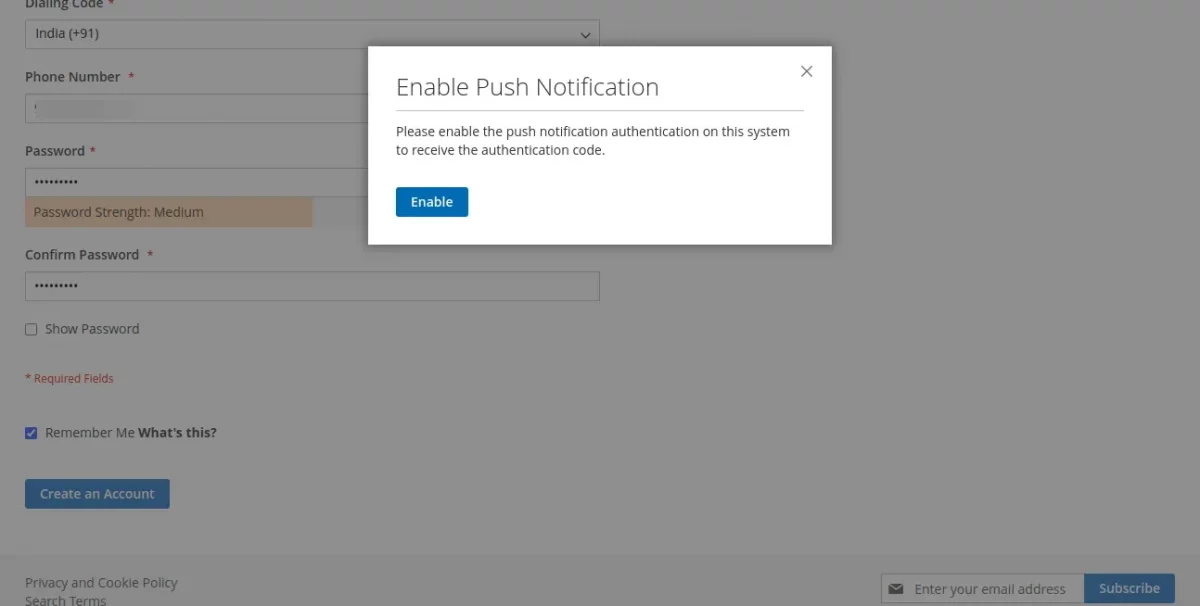
- The browser presents the native permission prompt asking the customer to allow notifications for your store domain. The customer clicks Allow.
- A push notification with the dynamic auth code is triggered immediately on the customer's desktop or mobile screen.
- The customer enters the auth code into the on-screen 2FA popup.
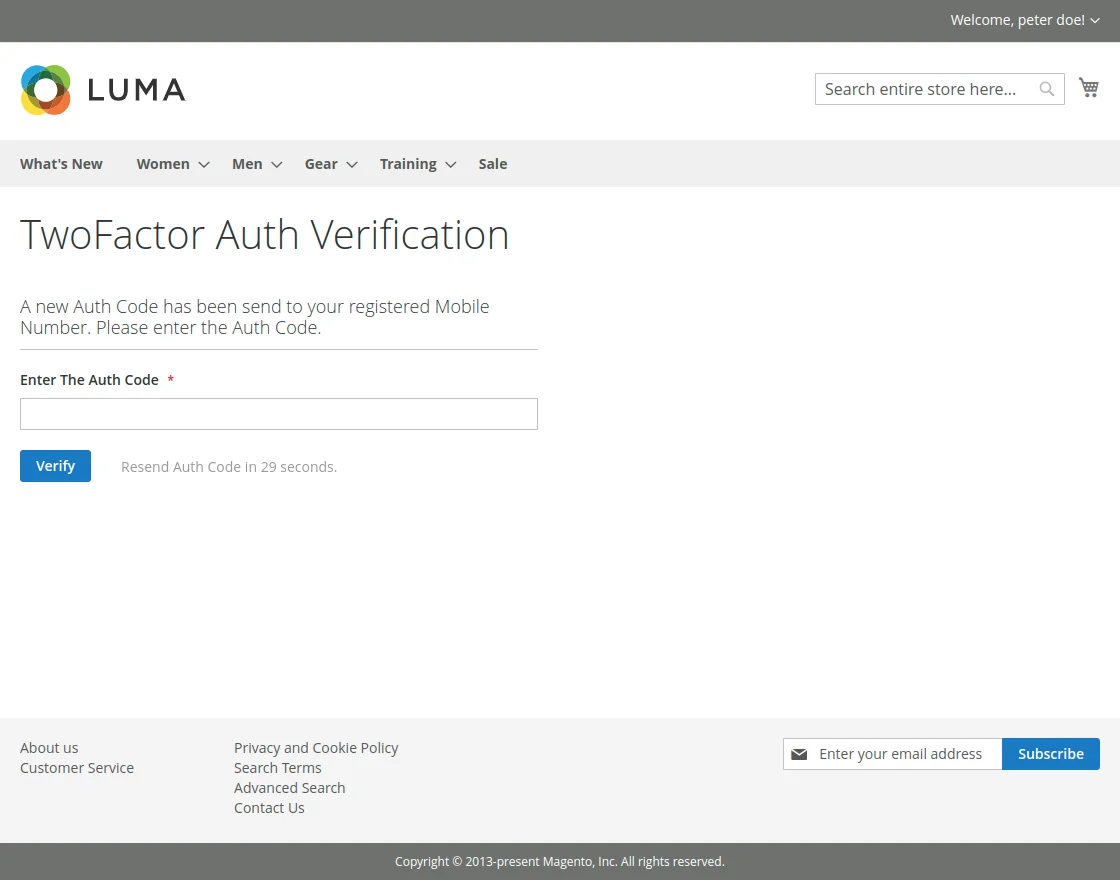
- Upon validation, account creation is completed.
Workflow 2: Existing Customer Login
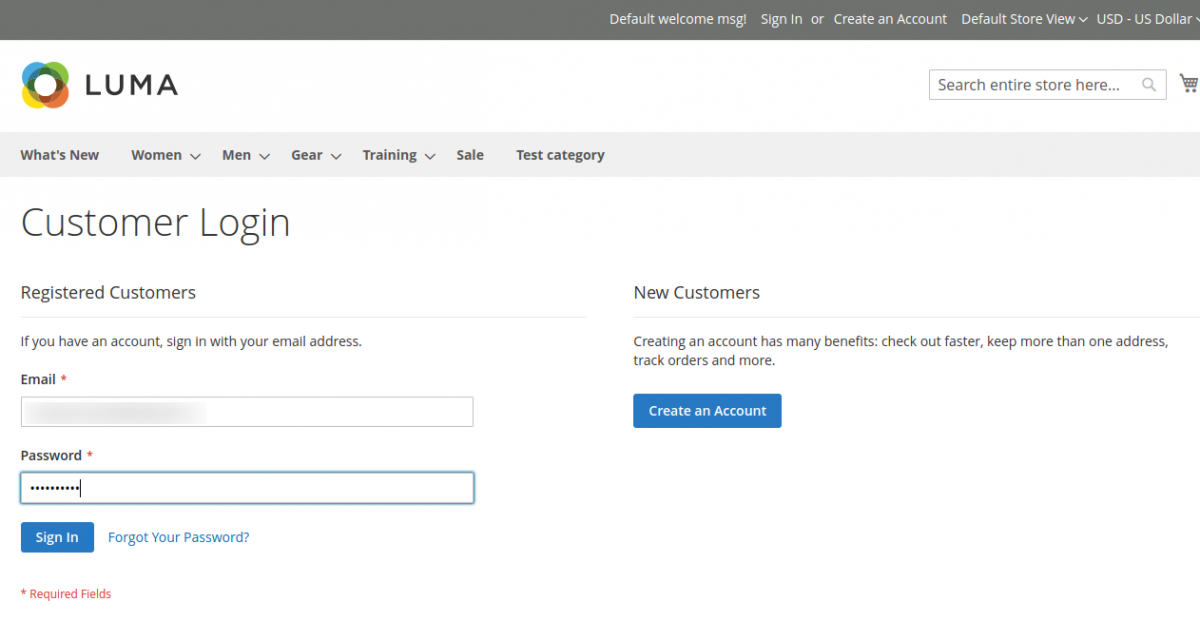
- The customer enters their email address and password on the sign-in page.
- A push notification pop-up appears in the customer's browser containing the one-time authentication code.
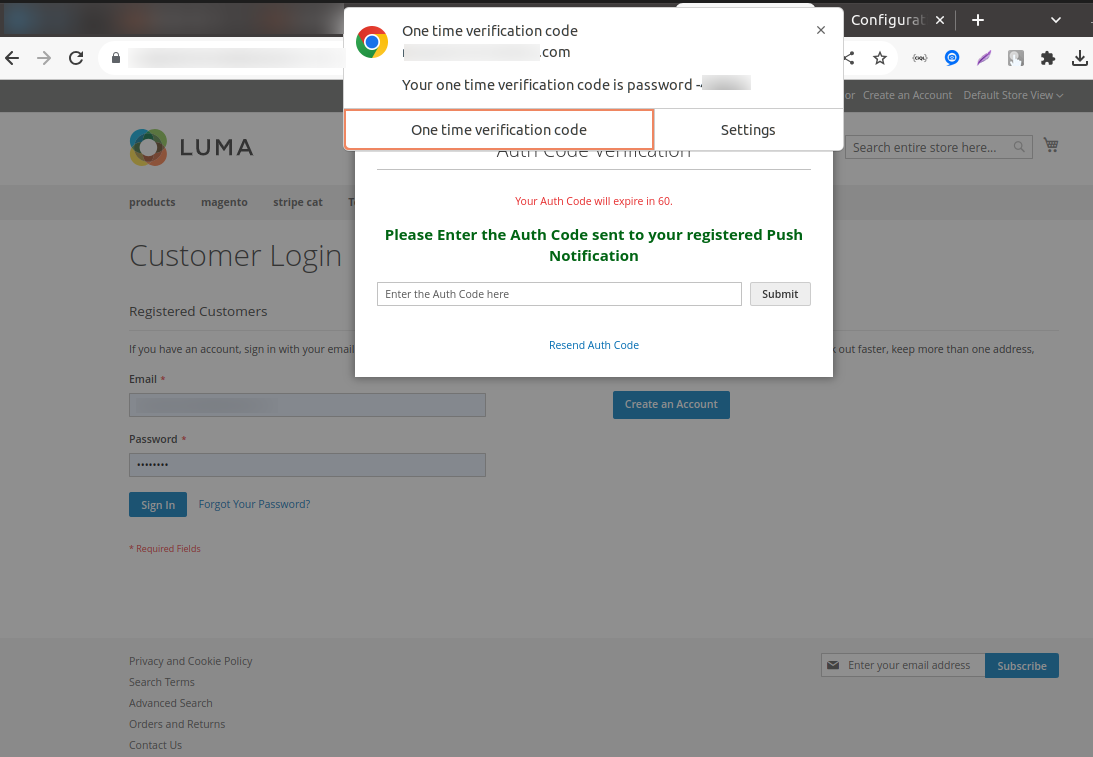
- The customer types or pastes the received code into the login 2FA modal to access their account.