
Uploading Simple Products
Simple products can be mass uploaded using CSV, XLS, or XML file formats.
Step-by-Step Upload Workflow
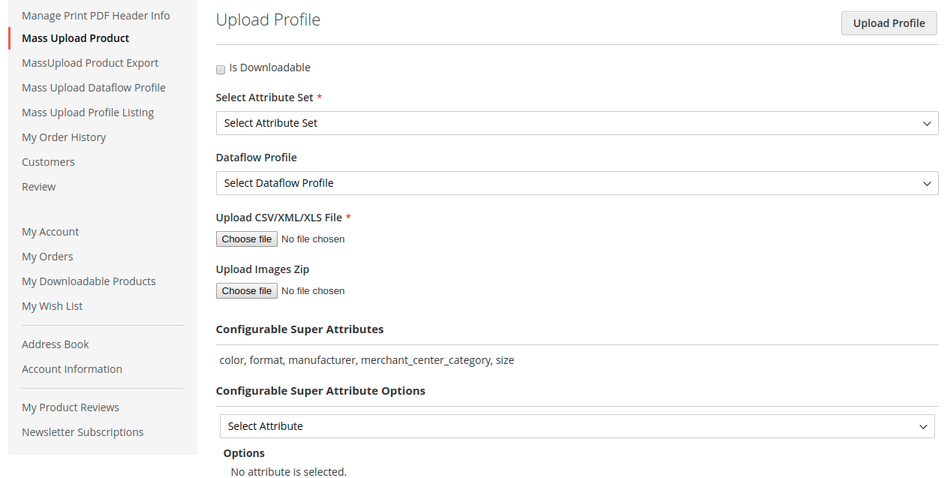
- Go to Mass Upload Product in the seller panel.
- Select the Attribute Set.
- Choose the file type (CSV, XLS, or XML) and select the file.
- Attach the images ZIP file (or include publicly hosted image URLs directly in the file).
- Click Upload Profile.
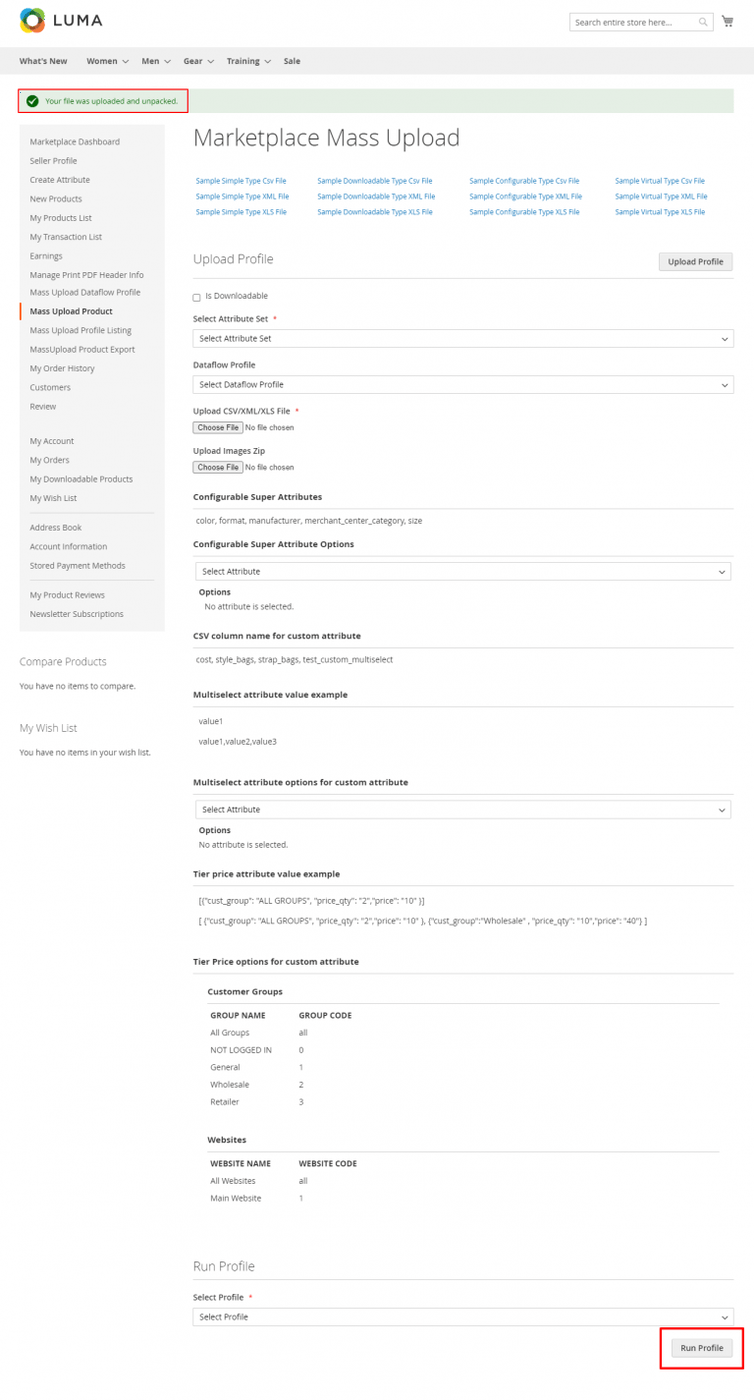
- A confirmation banner will state: "Your file was uploaded and unpacked".
- Select the uploaded profile from the profile list and click Run Profile.
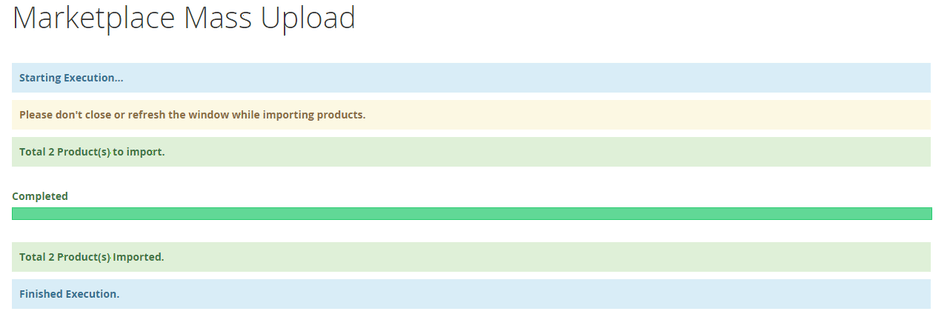
- During profile execution, a progress bar displays execution status per product batch. When finished, a success message appears.
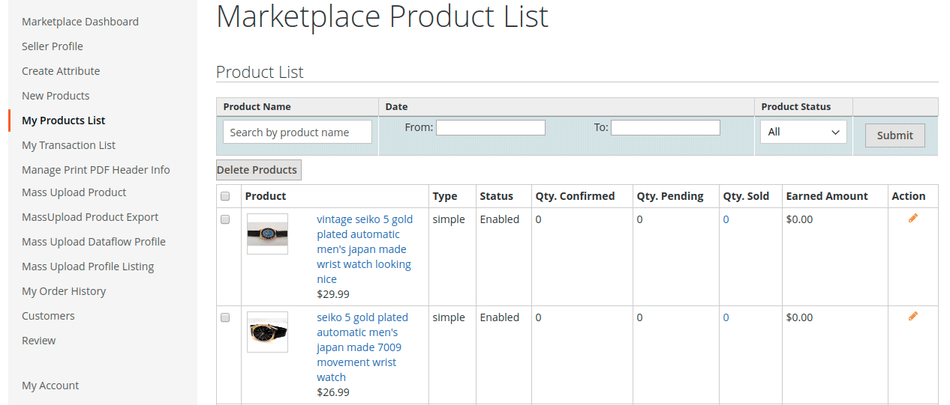
- Navigating to My Product List displays all newly created simple products.
CSV File Structure
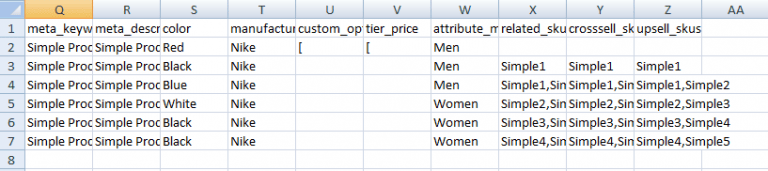
The simple product import file must contain required Magento product headers: sku, name, price, description, short_description, qty, is_in_stock, category, image, small_image, thumbnail, tax_class_id, etc.

External Image URLs
You can use publicly hosted image URLs (e.g. https://example.com/images/product.jpg) directly in the image, small_image, and thumbnail columns of your file without attaching an image ZIP file.
Category & Subcategory Assignment Syntax
Products can be automatically assigned to single, nested, or multiple categories during import.
Example 1: CSV Delimiter Syntax

- Assign to Main Category: Enter the category name:
Electronics - Assign to 1st Sub-category: Use
>>separator:Electronics>>Cameras - Assign to 2nd Sub-category:
Electronics>>Computers - Assign to Multiple Sub-categories: Use
,separator:Electronics>>Computers,Electronics>>Cameras - Assign to Categories across Multiple Branches:
Electronics>>Computers,Footwear>>Stilettos
Example 2: XML Delimiter Syntax
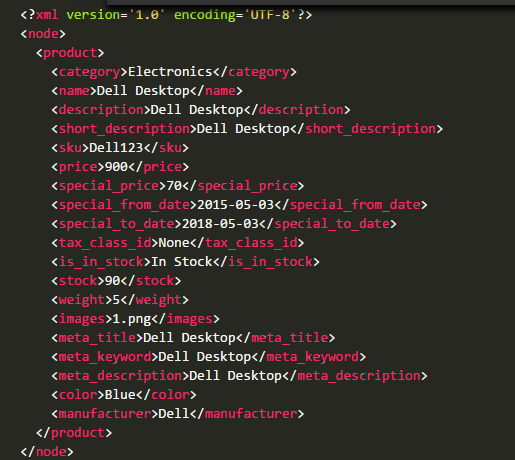
<product>
  <sku">PROD001</sku>
  <name>Digital Camera</name>
  <category>Electronics>>Cameras</category>
</product>