
Custom Quotation Attributes
Different procurement agreements frequently necessitate specific legal terms, delivery notes, shipping terms, or inspection clauses. The Manage Attributes tool empowers administrators to create custom quotation fields without writing custom code.
Accessing Manage Attributes
To view and manage custom quotation fields:
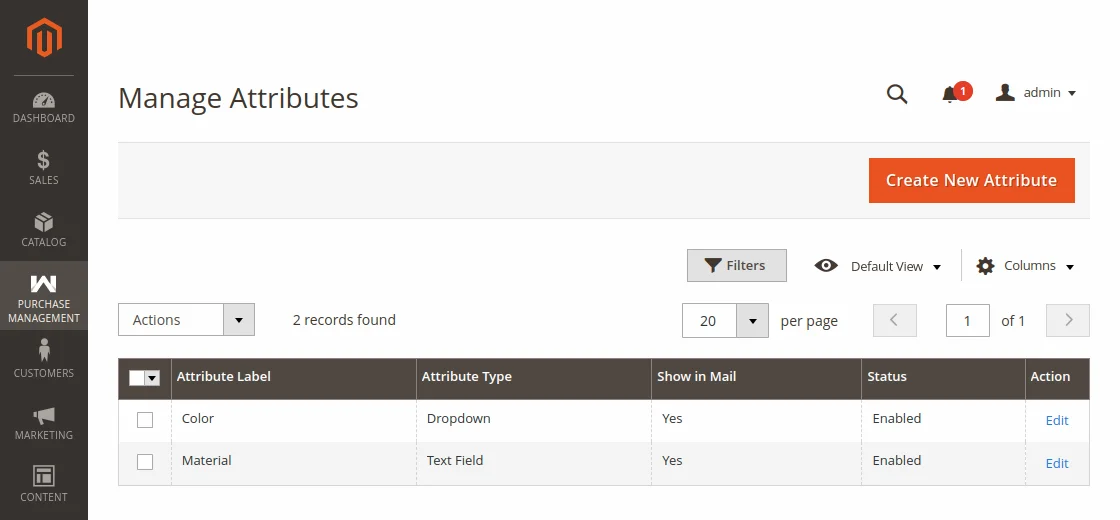
- Navigate to Purchase Management > Manage Attributes.
- The attributes grid displays:
- Attribute ID
- Attribute Code
- Admin Label
- Frontend Input Type
- Show in Email (Yes / No)
- Status (Enabled / Disabled)
Creating a New Attribute
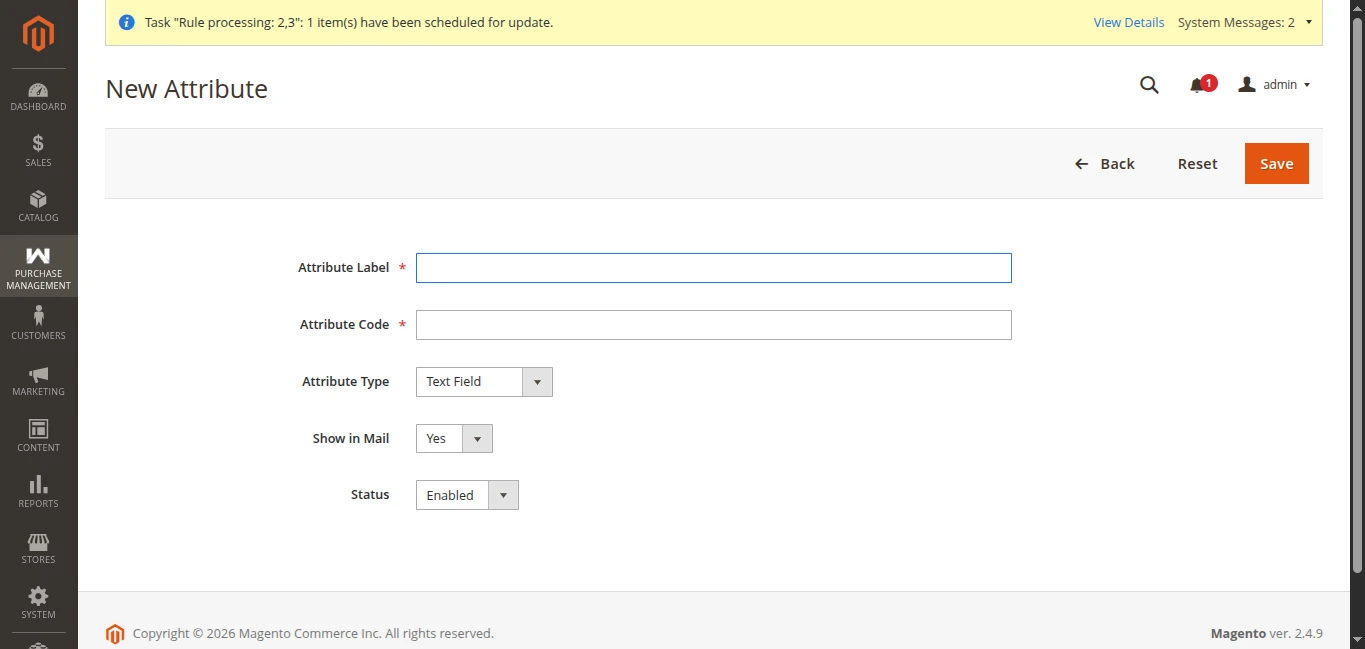
Click Add New Attribute in the upper right corner to configure a new field.
Field Configuration Settings
| Property | Description |
|---|---|
Attribute Label Required | Admin & RFQ Display Label The human-readable label shown to store managers in the Magento admin panel under the Additional Attributes section during quotation creation and editing, as well as on vendor RFQ documents and email notifications. Input: Text (e.g., Payment Terms, Shipping Carrier, Port of Delivery, Quality Inspection Required). |
Attribute Code Required | Internal Technical Identifier The unique system key used to store and reference the field in the database and quotation records. Formatting Rules: Must be unique and written in lowercase snake_case using only alphanumeric characters and underscores ([a-z0-9_]) without spaces or special symbols (e.g., payment_terms, shipping_carrier, inspection_clause).(Note: Once the attribute is saved, the Attribute Code is locked and cannot be edited). |
Attribute Type Required | Input Control & Data Format Defines the type of form control rendered in the quotation interface: • Text Field: Single-line alphanumeric input for short values, tracking IDs, or brief terms. • Text Area: Multi-line expandable text box suited for long paragraphs, special delivery instructions, or contract clauses. • Date: Interactive calendar date-picker allowing buyers to specify target delivery or inspection dates. • Dropdown / Select: Single-choice dropdown list populated from predefined options. Selecting this activates the Manage Options (Values of Your Attribute) section below. • Multiple Select: Multi-selection box allowing buyers to choose one or more predefined options simultaneously. Also activates the Manage Options section below. |
Show in Mail Required | Supplier Email Visibility Determines whether this attribute and its assigned value are included in outgoing vendor email templates (Request for Quotations and Purchase Order notifications): • Yes: Injects the attribute label and its selected/entered value into the RFQ/PO emails sent to suppliers. • No: Keeps the attribute strictly internal for backend administration and hides it from supplier-facing emails. |
Status Required | Quotation Form Availability Controls whether this attribute is active across quotation workflows: • Enabled: Activates the attribute so it appears under Additional Attributes when creating or editing quotations. • Disabled: Hides the attribute from new quotation forms without altering or deleting values saved on existing historical quotations or purchase orders. |
Managing Attribute Options (Dropdown & Multiple Select)
When configuring selectable types such as Multiple Select or Dropdown, the Manage Options (Values of Your Attribute) section appears below the main options:
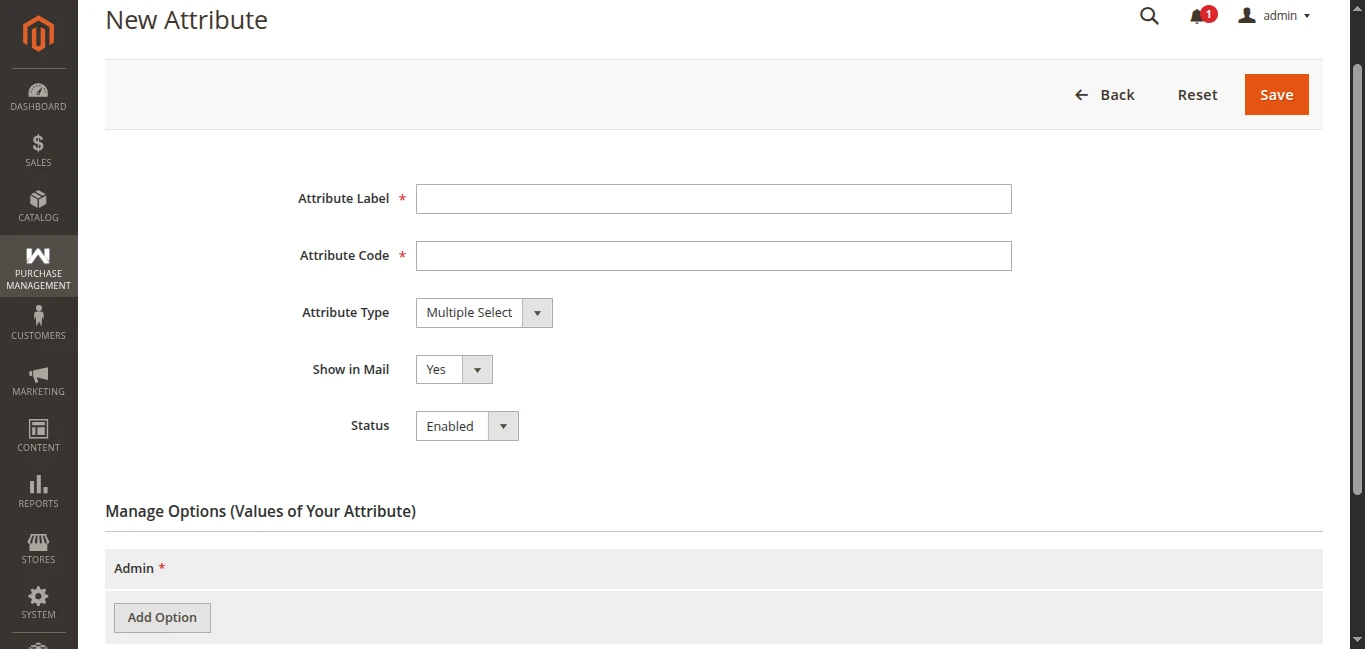
- Click the Add Option button to insert choice rows.
- In the Admin column, input the label values (e.g., Option 1, Option 2, FOB, CIF, EXW).
- If necessary, delete any unnecessary rows using the Delete button next to the row.
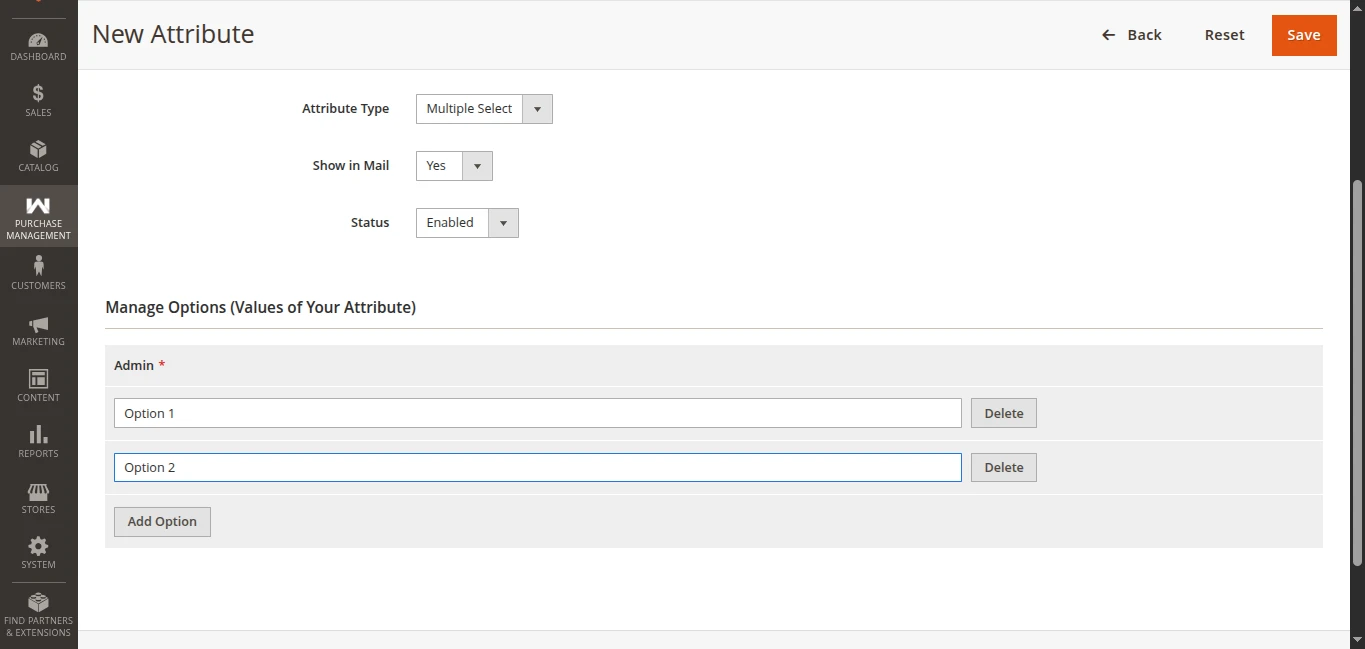
- Click the orange Save button in the top right to store the attribute.
Utilizing Attributes During Quotation Creation
Once created, custom attributes appear dynamically in the quotation generation workflow. Store managers can specify terms or select predefined options for each quotation, ensuring all stipulations are accurately communicated to the vendor.