
Customer Shipments & Order Fulfillment
The Customer Shipments / Fulfillment feature bridges procurement with sales fulfillment. When store orders are fulfilled via replenishment purchase orders (such as back-to-back procurement, just-in-time inventory, or drop-shipment workflows), this module enables store operations teams to track, schedule, and complete shipments directly to end customers.
Accessing Customer Order Fulfillment
To view customer consignments and fulfillment statuses:
- In the Magento Admin Panel, navigate to Purchase Management > Customer Shipments / Fulfillment.
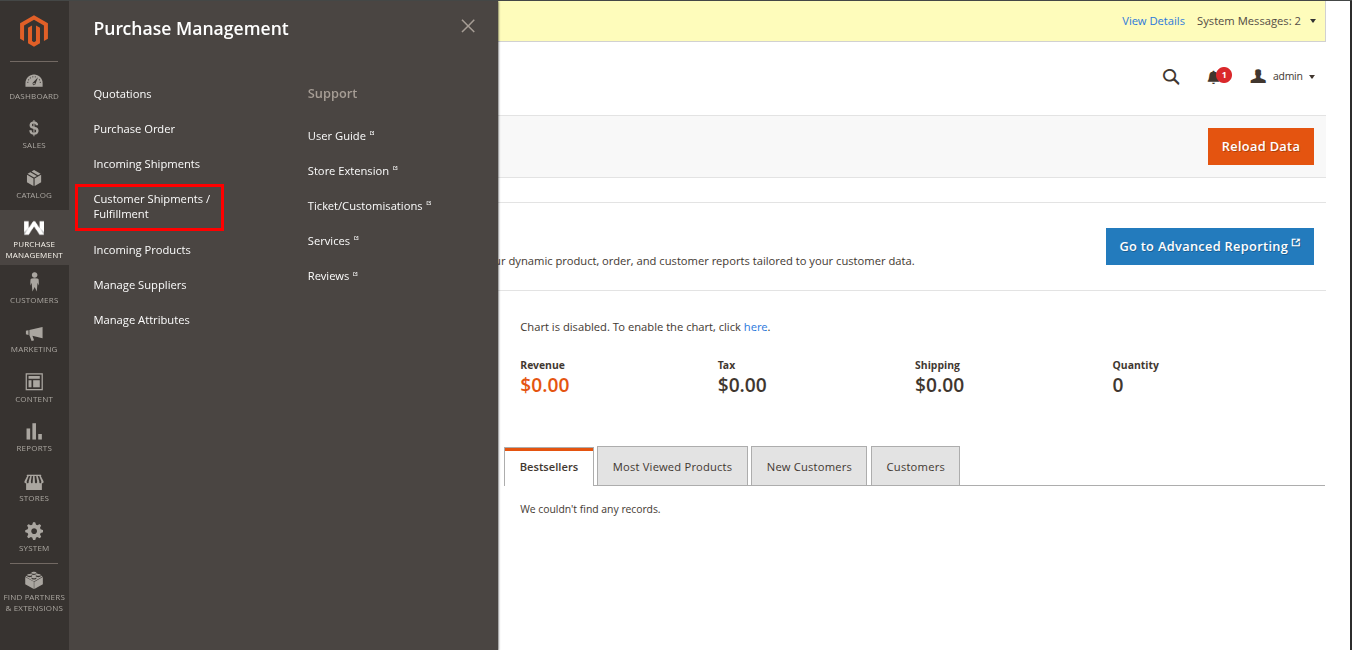
Customer Order Fulfillment Grid
The Customer Order Fulfillment grid lists all scheduled customer deliveries linked to purchase orders:
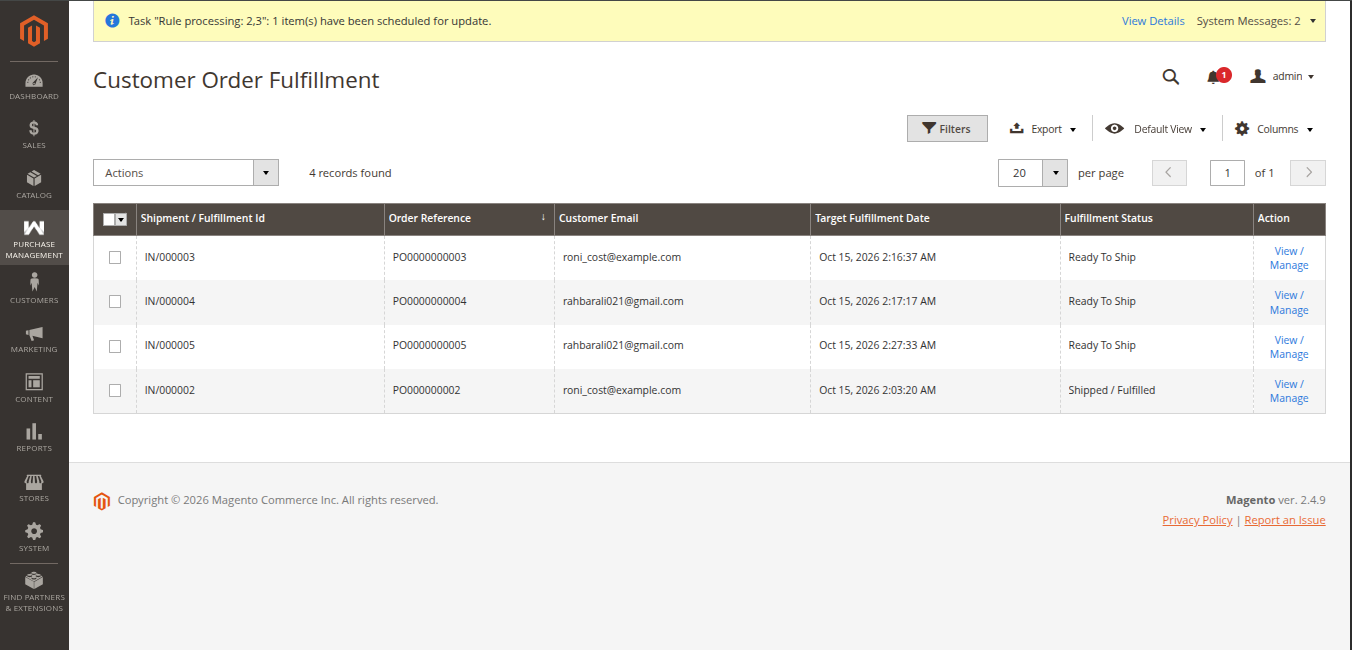
Grid Fields & Descriptions
| Field | Description |
|---|---|
| Shipment / Fulfillment Id | Sequential increment identifier for the fulfillment record (e.g. IN/000012). |
| Order Reference | Associated Purchase Order ID (e.g. PO000000015) supplying the items. |
| Customer Email | Recipient customer's registered email address. |
| Target Fulfillment Date | Estimated or scheduled delivery / dispatch timestamp. |
| Fulfillment Status | Current status: Ready To Ship, Shipped / Fulfilled, or Pending. |
| Action | Click View / Manage to view delivery details or initiate shipping. |
Mass Actions
Using the Actions dropdown at the top-left of the table, administrators can execute batch operations:
- Delete: Remove unfulfilled or voided shipment records.
Order Fulfillment & Dispatch Details
Click View / Manage on any record to open the detailed fulfillment management screen:
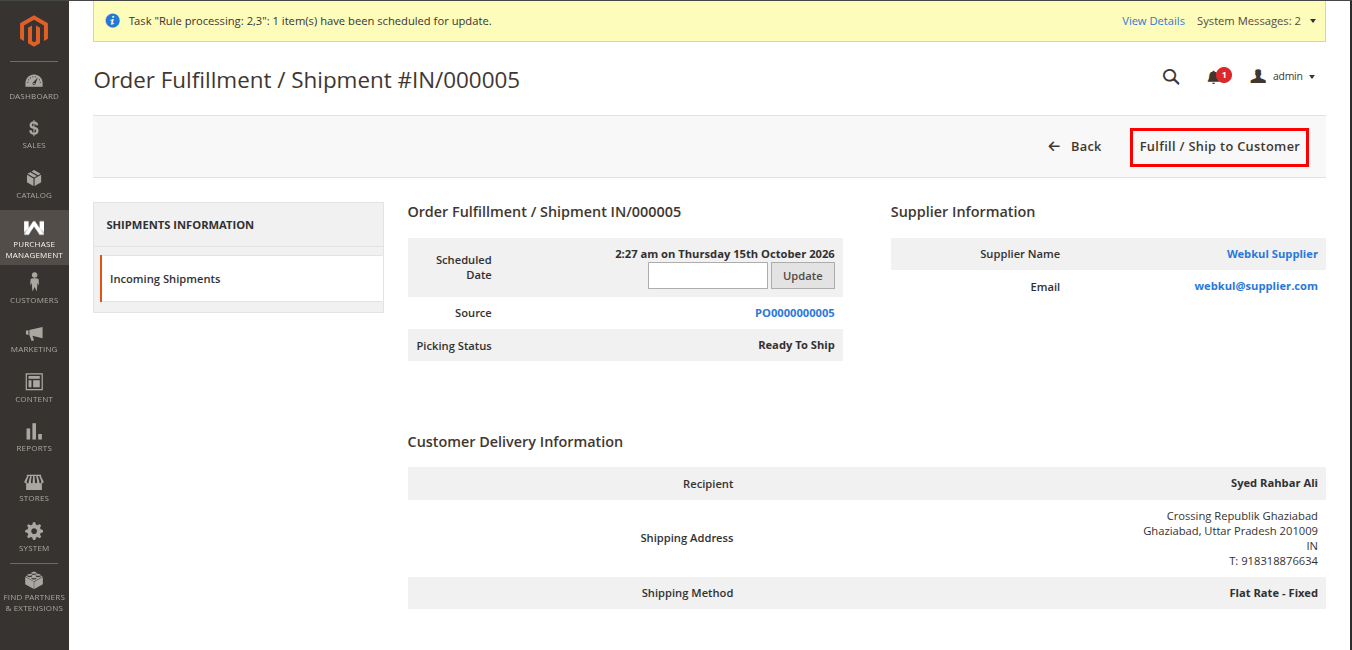
The fulfillment view organizes shipment information into three clear panels:
1. Order Fulfillment / Shipment Header
- Shipment Number: Unique increment identifier (e.g.,
#IN/000012). - Scheduled Date: Date and time scheduled for shipment dispatch. Warehouse managers can update this date using the date-picker and clicking Update.
- Source: Link back to the originating Purchase Order (
PO000000015). - Picking / Fulfillment Status: Current state (e.g.,
Ready To Ship).
2. Supplier Information
- Supplier Name: Vendor supplying or dropshipping the goods (e.g., Webkul Supplier).
- Supplier Email: Vendor's contact email.
3. Customer Delivery Information
- Recipient: Customer's full name.
- Shipping Address: Customer's complete street, city, state, postal code, and contact telephone number.
- Shipping Method: Selected shipping method and rate (e.g., Flat Rate - Fixed).
Fulfilling & Shipping to Customer
When the merchandise has been received from the supplier and inspected, or when the supplier confirms dispatch:
- Open the fulfillment order record.
- Review the customer delivery address and shipping method.
- Click the Fulfill / Ship to Customer button in the top-right action bar.
- A Fulfill / Ship to Customer modal popup appears, listing the products, weights, and ordered quantities:
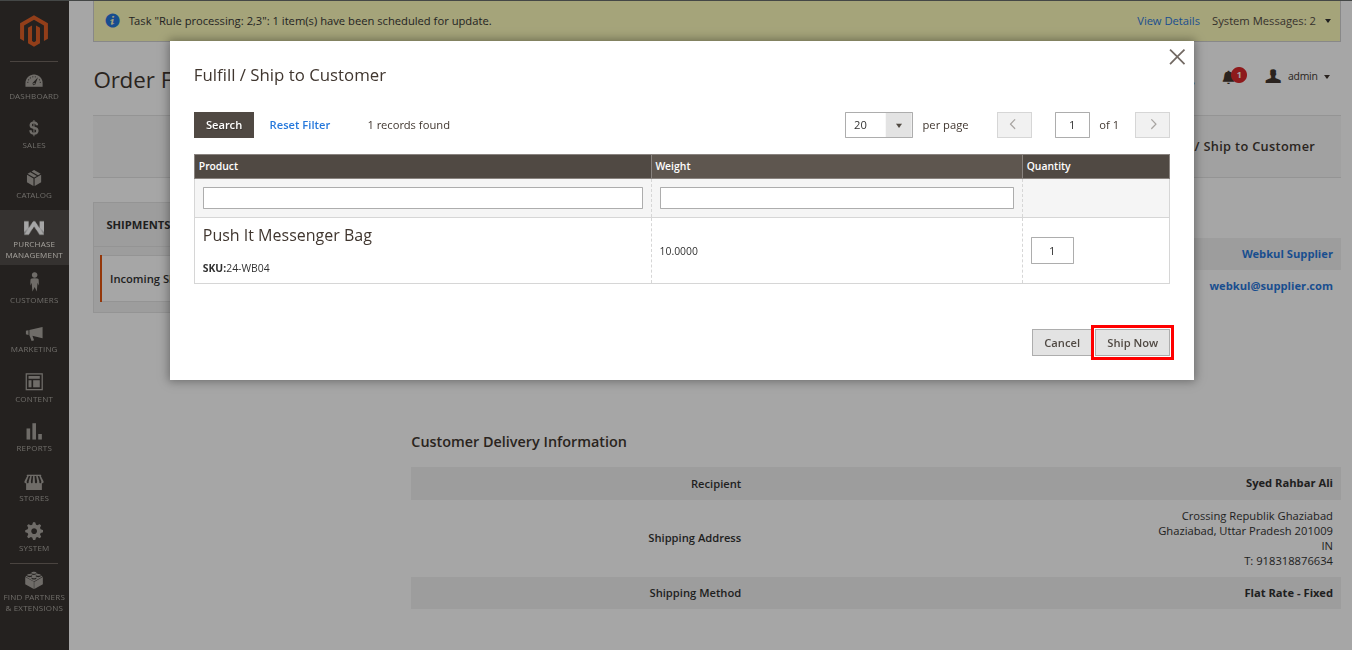
- Verify the dispatch quantity and click Ship Now.
- The system:
- Updates the fulfillment status to Shipped / Fulfilled.
- Completes the customer order delivery cycle.
- Updates the customer's order status in their storefront account to SHIPPED / DELIVERED.
- Logs the dispatch timestamp in the Magento order history.