
Customer Account & Purchase Orders View
When the Purchase order instead of sales order (poiso) setting is enabled in the module configuration, customer checkout orders are routed through the Purchase Order procurement workflow. Registered customers can monitor their purchase orders directly within their Magento customer portal.
Accessing "My Purchase Orders" on Storefront
- Customers log in to their storefront account (e.g. Luma / Hyvä theme).
- Navigate to My Account.
- In the left customer navigation sidebar, click on My Purchase Orders.
Here, customers can track all purchase orders placed through their account.
Purchase Order Statuses in Customer Portal
1. Processing Stage
While the store administrator and supplier are processing the procurement, issuing RFQs, and preparing inventory dispatch, the customer's purchase order shows the PROCESSING status badge:
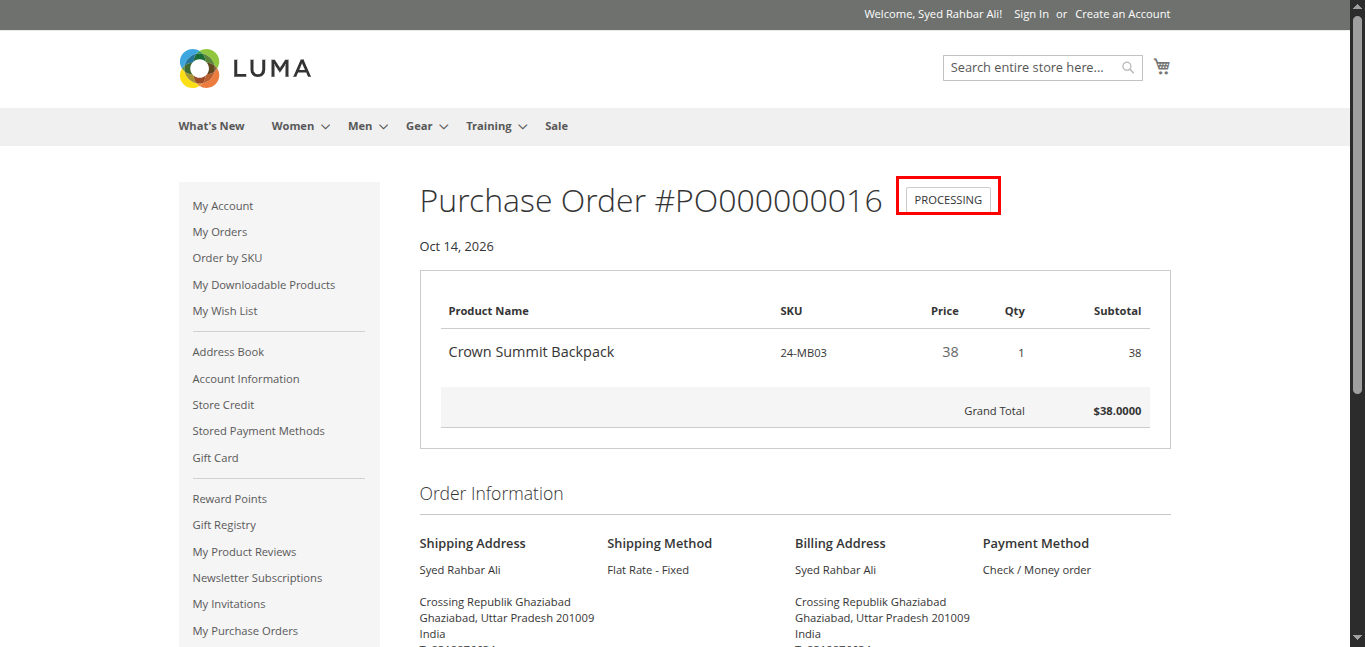
Customer Order Summary:
- Purchase Order Number: Sequential increment identifier (e.g.
#PO000000016). - Order Date: Timestamp when order was placed.
- Product Breakdown: Product Name, SKU, Unit Price, Ordered Quantity, and Subtotal.
- Order Information:
- Shipping Address & Shipping Method (e.g., Flat Rate - Fixed).
- Billing Address & Payment Method (e.g., Check / Money order).
- Grand Total Amount.
2. Shipped / Delivered Stage
Once the admin completes the customer fulfillment workflow using the Fulfill / Ship to Customer > Ship Now action, the purchase order status in the customer's portal updates automatically to SHIPPED / DELIVERED:
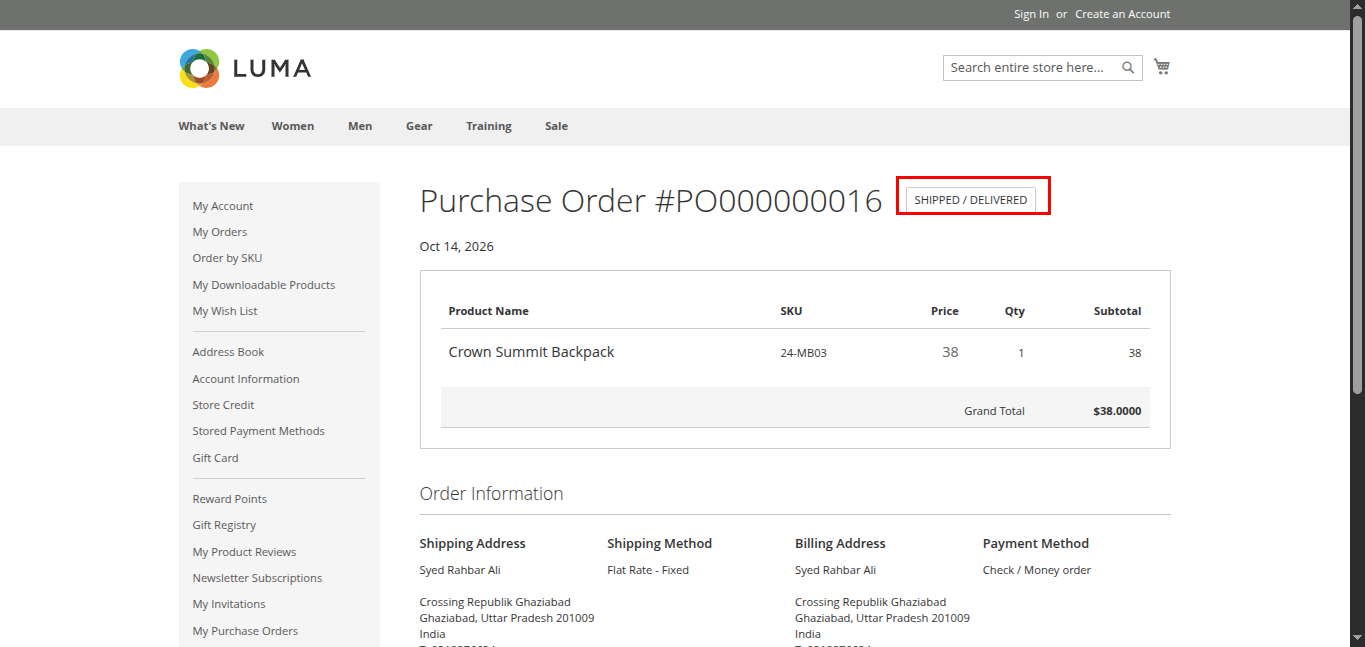
This gives customers transparency into order progression, tracking details, and delivery completion.