
Incoming Shipments & Receipts
Once a Purchase Order is confirmed and sent to a supplier, an Incoming Shipment record is automatically created in Magento. Incoming Shipments manage the physical intake, warehouse inspection, and stock inwarding process.
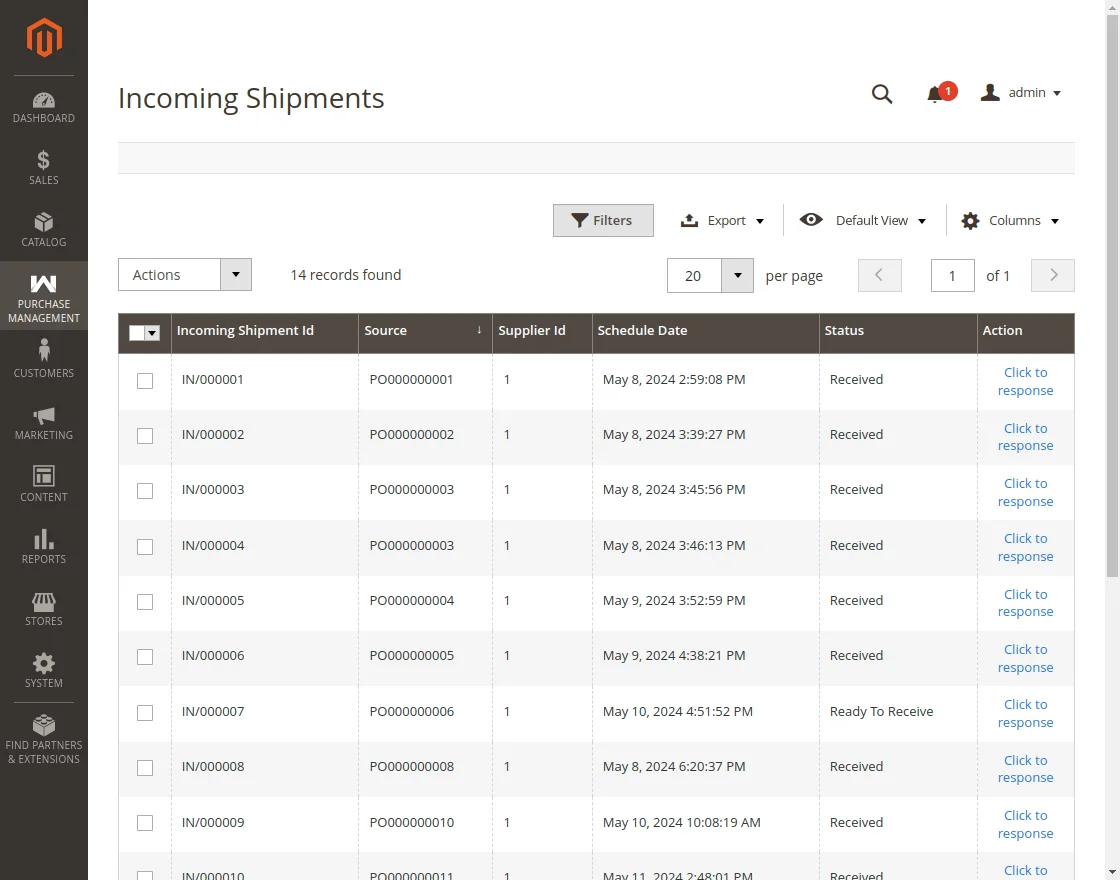
Incoming Shipments Grid
To view scheduled shipments:
- Navigate to Purchase Management > Incoming Shipments.
- The grid displays:
- Shipment ID / Increment ID
- Source Document Reference
- Supplier ID / Name
- Scheduled Date
- Status:
Draft: Shipment created upon PO confirmation.Ready To Receive: Shipment is dispatched and approaching the warehouse.Done: All items have been received into inventory.
- Actions: Receive, Delete, or click to view details.
Shipment Details & Receiving Inward Stock
Click on an incoming shipment row or the Click to Response button to access the shipment inward screen:
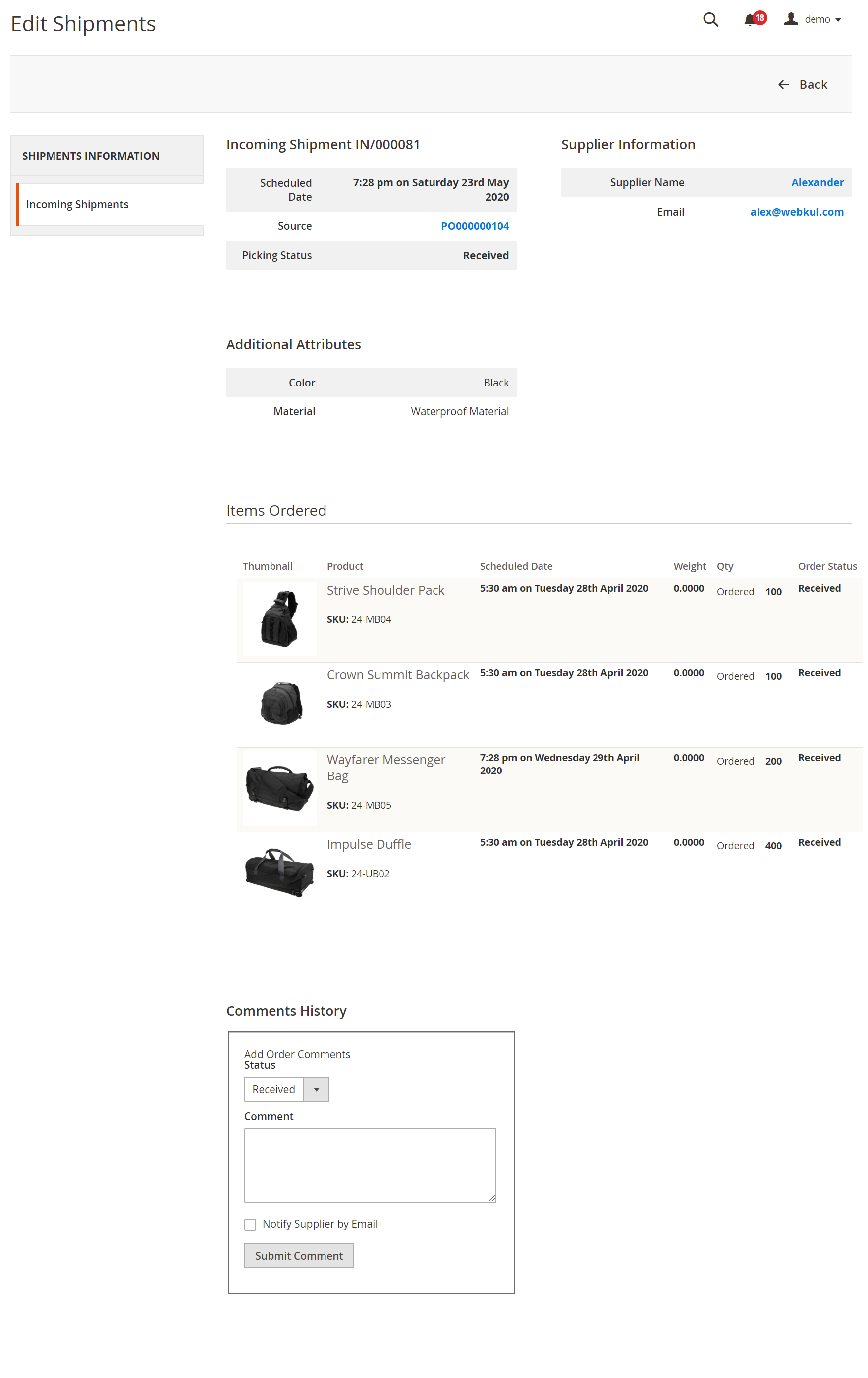
Inside the shipment screen, warehouse staff can:
- Review expected line items and ordered quantities.
- Check vendor packing slips and tracking numbers.
- Add warehouse receiving notes or inspection observations.
Partial Shipment Inwarding
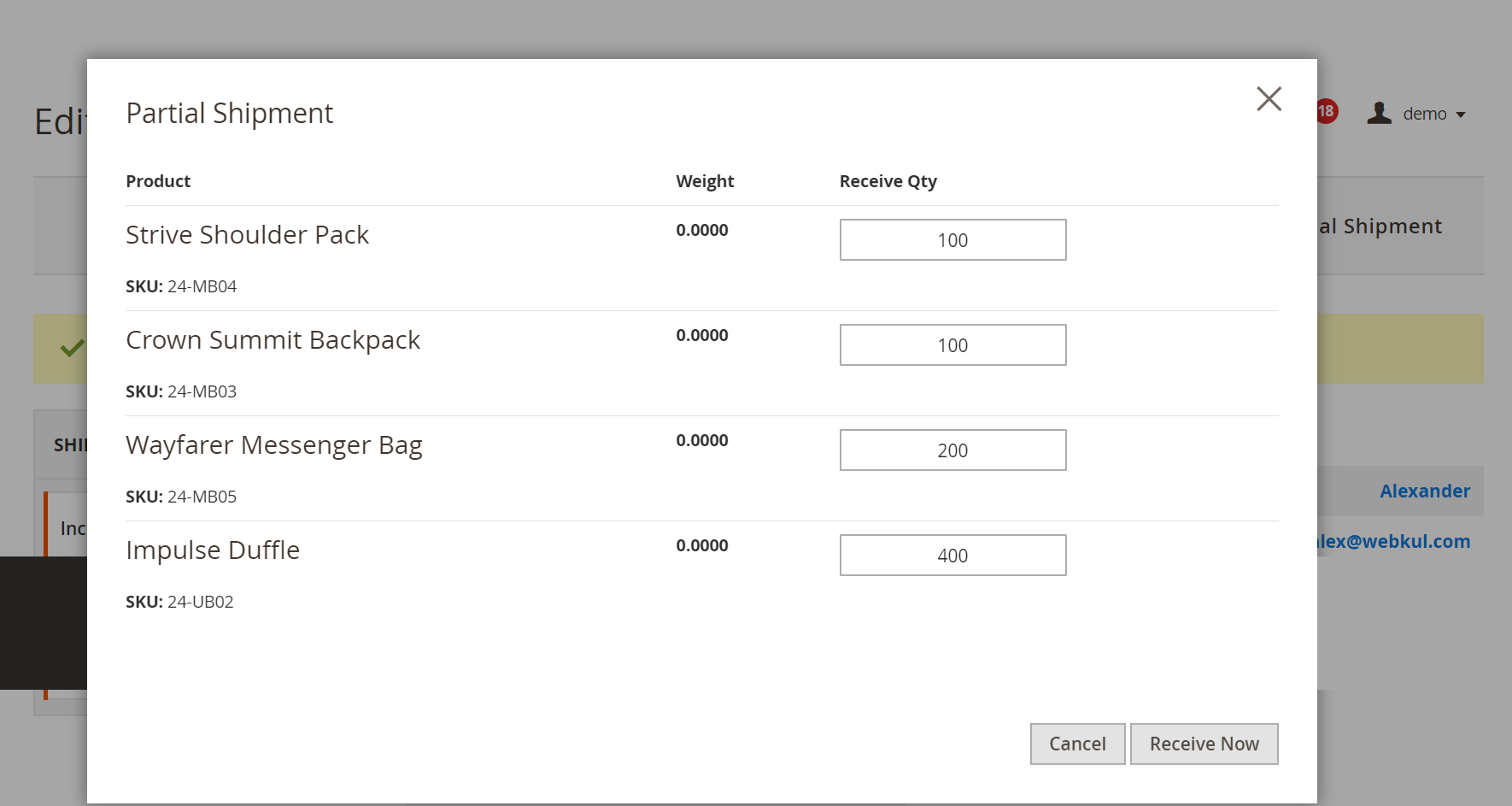
Suppliers often deliver large purchase orders in multiple shipments due to manufacturing batches or container capacity. Purchase Management provides native Partial Shipment handling:
- On the Incoming Shipment view page (with status
Ready To Receive), click Partial Shipment. - A modal dialog will appear listing the ordered items.
- Enter the exact quantity received in this physical batch.
- Click Receive.
Automated Stock & Price Updates
Upon completing receipt:
- The received quantities are immediately added to the catalog product's sellable inventory.
- If price increment rules are configured (Stores > Configuration > Webkul > Purchase Management), the product's catalog price is automatically updated based on the fixed or percentage markup specified.
- The remaining balance of unfulfilled items stays open on the shipment until subsequent deliveries arrive.