Quotation Lifecycle & Request for Quotation (RFQ)
Quotations represent formal procurement proposals sent to suppliers before issuing binding purchase contracts. In Magento 2 Purchase Management, quotations allow buyers to request pricing, negotiate delivery windows, and verify stock availability.
Quotations Grid Overview
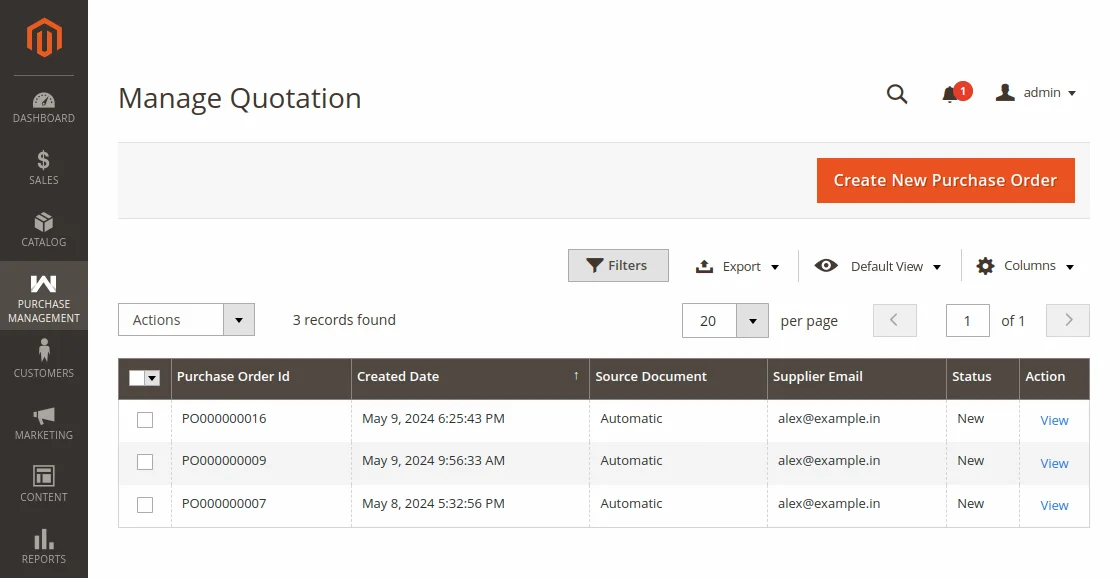
Navigate to Purchase Management > Quotations to access the centralized quotation ledger.
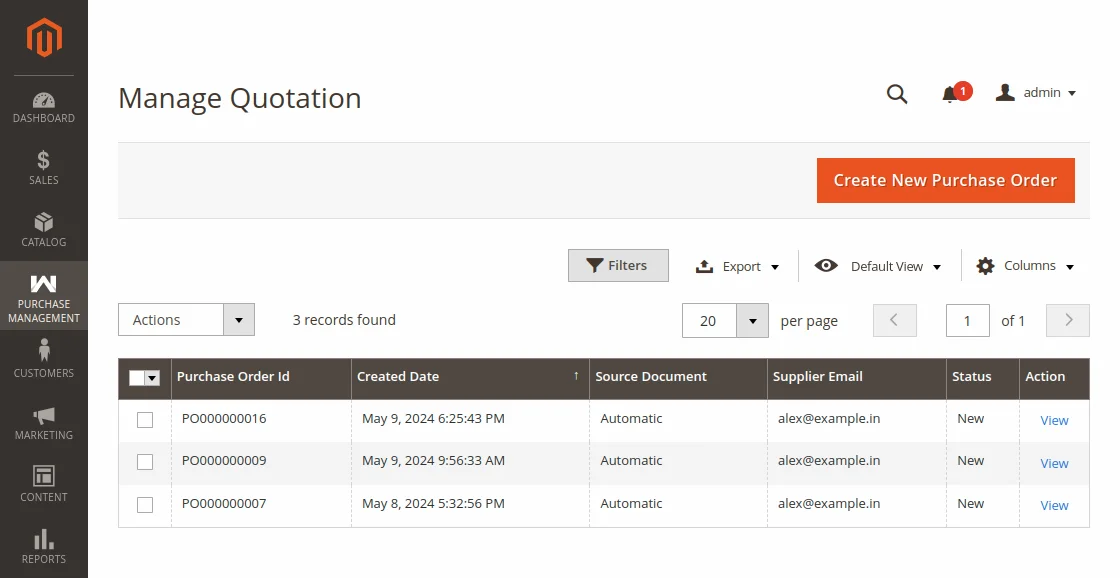
The grid displays key quotation information:
- Quotation ID / Increment ID (e.g.
PO00012) - Supplier Name & Contact
- Created Date
- Quotation Status (
Draft,Sent,Confirmed,Cancelled) - Total Amount & Items Count
- Action Links (
View,Edit)
Bulk Actions on Quotations
Admins can perform powerful bulk operations on selected quotations using the Actions dropdown:
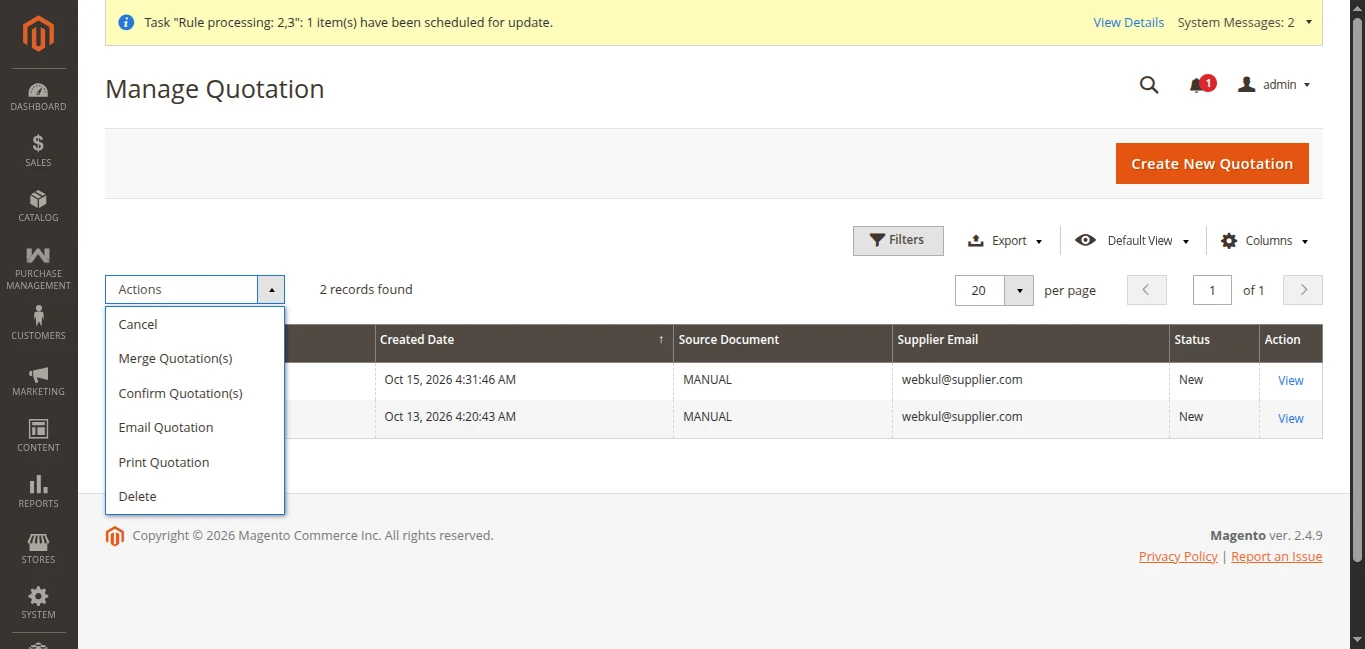
- Confirm Quotation: Converts approved quotations directly into confirmed Purchase Orders and automatically schedules incoming shipments.
- Cancel Quotation: Voids pending or inactive draft quotations.
- Merge Quotations: Combines multiple draft quotations for the same supplier into one consolidated order to save freight costs.
- Email Quotation: Dispatches RFQ emails to the respective suppliers in batch.
- Print: Generates printable quotation summaries.
- Delete: Removes draft quotation records from the database.
Creating a New Quotation (Manual Sourcing)
Click Create New Quotation in the top action bar:
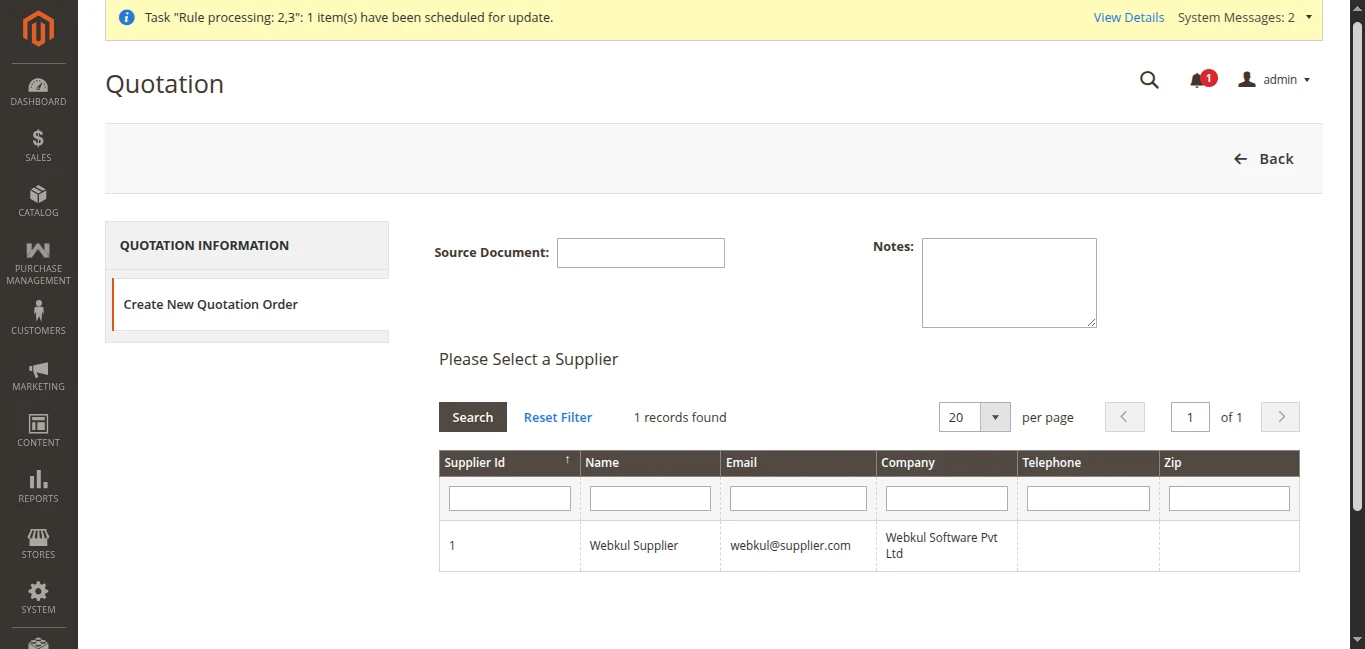
Step 1: Select Supplier & Source Document
Provide an optional Source Document reference (e.g., Reorder Memo #44, Seasonal Restock Q3) and Notes, then select the desired vendor from the registered supplier list:
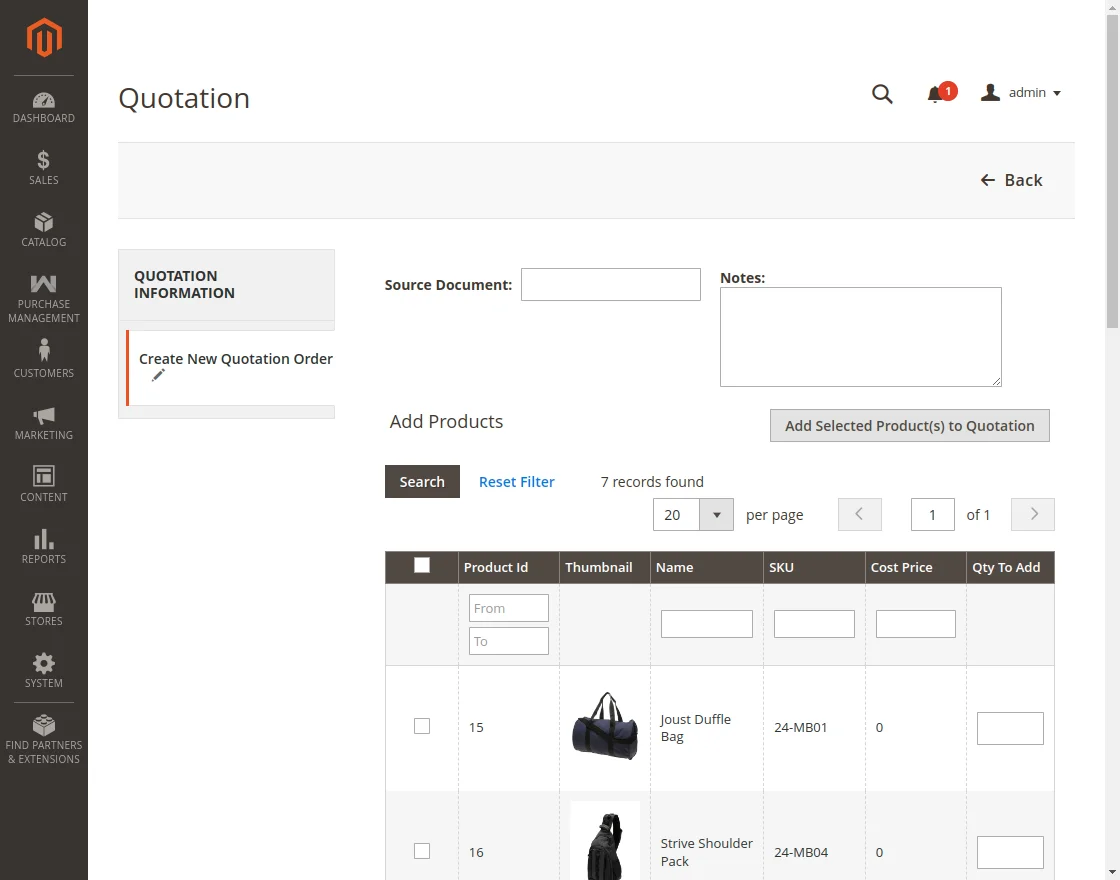
Step 2: Add Products to Quotation
Click the Add Products button to open the product catalog selection panel:
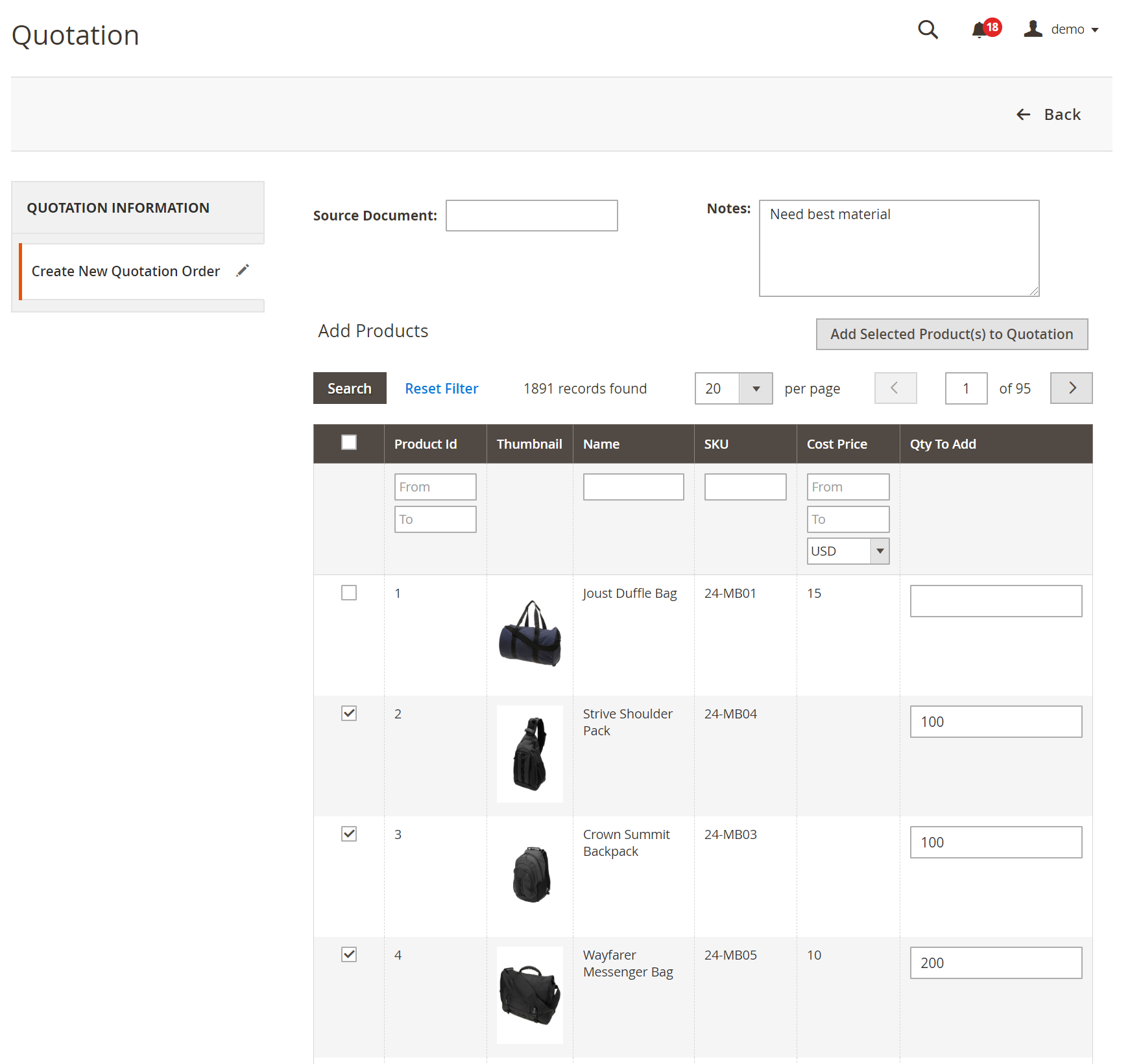
Select the products and input required quantities:
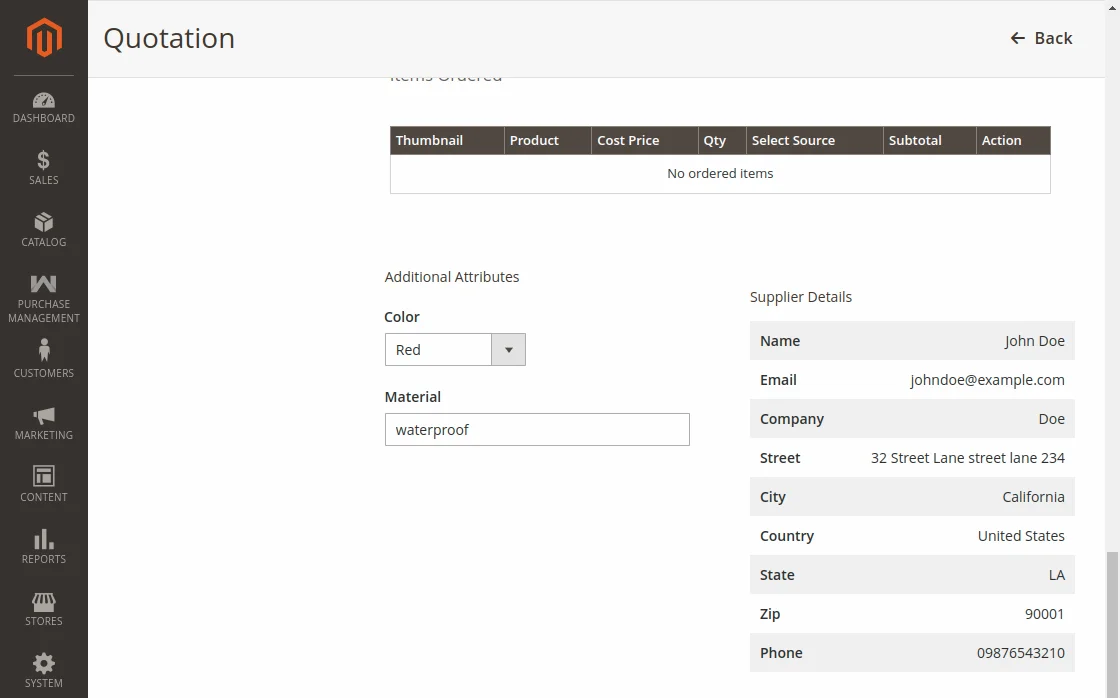
For configurable, grouped, or bundle products, specify required options, sizes, colors, and child attributes:
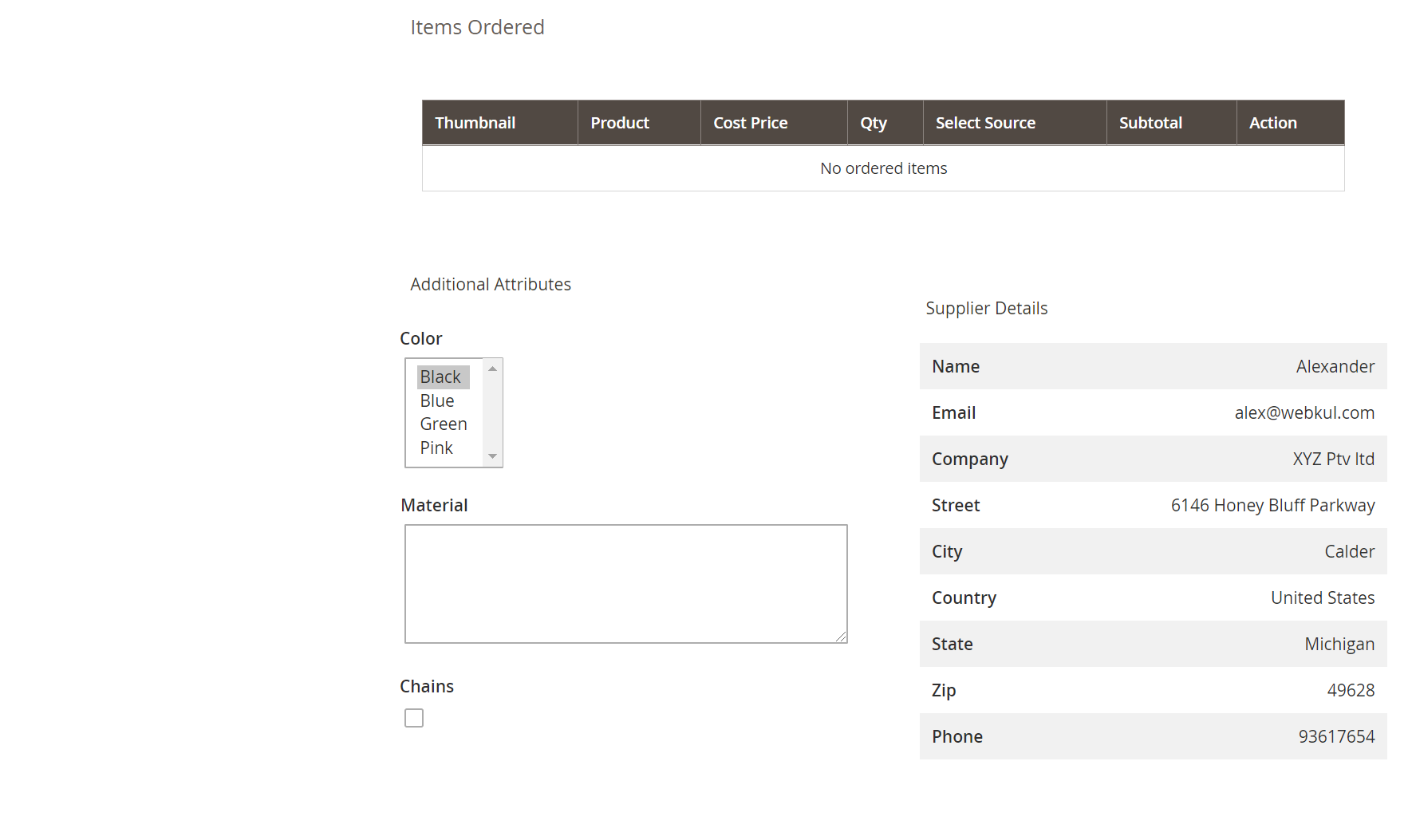
Step 3: Review Quantities, Costs & Custom Attributes
Selected items appear at the top of the quotation creator. You can:
- Verify or adjust the supplier cost price per unit.
- Fill in values for custom quotation attributes.
- Add administrative comments or special delivery instructions.
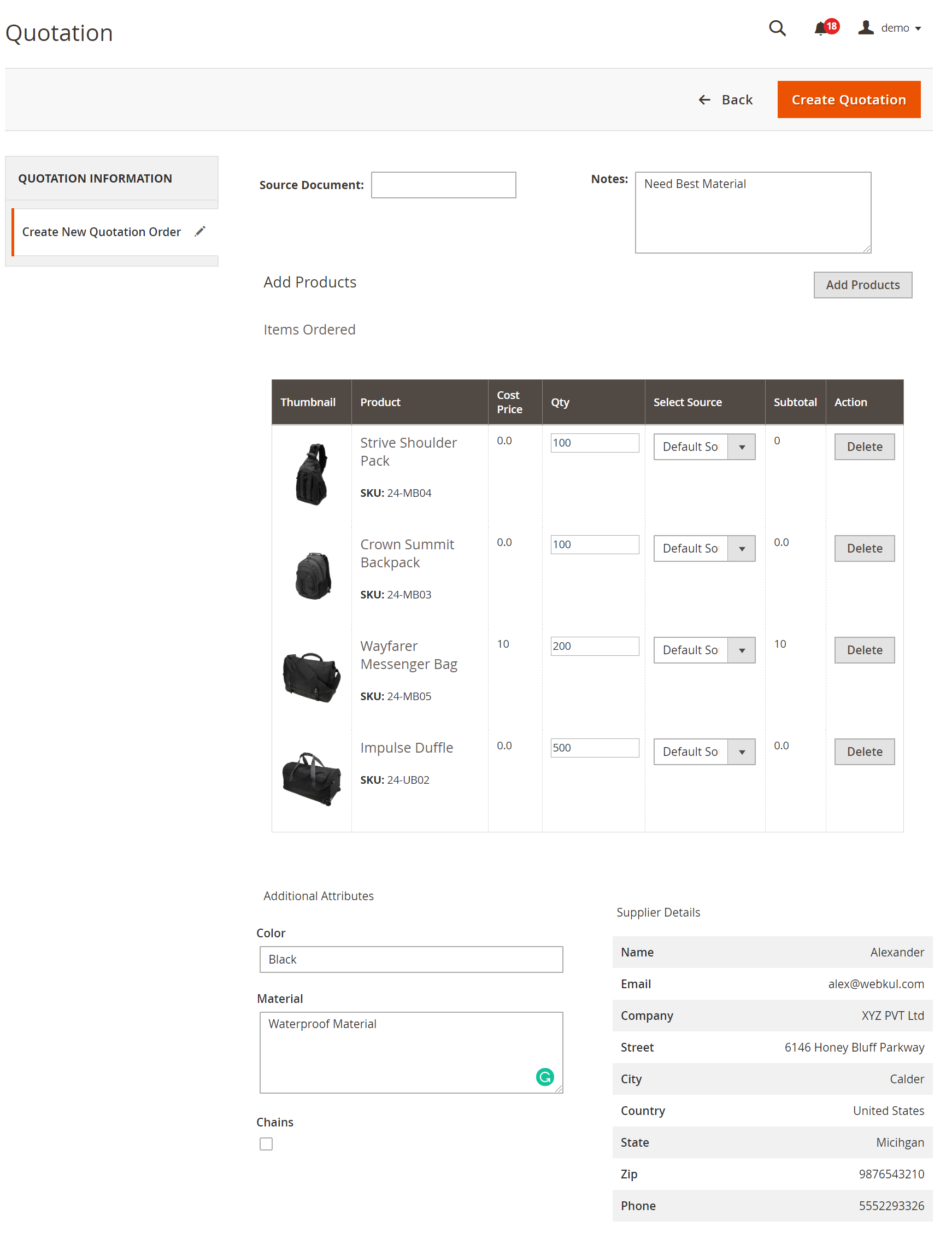
Click Create Quotation. A success notification is displayed with the generated Quotation ID:
Quotation Detail View & Actions
Click View on any quotation to open its comprehensive management overview:
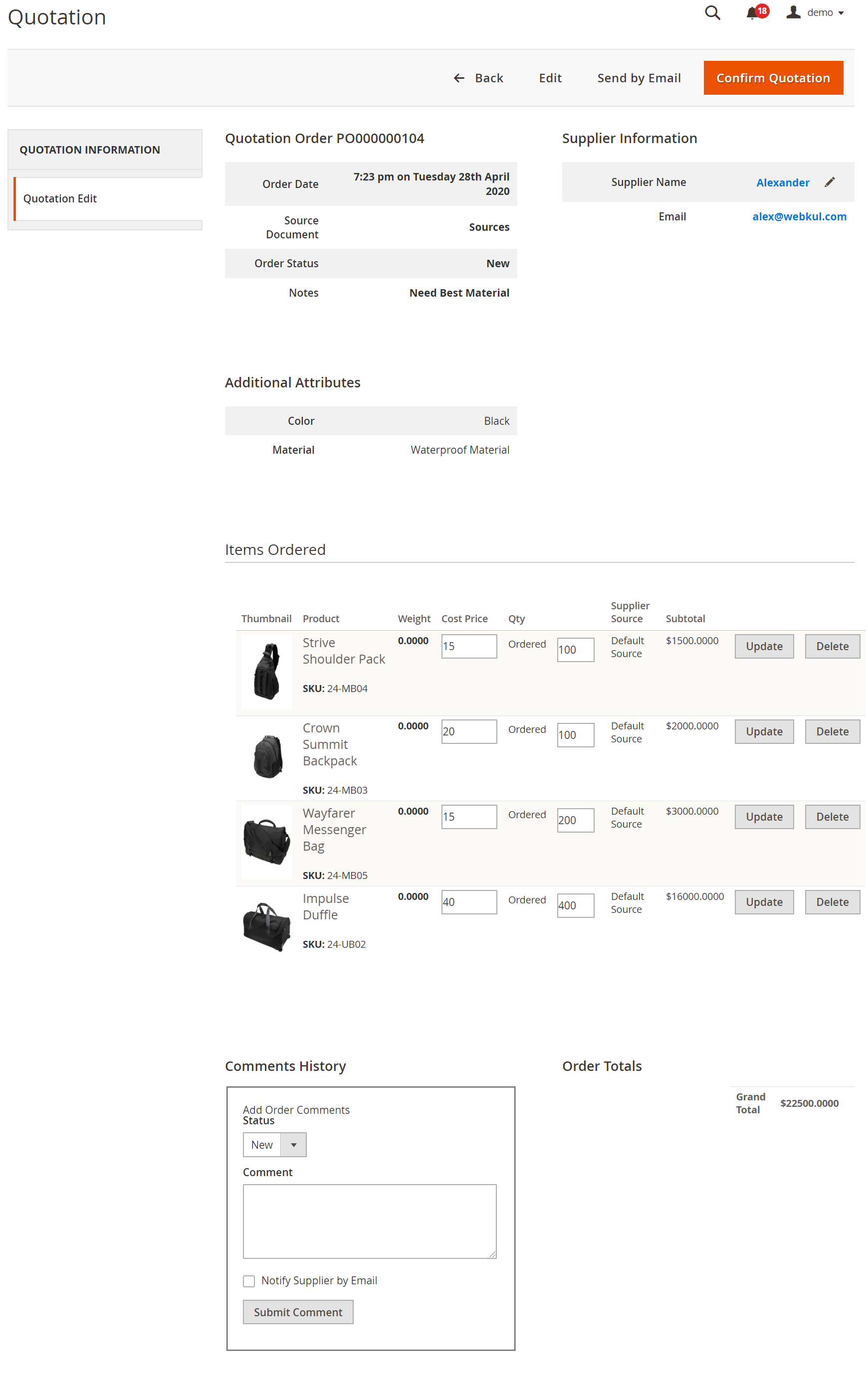
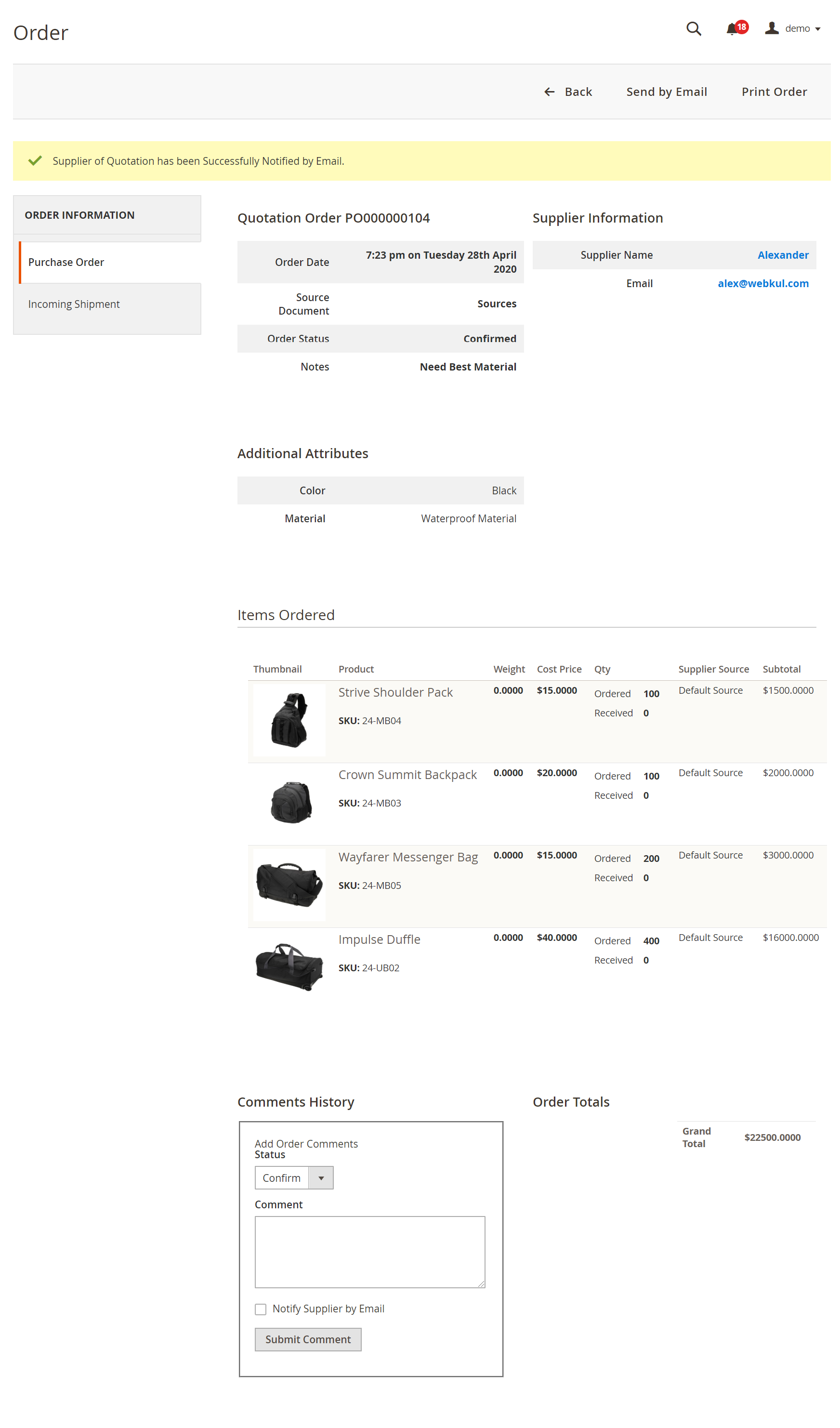
Inside the quotation screen, the administrator can:
- Send by Email (RFQ): Dispatches an official Request for Quotation email with an itemized table to the supplier.
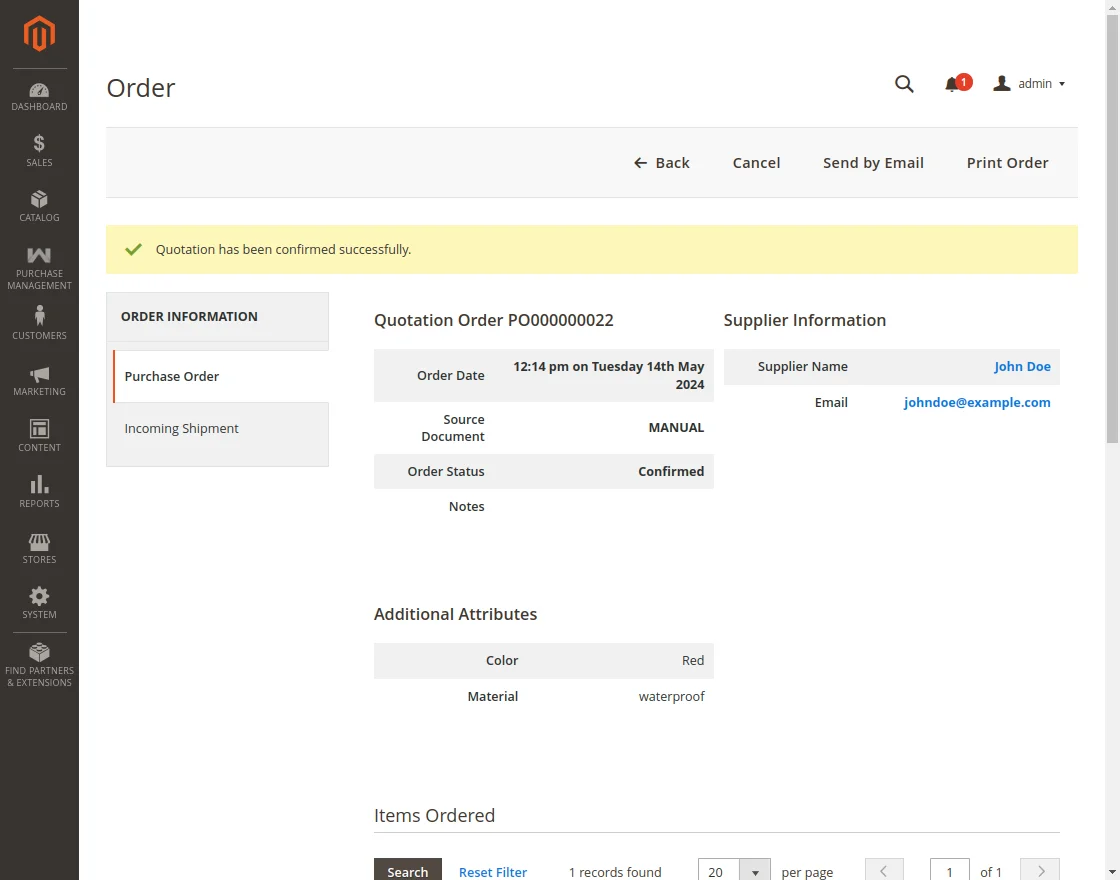
- Confirm Quotation: Once the supplier confirms terms and pricing, clicking Confirm Quotation locks the agreement and elevates the quotation to an active Purchase Order.
- Add Comments: Log internal notes and supplier correspondence.
RFQ Email Notification to Supplier
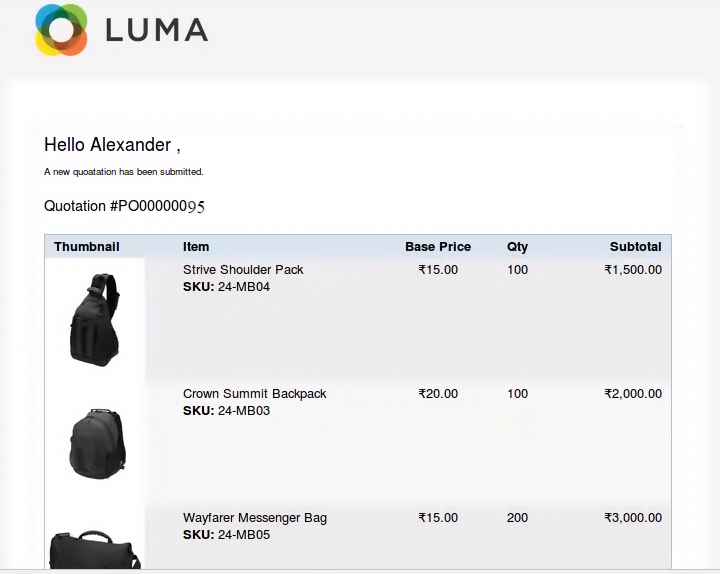
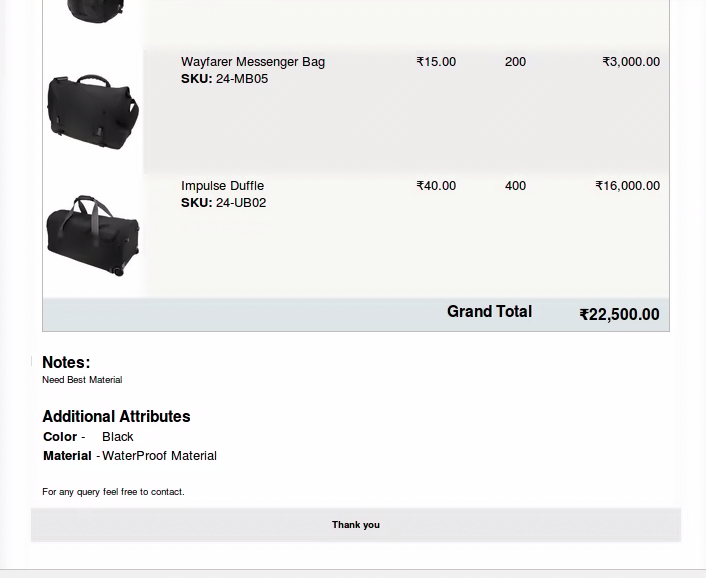
When Send by Email is clicked, the supplier receives a branded email containing all quotation specifications: