
How to Get Google Maps API Keys
The Magento 2 Multi-Vendor Dropship extension utilizes Google Maps APIs to provide address auto-completion when creating warehouses and calculate geodesic distances for nearest-warehouse automatic order routing.
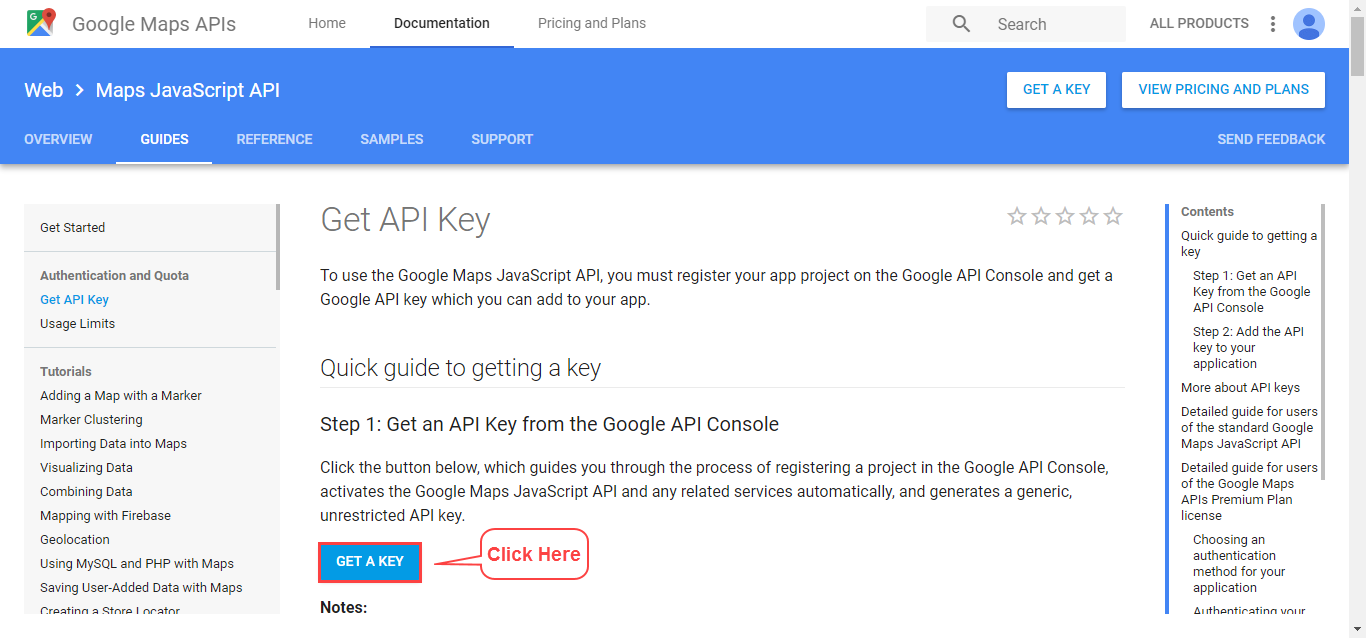
Step 1: Open Google Cloud Console
- Navigate to the Google Cloud Console or the Google Maps Platform.
- Sign in with your Google administrator account.
- In the project selector dropdown, click New Project, name your project (e.g.,
Magento 2 Dropship), and click Create.
Step 2: Enable Required APIs
To support address search and geocoding, enable the following APIs under APIs & Services > Library:
- Maps JavaScript API
- Geocoding API
- Places API
- Distance Matrix API
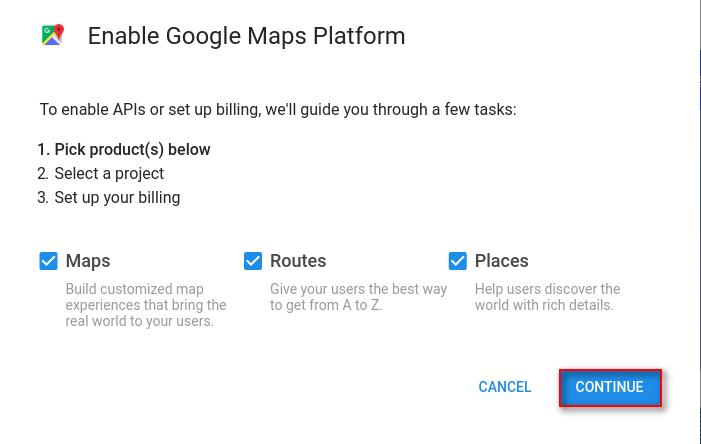
When prompted with the setup wizard, select Maps, Routes, and Places checkboxes to ensure all geographic features function without limitation:
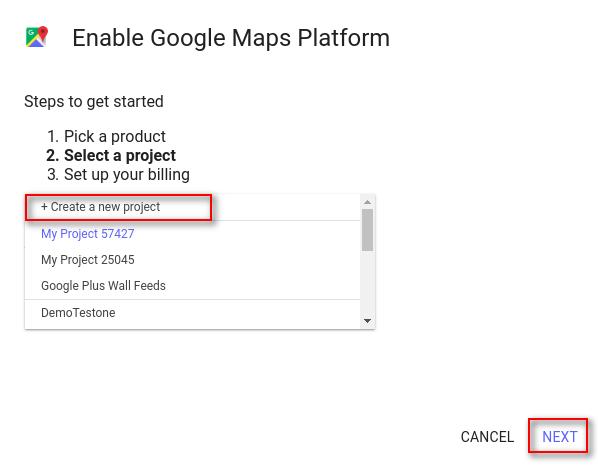
Step 3: Generate and Restrict API Key
- Go to APIs & Services > Credentials.
- Click + Create Credentials at the top and select API Key.
- A modal will display your new API Key. Copy this key string.
- (Recommended) Click Edit API key to configure application restrictions (HTTP referrers / IP addresses) and API restrictions (limiting key usage specifically to Maps, Places, and Geocoding APIs) to prevent unauthorized quota usage.
Step 4: Configure in Magento Admin
- Open your Magento 2 Admin Panel.
- Navigate to Stores > Configuration > Webkul > Vendor Dropship Manager > General Settings.
- Set Warehouse Assign to Auto.
- Paste your generated key into the Google Api Key field.
- Click Save Config and flush the cache.