
Warehouse Products Assignment
The Warehouse Products interface empowers store administrators to associate or dissociate catalog products with registered warehouses in bulk, ensuring inventory is properly stocked across regional fulfillment centers.
Accessing Warehouse Products
In the Magento Admin Panel, navigate to Marketplace Management > Vendor Dropship Menu > Warehouse Products.
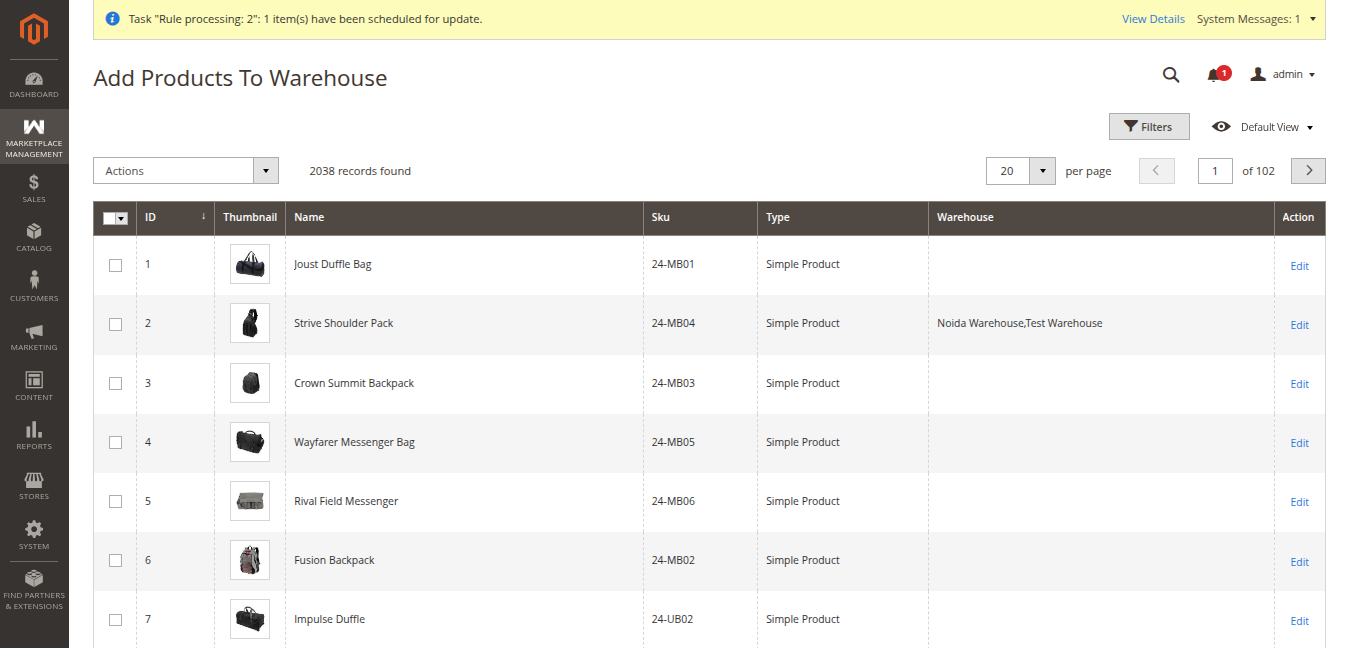
The grid displays all catalog products across the store with real-time warehouse mapping:
- ID: Product entity ID (e.g.
1,2,3). - Thumbnail: Product thumbnail image preview.
- Name: Product title (e.g. Joust Duffle Bag, Strive Shoulder Pack).
- Sku: Product SKU identifier (e.g.
24-MB01,24-MB04). - Type: Product type (e.g. Simple Product).
- Warehouse: Displays all warehouses currently assigned to stock this product (e.g. Noida Warehouse,Test Warehouse), or empty if unassigned.
- Action: Quick link to Edit the product record.
Assigning Products to a Warehouse
To assign one or multiple catalog products to a specific fulfillment center:
- Select the target products by marking their checkboxes in the first column of the grid.
- In the mass actions dropdown, select Assign Warehouse.
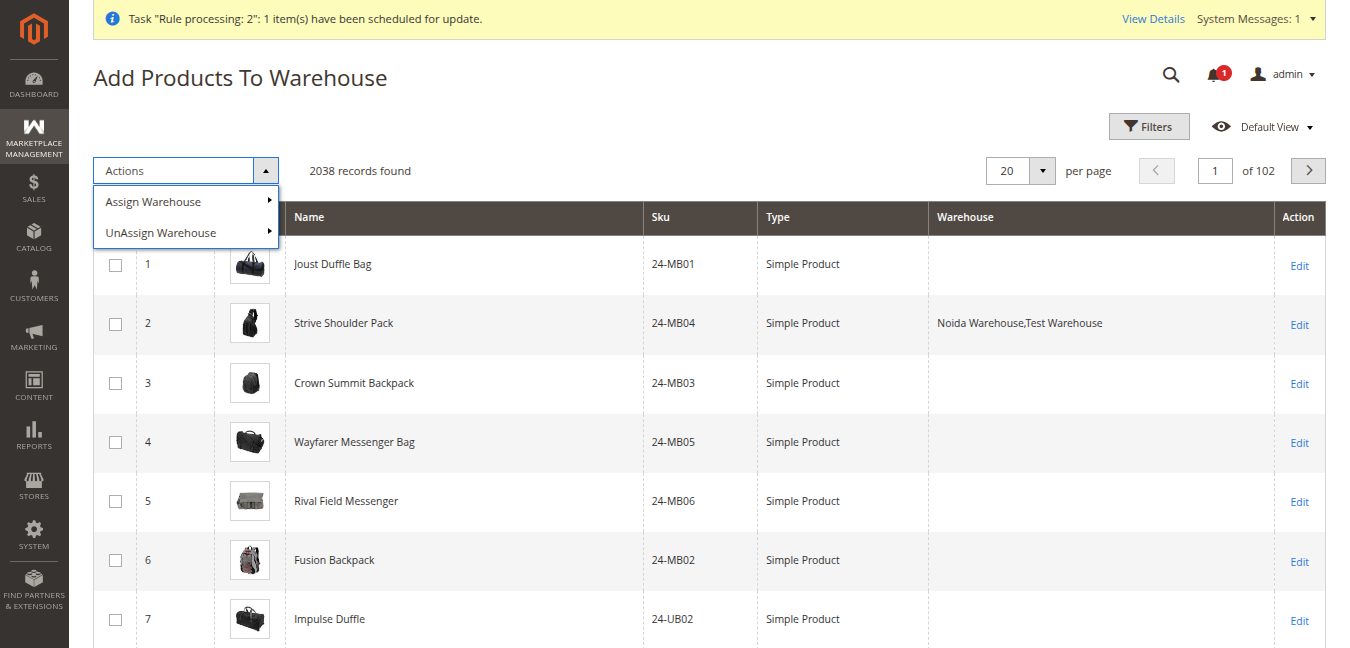
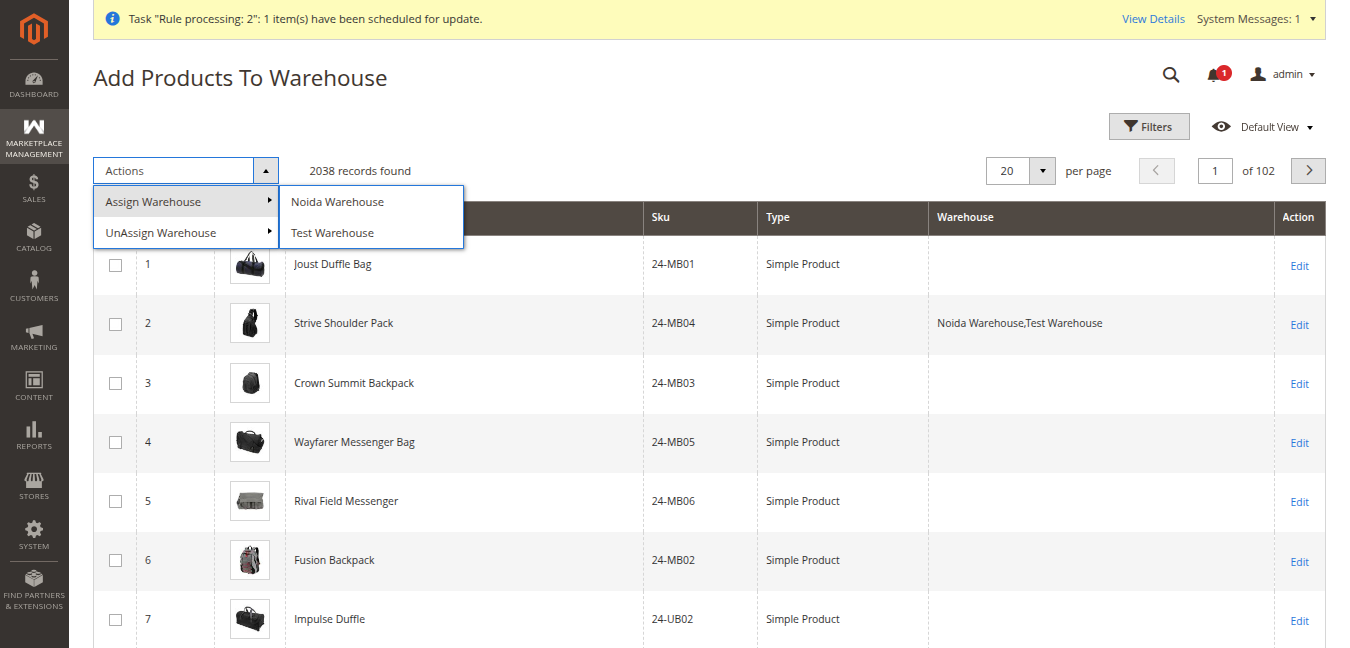
- In the sub-menu that expands, select the target warehouse from the list (e.g., Noida Warehouse or Test Warehouse).
- A confirmation modal will prompt: "Are you sure to assign selected products to new warehouse? (X records)".
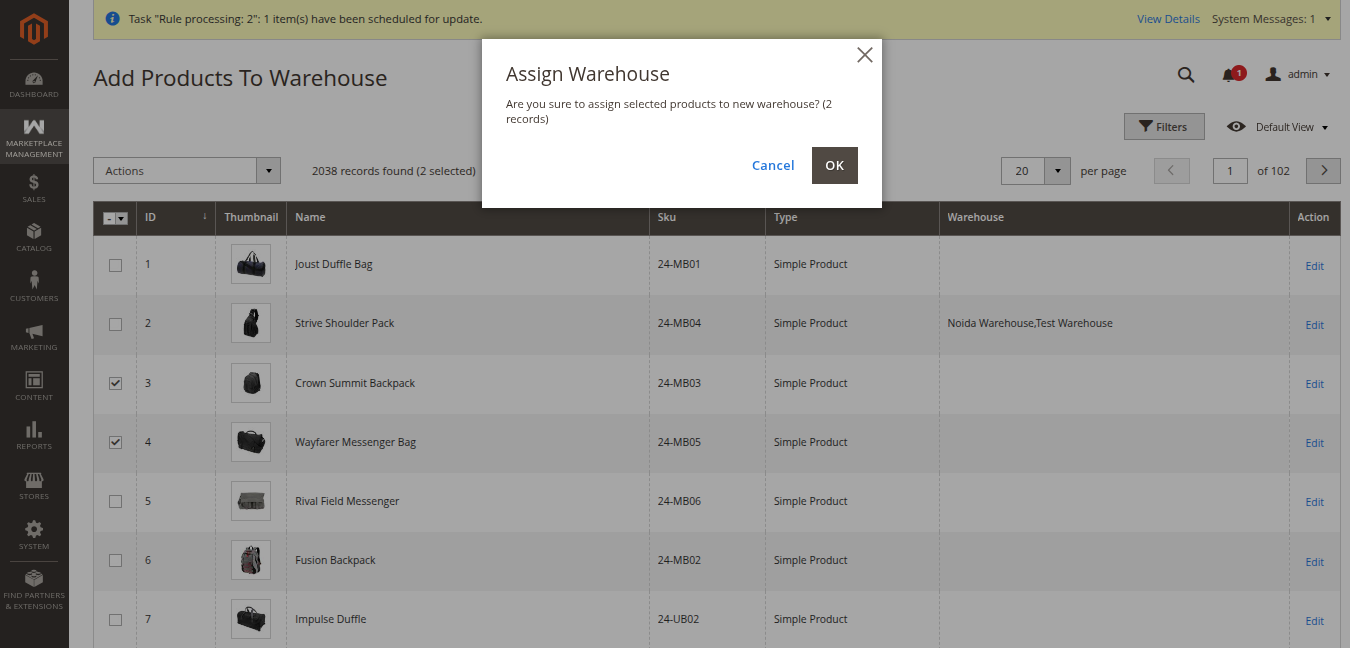
- Click OK to execute the assignment. The system links the products to the designated warehouse with the default initial quantity specified in the module's General Settings.
Unassigning Products from a Warehouse
If a warehouse no longer stocks certain items, the administrator can remove the association:
- Check the products you wish to remove from a warehouse.
- Under the mass actions dropdown, expand UnAssign Warehouse.
- In the sub-action menu, select the corresponding warehouse facility to unassign.
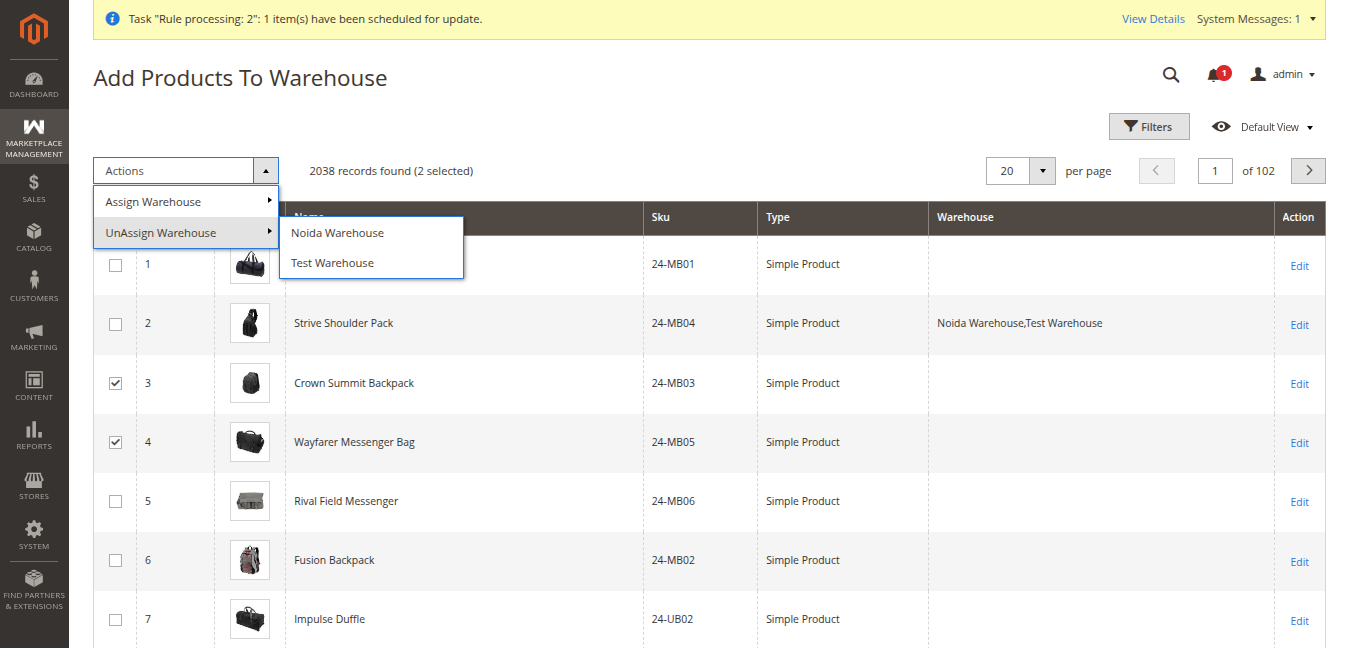
- A confirmation modal will appear: "Are you sure to un-assign warehouse to selected products? (X record)".
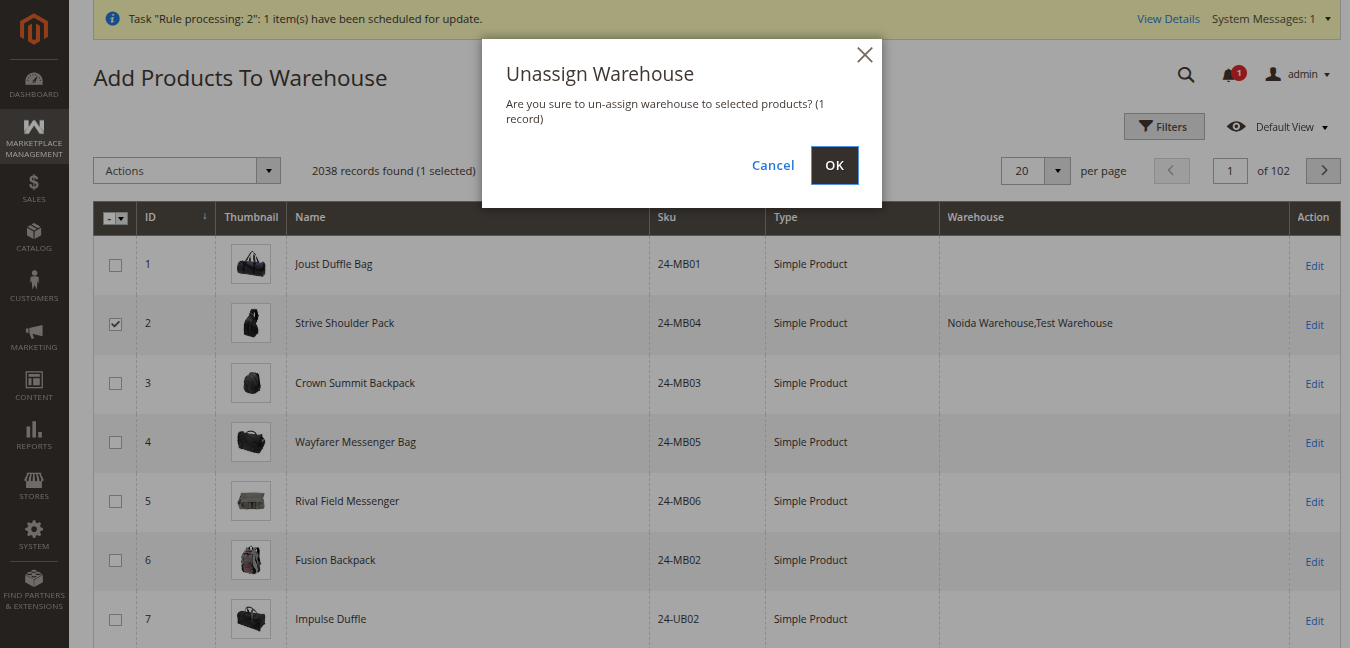
- Click OK. The association between the selected products and that warehouse is safely removed without deleting the product from the main store catalog.