
Warehouse Manager
The Warehouse Manager is the central administrative console where store administrators create, monitor, configure, and manage dropship warehouses and their assigned facility managers.
Accessing Warehouse Manager
In the Magento Admin Panel, navigate to Marketplace Management > Vendor Dropship Menu > Warehouse Manager.
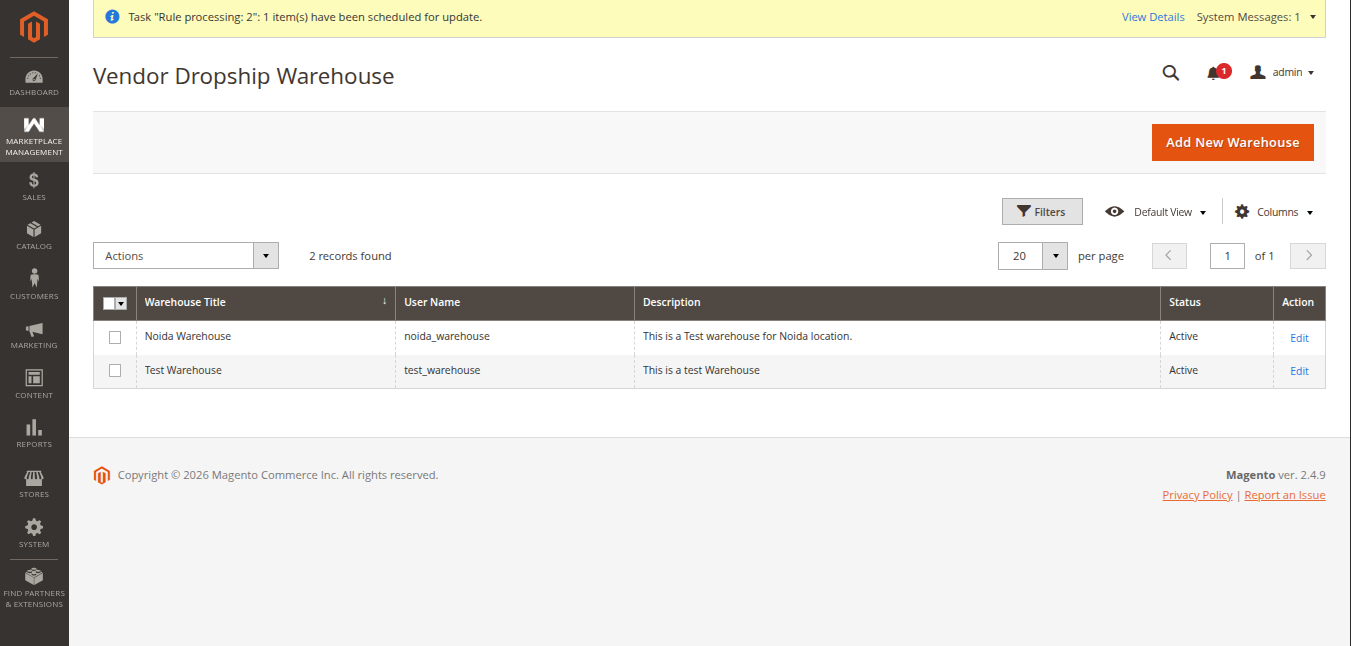
Warehouse Grid Overview
The warehouse listing table displays comprehensive details for every registered warehouse:
| Column | Description |
|---|---|
| Warehouse Title | Display name or title of the warehouse facility (e.g. Noida Warehouse, Test Warehouse). |
| User Name | Dedicated username used by the warehouse manager to sign in (e.g. noida_warehouse). |
| Description | Detailed description or geographical coverage notes for the warehouse facility. |
| Status | Current operational status (Active or Inactive). |
| Action | Click Edit to modify warehouse details, credentials, shipping methods, and product associations. |
Updating Warehouse Status (Active / Inactive)
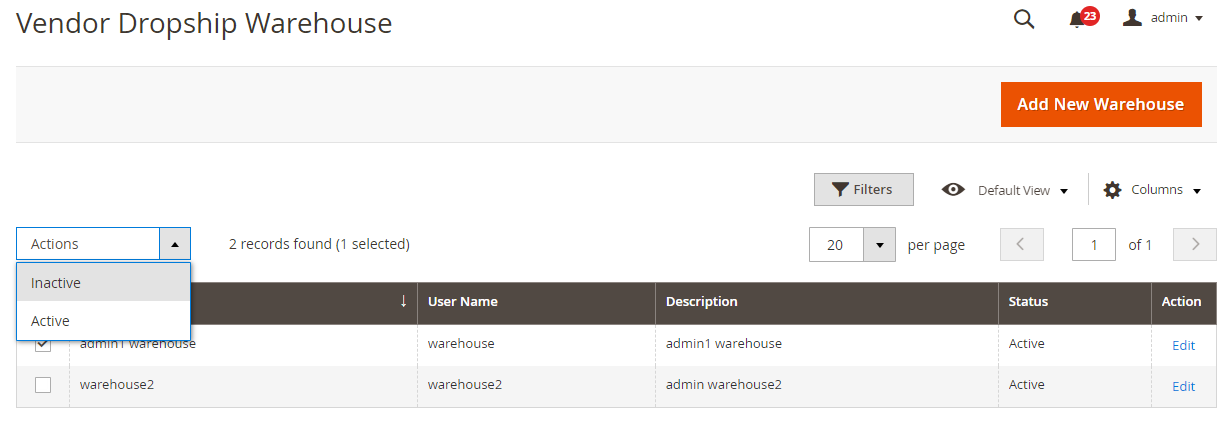
Admins can enable or temporarily deactivate any warehouse using mass actions:
- Select one or more warehouses using the grid checkboxes on the left.
- In the Actions dropdown menu, select Change Status.
- Choose either Active or Inactive.
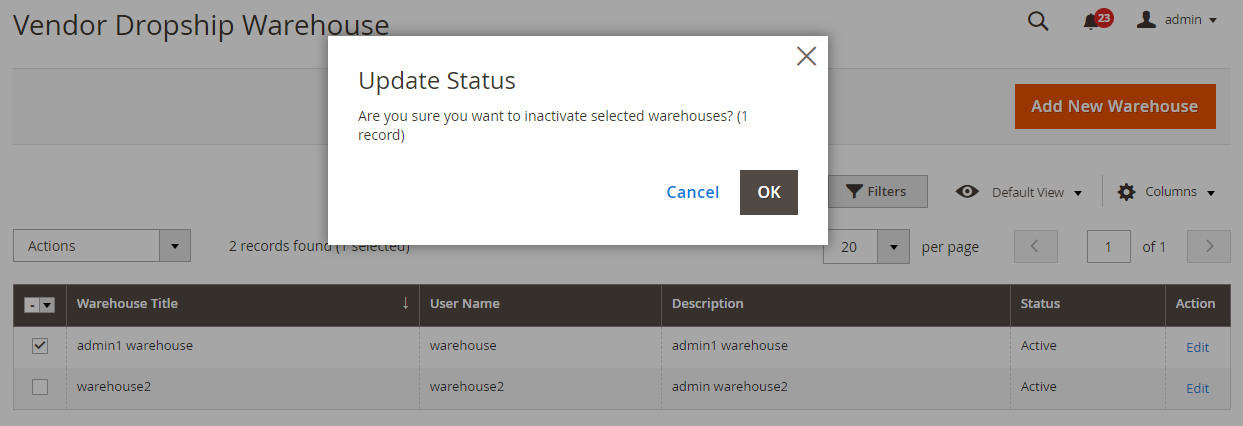
- A confirmation dialog will prompt: "Are you sure you want to change status of selected items?". Click OK to commit the change.
Creating a New Warehouse
To create a new fulfillment center, click the Add New Warehouse button in the upper right corner of the grid:
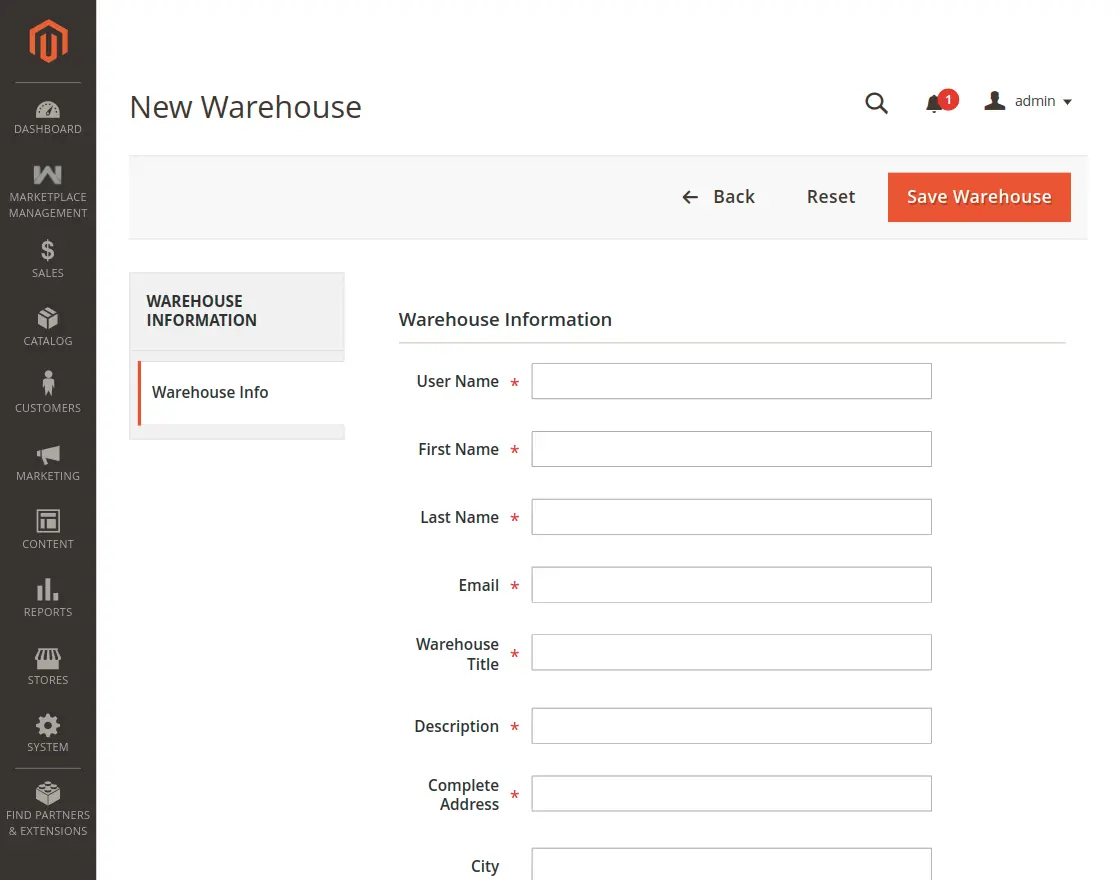
The warehouse creation form contains several specialized field groups:
1. Warehouse Manager Information & Credentials
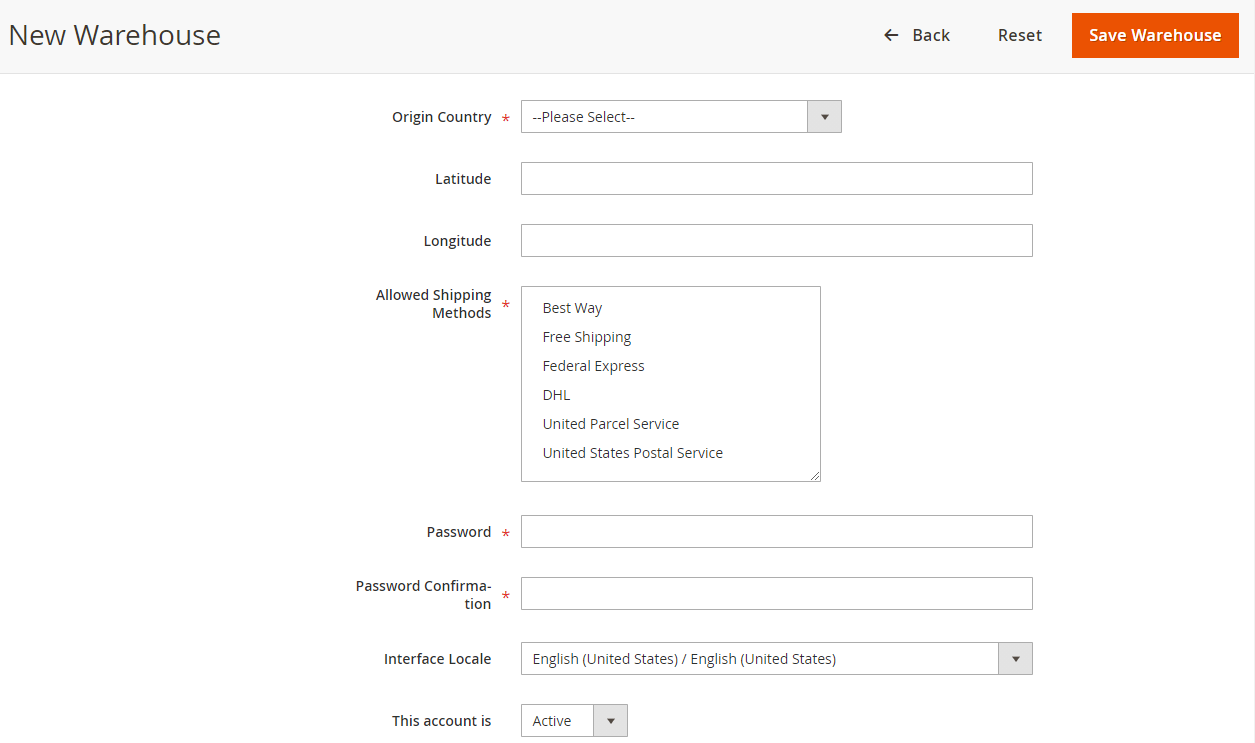
| Field | Description |
|---|---|
| User Name | Unique login username assigned to the warehouse manager. |
| First Name & Last Name | Contact person / manager name for the warehouse. |
| Valid email address where account credentials and order fulfillment alerts are sent. | |
| Warehouse Title | Friendly name identifying the facility (e.g., California Distribution Center). |
| Origin / Street Address | Physical street location of the warehouse (utilizes Google Places address auto-fill). |
| Country, State/Province, City, Postal Code | Geographic coordinates and postal details used for distance calculations and table rate shipping matching. |
| Contact Number | Contact telephone number for dispatch and carrier queries. |
2. Shipping Methods & Account Security

| Field | Description |
|---|---|
| Allowed Shipping | Multi-select list of shipping carriers permitted for fulfillment from this specific warehouse (e.g., Table Rate, Flat Rate, FedEx, DHL, UPS). |
| Password & Confirm Password | Set the secure password for the warehouse manager's portal account. |
| Status | Toggle status between Active and Inactive. |
| Current Admin Password | For administrative security verification, enter your current Magento admin user password. |
Click Save Warehouse to create the record. An automated welcome email containing login credentials will be dispatched to the warehouse manager's email address.
Viewing Associated Products
When editing an existing warehouse, the Associated Products tab provides visibility into all catalog SKUs mapped to this warehouse along with their current warehouse inventory quantities:
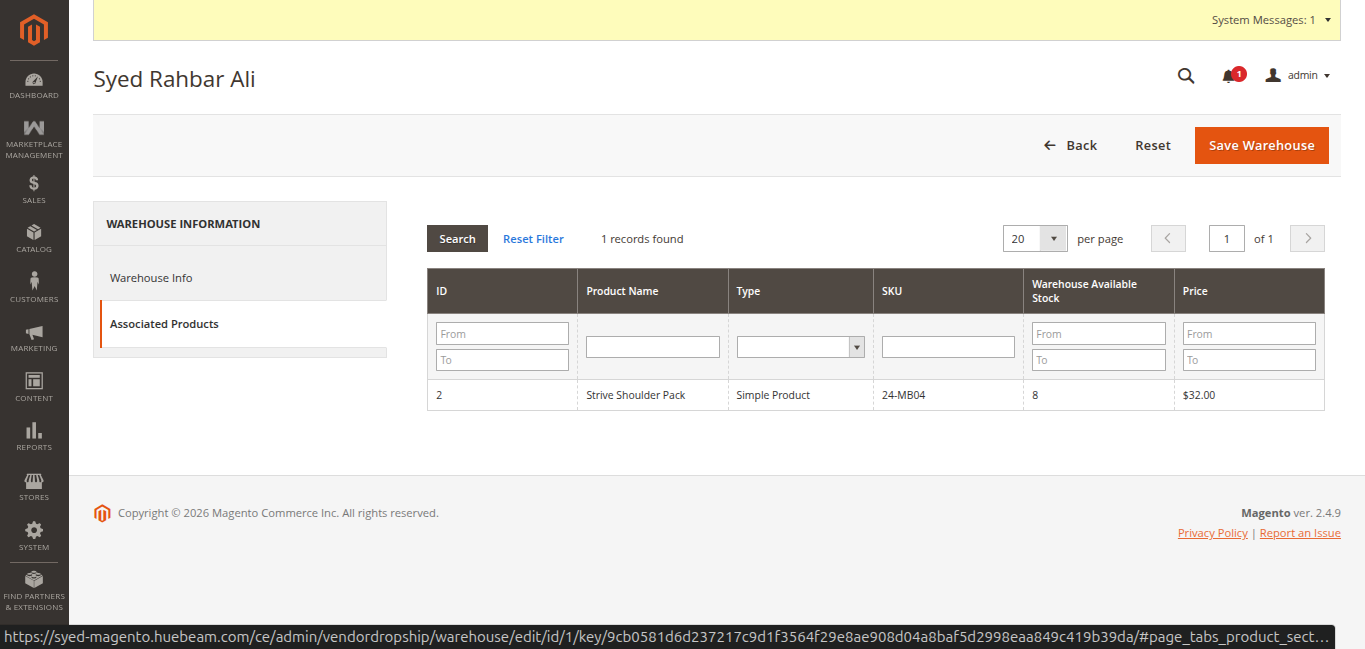
The associated products grid displays:
- ID: Primary entity identifier of the product.
- Product Name: Catalog product title (e.g. Strive Shoulder Pack).
- Type: Product type (e.g. Simple Product).
- SKU: Stock Keeping Unit identifier (e.g.
24-MB04). - Warehouse Available Stock: Specific stock quantity physically present at this warehouse (e.g.
8). - Price: Product retail price (e.g.
$32.00).
Admins can review mapped items or update stock numbers directly from this view.