
Seller Subscription & Checkout Workflow
This section outlines the end-to-end seller experience: selecting a SaaS membership plan, completing the dedicated recurring checkout process, and unlocking the 0% commission benefit.
Browsing & Selecting Membership Plans
- The seller logs in to their customer account on the storefront.
- In the seller account sidebar navigation, click Pay Membership Amount.
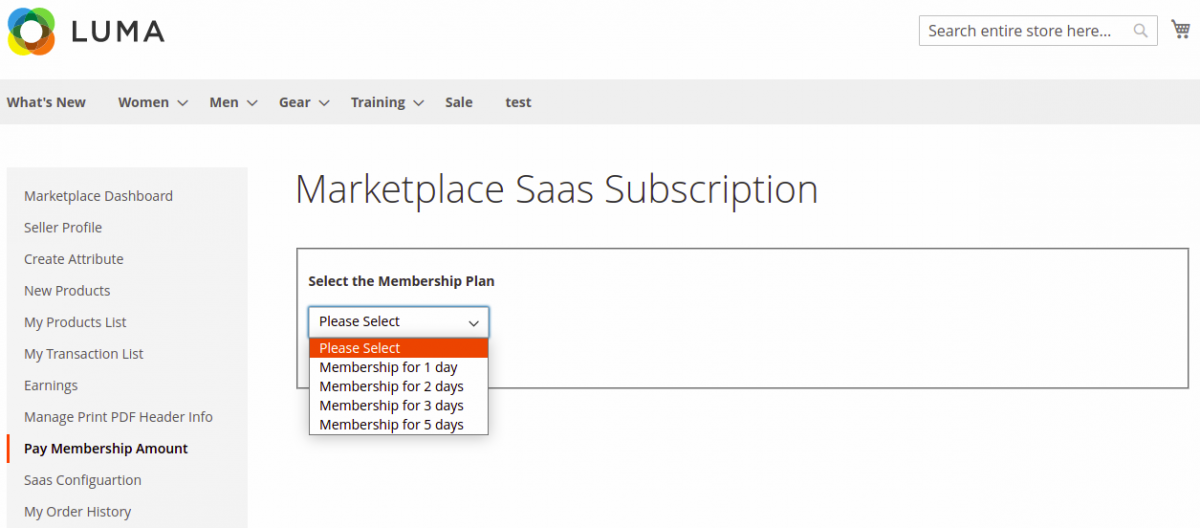 Figure 9.1: Pay Membership Amount menu option in the seller portal.
- The page displays all active SaaS membership plans created by the administrator, including duration and cycle charge:
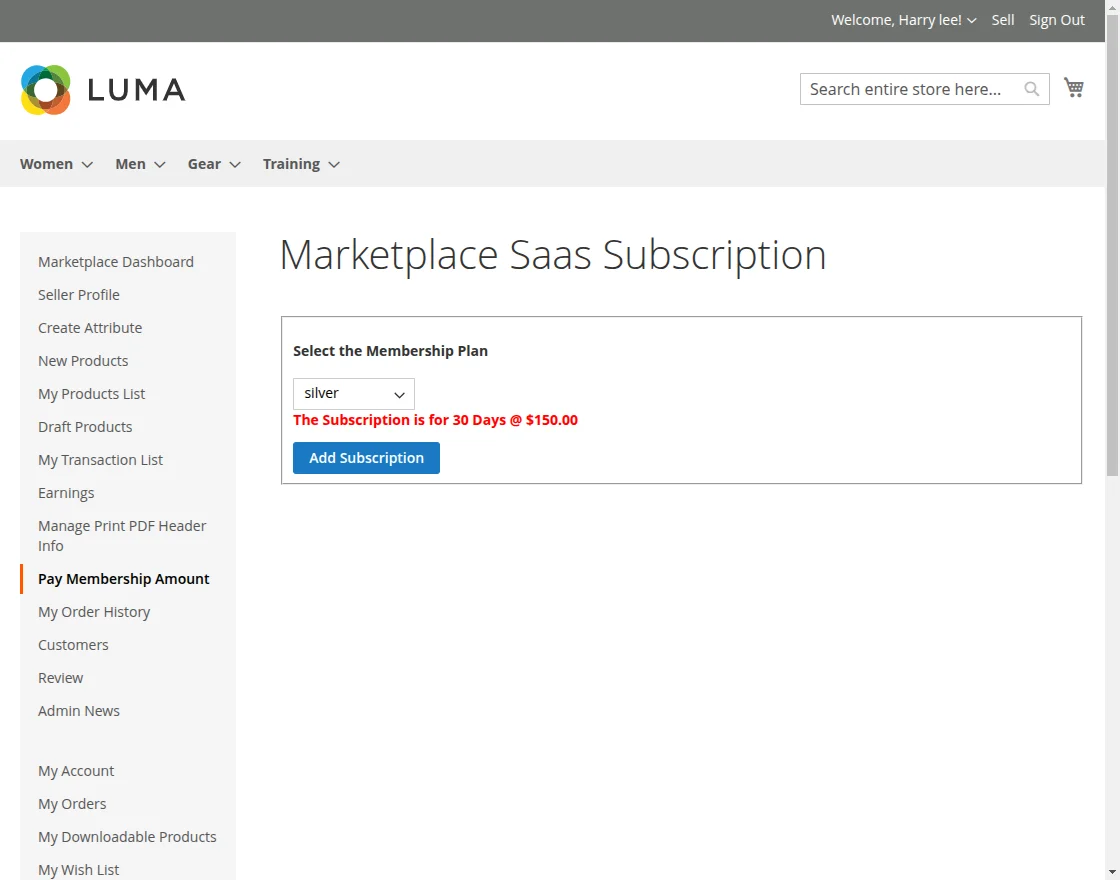 Figure 9.2: Viewing available SaaS subscription tiers on the storefront.
Cart Exclusivity & Dedicated Checkout
- The seller clicks Buy Now / Subscribe on their desired plan.
- The membership plan is added to the shopping cart, and a confirmation banner is displayed:
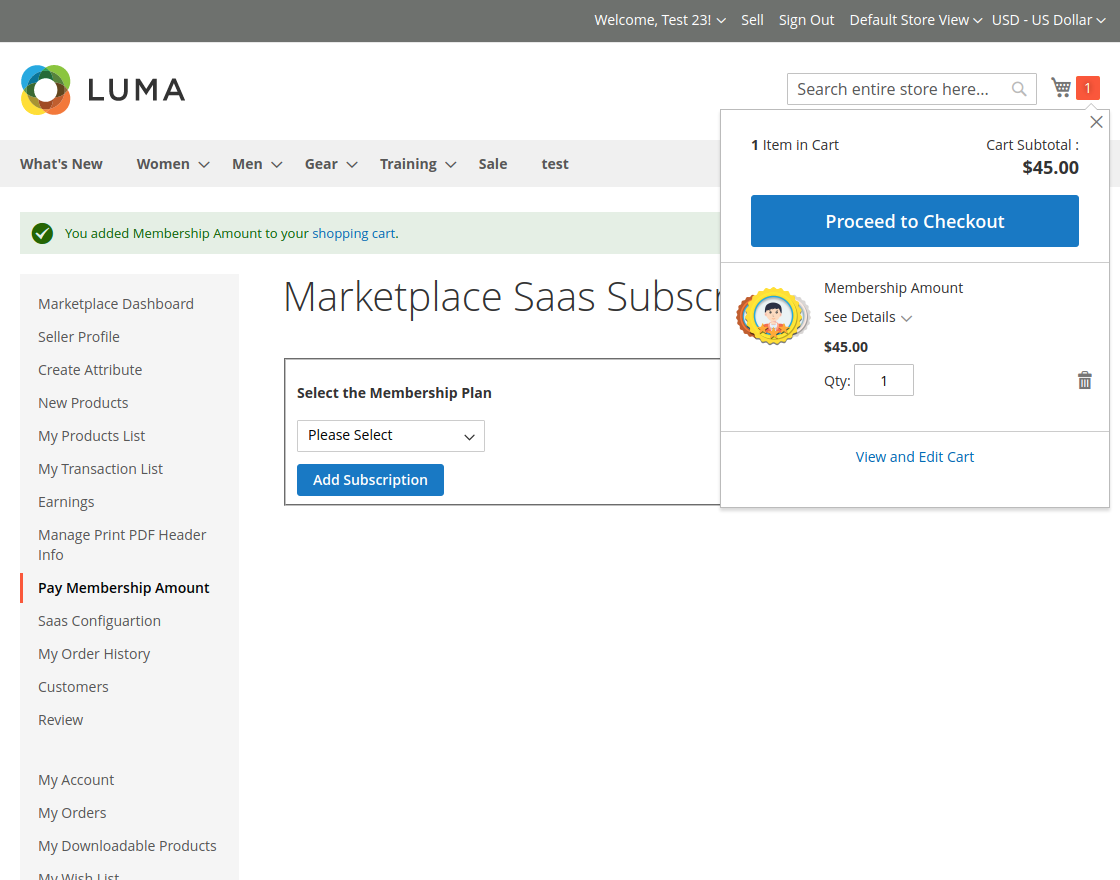 Figure 9.3: Membership tier added to cart confirmation.
- Click View and Edit Cart to review the subscription terms:
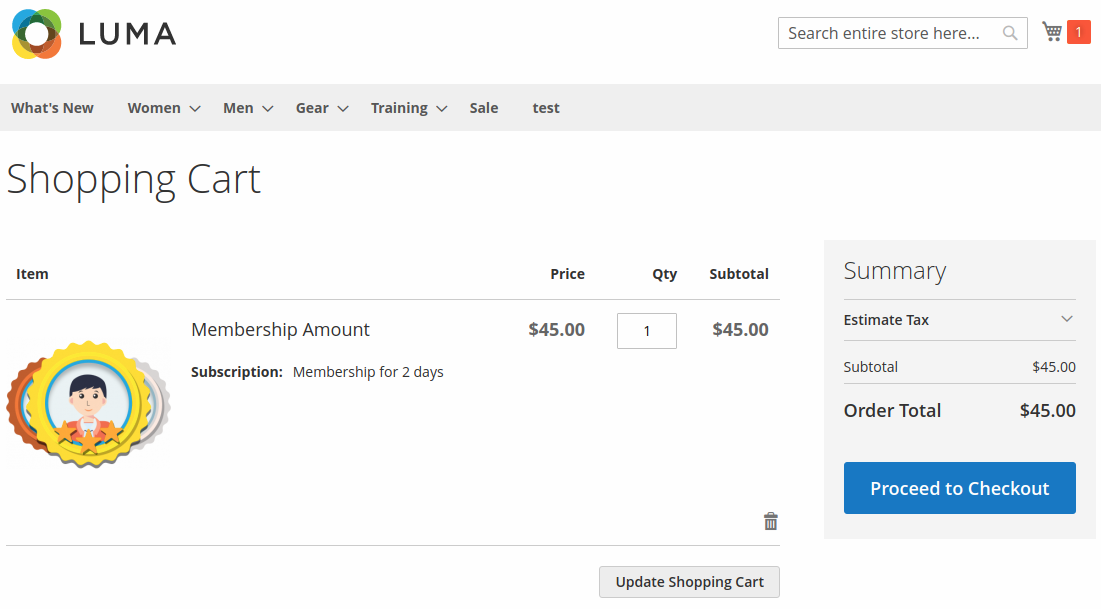 Figure 9.4: Reviewing the SaaS membership plan in the shopping cart.
Cart Exclusivity Rule
To maintain subscription billing integrity and recurring authorization agreements, SaaS membership plans cannot be purchased concurrently with regular marketplace products. Standard products must be purchased in a separate transaction.
Completing Recurring Payment
- Proceed to the checkout page. The seller selects an enabled recurring payment gateway (PayPal Recurring Express Checkout or Recurring Stripe Payment Method):
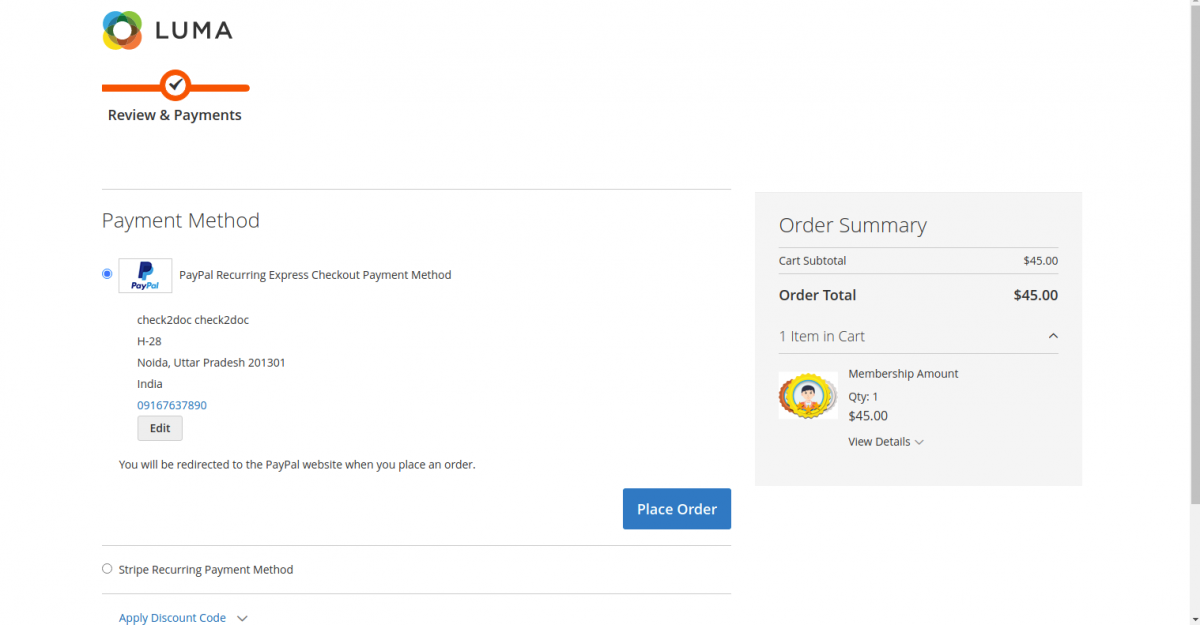 Figure 9.5: Selecting a recurring payment method.
- Click Place Order.
- The seller is redirected to the secure gateway portal (PayPal or Stripe) to authorize the recurring mandate:
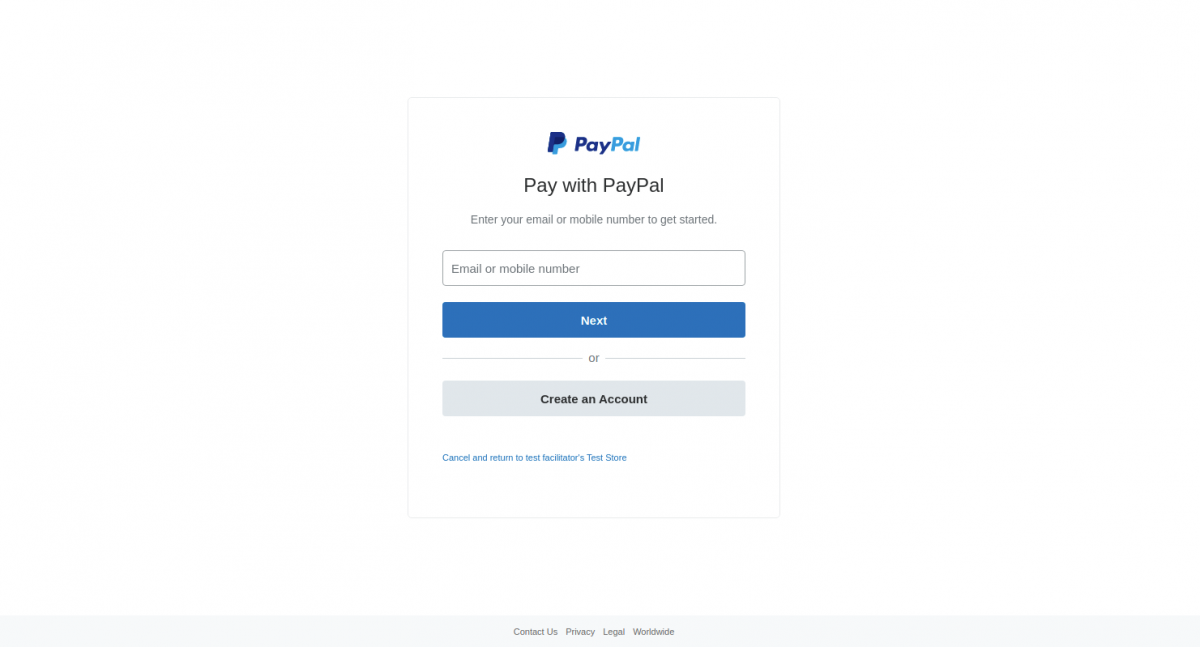 Figure 9.6: Authorizing recurring payment on the payment gateway portal.
- After authorization, the gateway returns the seller to the store with an order confirmation and order ID:
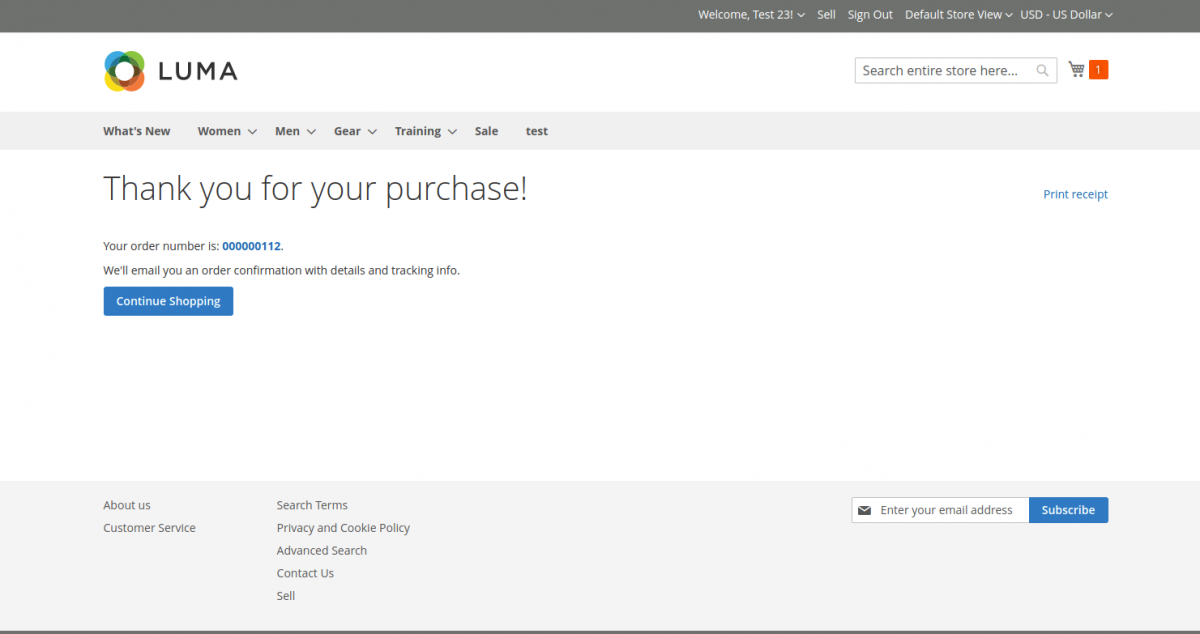 Figure 9.7: Order placement confirmation page.
Active Subscription Status & 0% Commission Benefit
Once payment is authorized, the seller's account immediately reflects active tenant status under Pay Membership Amount:
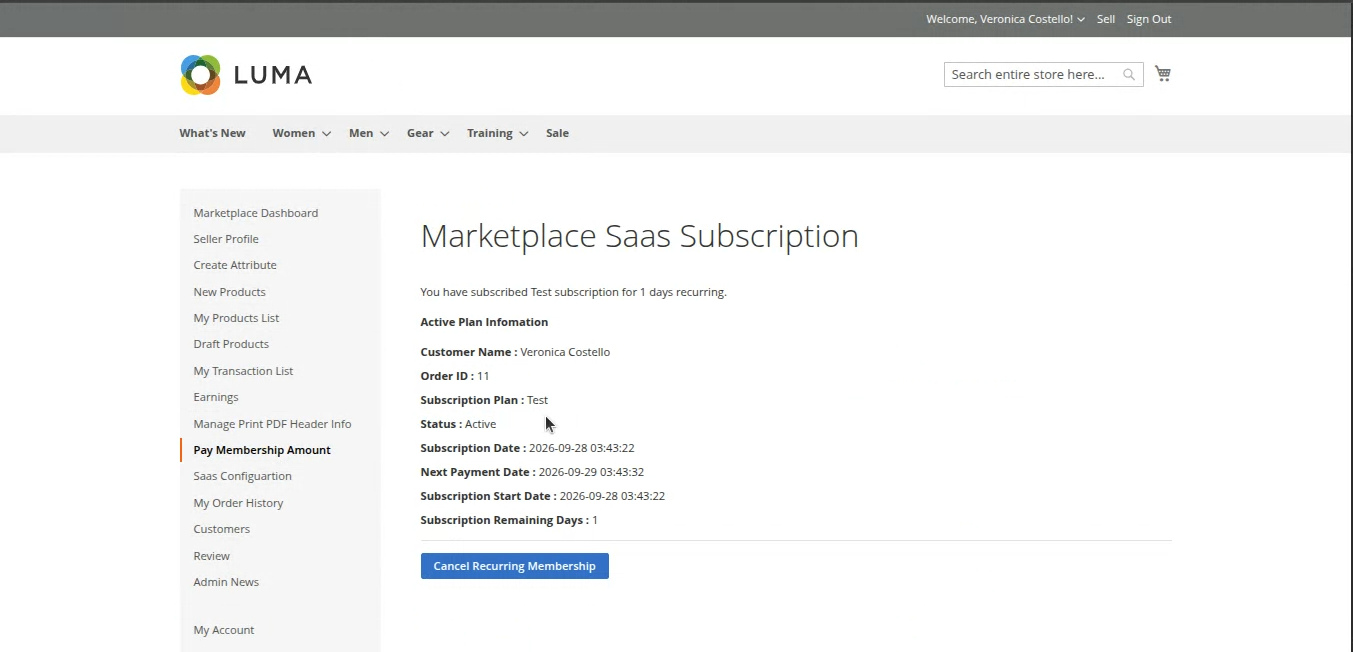 Figure 9.8: Active membership details displayed in the seller portal.
Commission Comparison
With an active subscription, the marketplace administrator's commission is bypassed entirely:
| Standard Commission Mode | Zero-Commission SaaS Mode |
|---|---|
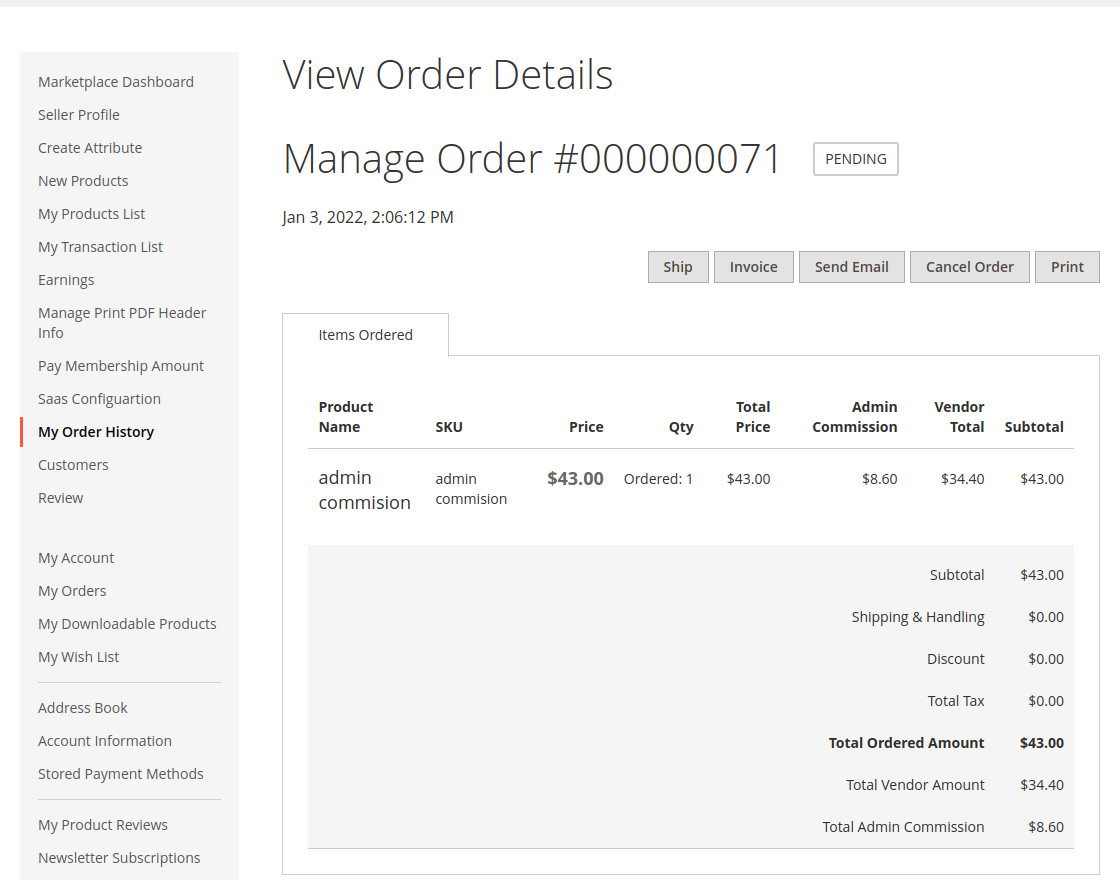 | 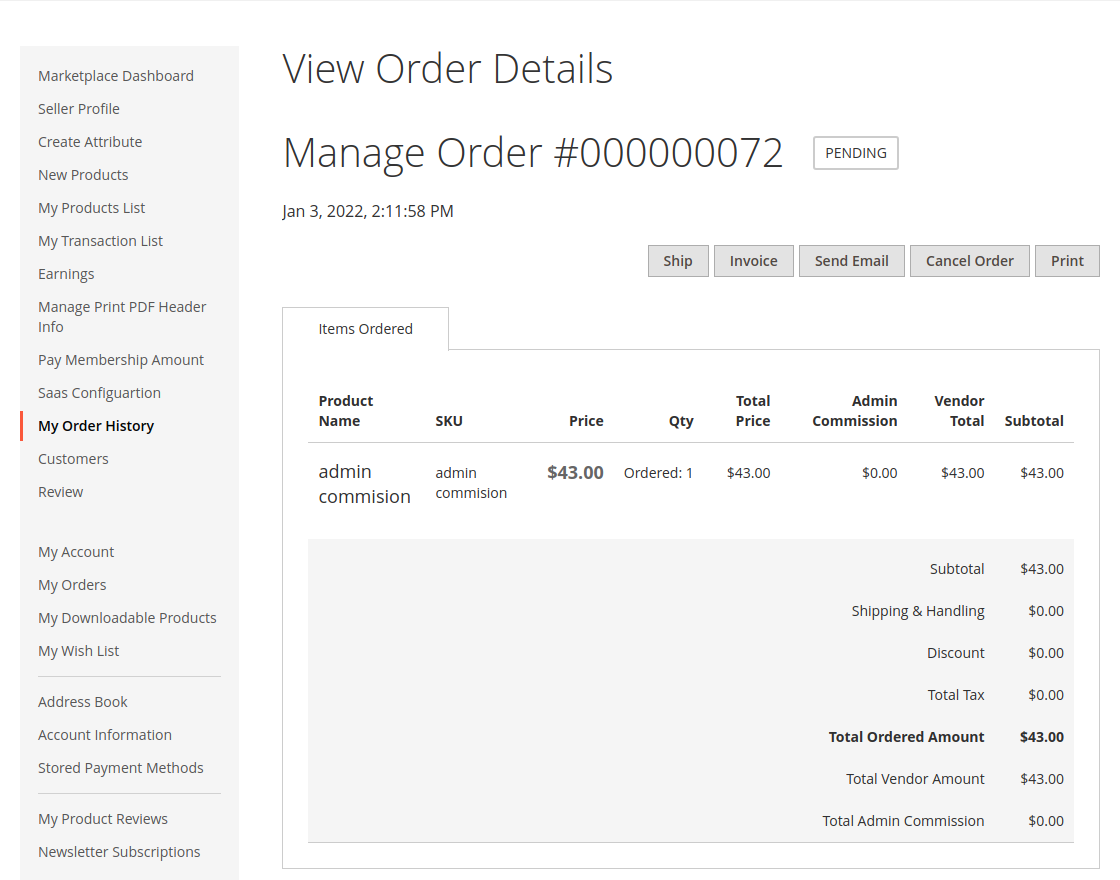 |
| Figure 9.9: Order breakdown with admin commission deducted. | Figure 9.10: Order breakdown with 0% admin commission. |
- Standard Mode: Admin deducts a percentage or fixed fee from every vendor order.
- SaaS Mode: Admin commission is $0.00. The vendor retains 100% of their net sales while their SaaS plan is active.
Canceling Recurring Membership
Sellers can cancel their recurring subscription plan at any time directly from the vendor dashboard:
- Navigate to Pay Membership Amount in the seller menu.
- Click Cancel Recurring Membership. A confirmation popup will prompt to confirm the cancellation:
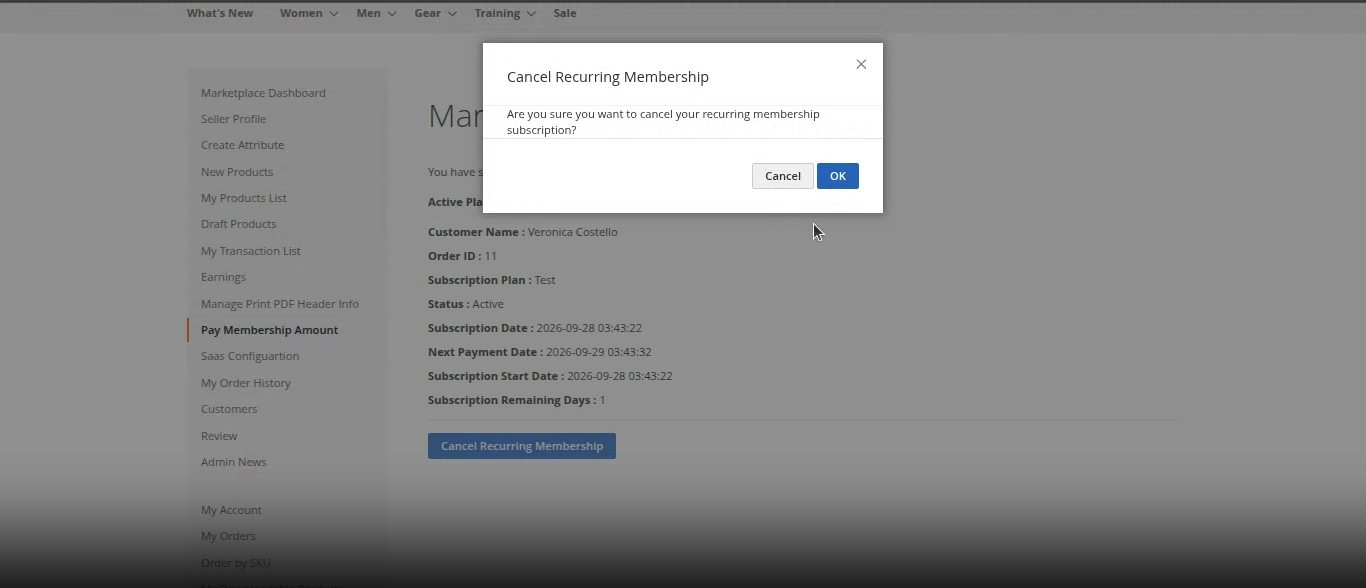 Figure 9.11: Confirmation prompt before canceling recurring membership.
- Click OK to proceed. A success notification confirms that the recurring membership subscription has been successfully cancelled:
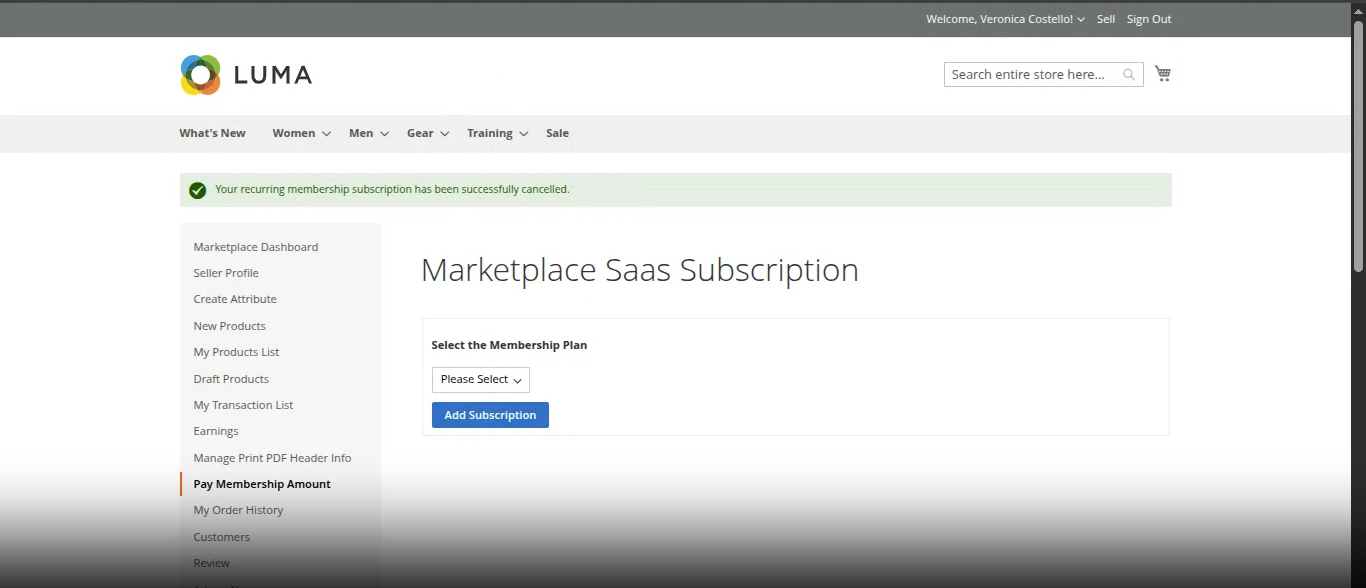 Figure 9.12: Success message confirming subscription cancellation.