
General Settings & Email Configuration
To configure core module behavior and notification emails, log in to the Magento Admin Panel and navigate to:
Stores > Settings > Configuration > Webkul > SAAS Configuration.
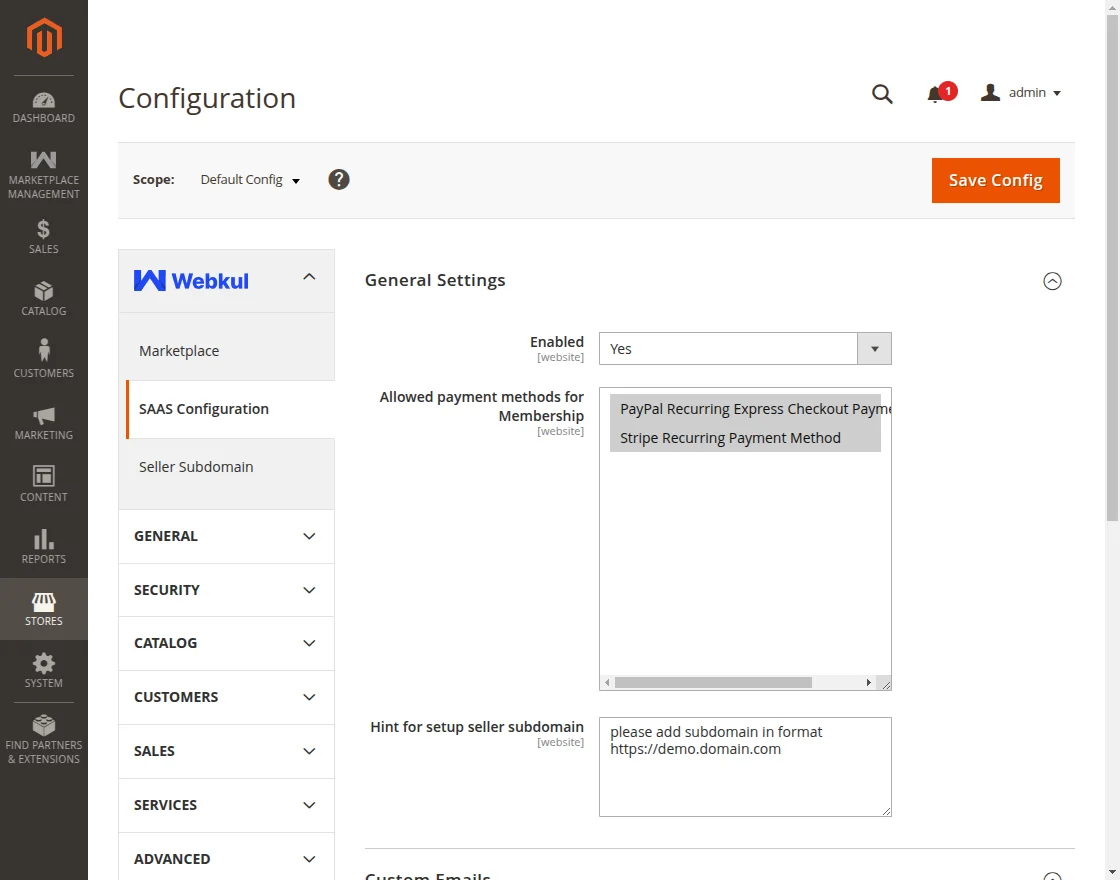 Figure 6.1: Webkul SAAS Configuration section in Magento Admin.
General Settings
| Configuration Field | Description | Recommended Value |
|---|---|---|
| Enabled | Master toggle to activate or deactivate the SaaS multi-tenant engine across the marketplace. When set to Yes, sellers can browse membership plans, retain 100% earnings (0% commission), and manage branded subdomains. | Set to Yes |
| Allowed payment methods for Membership | Multi-select drop-down specifying which recurring payment gateways are available at the dedicated SaaS subscription checkout. Non-recurring standard gateways (e.g., COD, Bank Transfer) are excluded to ensure recurring mandate integrity. | Select PayPal Recurring Express Checkout Payment and/or Stripe Recurring Payment Method |
| Hint for setup seller subdomain | Guidance text displayed to sellers on their frontend dashboard (Vendor Profile) instructing them on the required format when registering their custom subdomain slug. | Enter a helpful format hint, e.g.: please add subdomain in format https://demo.domain.com |
Payment Method Restriction
Only recurring payment methods configured to handle recurring authorization mandates (PayPal or Stripe) should be selected in Allowed payment methods for Membership. Standard offline payment methods (such as Bank Transfer or Cash on Delivery) do not support automatic recurring billing cycles.
Custom Email Templates
The module automates customer communications during subscription lifecycle events:
| Email Template Field | Event Trigger | Description & Key Contents |
|---|---|---|
| Membership Plan Subscription Template | Initial Subscription Activation (Dispatched immediately upon plan checkout) | Confirmation and welcome email sent to the seller upon initiating a new membership. Contains core subscription details including plan tier title, subscription fee, plan lifespan (in days), start date, and next scheduled renewal date. |
| Membership Plan Notification About Plan Transaction | Recurring Cycle Renewal (Triggered on each successful recurring charge) | Payment receipt and cycle notice sent to the seller whenever an automated renewal payment executes via PayPal or Stripe. Includes the gateway transaction reference ID, billed amount, transaction timestamp, and updated next billing deadline. |
To customize these emails:
- Navigate to Marketing > Communications > Email Templates.
- Click Add New Template.
- Select the respective default SaaS template from the Template selector and click Load Template.
- Adjust the HTML and layout as needed, save, and select your custom template under Stores > Configuration > Webkul > SAAS Configuration.