
Seller Subscription Products
Marketplace sellers can create new subscription products or convert existing catalog items into recurring subscription services from their vendor dashboard.
Part 1: Creating a New Subscription Product
- In the seller dashboard, navigate to My Account > New Products.
- Select the product type (Simple, Configurable, Virtual, or Downloadable) and click Continue.
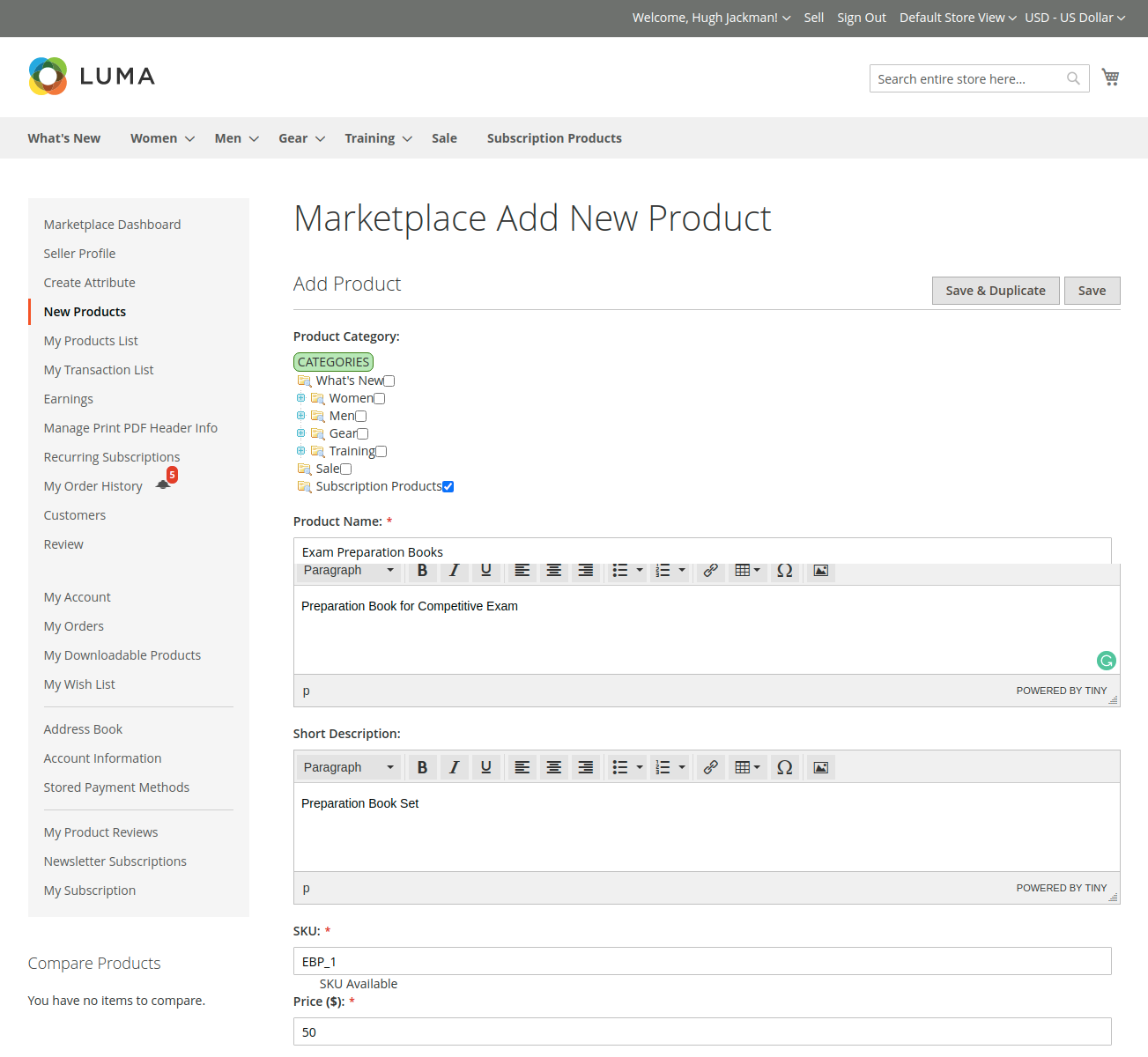
- Fill in the standard product parameters (Product Name, SKU, Description, Category, Base Price, Stock Quantity).
- Scroll to the bottom of the form to find the Subscription Configuration section.
- Set the Subscription field to Yes.
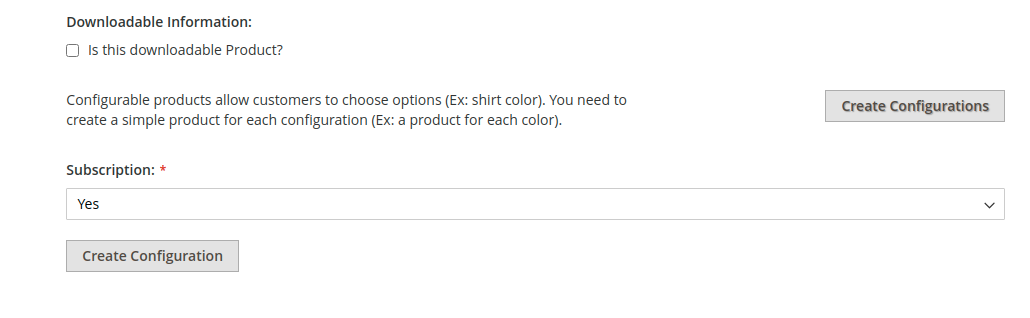
- Click Edit Configurations to open the subscription plan configuration interface.
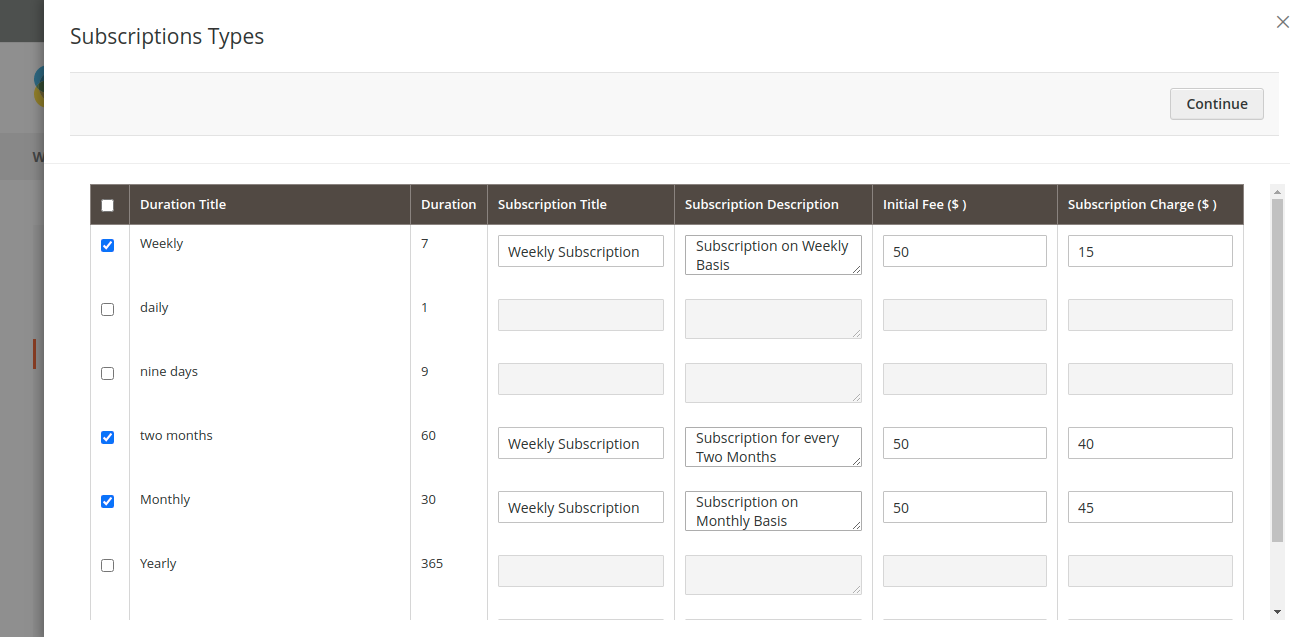
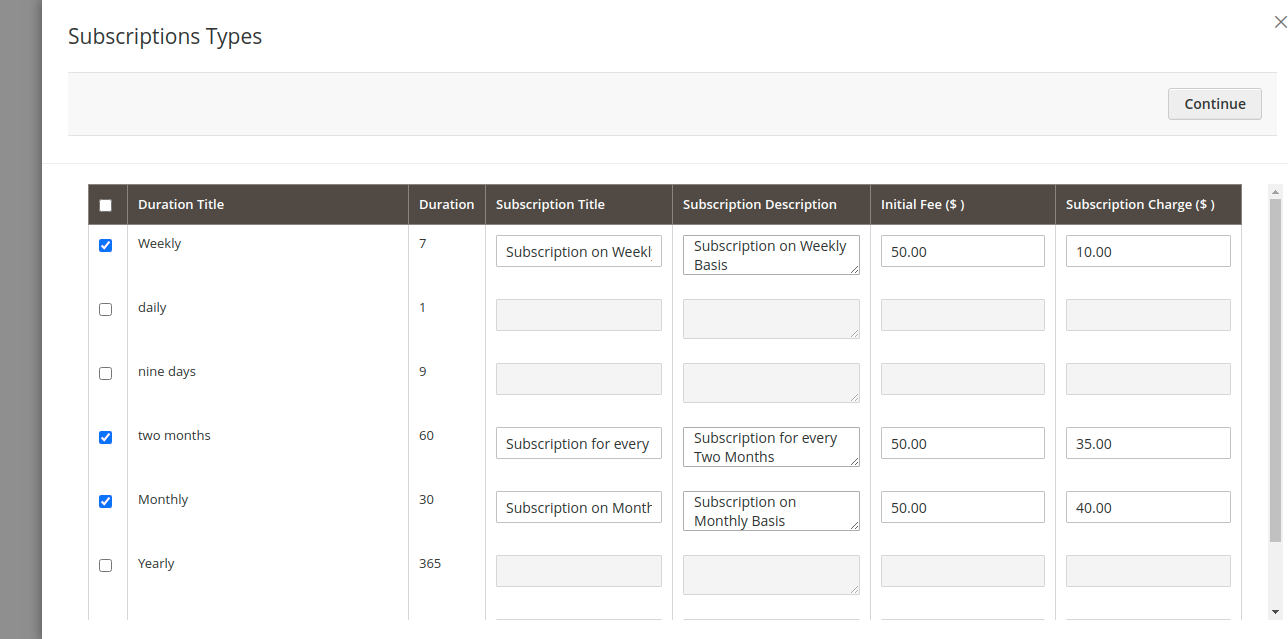
- Configure your subscription plans:
- Select one or more Duration Types (e.g. Weekly, Monthly, Yearly).
- Specify the Initial Fee (one-time setup fee charged immediately upon checkout).
- Specify the Subscription Amount (recurring installment charged each renewal cycle).
- Click Save to publish the product.
Part 2: Converting an Existing Product
- Navigate to My Account > My Product List in the seller dashboard.
- Select any non-subscription product and click Edit.
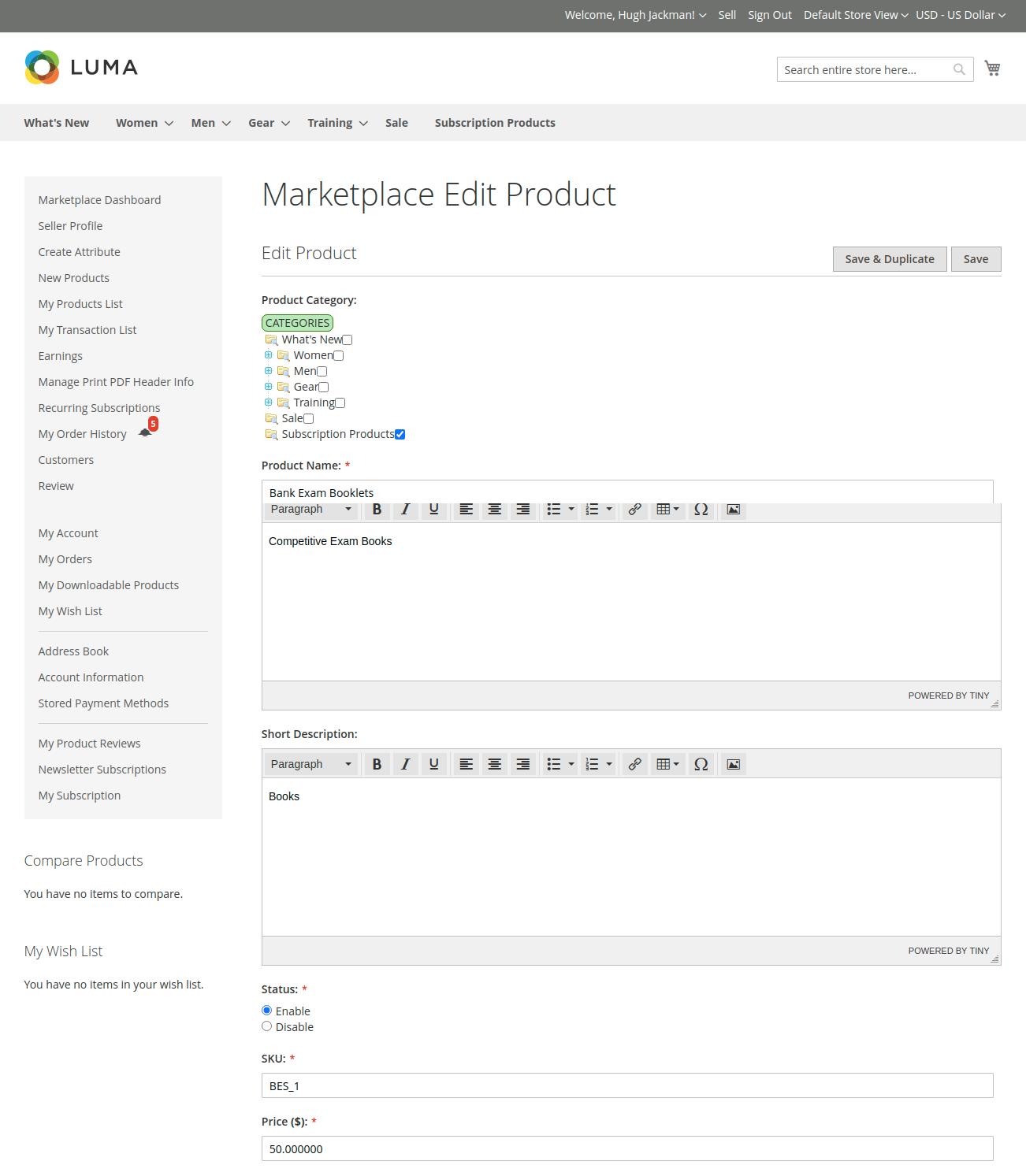
- Scroll to the bottom of the page to locate Subscription Configuration.
- Set Subscription to Yes.
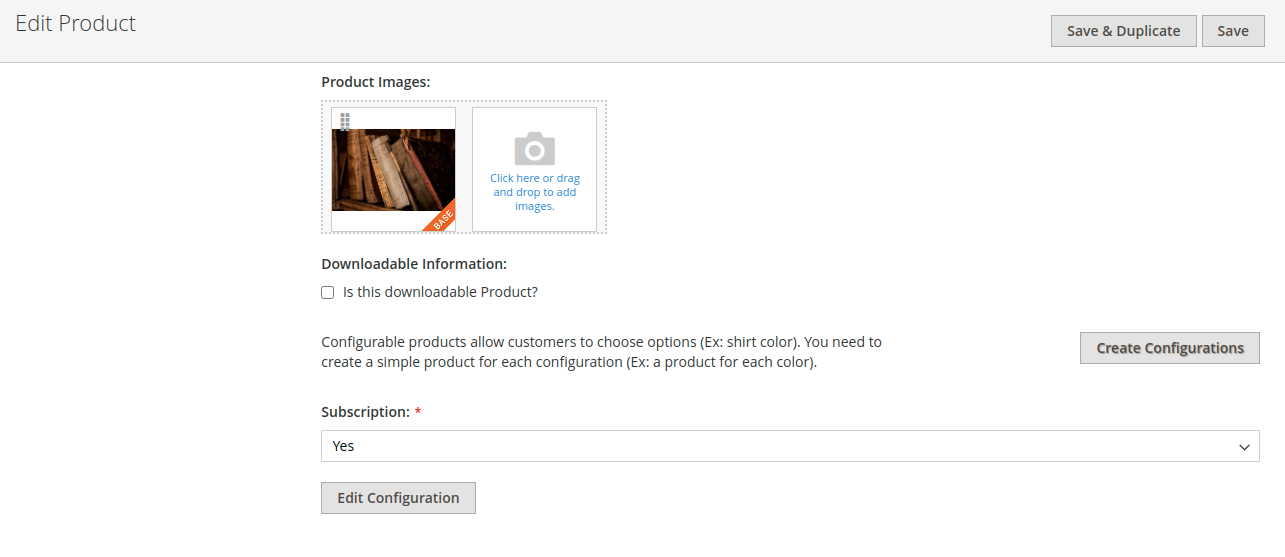
- Click Edit Configurations to add desired subscription terms and pricing.
- Click Save to update the product.
The product will now feature subscription plans and recurring billing options on the customer storefront.