
PayPal Mass Payment Payouts
The PayPal Mass Payment (PayPal Payouts) system enables marketplace administrators to disburse accumulated subscription revenues to multiple marketplace sellers in a single batch operation.
Navigating to PayPal Mass Payment
- In the Magento Admin Panel, locate the Marketplace Management section.
- Under Paypal Mass Payment Menu, click Manage Paypal Mass Payment.
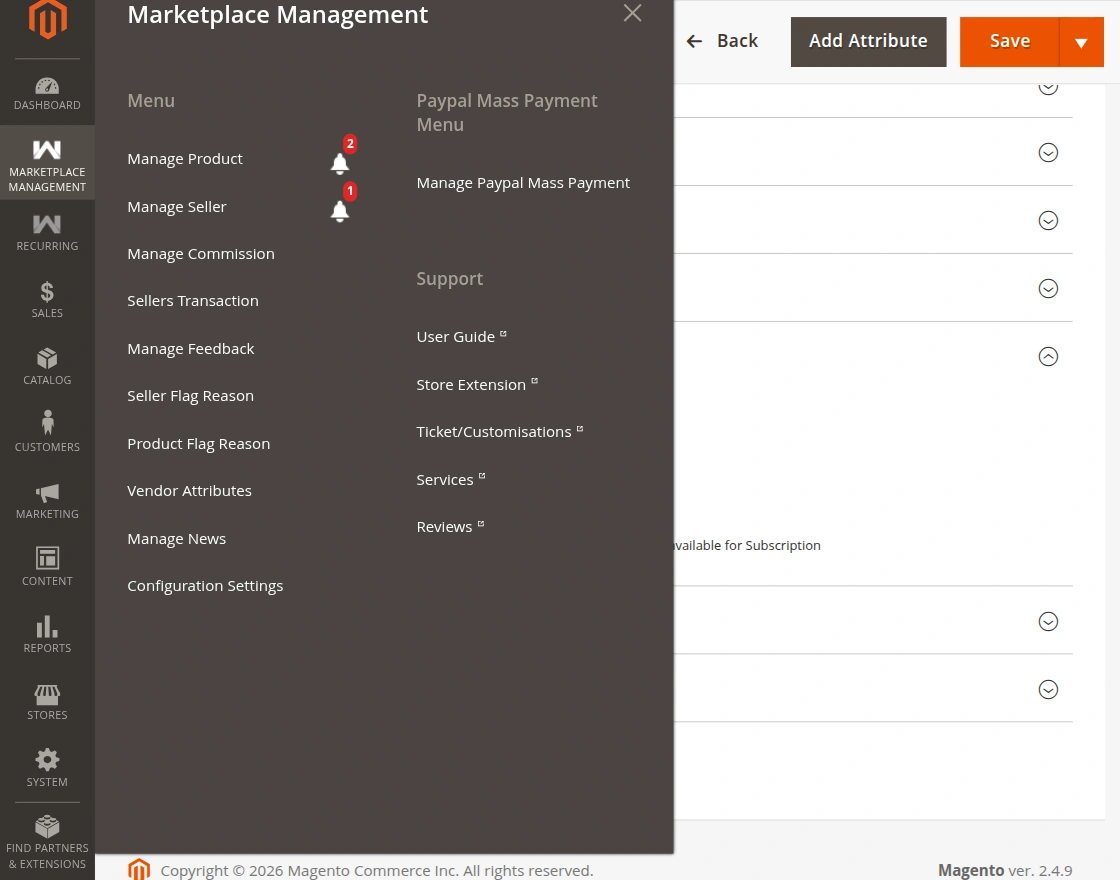
Manage Mass Payment Grid
The Manage Mass Payment page lists pending payouts for marketplace sellers:
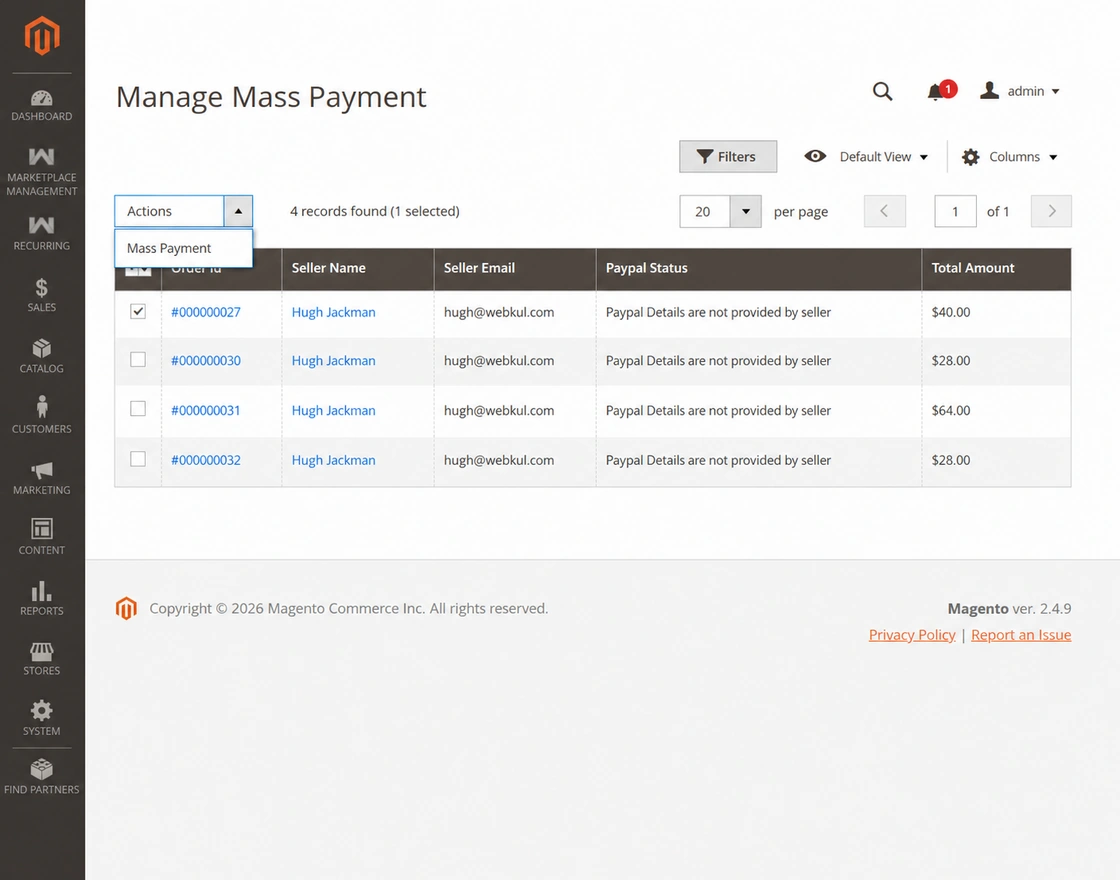
The grid contains:
- Order ID: Order associated with the seller's subscription earnings.
- Seller Name: Registered name of the vendor.
- Email: Vendor's PayPal-associated email address.
- PayPal Status: Current payment payout state (
Pending,Paid,Failed). - Total Amount: Net payable amount due to the vendor after marketplace commission deductions.
Executing a Mass Payment Payout
To disburse funds to one or multiple vendors:
- Select the checkboxes next to the orders/sellers you wish to pay (or select all).
- From the Actions dropdown list, select Mass Payment.
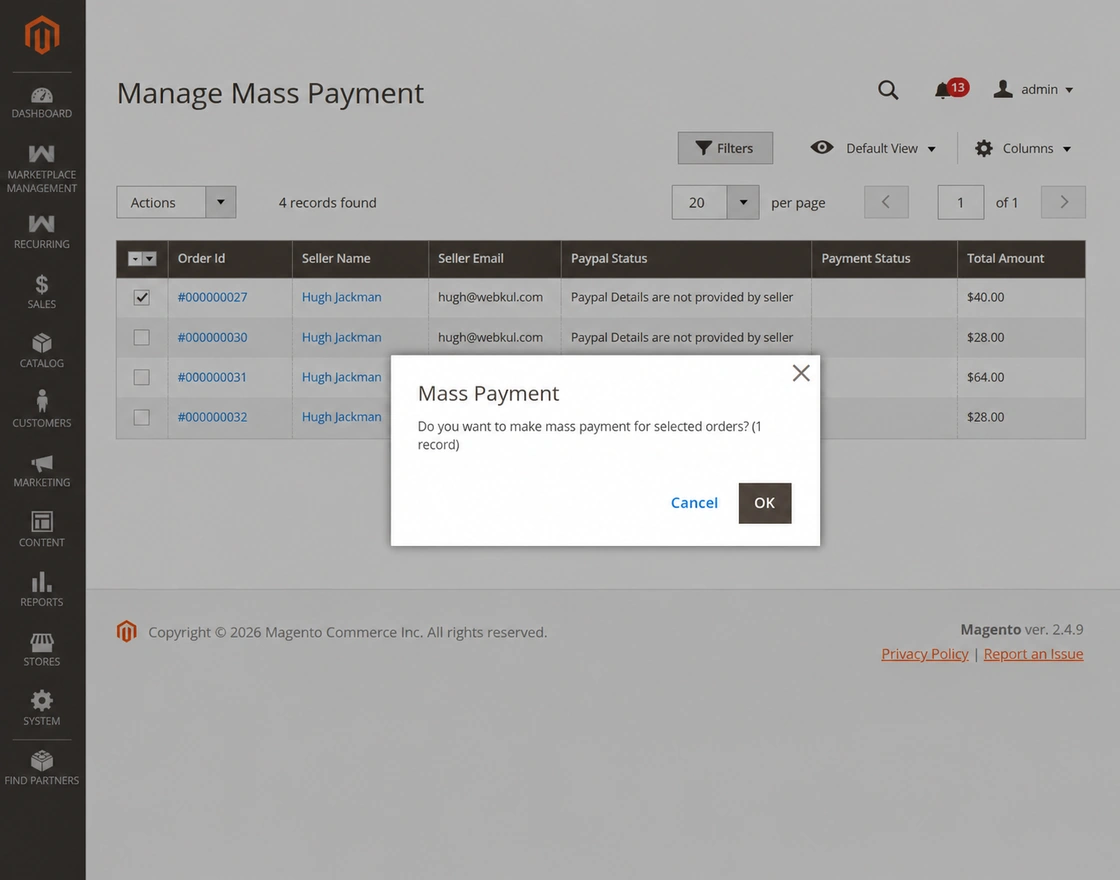
- A confirmation dialog appears asking to confirm disbursement.
- Click OK to execute the payout request via the PayPal REST Payouts API.
- Upon successful execution:
- Funds are instantly transferred from the administrator's PayPal account to the respective sellers' PayPal accounts.
- Payout status updates to Paid.
- A payout transaction entry is automatically recorded in the vendor's marketplace transaction ledger.
Payout Requirements
Ensure your PayPal REST App credentials (Client ID and Secret) are configured under PayPal payment settings and that your platform PayPal balance has sufficient funds to cover the disbursements.