
Seller End Workflow
Guide for marketplace sellers joining campaigns and managing campaign products from the seller dashboard.
Viewing Available Campaigns
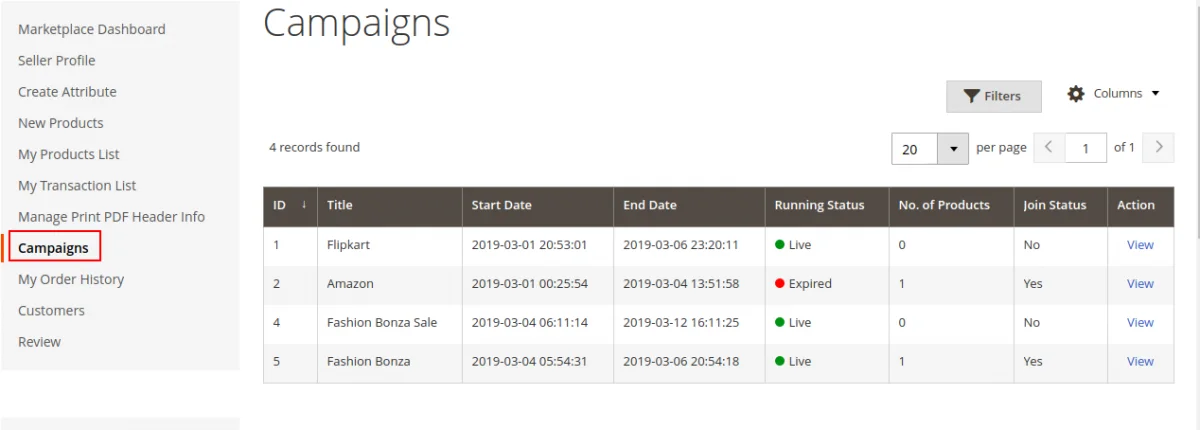
Sellers log into their Marketplace Seller Account and navigate to Campaigns from the dashboard menu.
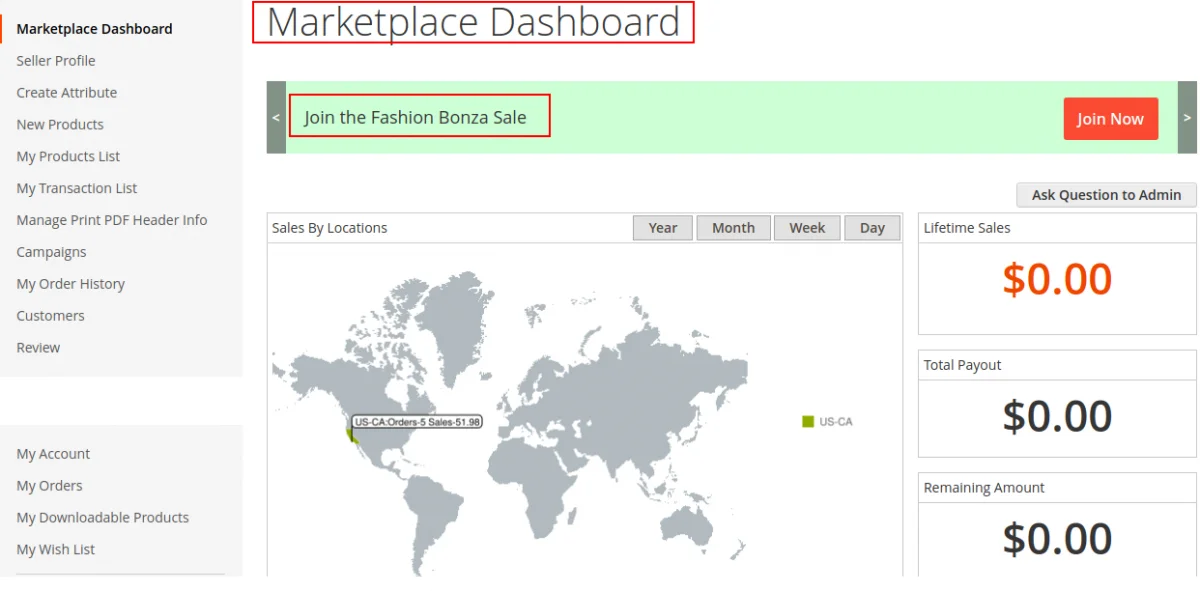
Sellers can filter campaigns by status: Live, Expired, or Upcoming.
Joining a Campaign
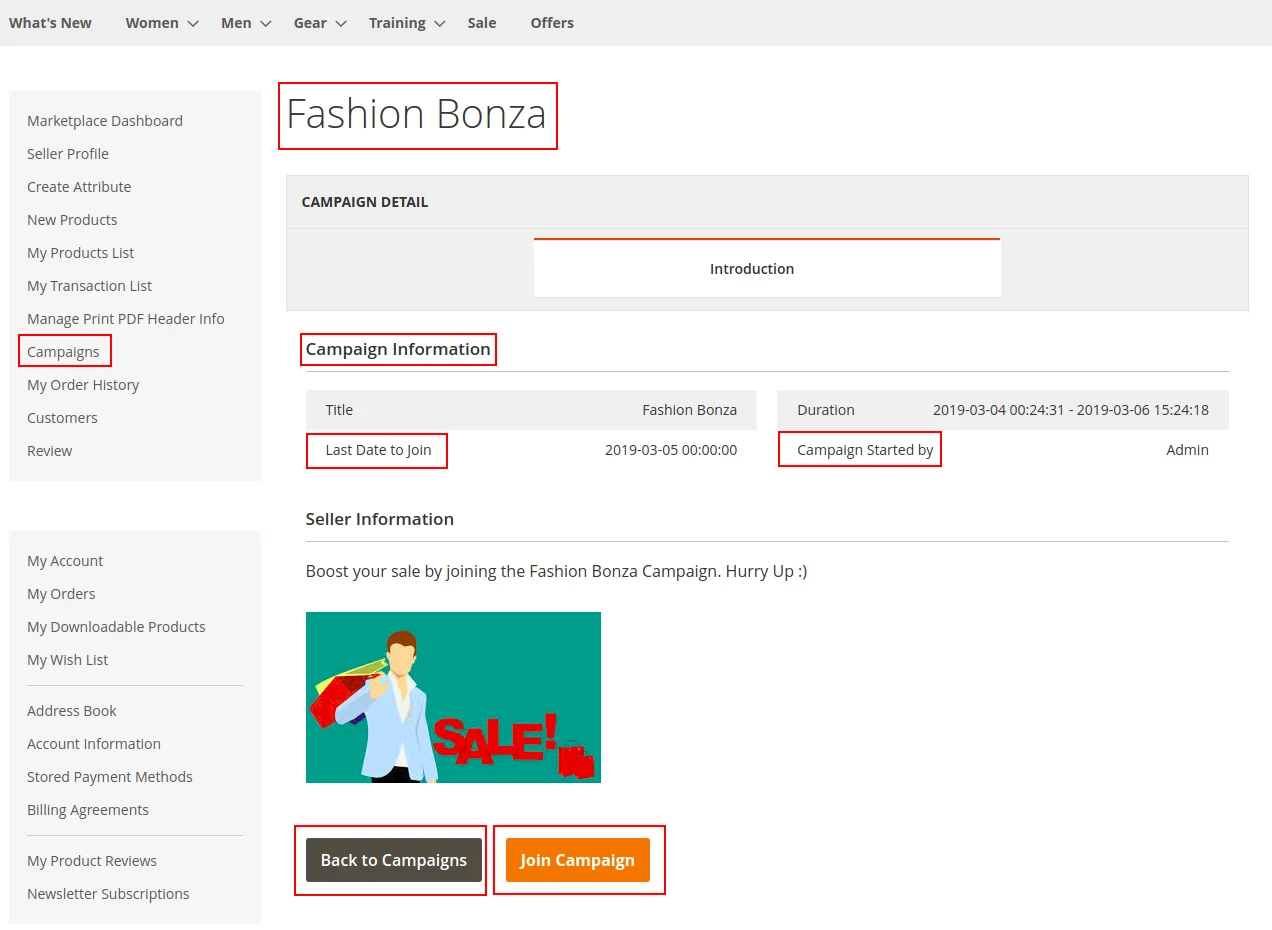
- Click View next to an eligible campaign.
- Review campaign terms, discount rules, duration, and cutoff date.
- Click Join Campaign.
Managing Campaign Products
Once joined, the seller can add products to the campaign:
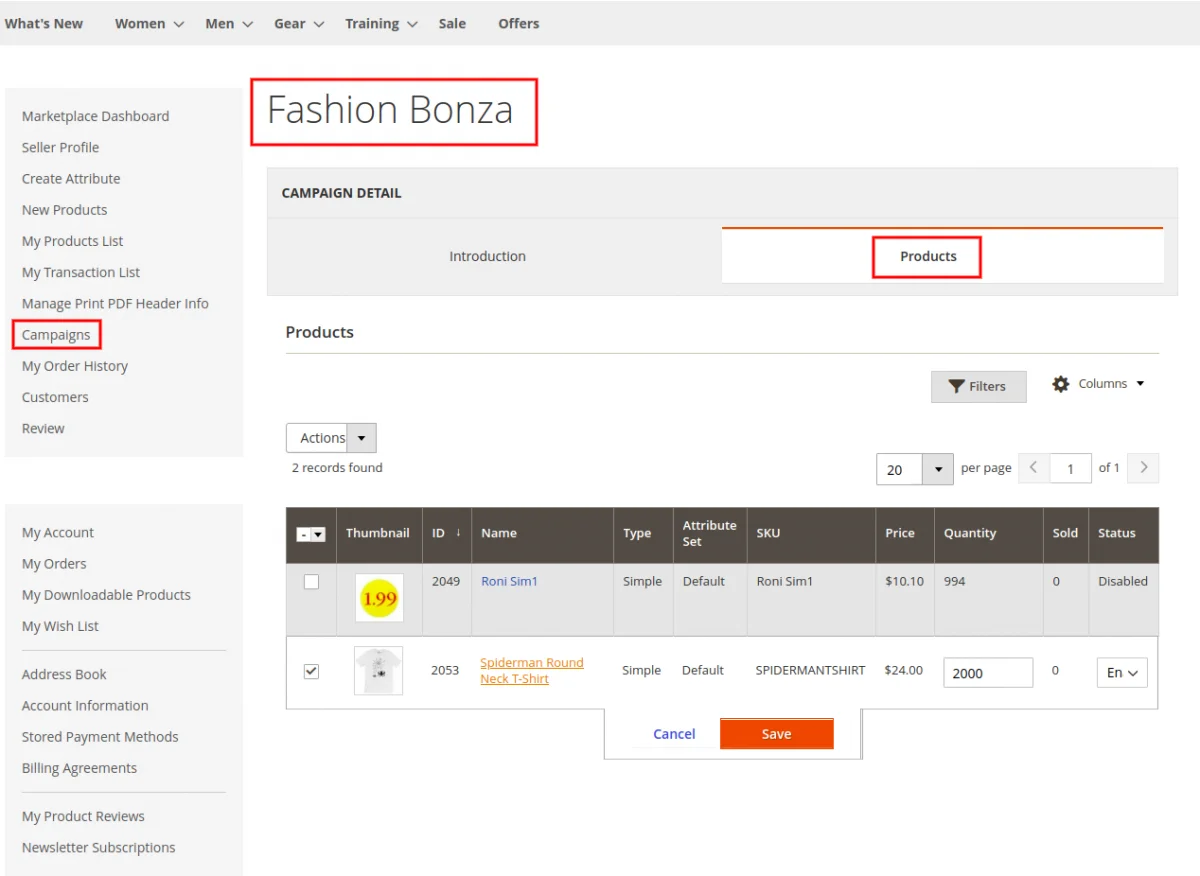
- Select products from seller catalog.
- Enable or Disable individual product participation.
- Update allocated quantities per product.
- Use mass actions to enable/disable multiple items at once.