
Module Activation & License Verification
Before the Service Fee settings and calculation rules become active in your store layout, you must activate and verify the module settings in the Magento backend.
Check Registration Status
To verify that Magento has correctly registered and loaded the module, run:
bin/magento module:status Webkul_ServiceFee
If the module is listed under Disabled Modules, enable it with:
bin/magento module:enable Webkul_ServiceFee
bin/magento setup:upgrade
Module License Verification & Activation
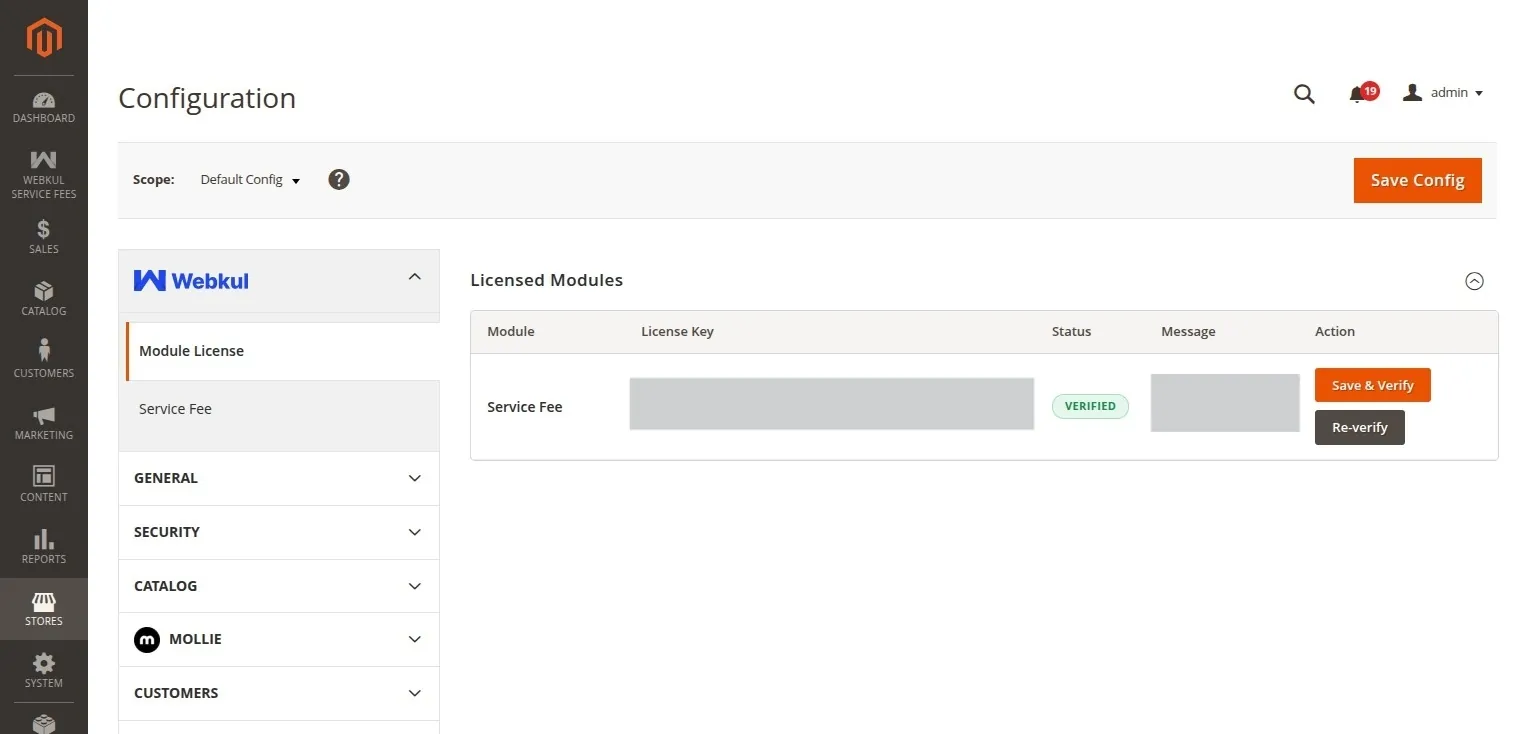
The Service Fee configurations are secured behind centralized Webkul license verification. Upon initial installation, the extension configurations are locked or hidden until your license key is verified via the Webkul_Base management panel.
Step 1: Verify Your License Key
- Log into your Magento Admin Panel.
- Navigate to:
Navigation Path
Stores → Configuration → Webkul → Module License
- Under the Licensed Modules section, locate the row corresponding to Webkul_ServiceFee (or select it from the list of modules).
- Enter your purchased License Key in the input field.
- Click the Verify button. The system validates the key asynchronously with Webkul's central licensing servers.
- Once verified, the status will show a green verified label.
Step 2: Enable the Service Fee Module
- Navigate to:
Navigation Path
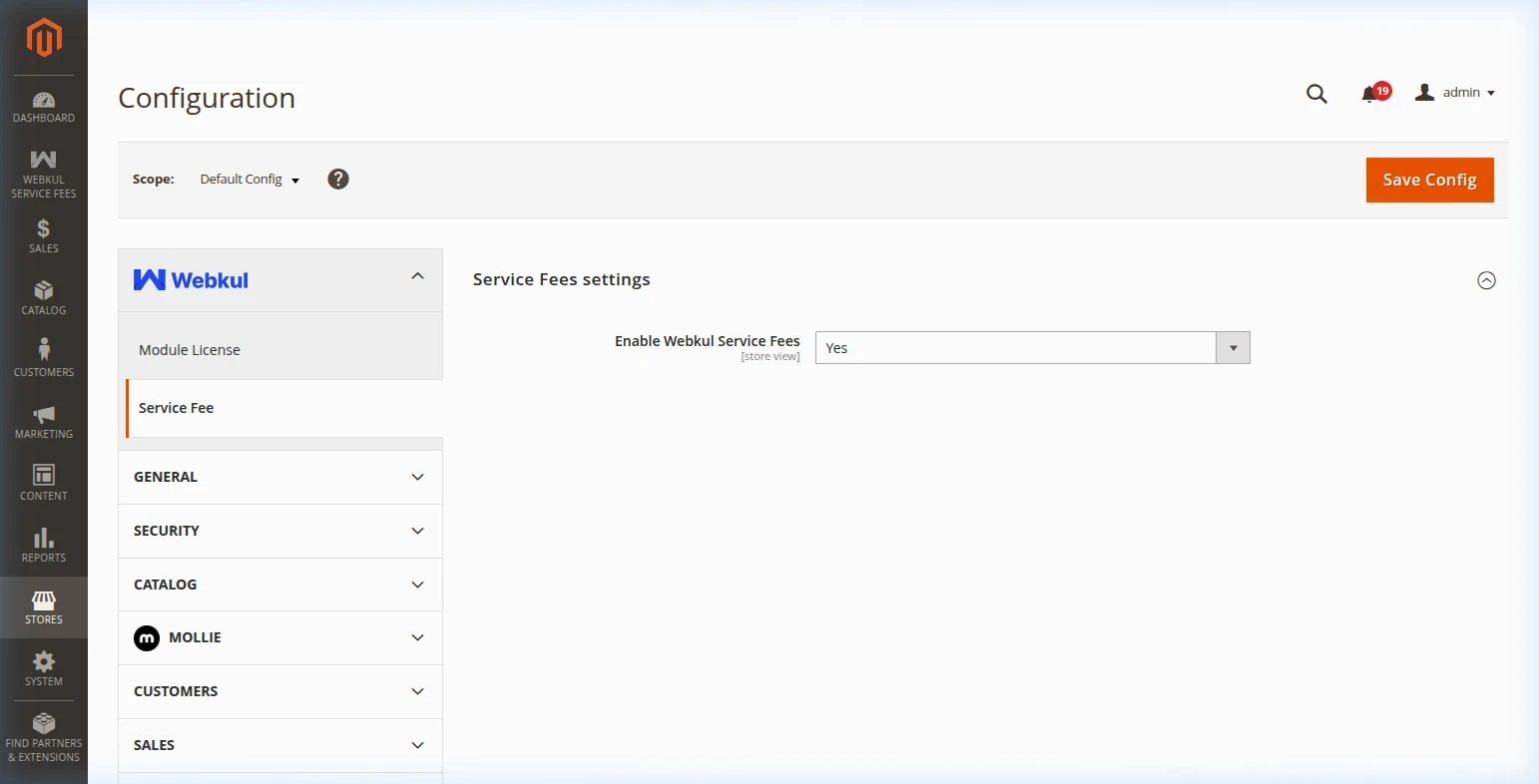
Stores → Configuration → Webkul → Service Fee
- Under the Service Fees settings section, set Enable Webkul Service Fees to
Yes. - Click Save Config in the top-right corner.
| Field Name | Options | Description |
|---|---|---|
| Enable Webkul Service Fees | Yes / No | Master toggle to activate or deactivate the Service Fee functionality storefront-wide. |
Clearing Cache
Flush the Magento cache using the Admin Cache Management page or the CLI commands:
bin/magento cache:clean
bin/magento cache:flush
Now all functional Service Fee configuration sections and rule management panels are fully unlocked and ready for use.