
Requesting a Quote
The Quote System allows shoppers to negotiate custom prices, volume discounts, or project rates directly from your Magento storefront.
The Frontend Buyer Journey
Before looking at individual product actions, here is the complete end-to-end flow from the customer's perspective:
- Browse Catalog: Shopper finds a quotable item on category or product detail pages.
- Add to Quote: Shopper clicks "Add to Quote", configures variants, and enters target price and quantity in the popup modal.
- Review Quote Cart: Shopper reviews all requested items, updates notes, and attaches documents.
- Submit Request: Shopper submits the quote (with email OTP verification for guests if enabled).
- Track Status: Buyer monitors progress under My Account → My Quotes.
- Negotiate: Buyer and store admin exchange messages in the interactive conversation drawer.
- Purchase: Once approved, buyer clicks Proceed to Purchase and checks out with the negotiated rates.
Adding to Quote from the Product Page
- Open any quotable product.
- Configure required options (size, color, bundle options, or custom options).
- Click the Add to Quote button next to Add to Cart.
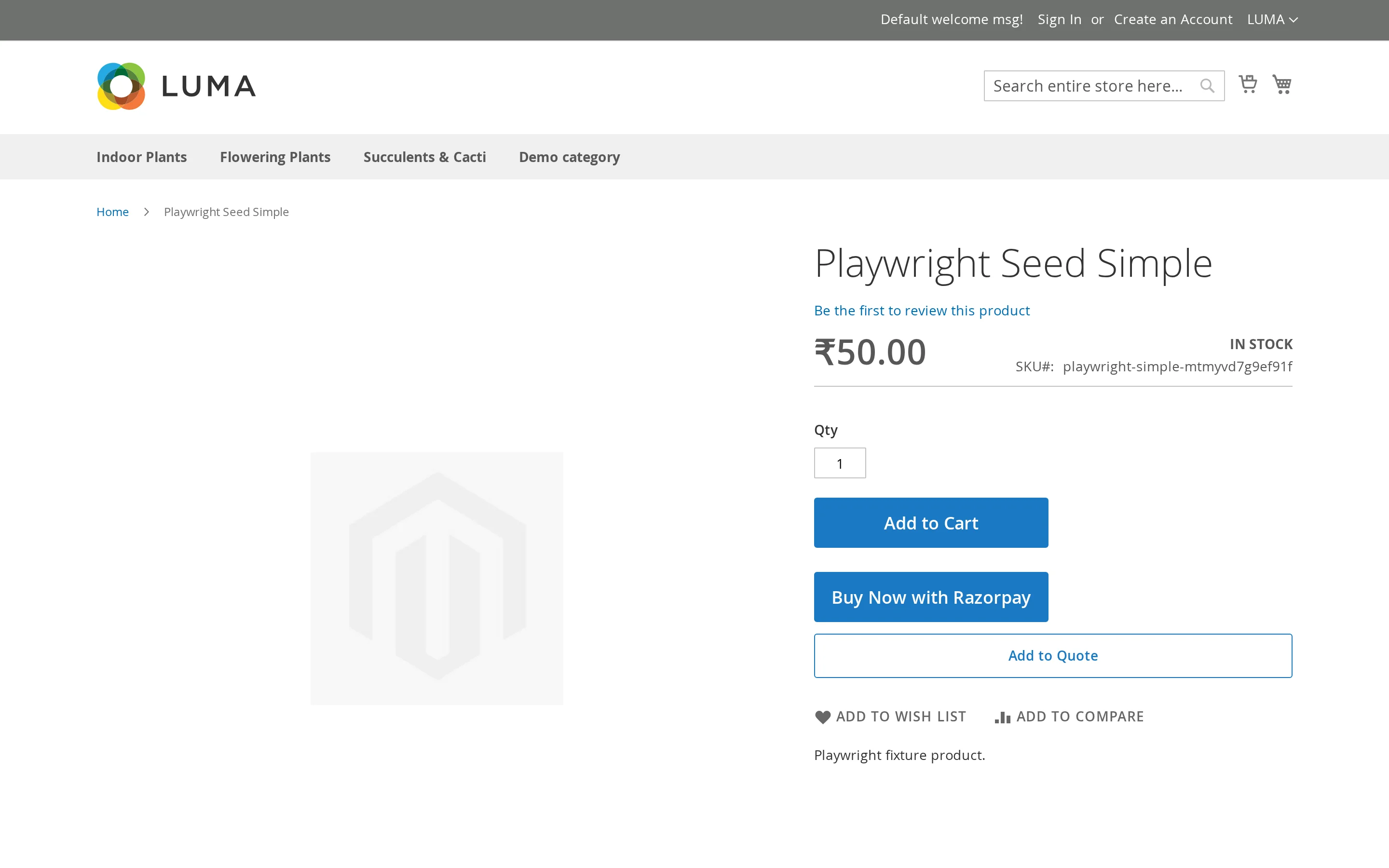
- The Enter Quote Details modal opens:
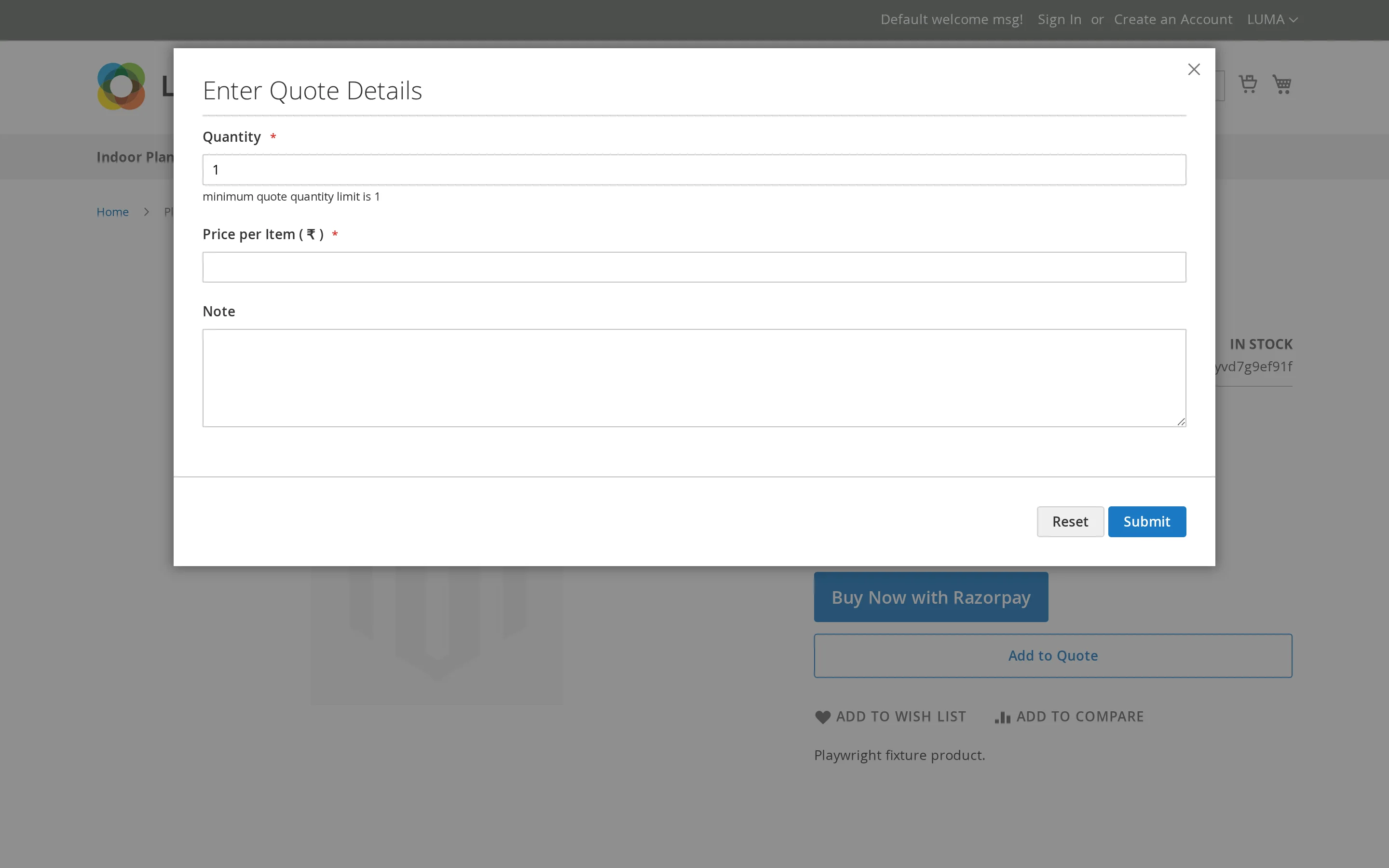
| Field | Purpose |
|---|---|
| Quantity | The requested number of units (defaults to product page quantity) |
| Price per Item | The target unit price proposed by the shopper |
| Note | Line-item requirements, packaging requests, or project notes |
| Custom Form Fields | Any custom dynamic fields configured by the admin (e.g. Delivery Date, Budget) |
- Click Submit. The item is added to the customer's dedicated quote cart, and the header quote badge updates instantly.
The product's configured options travel with the quote request exactly as with a standard cart: a configurable product quoted as Blue / Large is quoted, approved, and purchased as Blue / Large.
Automatic Quantity Sync
The quote modal automatically inherits the quantity already selected on the product page, eliminating duplicate entries for volume buyers.
Adding from Category & Search Listings
- Simple & Virtual Products (with no required options) can be quoted directly from category grid cards — clicking Add to Quote opens the modal immediately over the listing.
- Configurable, Bundle & Grouped Products (which require variant selection) automatically guide the shopper to the product detail page to choose options first.
Supported Product Types
| Product Type | Shopper Experience |
|---|---|
| Simple / Virtual | Single quantity, target unit price, and note. |
| Downloadable | Select downloadable links, then specify quantity and target price. |
| Configurable | Select variants (size, color, material), then submit quote details. |
| Bundle | Build bundle configuration; modal appears in the customization panel. |
| Grouped | Individual quantity, price, and note inputs for each child item in the group. |
Validation & Constraints
The quote modal automatically validates:
- Required Options: Shopper must choose all mandatory product variants.
- Minimum Quote Quantity: Enforces the minimum item threshold set in Product Display Configuration.
- Minimum Quote Subtotal: Prevents submission if
Quantity × Priceis below the configured store minimum.
Submitting the Quote
Adding items builds the quote cart. To review line items, upload project attachments, and send the proposal to store admins, continue to The Quote Cart.