
Managing Quotes in Admin
Store administrators manage incoming quote requests, negotiate prices, converse with buyers, and track conversions from the Magento Admin Panel.
Navigate to Webkul Quote System → Manage Quote Requests.
The Merchant Management Workflow
- Enable Quotable Products: Turn on quoting for individual products or bulk-update entire categories via Catalog Products.
- Monitor Quote Grid: Review new incoming requests, filter by pending status, unread customer messages, or approaching expiry dates.
- Open Quote Details: Examine customer notes, requested unit prices, quantities, attachments, and dynamic form inputs.
- Counter-Offer & Edit: Formulate competitive counter-offers with offered prices and quantities, or accept the buyer's terms.
- Message Buyer: Clarify project specs or delivery windows using the built-in two-way conversation thread.
- Approve & Order Conversion: Approve the quote; when the customer completes checkout, the quote converts to Ordered status with a linked Magento Order ID.
The Quote Requests Grid
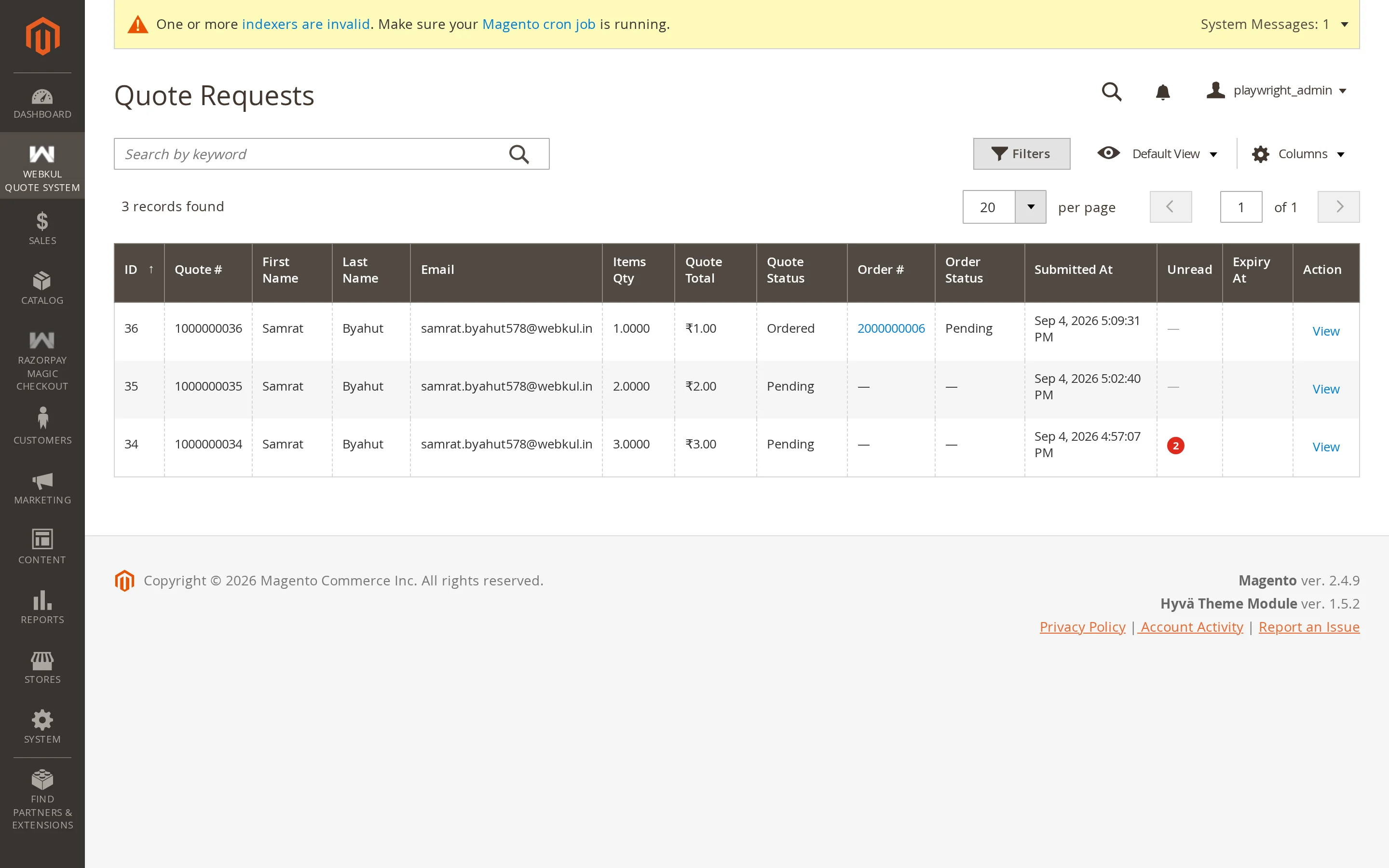
The grid displays every quote submitted across your store views, sorted by newest first:
| Column | Description |
|---|---|
| Quote # | The unique quote identifier (e.g., #000000034) |
| Customer Name | Registered buyer name or guest contact |
| Customer Email | Contact email address |
| Quote Total | Current calculated total based on customer requested or admin offered prices |
| Status | Current lifecycle state: Awaiting Email Verification, Pending, Processing, Approved, Declined, Ordered, Expired |
| Order # | Linked Magento Order ID once converted to an order |
| Order Status | Status of the converted Magento order (Pending, Processing, Complete) |
| Submitted At | Date and time the request was received |
| Unread Messages | Notification count indicating pending customer replies |
| Expiry Date | The date after which an approved offer lapses |
| Action | Direct link to view and edit the quote |
Search, Filtering & Mass Actions
Use the grid controls to manage high-volume RFQ operations:
- Search by Keyword: Quickly locate requests by quote ID, customer name, or email address using the search bar.
- Field Filters: Filter by lifecycle status (including quotes awaiting verification), date ranges, or order IDs.
- Mass Delete: Select quotes via the checkboxes and select Actions → Delete to remove them in bulk.
- Mass Update Status: Select multiple quotes and choose Actions → Update Status → Approve or Decline to process proposals rapidly.
Inspecting and Formulating Offers
Clicking View on any row opens the detailed quote management screen:
On this page, admins can:
- Compare catalogue base prices against requested prices.
- Enter custom Offered Price and Offered Quantity per item line.
- Update line statuses (
Requested,Approved,Declined). - Post replies in the Conversation thread with automated email dispatch.
- Transition quote status to Approved, allowing the customer to purchase immediately.
For a detailed step-by-step walkthrough of counter-offering, see Reviewing & Counter-Offering.
Status Reference
| Status | Meaning & Impact |
|---|---|
| Pending | Default status for new submissions awaiting admin review. |
| Processing | Admin has opened the quote and is calculating custom pricing or freight. |
| Approved | Admin has finalized the offer; customer can now click Proceed to Purchase. |
| Declined | Proposal cannot be fulfilled; locked against further checkout. |
| Ordered | Automatically assigned when the customer successfully checks out through Magento. |
| Expired | Automatically set by Magento cron when the quote validity date passes without purchase. |
Reactivating Expired Quotes
An expired quote can be reactivated at any time. Simply open the quote in admin, extend the expiry date, change status back to Approved, and save. The customer can immediately complete the purchase.