
My Quotes
Signed-in customers manage their requests under My Account → My Quotes. In addition, the customer account menu includes a Cart Quotes link that takes the buyer directly to their active quote cart.
The list
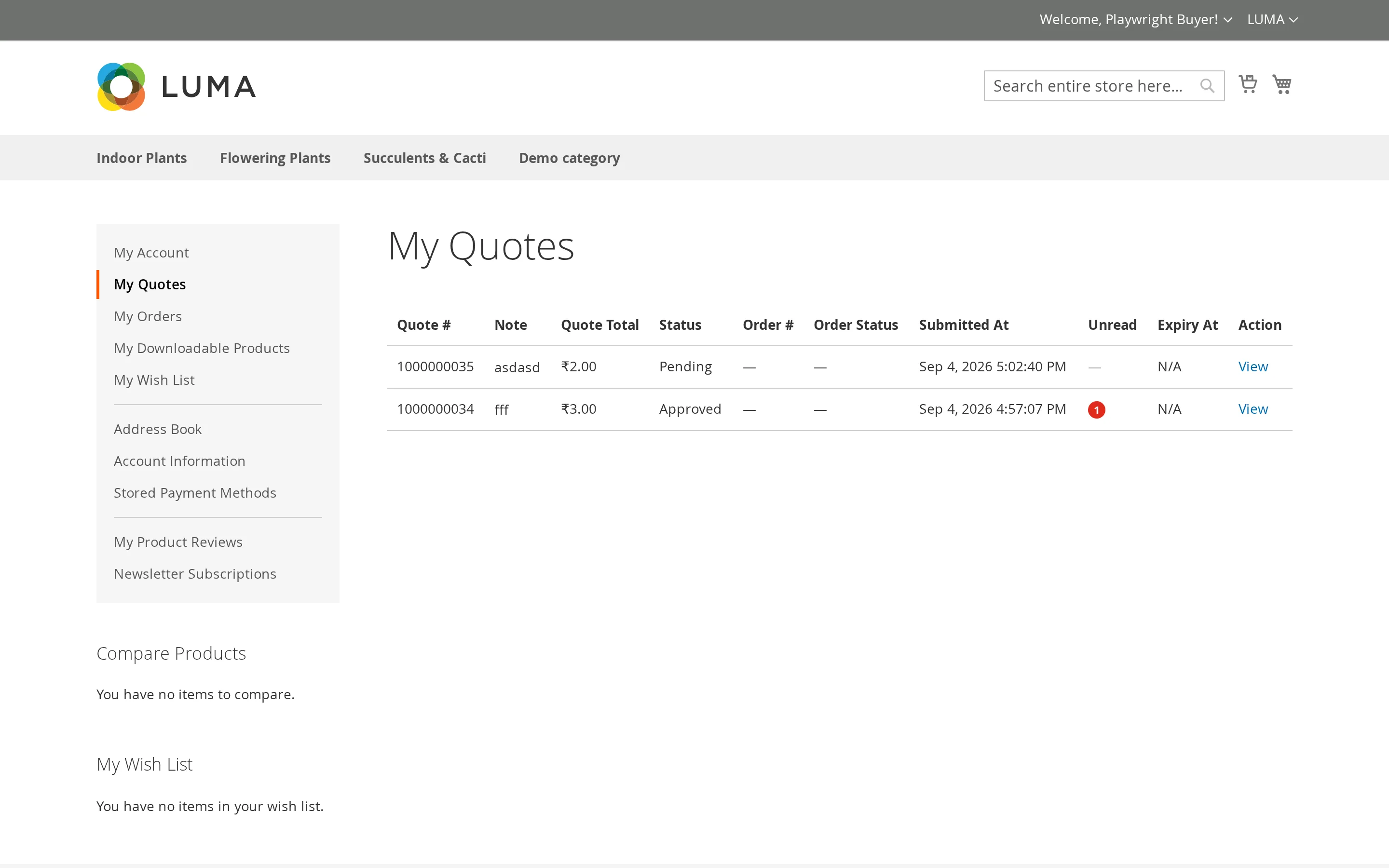
One row per request:
| Column | Meaning |
|---|---|
| Quote # | The reference number |
| Note | The message they sent with the request |
| Quote Total | The total, at the offered prices once you have made an offer |
| Status | Where the request stands |
| Order # | The order it became, once purchased |
| Order Status | That order's status |
| Submitted At | When it was sent |
| Unread | Conversation messages the customer has not read |
| Expiry At | When an approved quote stops being valid |
| Action | View, Edit (when pending), Print (PDF), and Delete |
The detail page
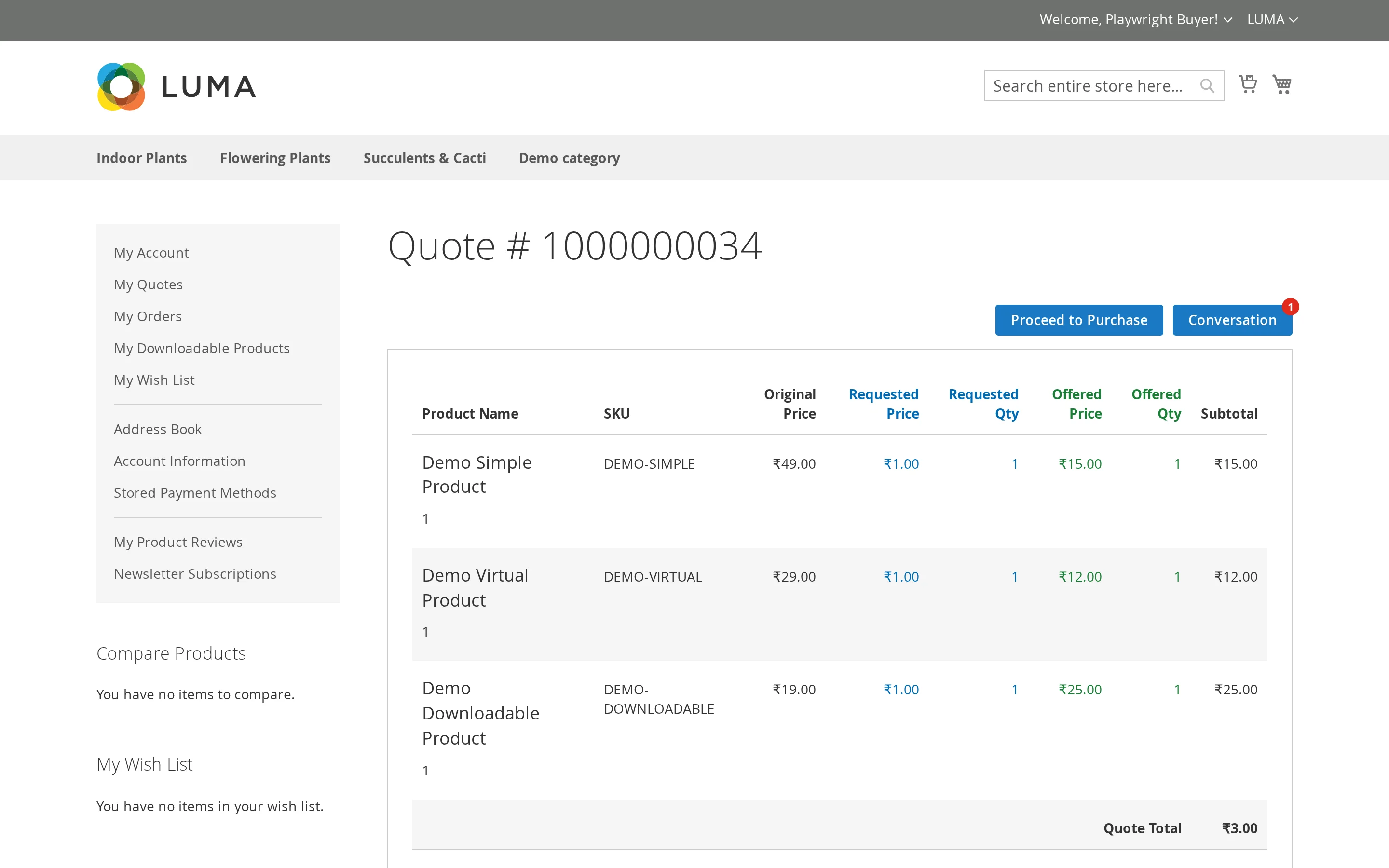
Opening a quote shows its status, date, and any linked order, then a table of the lines:
| Column | Meaning |
|---|---|
| Product Name | With options, custom-field answers and the line note |
| SKU | |
| Original Price | Your catalogue price |
| Requested Price / Requested Qty | What the customer asked for |
| Offered Price / Offered Qty | What you came back with |
| Subtotal |
Below the table: the request note, the comment history, and any attachments.
Putting the original, requested and offered prices side by side is deliberate — the customer can see exactly what moved.
Statuses
| Status | Meaning |
|---|---|
| Pending Verification | Submitted, waiting for the emailed code |
| Pending | With you, not yet looked at |
| Processing | You are working on it |
| Approved | You have made an offer the customer can buy |
| Declined | You are not quoting for this |
| Ordered | Bought — the order is linked |
| Expired | The offer ran out |
Actions
| Button / Link | When it appears | Purpose |
|---|---|---|
| Proceed to Purchase | The quote is approved | Moves approved lines to the cart at negotiated prices |
| Print Quote / Print | Always available | Downloads a formatted PDF copy of the quotation |
| Edit Quote / Edit | Quote status is Pending or Pending Verification | Allows the customer to update requested prices, quantities, and notes |
| Delete Quote / Delete | Always available | Deletes the quote request after customer confirmation |
| View Order | The quote has become an order | Opens the linked order details |
| Conversation | Conversation is enabled | Opens the message drawer to chat with the store admin |
Editing a Quote
If a quote is still awaiting review (in Pending status), buyers can adjust their proposal before the merchant responds:
- Click Edit in the quote list or Edit Quote in the detail view.
- Adjust the Requested Price and Requested Qty for each line item.
- Add or modify individual Item Notes or the overall Quote Note.
- Click Update Quote to save the changes.
Printing and Deleting
- Print Quote: Customers can download a complete PDF quotation of any quote at any stage for offline review, archiving, or corporate accounting.
- Delete Quote: Customers can remove quotes they no longer need directly from the list or detail view with a single confirmation prompt.
See Purchasing a Quote for what happens next.