
Configuration Settings
Configure global preferences, API endpoints, search filters, and page-level display options for the Webkul Magento 2 OpenStreetMap Address AutoComplete extension.
Accessing Configuration
You can access the module configuration in the Magento Admin Panel via either of the following paths:
- Quick Menu: In the left sidebar, navigate to Webkul → OpenStreetMap Address AutoComplete → Configuration Settings.
- System Settings: Navigate to Stores → Configuration, expand the Webkul tab in the left panel, and click OpenStreetMap Address Autocomplete.
1. General Settings
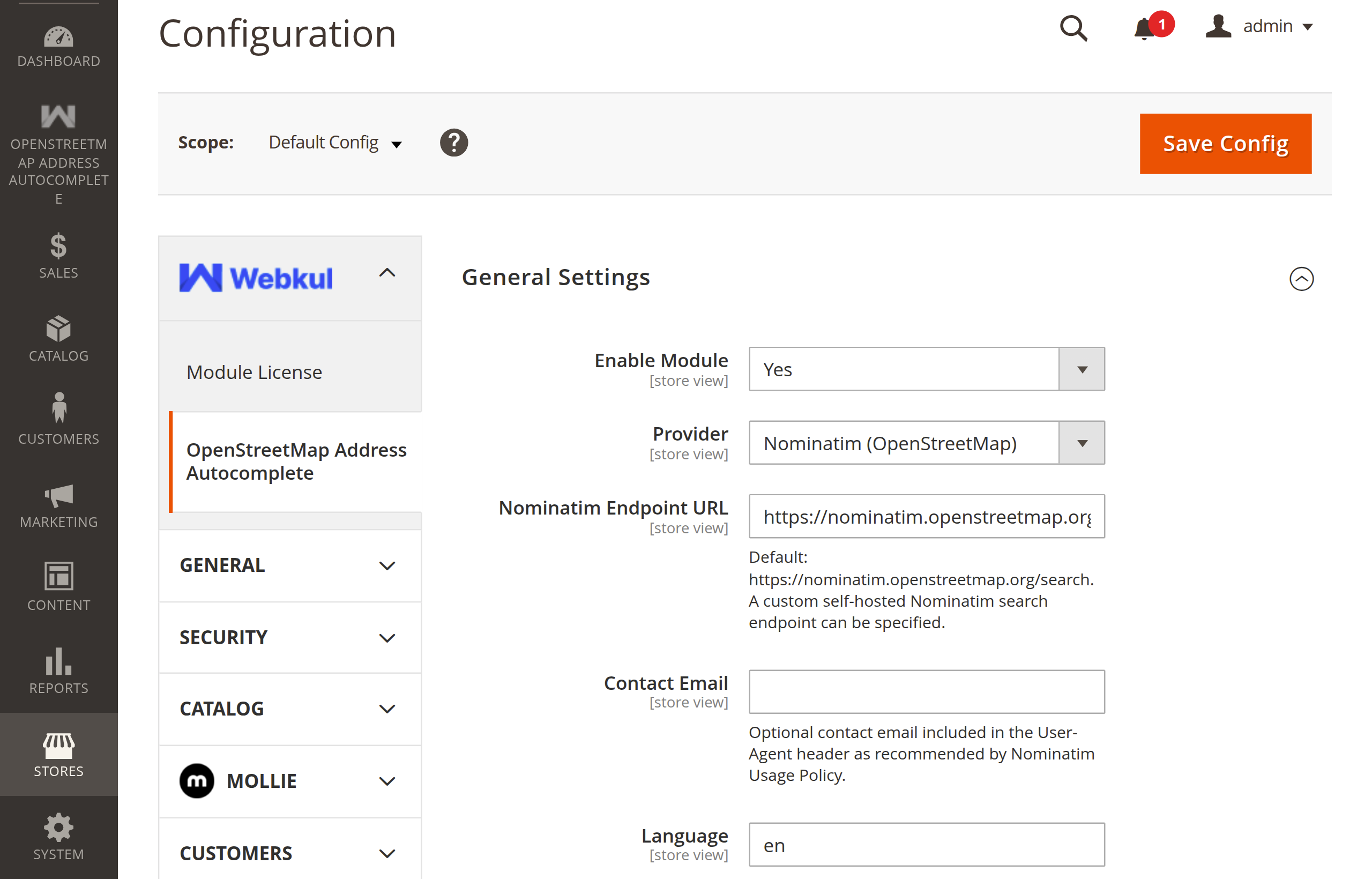
The General Settings section manages extension status, geocoding provider selection, endpoint URLs, and request performance controls.
| Setting | XML Path | Options / Type | Default | Description |
|---|---|---|---|---|
| Enable Module | general/enable | Yes / No | No | Master toggle for the extension. When set to Yes, autocomplete suggestions and autofill handlers are activated across configured pages. (Also supports fallback path autofill/general_settings/autofilladdress). |
| Provider | general/provider | Dropdown | Nominatim | Specifies the active address search provider service. Built on an extensible provider pool. |
| Nominatim Endpoint URL | general/nominatim_endpoint | Text URL | https://nominatim.openstreetmap.org/search | Target Nominatim API endpoint URL. You can specify a custom self-hosted Nominatim search endpoint for private or high-volume enterprise stores. |
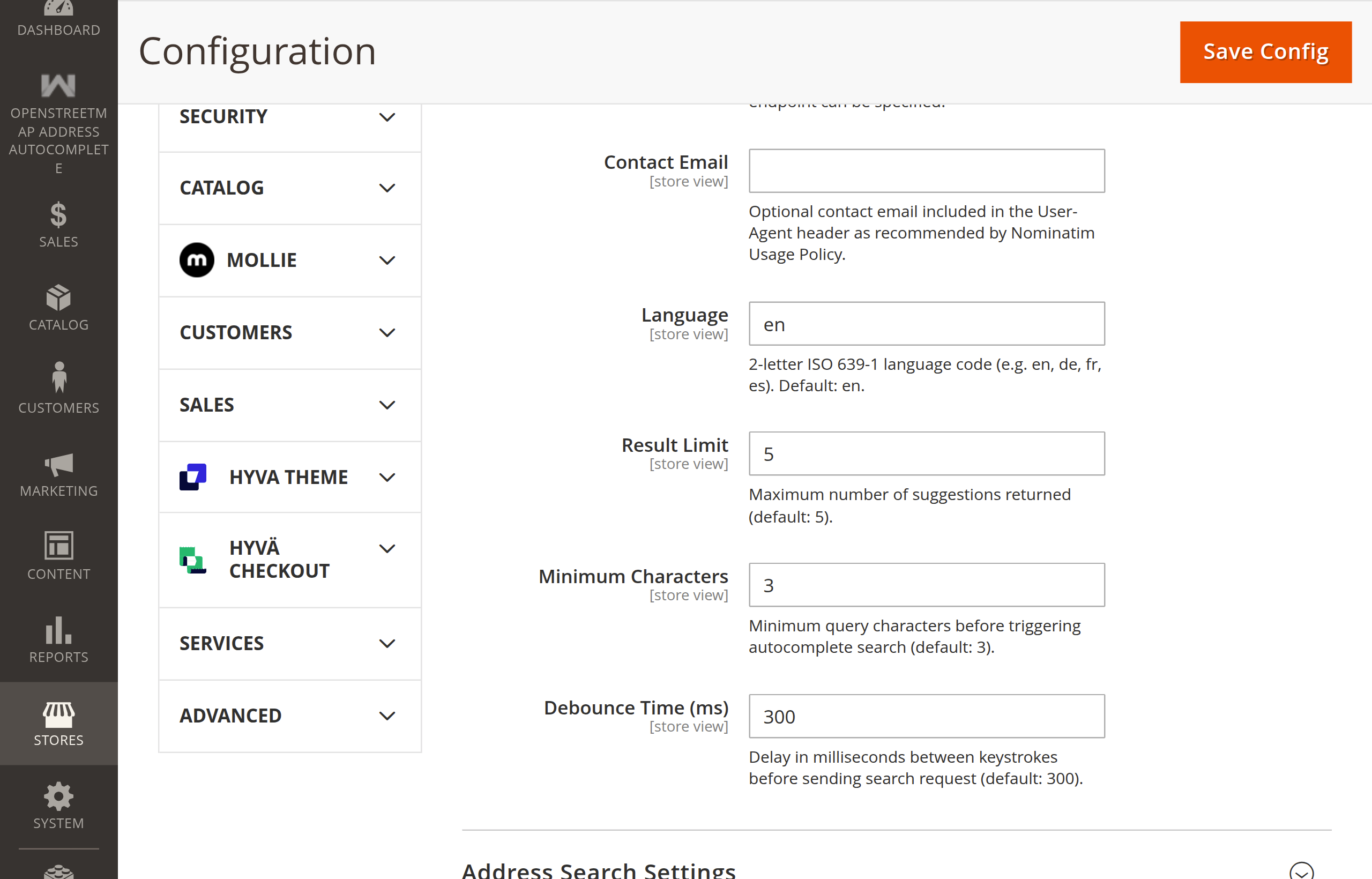
| Contact Email | general/contact_email | Text (Email) | Empty | Contact email included in the User-Agent HTTP header, per the official Nominatim Usage Policy. If left empty, the module automatically uses your store's General Contact email (trans_email/ident_general/email). |
| Language | general/language | Text (ISO code) | en | 2-letter ISO 639-1 language code (e.g., en, de, fr, es). Passed as the accept-language query parameter to return localized place names. |
| Result Limit | general/result_limit | Numeric | 5 | Maximum number of address suggestions returned and displayed in the autocomplete dropdown list. |
| Minimum Characters | general/min_characters | Numeric | 3 | Minimum number of characters the user must enter before an autocomplete search request is dispatched. |
| Debounce Time (ms) | general/debounce_time | Numeric (ms) | 300 | Delay in milliseconds between user keystrokes before dispatching the search request. Prevents excessive API queries while the user is actively typing. |
Nominatim User-Agent
Providing a valid contact email in Contact Email ensures that Nominatim system administrators can reach out if your store exceeds standard usage guidelines, avoiding sudden IP blocks.
2. Address Search Settings
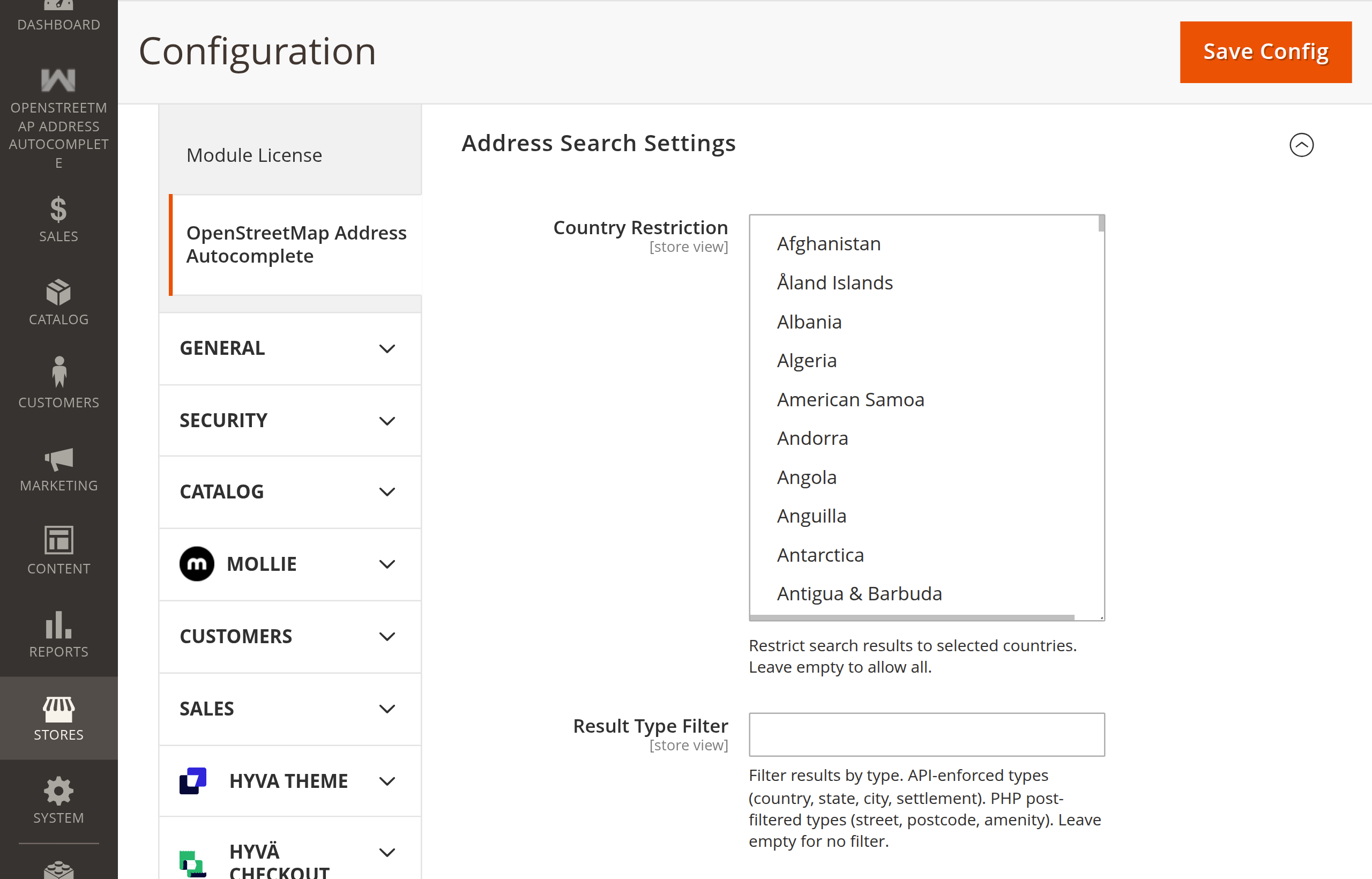
Control the geographic scope, result specificity, and regional prioritization of address suggestions.
| Setting | XML Path | Options / Type | Default | Description |
|---|---|---|---|---|
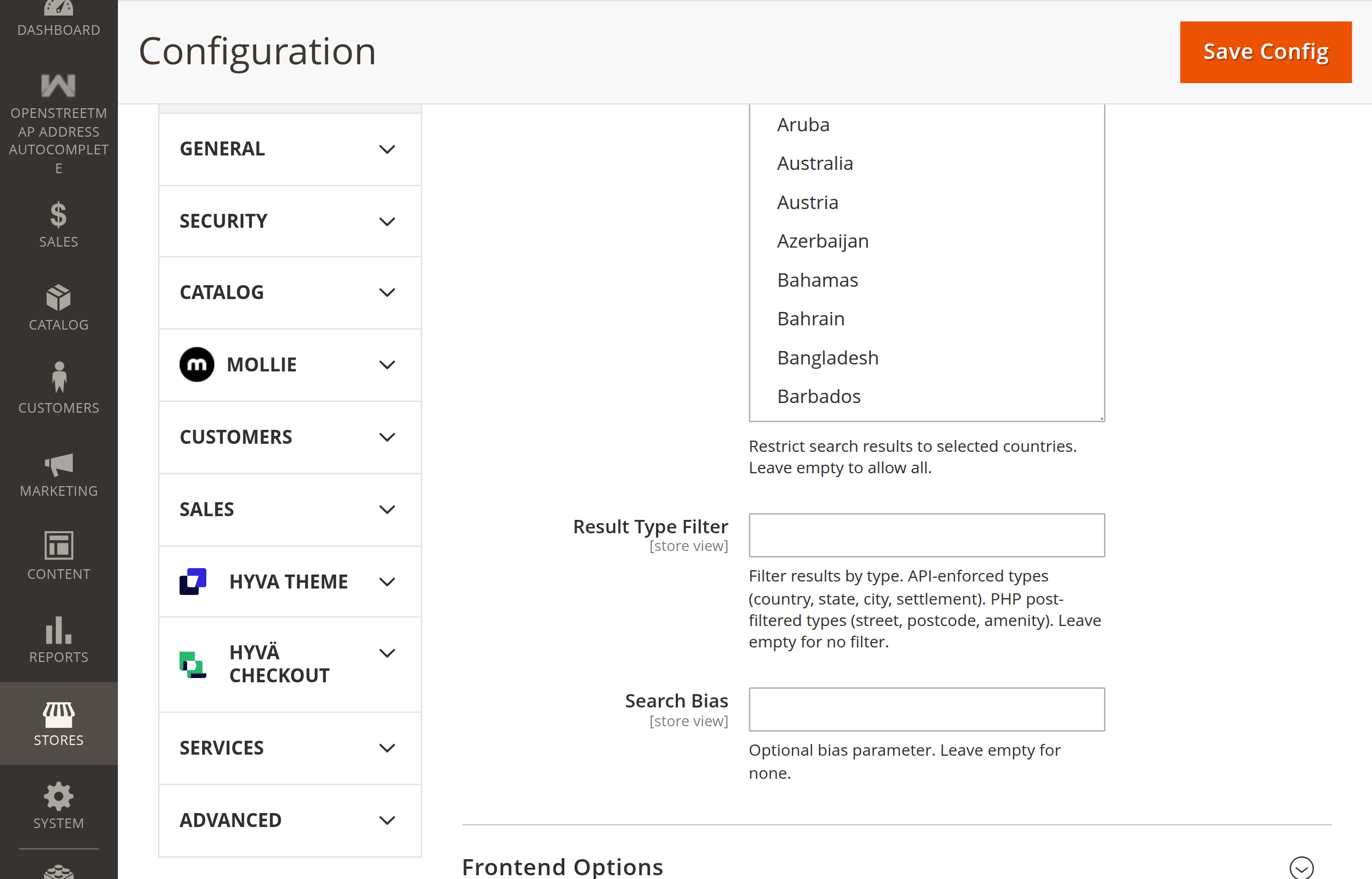
| Country Restriction | address_search/country_restriction | Multiselect | All Countries | Restrict autocomplete suggestions to specific countries. Select one or more countries from Magento's Directory list. When configured, queries include comma-separated ISO country codes in the countrycodes API parameter. |
| Result Type Filter | address_search/result_type | Text | Empty (All) | Filter results by specific place category. API-enforced types: country, state, city, settlement. Post-filtered types: street, postcode, amenity. Leave empty to allow all address types. |
| Search Bias | address_search/search_bias | Coordinates Text | Empty | Prioritize results within a geographic bounding box (viewbox). Format: min_lon,min_lat,max_lon,max_lat (e.g. -0.51,51.28,0.33,51.69 for Greater London). |
Bounding Box Example for Search Bias
To bias suggestions toward a specific city or metropolitan market (e.g., Paris, France):
2.224199,48.815573,2.469921,48.902145
When configured, OpenStreetMap prioritizes results within those coordinate boundaries while still permitting relevant global matches if no local matches exist.
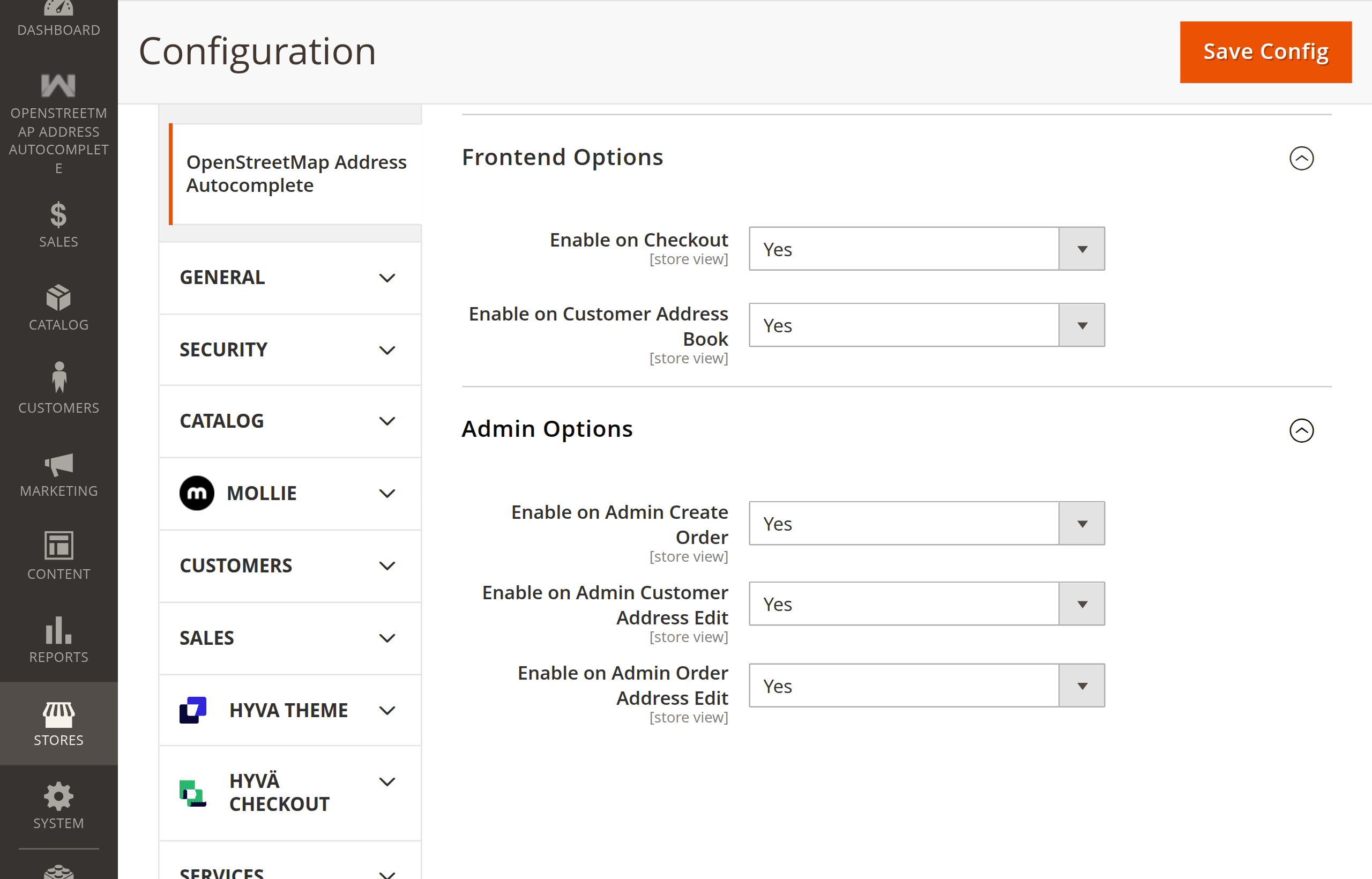
3. Frontend Options
Fine-tune which customer-facing areas offer address autocomplete suggestions.
| Setting | XML Path | Options / Type | Default | Description |
|---|---|---|---|---|
| Enable on Checkout | frontend/enable_checkout | Yes / No | Yes | Toggles autocomplete functionality on Magento's One-Page Checkout (for both Shipping Address and Billing Address forms). |
| Enable on Customer Address Book | frontend/enable_customer_address | Yes / No | Yes | Toggles autocomplete on Customer Account dashboard address forms (customer/address/new and customer/address/edit). |
4. Admin Options
Manage address autocomplete availability across administrative backend order and customer management screens.
| Setting | XML Path | Options / Type | Default | Description |
|---|---|---|---|---|
| Enable on Admin Create Order | admin/enable_create_order | Yes / No | Yes | Activates autocomplete on Billing and Shipping address forms in the backend Create Order interface (sales/order_create/index). |
| Enable on Admin Customer Address Edit | admin/enable_customer_address | Yes / No | Yes | Activates autocomplete when editing customer addresses within the Customer edit screen (customer/index/edit). |
| Enable on Admin Order Address Edit | admin/enable_order_address | Yes / No | Yes | Activates autocomplete on the Edit Order Address page (sales/order_address/edit). |
How to Save and Apply Settings
- Configure your settings according to your store requirements.
- Click Save Config in the top right corner.
- Refresh Magento's configuration cache from your terminal or admin panel:
php bin/magento cache:clean config
Next Step
Explore storefront integration details, checkout behavior, and address field mapping in Storefront Autocomplete.