
Activate & Connect
After installing the extension files and running Magento CLI commands, verify module registration, enable the extension in system configuration, and configure administrative menu access and role permissions.
Step 1: Verify Module Registration via CLI
Verify that Magento recognizes the module:
php bin/magento module:status Webkul_OpenStreetMapAddressAutoComplete
Ensure the status displays as enabled. If it appears in the disabled list:
php bin/magento module:enable Webkul_OpenStreetMapAddressAutoComplete
php bin/magento setup:upgrade
php bin/magento cache:flush
If you also installed the Hyvä Edition, verify it as well:
php bin/magento module:status Webkul_OpenStreetMapAddressAutoCompleteHyva
Step 2: License Verification (Webkul Base)
As a Webkul commercial extension, license verification is managed through the shared Webkul Base module:
- Log in to your Magento Admin Panel.
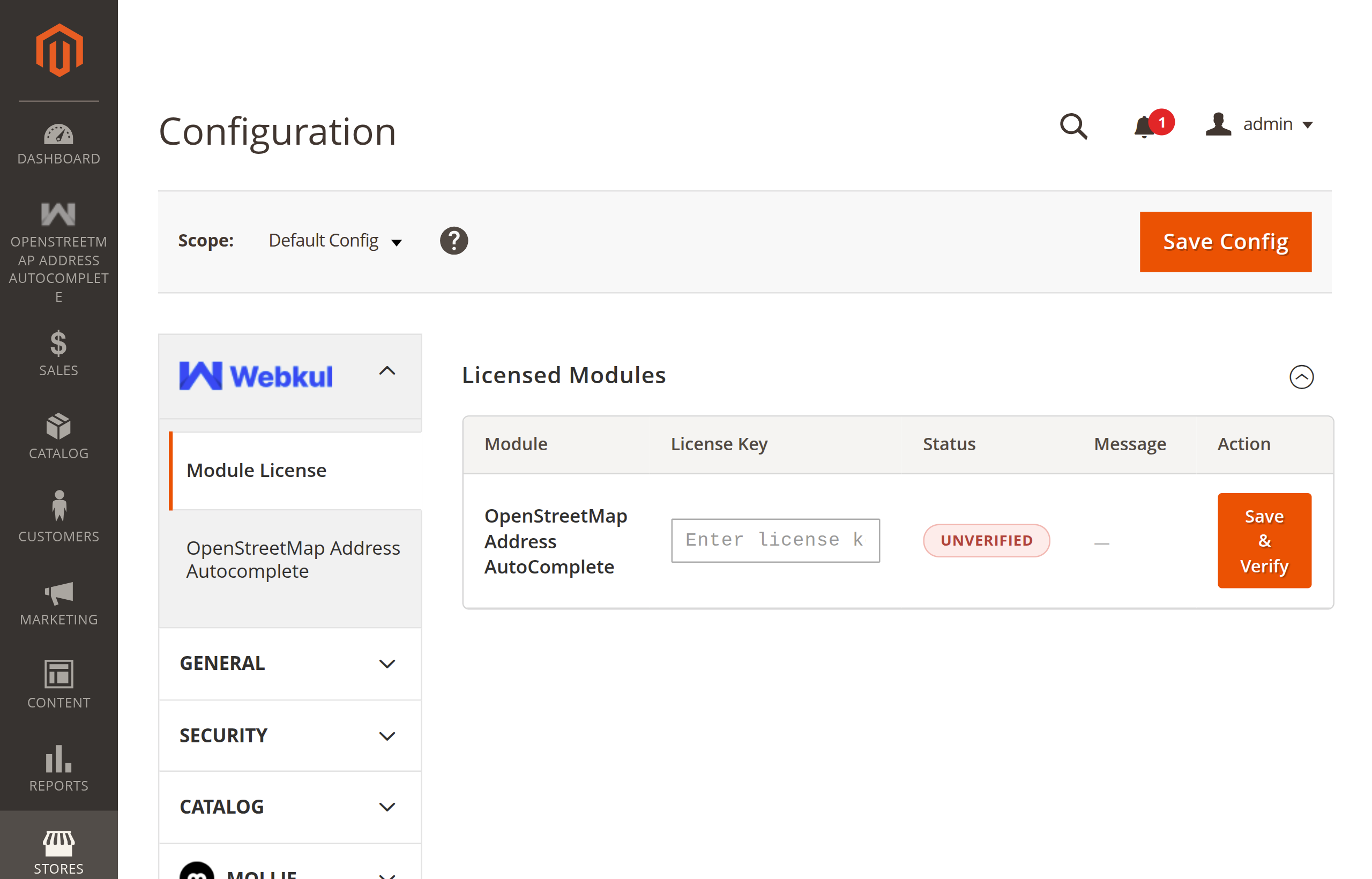
- Navigate to Stores → Configuration.
- In the left panel, locate and expand the Webkul tab.
- Click on Module License.
- In the Licensed Modules grid, locate OpenStreetMap Address AutoComplete.
- Enter your valid license key (retrieved from your Webkul Customer Account).
- Click Save & Verify. Upon successful validation, the status updates to VERIFIED.
Step 3: Enable the Module in Store Configuration
The module must be activated in Magento's System Configuration before frontend suggestions and backend autofill become active:
- In the Magento Admin Panel, navigate to: Stores → Configuration → Webkul → OpenStreetMap Address Autocomplete.
- Under the General Settings section:
- Set Enable Module to Yes.
- (Optional) Provide your store contact email under Contact Email to ensure compliance with the Nominatim Usage Policy.
- Click Save Config in the top right corner.
- Flush the configuration cache:
php bin/magento cache:clean config
Menu Visibility Requirement
The Webkul → OpenStreetMap Address AutoComplete admin menu item only appears when Enable Module is set to Yes in configuration. Setting it to Yes is required for the administrative menu shortcuts to appear.
Step 4: Admin Menu Navigation Structure
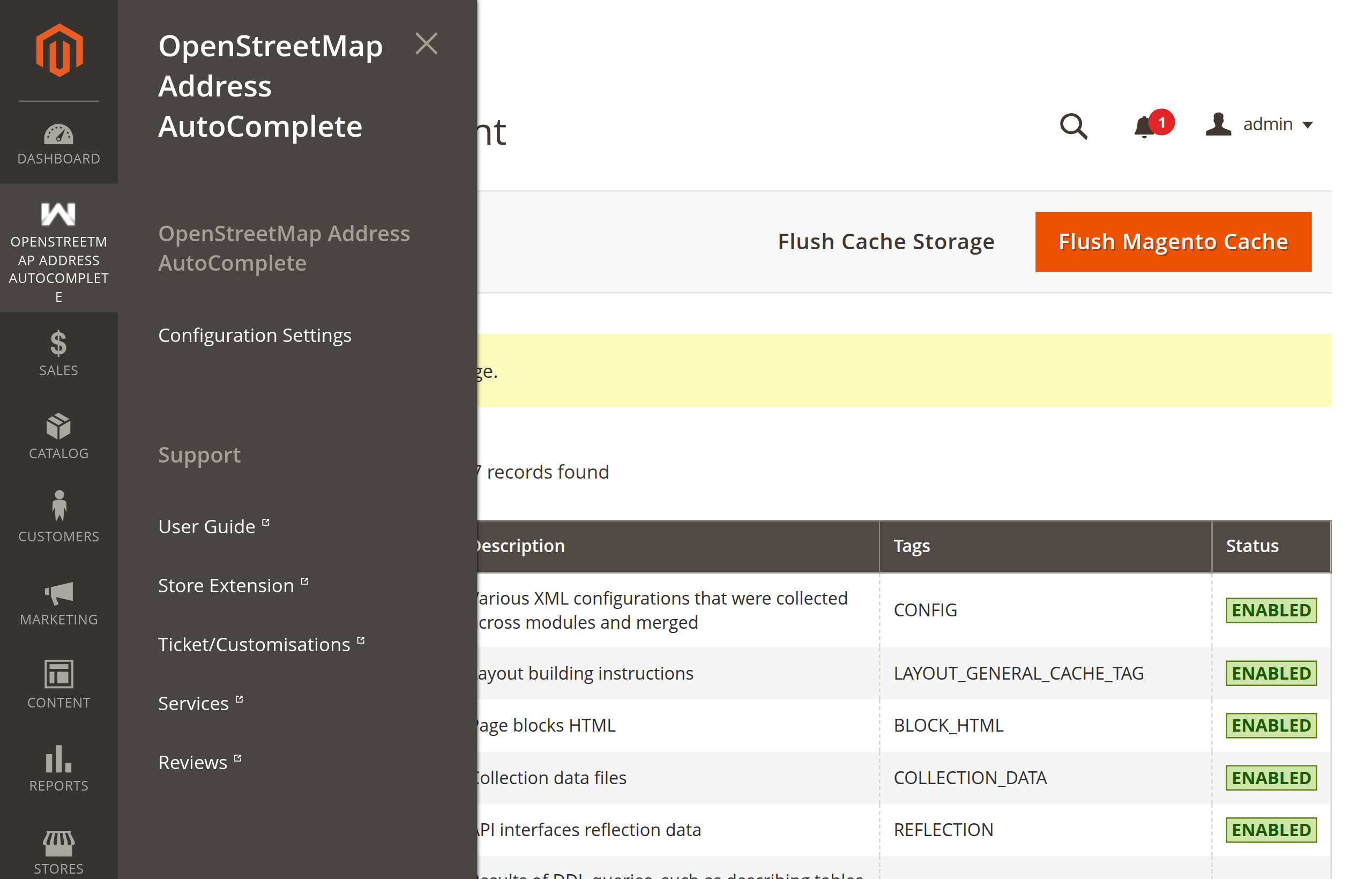
Once enabled, navigate to Webkul → OpenStreetMap Address AutoComplete in the admin sidebar. The menu provides instant access to configuration and support resources:
- Configuration Settings — Direct link to the full configuration screen.
- Support
- User Guide — Webkul's official module documentation.
- Store Extension — View the Webkul Store extension page for latest updates.
- Ticket / Customisations — Open a support ticket or request custom developments via Webkul UVdesk.
- Services — Explore Webkul's enterprise Magento customization and development services.
- Reviews — Share merchant feedback and product reviews on the Webkul Store.
Step 5: Configure Admin ACL Permissions
If your store uses restricted administrative roles (e.g., Customer Service, Order Processing, or Store Managers), grant appropriate permissions in Magento's Role Resources tree:
- Navigate to System → Permissions → User Roles.
- Select the role to edit (e.g., Order Managers).
- Switch to the Role Resources tab and set Resource Access to Custom.
- Check the desired resources:
- OpenStreetMap Address AutoComplete (
Webkul_OpenStreetMapAddressAutoComplete::openstreetmap_autocomplete)- OpenStreetMap Address AutoComplete Menu (
Webkul_OpenStreetMapAddressAutoComplete::menu)- Configuration Settings (
Webkul_OpenStreetMapAddressAutoComplete::details)
- Configuration Settings (
- Support (
Webkul_OpenStreetMapAddressAutoComplete::support)- User Guide (
Webkul_OpenStreetMapAddressAutoComplete::userguide) - Store Extension (
Webkul_OpenStreetMapAddressAutoComplete::extension) - Ticket / Customisations (
Webkul_OpenStreetMapAddressAutoComplete::uvdesk) - Services (
Webkul_OpenStreetMapAddressAutoComplete::services) - Reviews (
Webkul_OpenStreetMapAddressAutoComplete::reviews)
- User Guide (
- OpenStreetMap Address AutoComplete Menu (
- Stores → Settings → Configuration → OpenStreetMap Address AutoComplete (
Webkul_OpenStreetMapAddressAutoComplete::configuration)
- OpenStreetMap Address AutoComplete (
- Click Save Role.
Next Step
Proceed to Configuration Overview to understand the architecture, data flow, and autofill behavior.