
Customer Wishlist Management
The Magento 2 Multi Wishlist module empowers registered customers to create, manage, and organize saved products into multiple named custom wishlists.
Customer Account Dashboard Overview
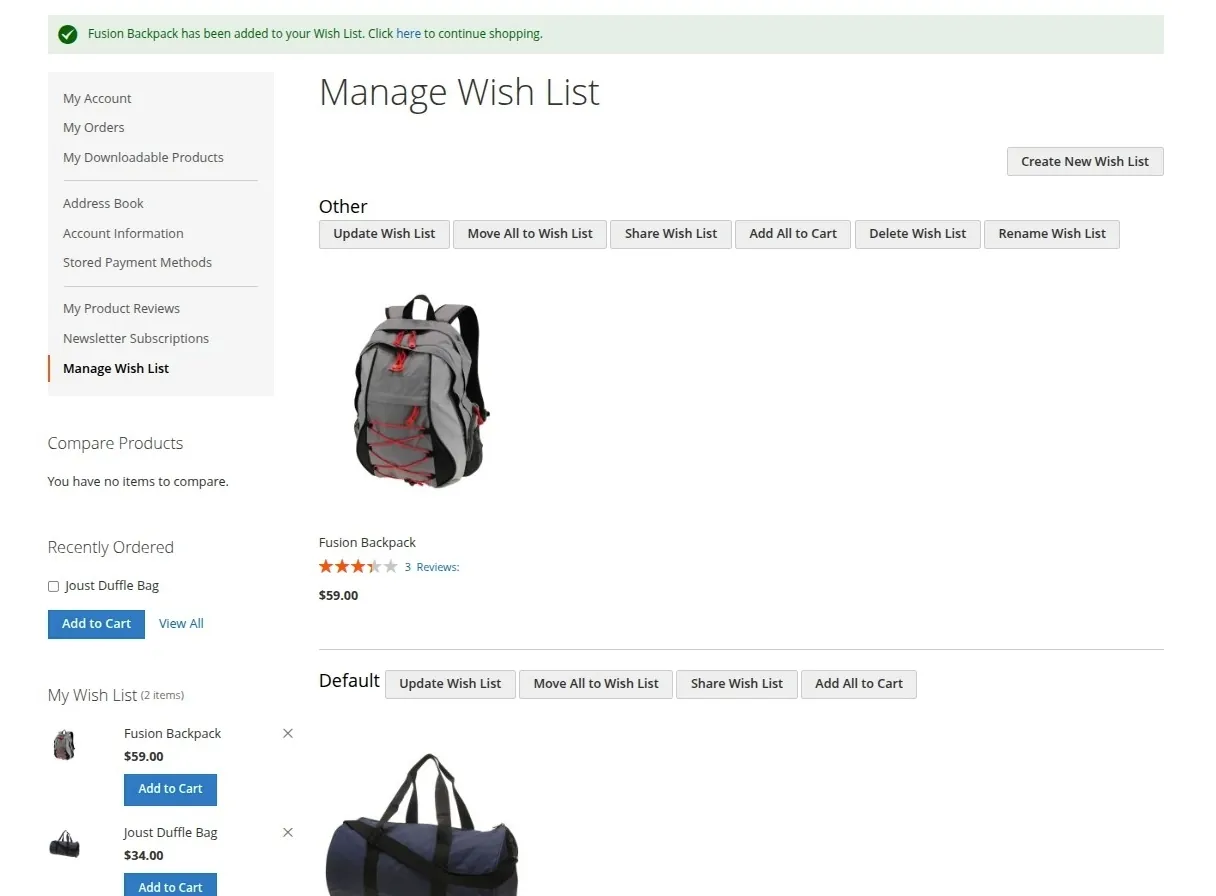
When a logged-in customer navigates to My Account > Manage Wish List, they are presented with an interactive wishlist dashboard featuring both custom wishlists and the system Default wishlist:
Key Toolbar & Dashboard Features
- Wishlist Navigation: Switch between saved wishlists (e.g. Favorites, Gifts, Gadgets).
- Header Wishlist Count Badge: Displays total wishlist count in the customer header link (e.g.
"2 items"), powered dynamically by Magento customer-data section source (multiwishlist). - Wishlist Actions Toolbar: Perform actions per wishlist including Update Wish List, Move Single Item, Move Selected Items, Move All to Wish List, Share Wish List, Add All to Cart, Rename Wish List, and Delete Wish List.
Creating a Custom Wishlist
Customers can create wishlists in two ways:
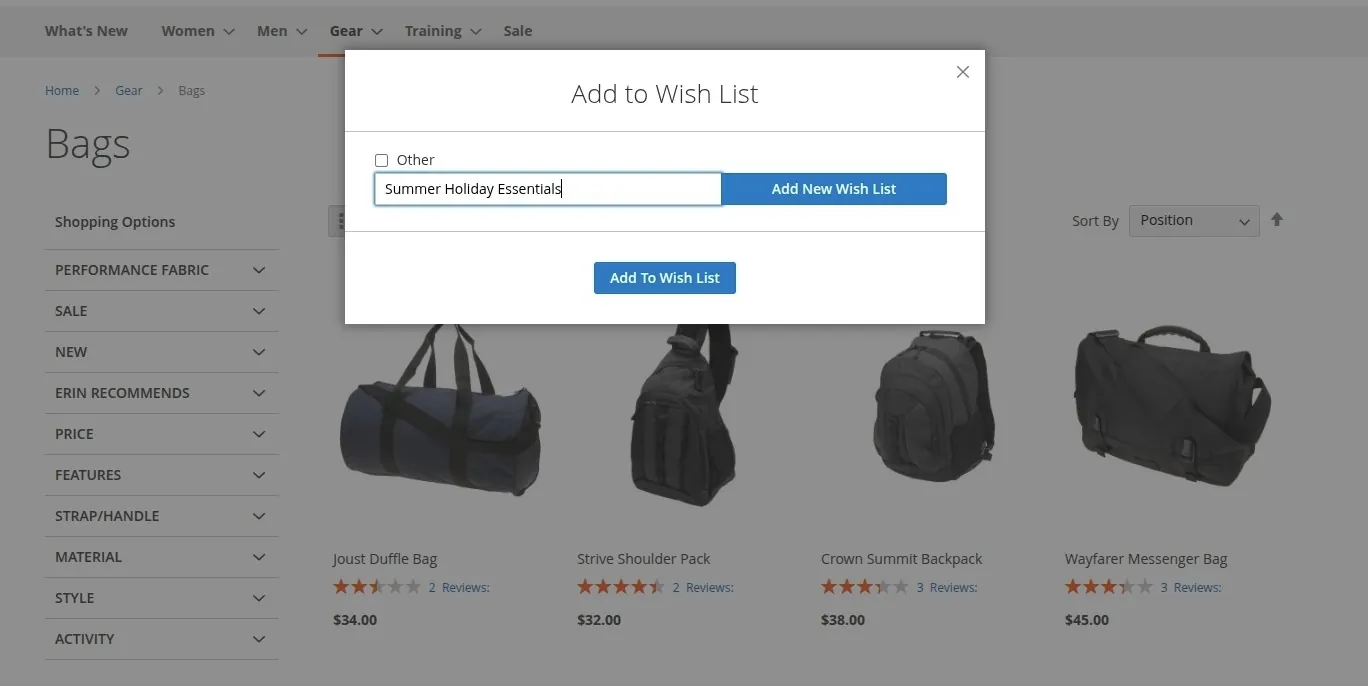
1. From Product or Category Pages
- Click Add to Wish List on any product view or listing page.
- In the interactive modal popup, choose an existing wishlist or select Create New Wishlist to enter a new wishlist title (e.g., Holiday Shopping).
- Click Add To Wish List to save the item directly.
2. From Customer Account Dashboard
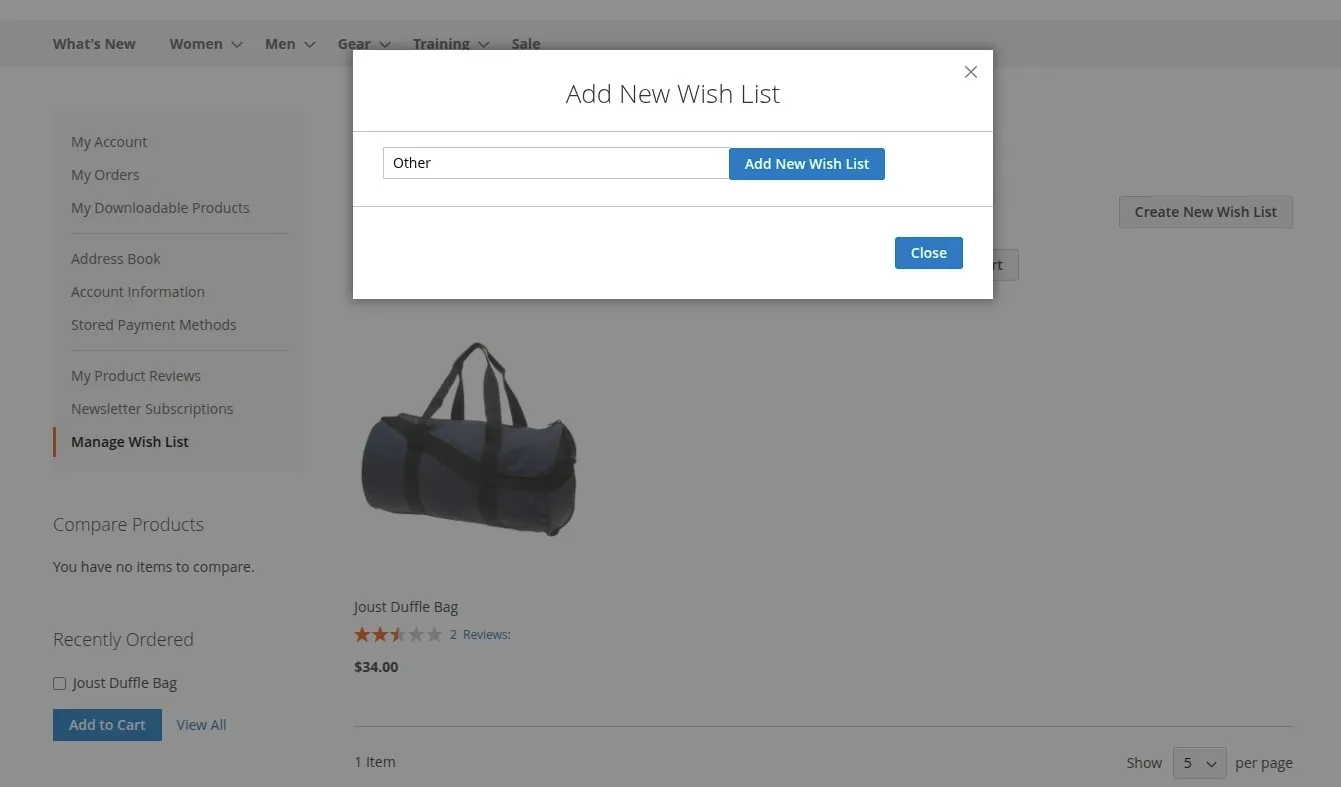
- Inside My Account > Manage Wish List, click Create New Wish List.
- Type the wishlist name and confirm to create a new wishlist container.
Renaming & Deleting Custom Wishlists
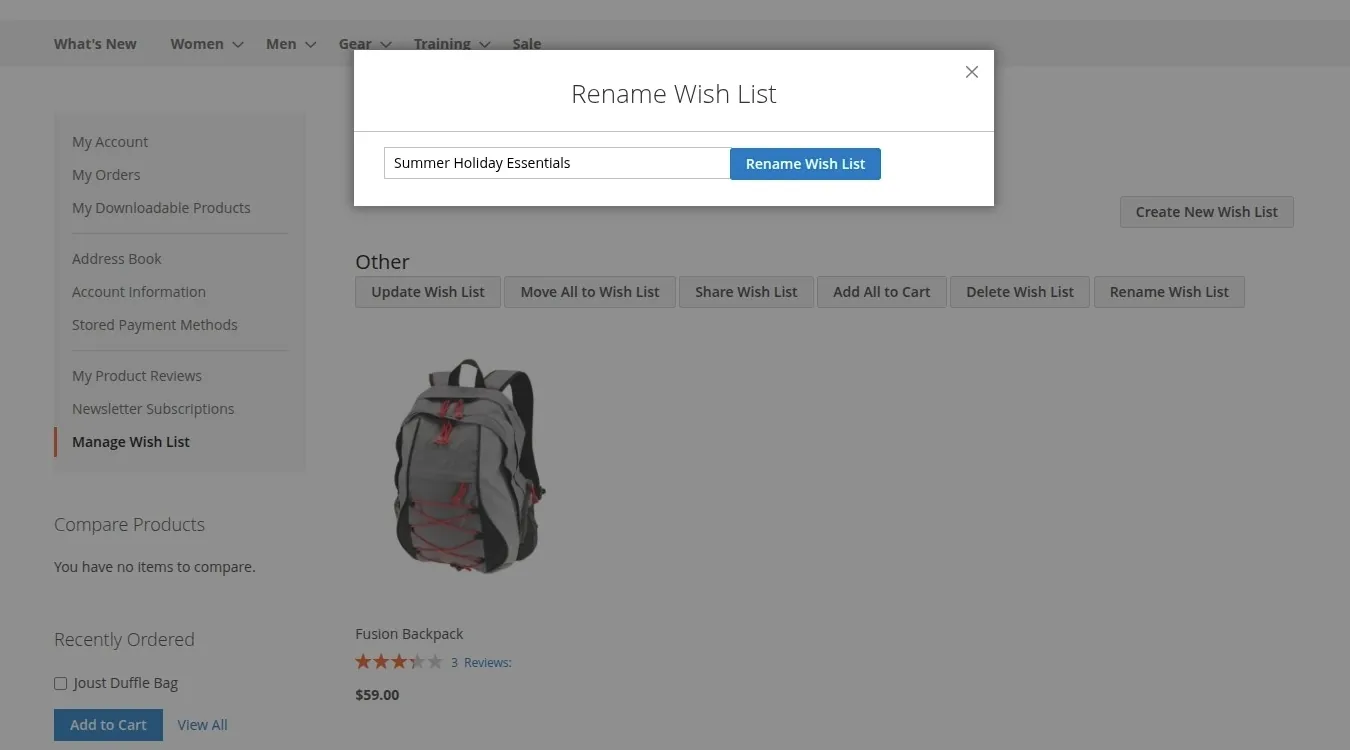
- Rename Wish List: Click Rename Wish List next to any custom wishlist, enter the updated title, and save. (Note: The system Default wishlist cannot be renamed).
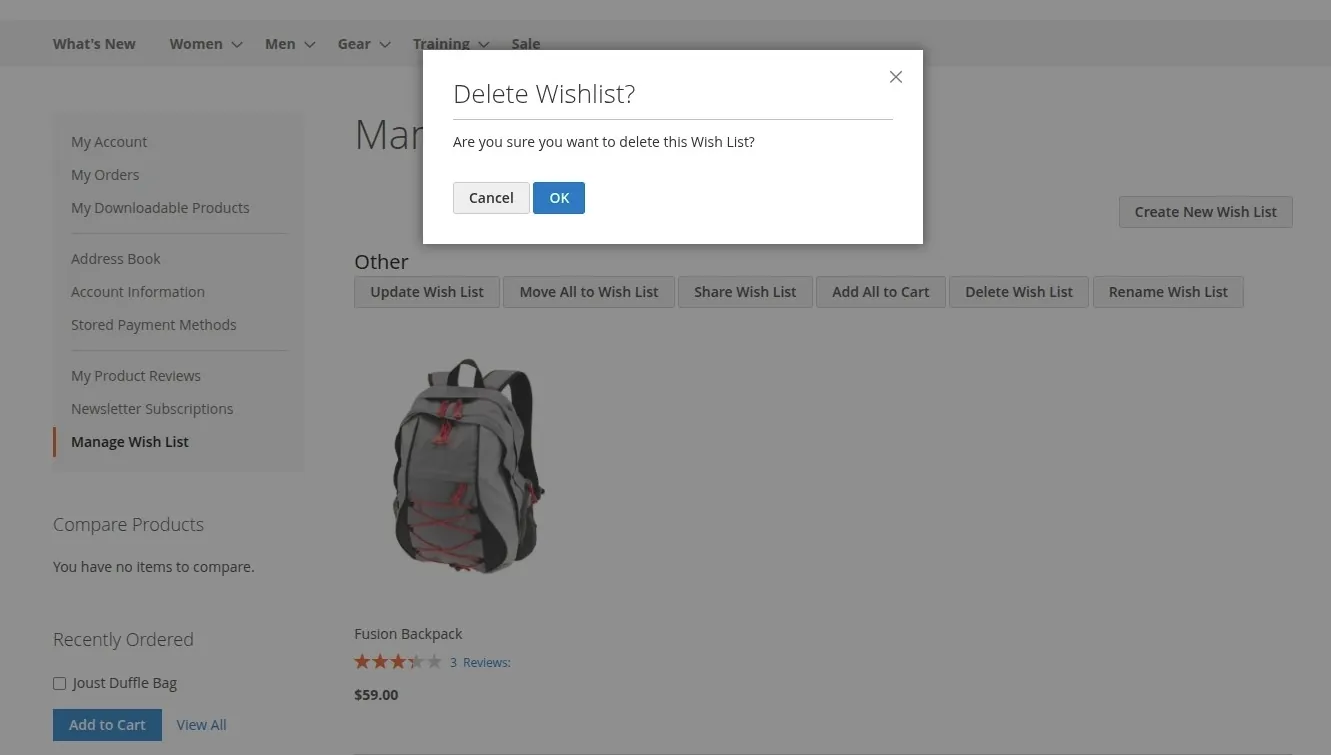
- Delete Wish List: Click Delete Wish List on a custom wishlist and confirm. Deleting a custom wishlist removes the wishlist container. (Note: The system Default wishlist cannot be deleted).
Managing & Transferring Wishlist Items
Customers have full control over items saved in their wishlists:
- Move Single Item: Move an individual product item from its current wishlist into any target wishlist.
- Move Selected Items: Select checkboxes for multiple products and click Move Selected Items to transfer them to another wishlist in a single action.
- Move All Items: Click Move All to Wish List on a wishlist section to bulk-transfer all saved items into another custom or default wishlist.
- Item Comments & Descriptions: Save personal comments or notes for individual wishlist items in the text box under each product.
- Update Item Quantities: Modify item quantities or options and click Update Wish List to save changes.
- Add All to Cart: Transfer all available items in that wishlist directly into the active shopping cart.
- Remove Item: Delete individual products from any wishlist using the item delete action.