Seller Push Notification Management
Marketplace sellers can create notification templates and send push notifications directly from their seller portal dashboard.
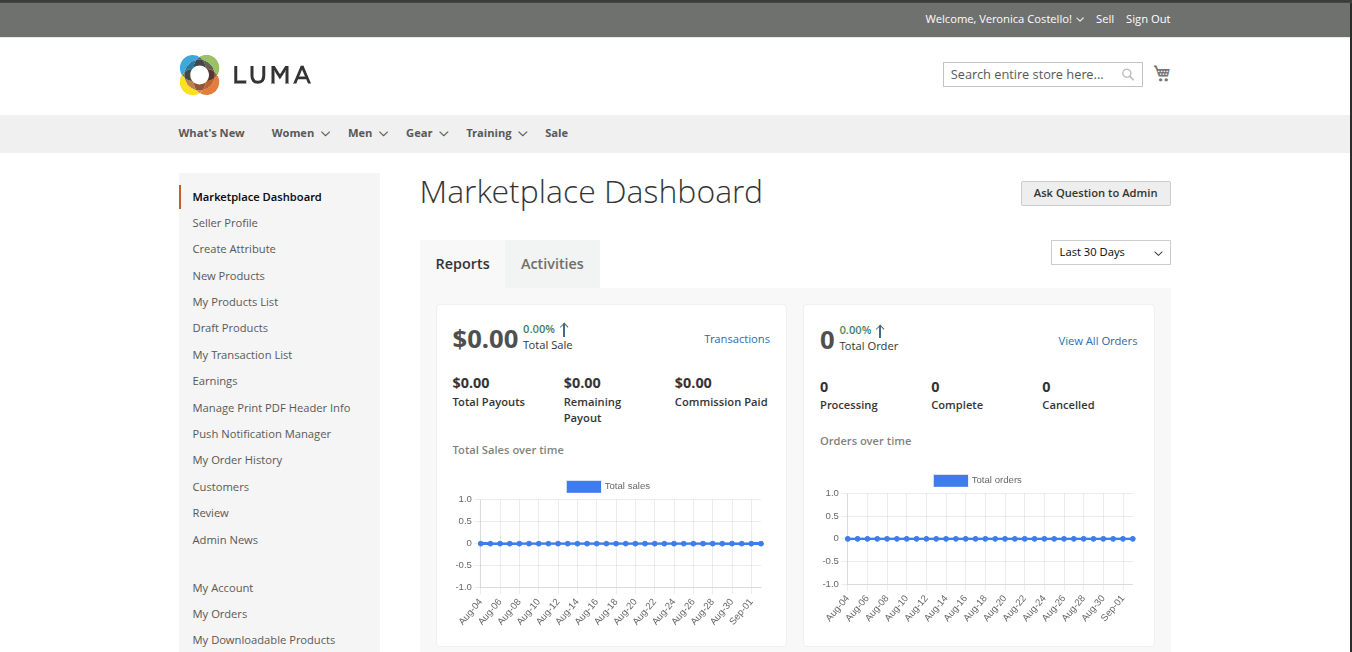
Seller Sidebar Menu
Log in to the Seller Account Panel. In the left navigation sidebar, click Push Notification:
- Notification Templates
- Notification Subscribers
Seller Notification Templates
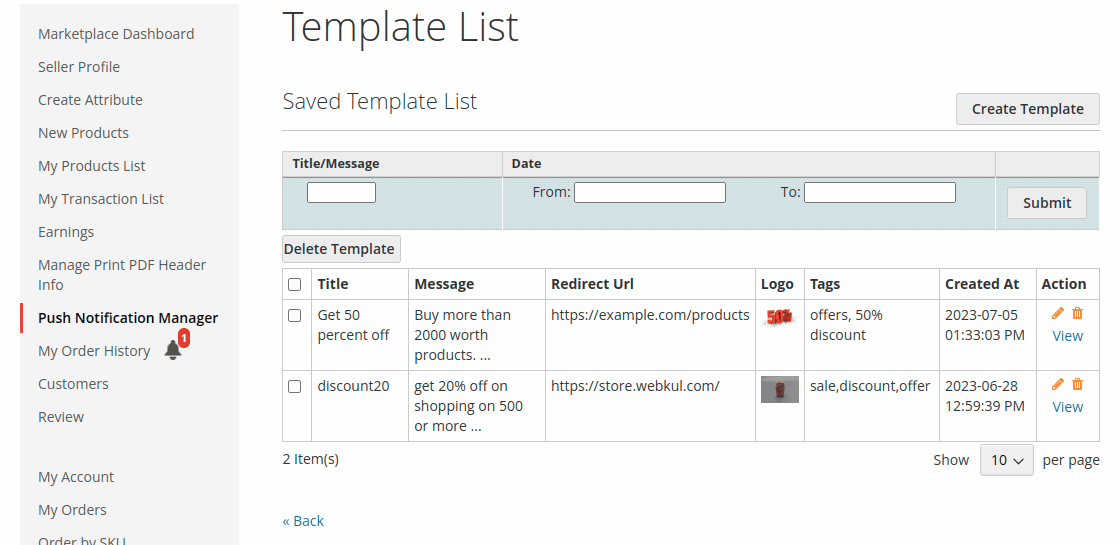
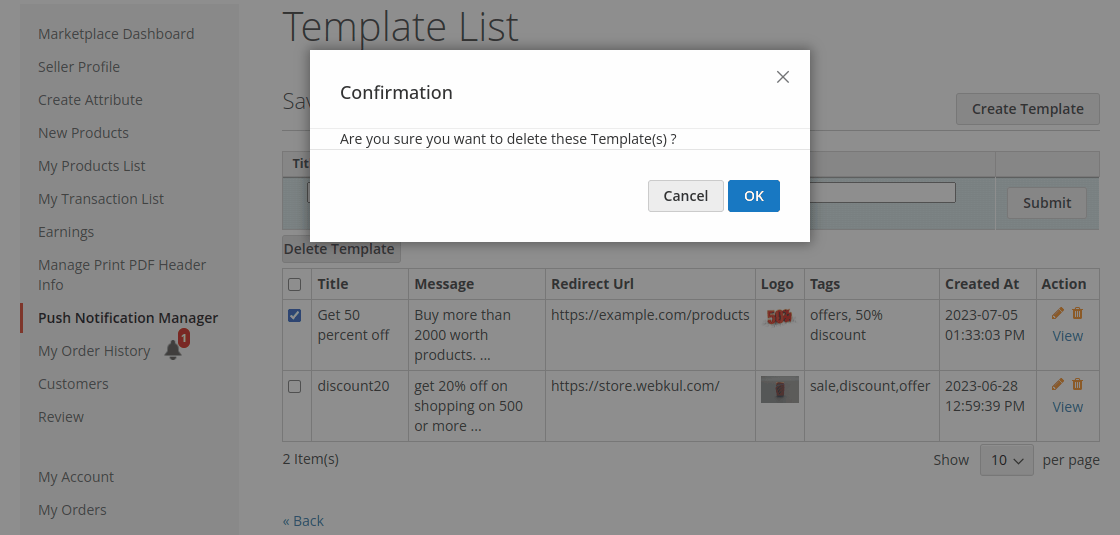
Sellers can view, filter, edit, or delete their custom notification templates.
Creating a Seller Template
- Click Create Template in the upper right corner.
- Fill in Title, Message, Redirect URL, Tags, and upload a custom Logo icon.
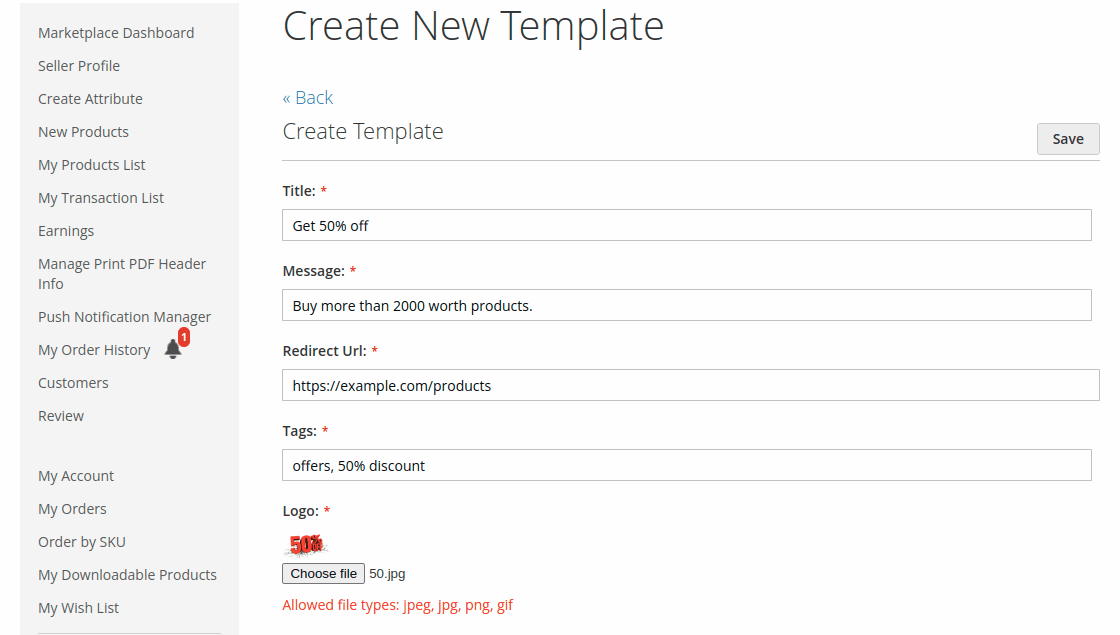
- Click Save.
Deleting Seller Templates
- Select templates via checkboxes.
- Click Delete Template or click the trash icon under Action.
- Confirm by clicking OK.
Seller Notification Subscribers & Sending
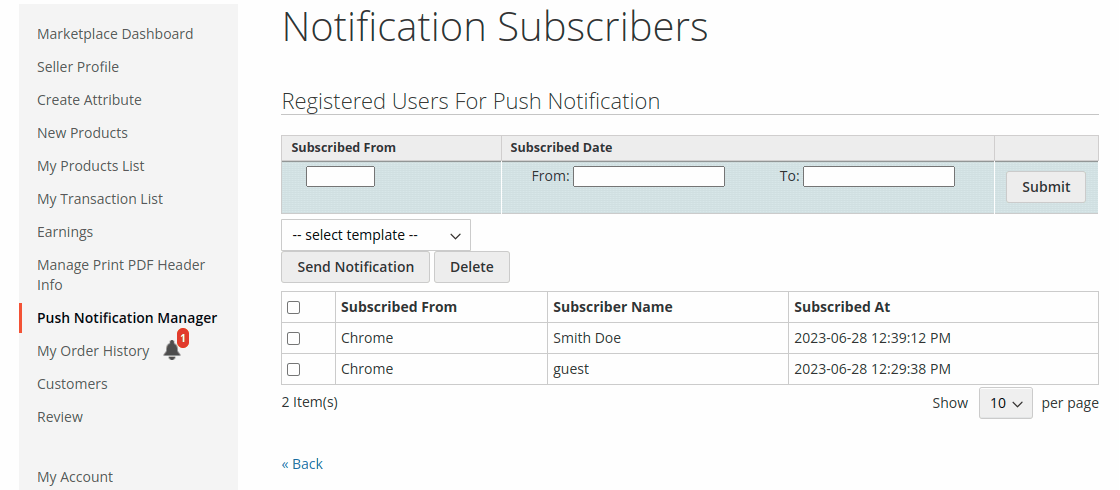
Sellers can view all opt-in subscribers and send targeted push alerts.
Dispatching Seller Push Alerts
- Go to Push Notification > Notification Subscribers.
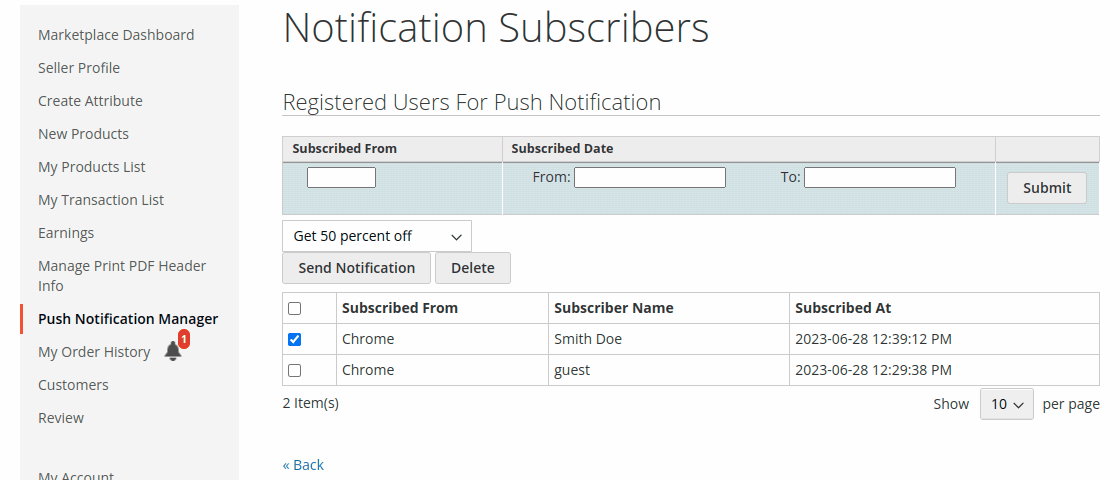
- Select target subscribers using the checkboxes.
- Select a template from the Notification Template dropdown menu.
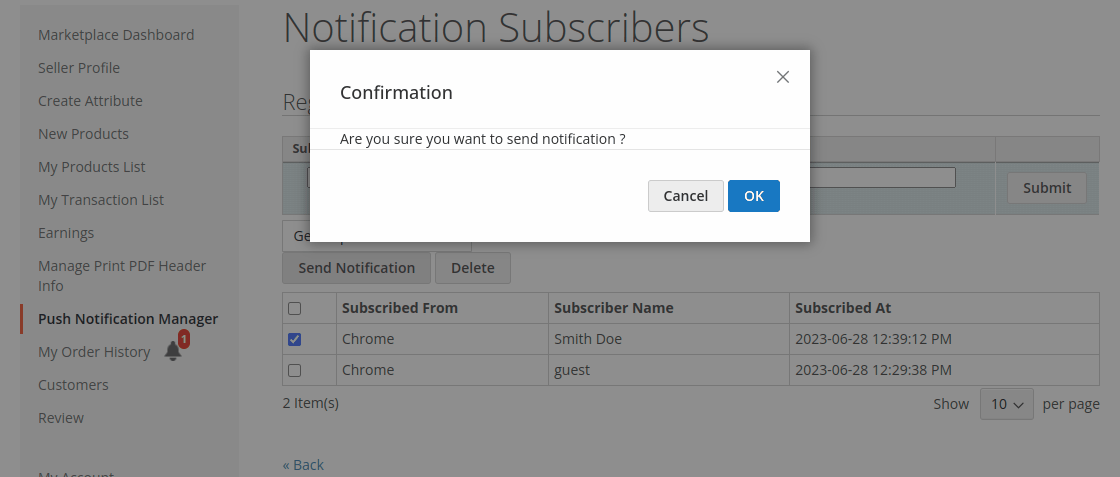
- Click Send Notification.
- Click OK in the confirmation dialog to send the push alert.