Storefront Customer Experience
Discover how shoppers interact with browser push notification permission prompts and real-time push alerts on desktop and mobile browsers.
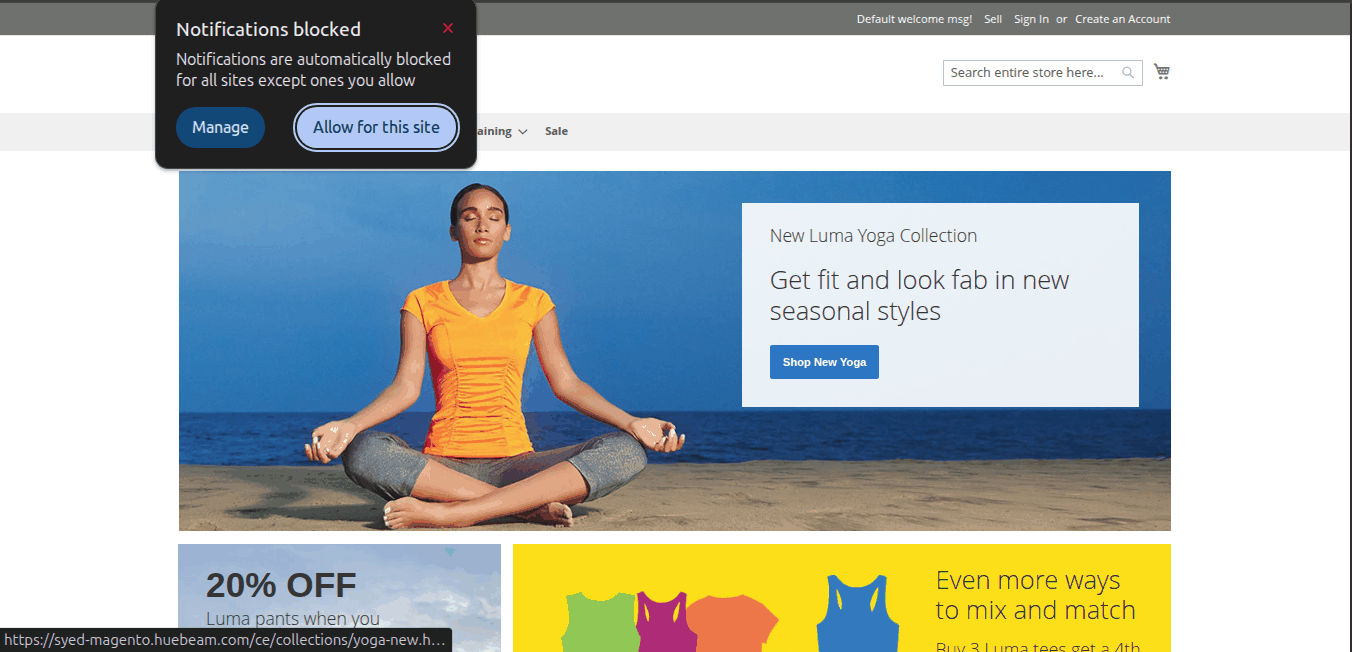
1. Browser Opt-in Permission Prompt
When a customer visits your marketplace store using Google Chrome or Mozilla Firefox, a browser permission prompt appears at the top of the browser viewport.
Customers click Allow to subscribe to store push notifications.
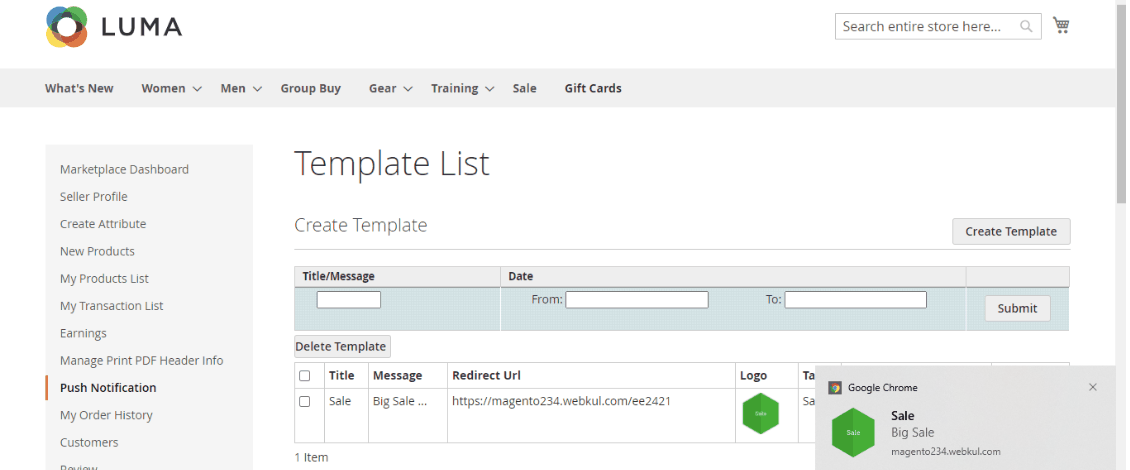
2. Desktop Push Notification View
Subscribed customers receive instant pop-up notifications on their desktop screen containing:
- Notification Title
- Message Body
- Custom Logo/Icon
- Clickable Redirect Link
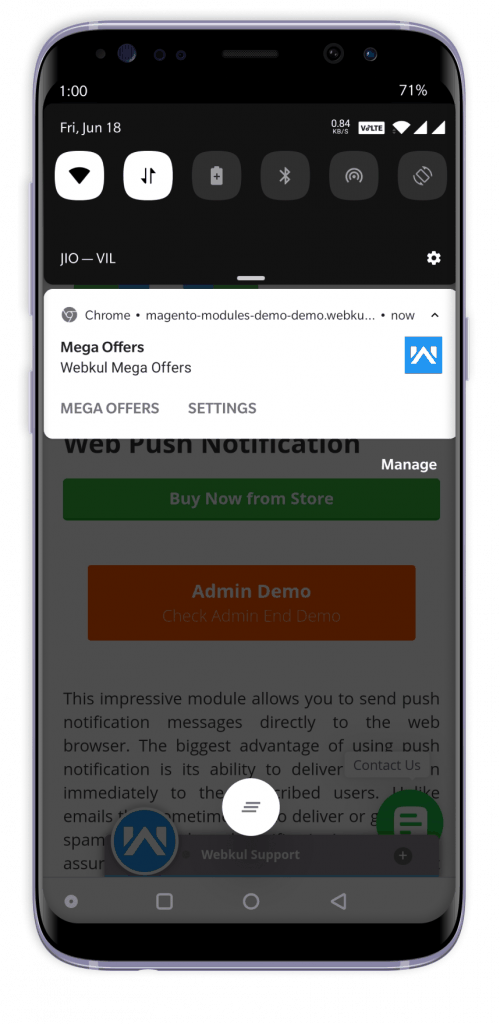
3. Mobile Push Notification View
Shoppers browsing on mobile devices (e.g., Chrome on Android) receive real-time push notifications directly in their device's system notification tray.