
Admin Configuration
Configure your Firebase Cloud Messaging (FCM) credentials in the Magento 2 Admin Panel.
Accessing Configuration Panel
- Log in to the Magento Admin Panel.
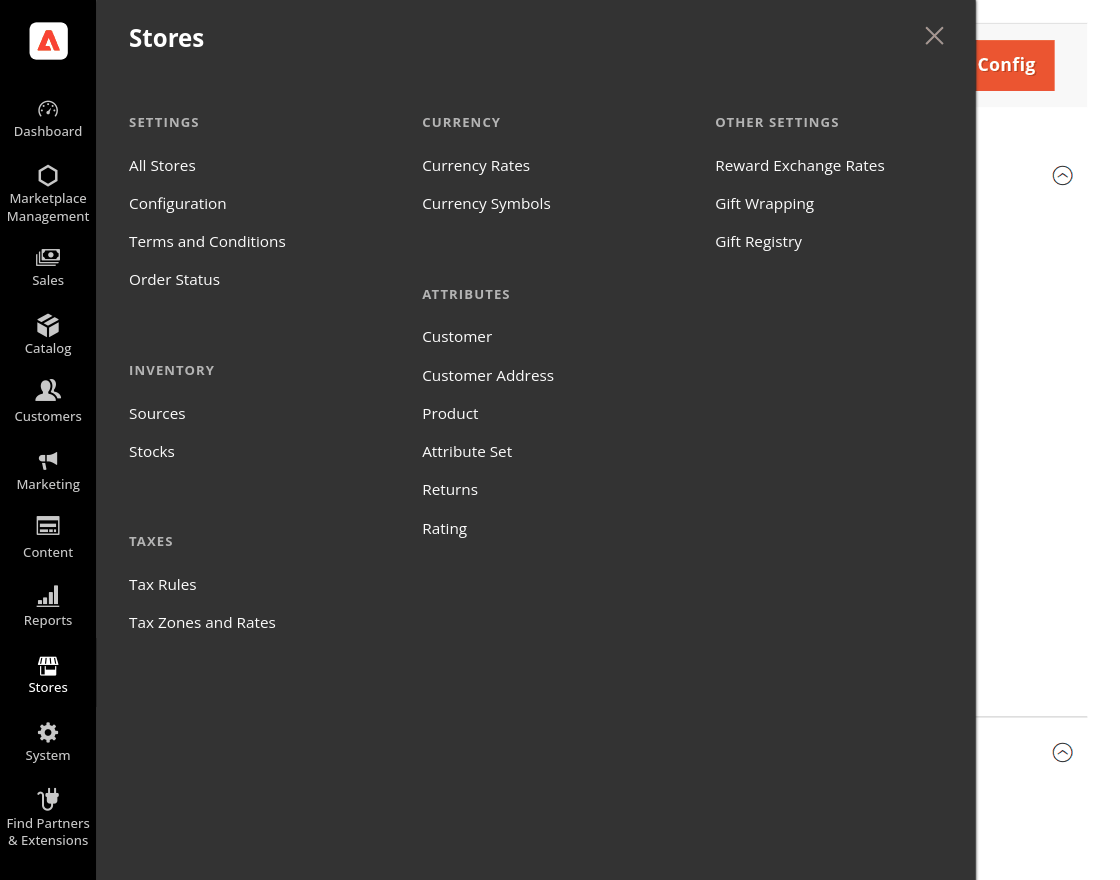
- Navigate to Stores > Settings > Configuration.
- Under the Webkul left menu tab, click MP Push Notification.
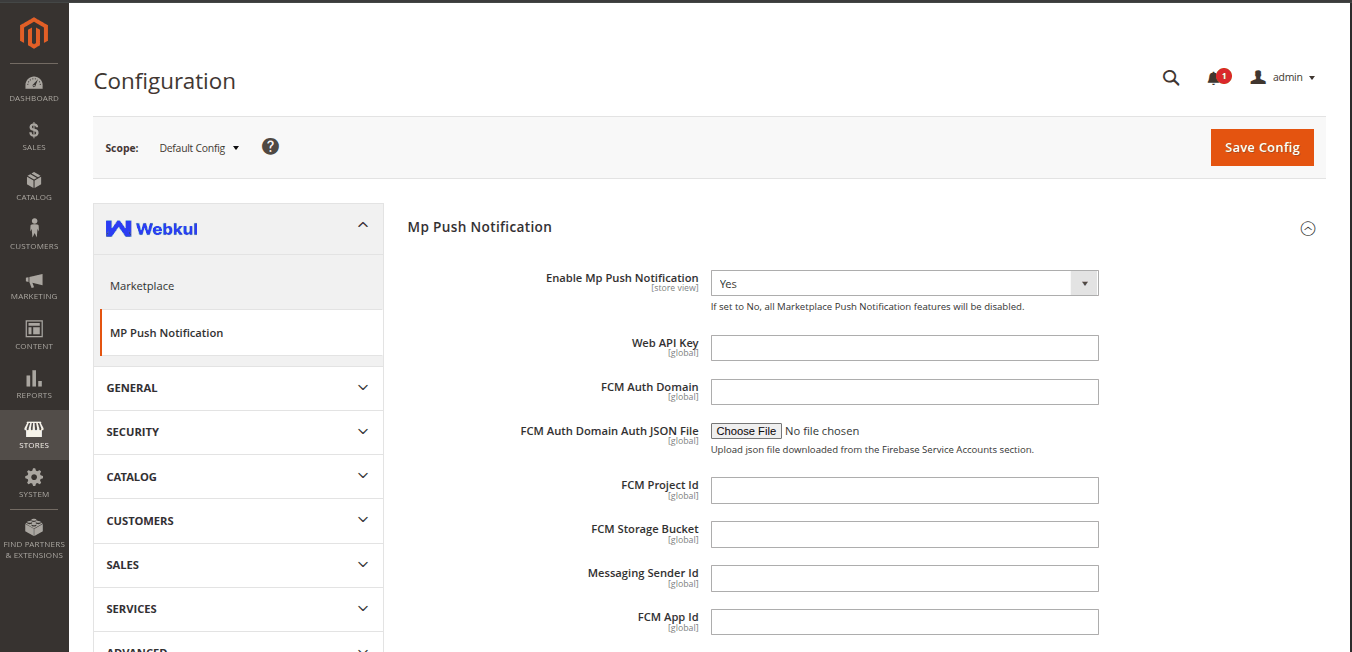
Configuration Settings Reference
Fill in the fields with credentials retrieved from your Firebase Console project:
| Field Name | Description | Recommended Setting |
|---|---|---|
| Enable Mp Web Push Notification | Enables or disables push notification features store-wide. | Yes |
| Web API Key | Paste apiKey from Firebase Project Settings > General. | [Your Web API Key] |
| FCM Auth Domain | Enter authDomain (e.g., project-id.firebaseapp.com). | [Your Auth Domain] |
| FCM Auth Domain Auth JSON File | Upload the downloaded Service Account .json private key file. | [Upload .json File] |
| FCM Project Id | Enter Firebase Project ID (projectId). | [Your Project ID] |
| FCM Storage Bucket | Enter Storage Bucket URL (e.g., project-id.appspot.com). | [Your Storage Bucket] |
| Messaging Sender Id | Enter Firebase Sender ID (messagingSenderId). | [Your Sender ID] |
| FCM App Id | Enter Web App ID (appId). | [Your App ID] |
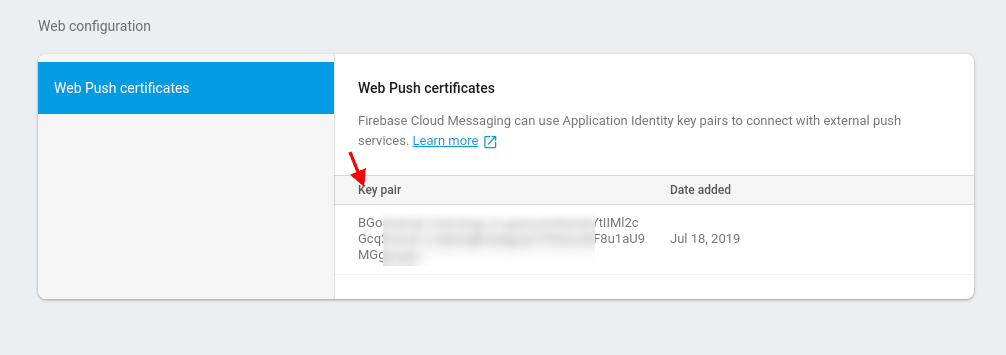
| Public Key (VAPID) | Enter Web Push Certificate Public Key from FCM settings. | [Your VAPID Public Key] |
| Push Notification Rule | Enable automated push notification scheduling rules. | Yes |
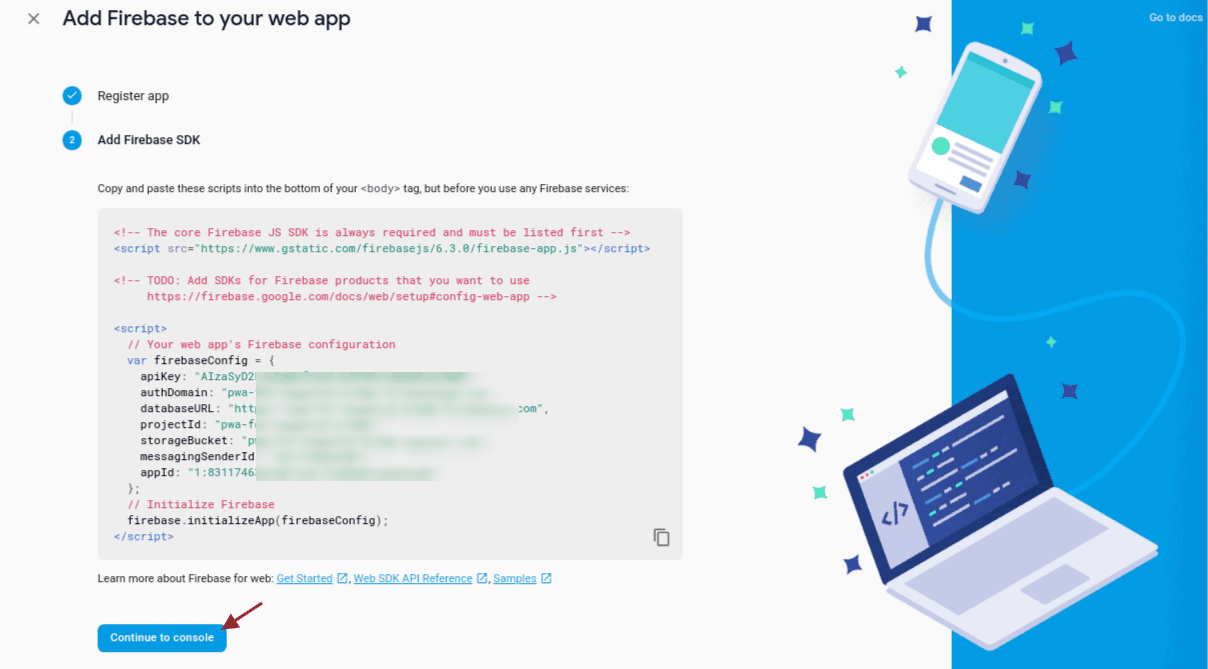
Visual Credential References in Firebase Console
Web API Key: Found under Project Settings > General.
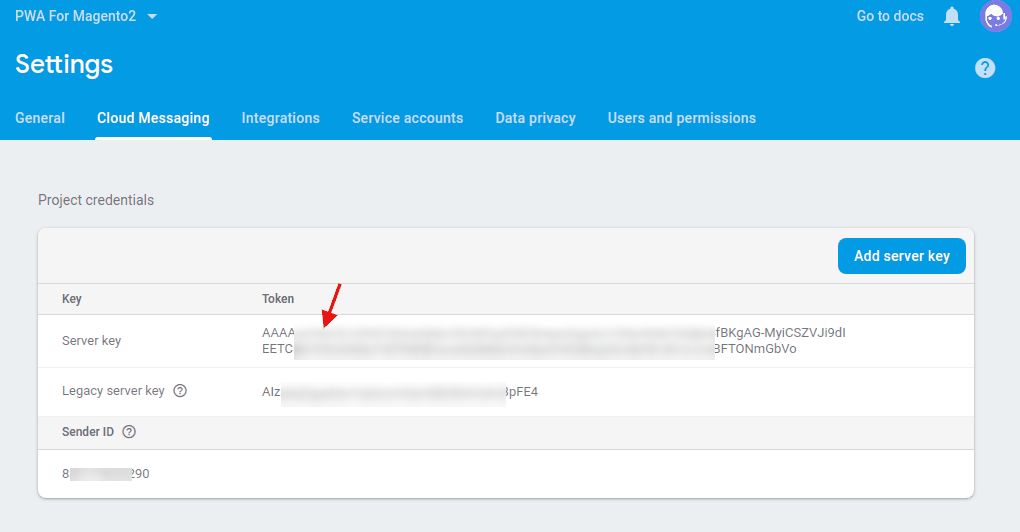
Server Key: Found under Project Settings > Cloud Messaging.
VAPID Public Key: Found under Cloud Messaging > Web configuration > Web Push certificates.
Click Save Config and flush the Magento cache after saving.