
Configuration Settings
Configure global options for the Webkul Magento 2 Order Edit extension, including enabling the module and customizing automated email notification settings.
Accessing Configuration
You can access the module settings in the Magento Admin Panel through either of these methods:
- Quick Menu: In the left sidebar, navigate to Webkul → Order Edit → Configuration Setting.
- System Stores: Go to Stores → Configuration, expand the Webkul section in the left panel, and select Order Edit.
Settings Reference
The configuration is organized into two main groups: Order Edit Settings and Email Notification Settings.
1. Order Edit Settings
| Setting | Options | Default | Description |
|---|---|---|---|
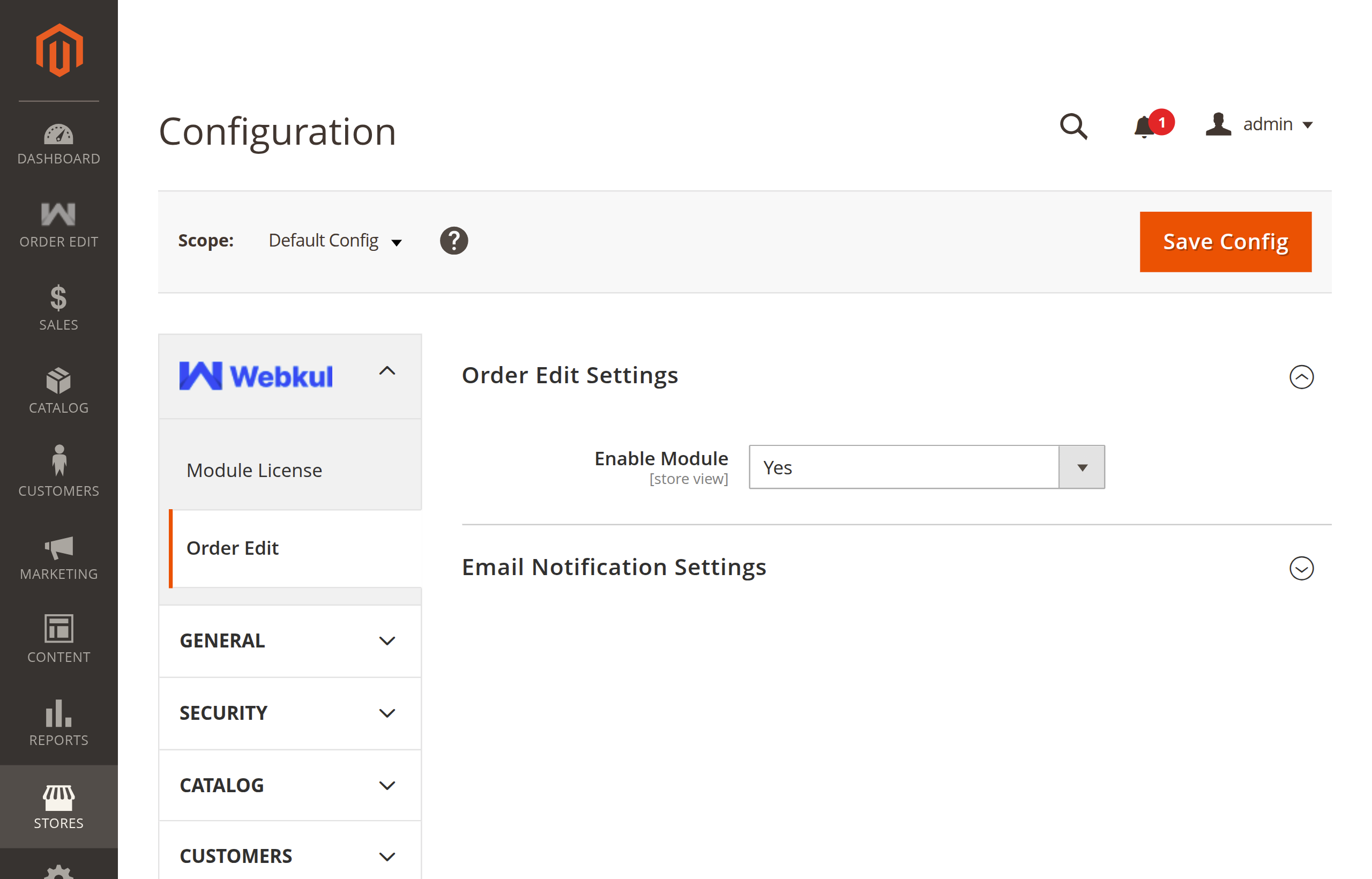
| Enable Module | Yes / No | Yes | Master switch for the extension. When set to Yes, order editing controls, product addition options, and the changelog appear on eligible order pages. Set to No to temporarily disable order editing store-wide. |
Admin Menu Note
Setting Enable Module to Yes is also required for the Webkul → Order Edit admin menu options to be visible.
2. Email Notification Settings
Automated notification emails keep both your team and your customers up to date whenever an order is edited.
| Setting | Options | Default | Description |
|---|---|---|---|
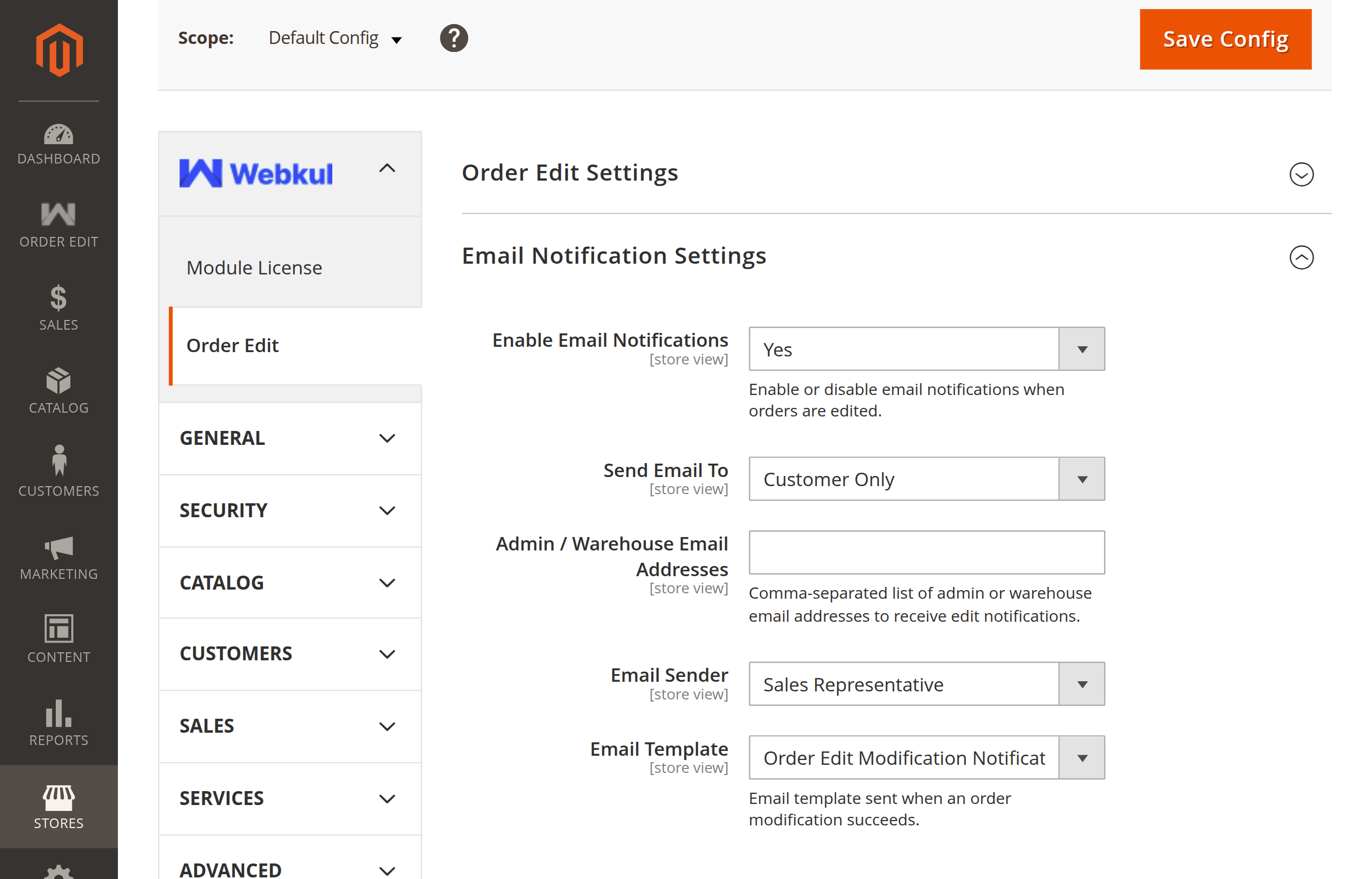
| Enable Email Notifications | Yes / No | Yes | When enabled, the system automatically sends an email notification whenever an order item is updated, added, removed, or a coupon is modified. |
| Send Email To | Dropdown | Customer and Admin | Choose who should receive the notification email when an order is updated. See options below. |
| Admin / Warehouse Email Addresses | Text Field | Empty | Enter one or more email addresses (separated by commas) to receive admin notifications (e.g., [email protected], [email protected]). |
| Email Sender | Dropdown | Sales Representative | Select the store email identity that appears as the sender for notification emails. |
| Email Template | Dropdown | Order Edit Email Template (Default) | Choose the email template used for order modification notifications. You can use the default template or create custom templates. |
Recipient Options Explained
The Send Email To setting gives you full control over who is notified of order edits:
- Customer and Admin (Recommended): Sends an updated order summary to the customer and delivers an alert to all addresses listed in Admin / Warehouse Email Addresses.
- Customer Only: Sends the notification email solely to the customer who placed the order.
- Admin / Warehouse Only: Alerts only your internal fulfillment or warehouse team (e.g., to re-pack or modify a shipment) without emailing the customer.
How to Save and Apply Settings
- Make your desired changes in the configuration fields.
- Click the Save Config button in the top-right corner.
- Refresh the configuration cache so the changes take effect immediately:
- In the admin panel, go to System → Tools → Cache Management.
- Select Configuration cache and click Refresh.
- Or run via terminal:
php bin/magento cache:clean config
Next Step
Proceed to In-Place Order Editing to learn how to modify line items, add products, and manage coupons directly on order pages.