
In-Place Order Editing
Learn how to use the Webkul Magento 2 Order Edit extension to adjust line item quantities, custom pricing, taxes, discounts, add new products, remove items, and apply promotional coupon codes directly from the Magento Admin Order View screen.
Accessing Order Edit
- In the Magento Admin Panel, go to Sales → Orders.
- Click View on any open, uninvoiced order (e.g., in status Pending or Processing).
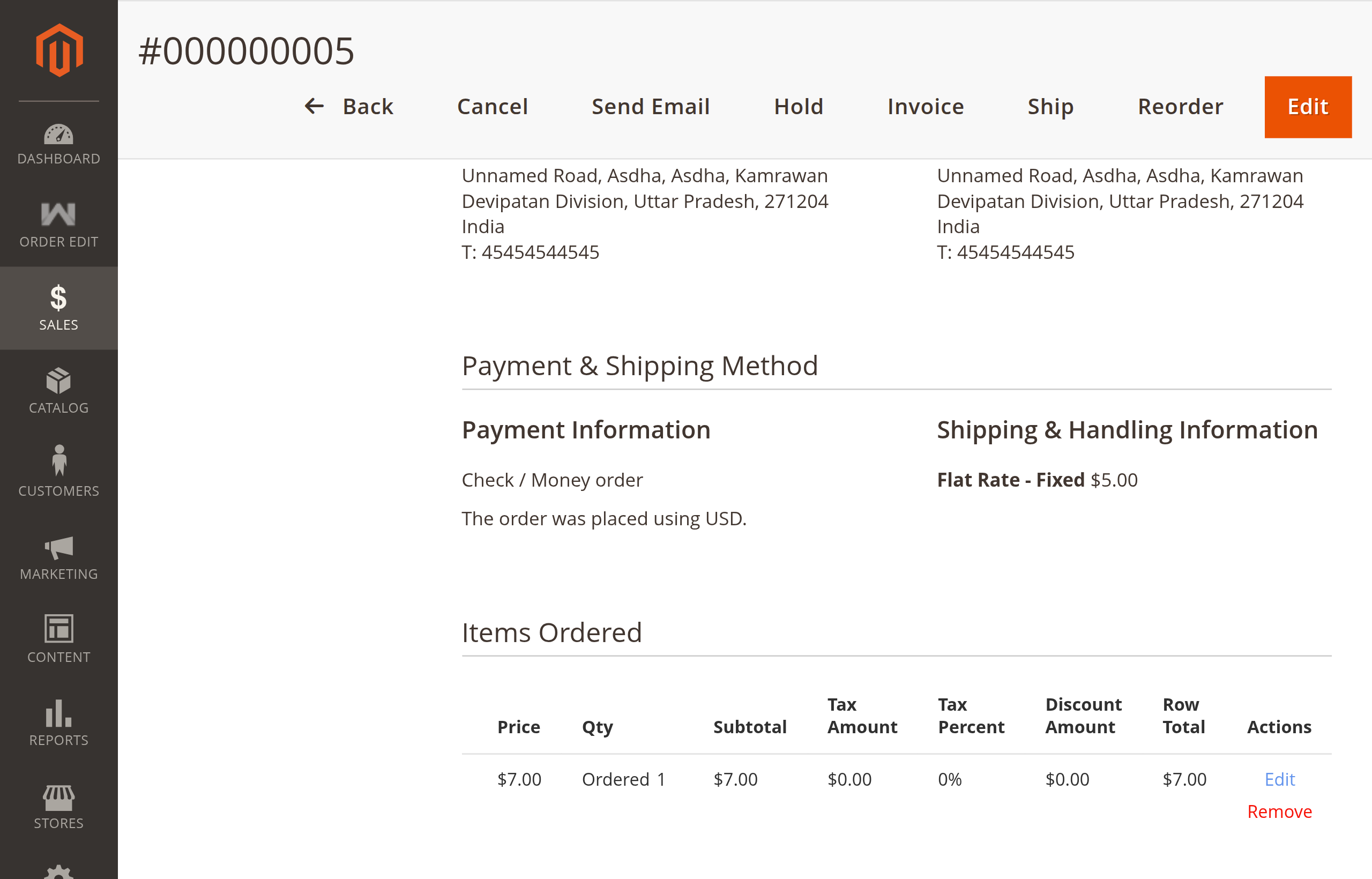
- Scroll down to the Items Ordered section.
- On eligible orders, you will see the following editing tools:
- Edit & Remove Links: Located in the Actions column of each product row.
- Add Products Button: Located directly above the items table.
- Apply Coupon Code Form: Positioned next to the order summary section.
- Order Edit Change Log: Displayed at the bottom of the page to track all adjustments.
When Are Orders Editable?
Orders can be edited as long as they contain items that have not yet been fully invoiced. If an order is already fully invoiced or canceled, the edit controls will not appear to protect accounting integrity.
1. Updating Line Items
You can modify the quantity, unit price, tax, or discount for any individual item on an open order.
How to Edit an Item:
- In the Items Ordered table, find the product you want to modify and click Edit in the Actions column.
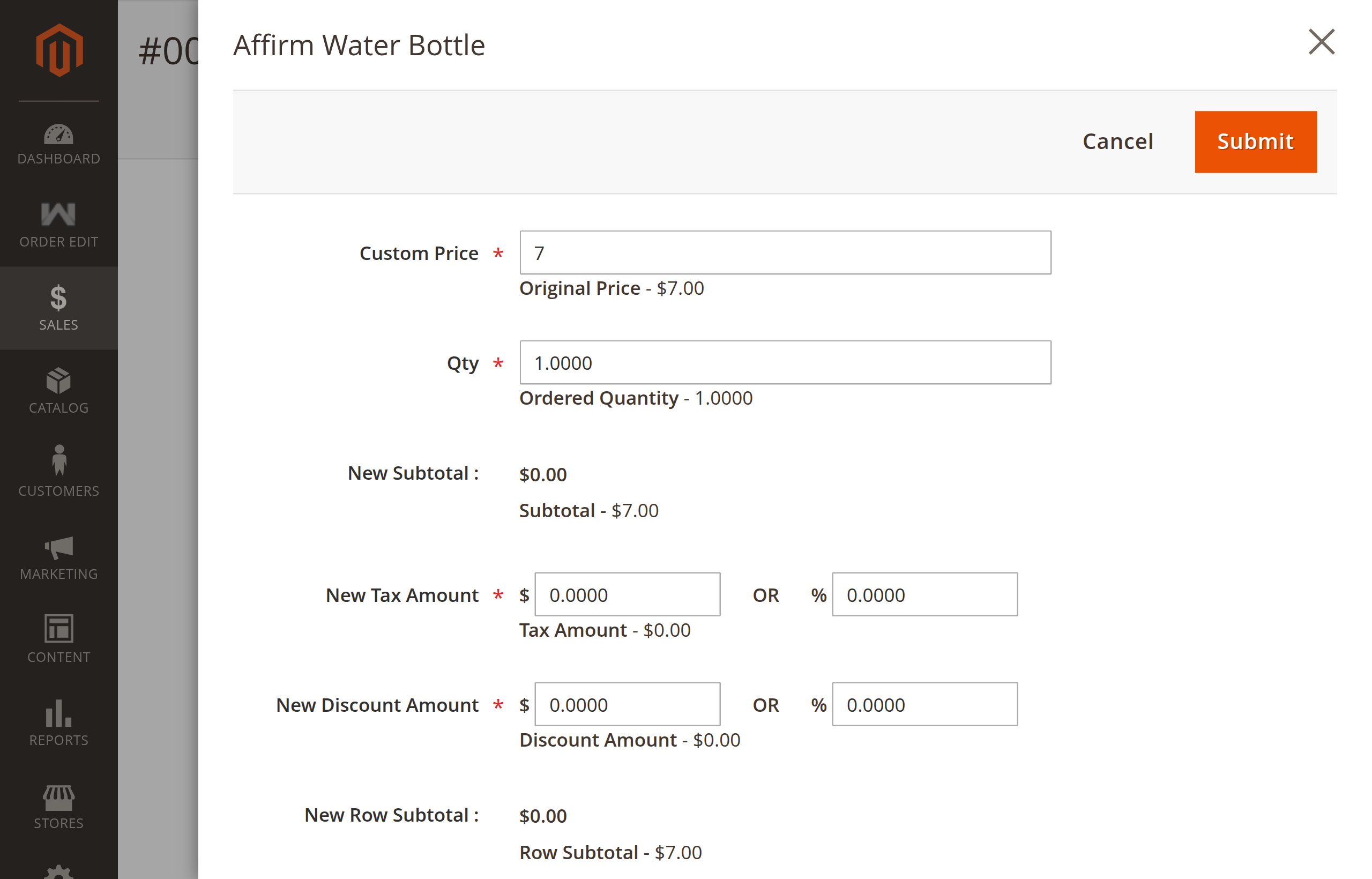
- A slide-out edit modal opens with the item's current details.
- Update any of the following fields as needed:
| Field | Description |
|---|---|
| Custom Price | Enter a new unit price for the product. The original price is displayed for reference. |
| Qty | Enter the updated quantity. The previously ordered quantity is shown for comparison. |
| New Tax Amount / % | Enter a fixed tax amount, or enter a percentage in the % field. |
| New Discount Amount / % | Enter a fixed discount amount, or enter a discount percentage in the % field. |
- Live Total Preview: As you enter new values, the modal dynamically previews the updated item subtotal and row total in real-time.
- Click Submit.
- The modal closes, and the page refreshes with the updated order totals, tax amounts, shipping rates, and a new entry in the change log.
2. Adding Products to an Existing Order
Store administrators can easily add additional simple, configurable, bundle, virtual, or downloadable products to an open order.
How to Add Products:
- Click the Add Products button located above the Items Ordered table.
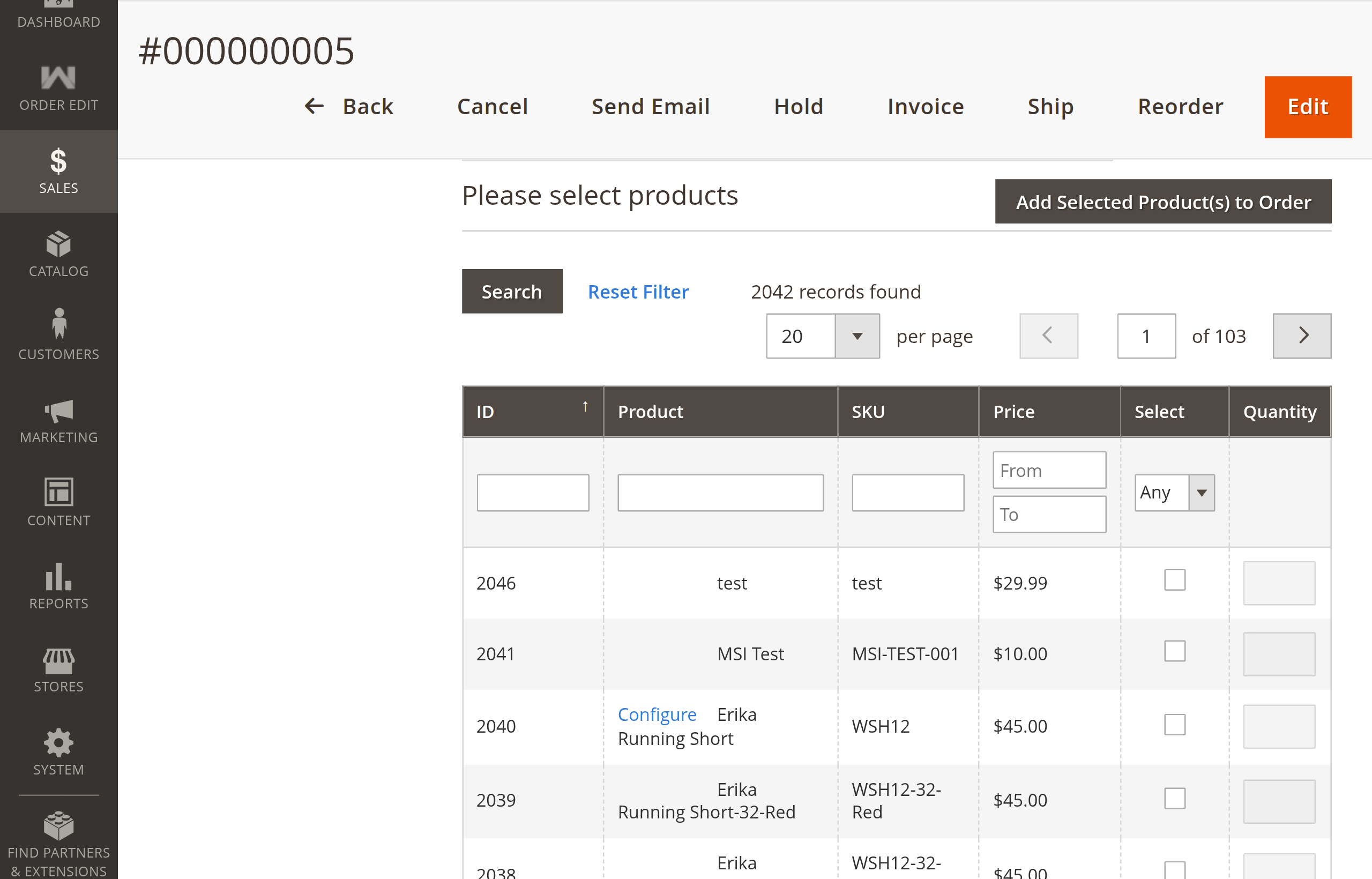
- A product catalog search window slides into view:
- Use search filters (Product ID, Name, SKU, Type, or Price) to locate items.
- Select the checkbox next to the product you want to add.
- Configure Options: If the product is configurable (e.g., size/color choices) or a bundle, click Configure to select the customer's desired options.
- In the Qty column, enter the quantity to add.
- Click Add Selected Product(s) to Order.
- The system automatically:
- Verifies product availability and stock.
- Adds the new product to the order.
- Recalculates order subtotals, taxes, and shipping rates.
- Logs the addition in the order change log.
3. Removing Items from an Order
If a customer changes their mind or an item is unavailable, administrators can remove items directly from the order.
How to Remove an Item:
- Find the item in the Items Ordered table.
- In the Actions column, click Remove.
- A confirmation popup appears:
"Are you sure you want to remove this item from the order?"
- Click OK to confirm.
- The item is removed immediately:
- If the item is a configurable or bundle product, its associated child items are automatically cleaned up.
- Reserved inventory for the item is automatically returned to available stock.
- Order subtotals, taxes, and shipping charges are recalculated.
- The removal is recorded in the order change log.
4. Applying and Managing Coupons
Administrators can apply promotional discount coupons (Magento Cart Price Rules) directly to an order, or remove existing discounts.
How to Apply a Coupon Code:
- Locate the Apply Coupon Code field below the items table.
- Enter a valid promotional coupon code.
- Click Apply.
- The discount is applied to the order, the totals and taxes are recalculated, and the action is logged in the change log.
How to Remove a Coupon:
- To remove an active coupon code, clear the code from the field (or click Cancel Coupon) and apply. The order totals will update to reflect the standard non-discounted pricing.
Important: Individual Item Discounts vs Coupon Codes
If any individual line item already has a custom discount applied through the item edit modal, the system will not allow applying a store-wide coupon code at the same time:
"Cannot apply coupon code when individual discount is applied to order items."
Why? Cart price rules calculate discounts based on standard product prices. Mixing custom individual discounts with cart-level rules can cause conflicting calculations or double-discounting. To apply a cart coupon, first remove any custom individual item discounts.
5. Automatic Recalculation
Whenever items are edited, added, or removed, the module automatically handles all necessary updates in the background:
- Subtotals & Taxes: Product prices and applicable tax rules are recalculated based on new quantities and amounts.
- Shipping Costs: The active shipping method is re-evaluated based on the new total order weight and cart value.
- Grand Total: The final amount due is synchronized and updated on the order screen.
- Stock Reservations: Stock allocations are updated in real-time with Magento Multi-Source Inventory.
Next Step
Learn how every order change is tracked and audited in Changelog & Audit Trail.