
Changelog & Audit Trail
The Webkul Magento 2 Order Edit module features a comprehensive, built-in audit trail system that records every modification made to an order. This provides complete operational transparency, accountability for store staff, and clear documentation for customer support and dispute resolution.
Accessing the Change Log
The change log is integrated directly into the Magento Admin Order View screen:
- In the admin panel, navigate to Sales → Orders.
- Click View on the order you want to review.
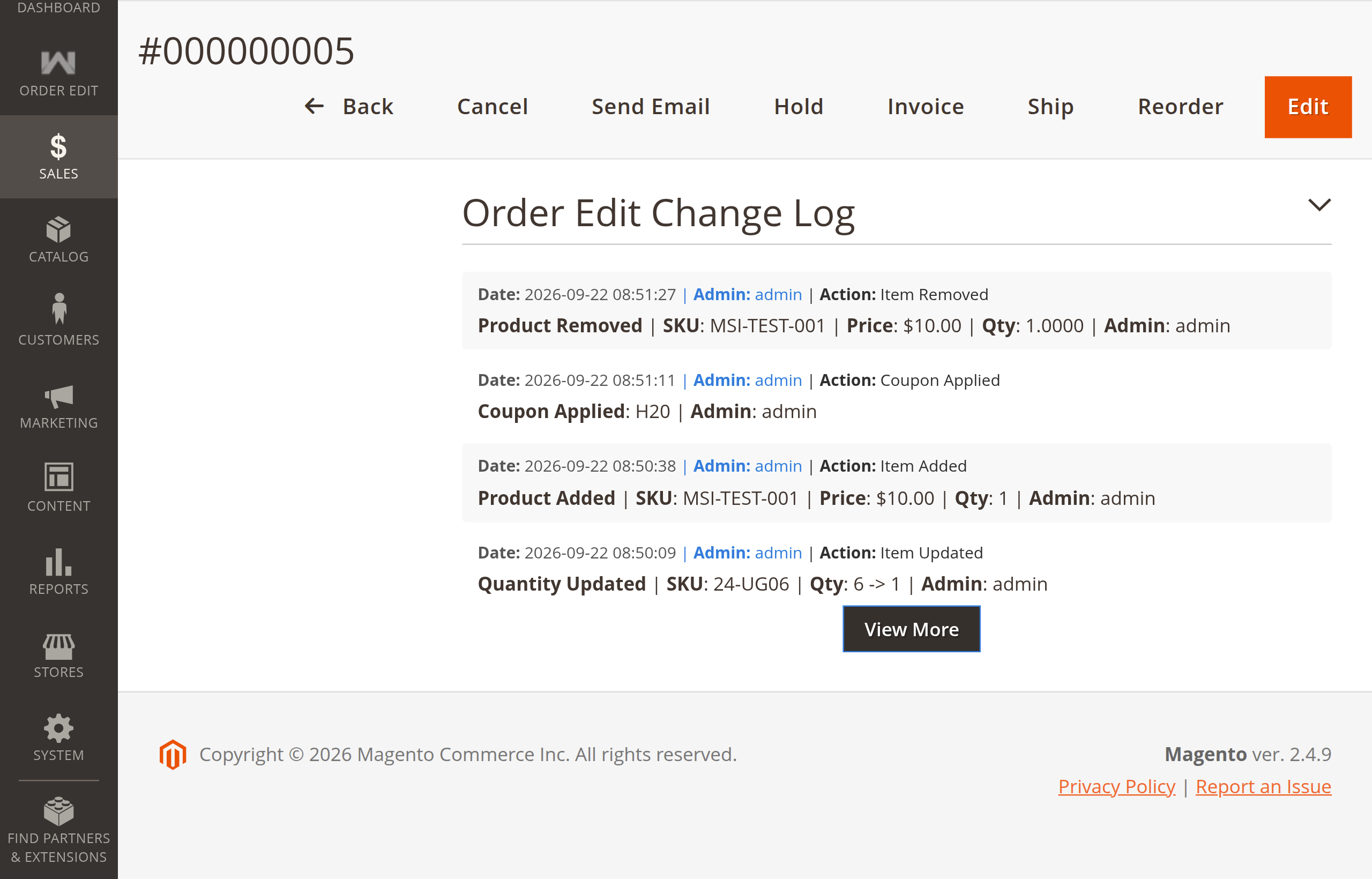
- Scroll to the bottom of the order page to find the Order Edit Change Log section.
- If the order has been modified, a chronological history of all updates will be displayed with the newest changes at the top.
What Information is Tracked?
Every time an item is modified, added, removed, or a coupon is changed, the module automatically records key audit details:
| Information | Description | Example |
|---|---|---|
| Date & Time | The exact timestamp when the change was submitted, in your store's timezone. | 2026-09-22 08:50:09 |
| Admin User | The name of the store administrator or staff member who performed the edit. | admin |
| Action Type | The specific category of modification performed. | Item Updated, Item Added, Item Removed, Coupon Applied |
| Modification Details | A clear breakdown showing affected SKUs, previous vs updated quantities, custom prices, and applied coupons. | "Quantity Updated | SKU: 24-UG06 | Qty: 6 -> 1 | Admin: admin" |
Example Change Log Entries
Here is how entries appear in the order change log during typical store management scenarios (as shown in the screenshot above):
[Date: 2026-09-22 08:51:27 | Admin: admin | Action: Item Removed]
Product Removed | SKU: MSI-TEST-001 | Price: $10.00 | Qty: 1.0000 | Admin: admin

[Date: 2026-09-22 08:51:11 | Admin: admin | Action: Coupon Applied]
Coupon Applied: H20 | Admin: admin

[Date: 2026-09-22 08:50:38 | Admin: admin | Action: Item Added]
Product Added | SKU: MSI-TEST-001 | Price: $10.00 | Qty: 1 | Admin: admin

[Date: 2026-09-22 08:50:09 | Admin: admin | Action: Item Updated]
Quantity Updated | SKU: 24-UG06 | Qty: 6 -> 1 | Admin: admin
Compact View & "View More" Feature
To ensure the order view screen remains clean and easy to navigate even on orders with multiple revisions:
- Compact Display: By default, the change log is displayed in a neat, compact box so it does not clutter the page.
- View More Button: As shown in the screenshot above, if an order has more entries than fit into the initial viewport, a View More button automatically appears.
- Expand / Collapse: Clicking View More smoothly expands the section to show the complete modification history, while clicking View Less collapses it back to the compact view.
Key Benefits for Store Owners
- Staff Accountability: Know exactly which team member or customer service representative made modifications to prices, quantities, or discounts.
- Customer Dispute Resolution: Easily cross-reference customer inquiries about why an order total or items changed with the exact timestamp and notes.
- Permanent History: The change log is permanently stored and remains available for reference throughout the life of the order.
Next Step
Learn how email notifications alert customers and warehouse teams of updates in Email Notifications & Queue.