
Overview & Settings
To configure the integration settings, navigate to Stores → Configuration → Webkul → Hipercalzado Connect in your Magento Admin Panel.
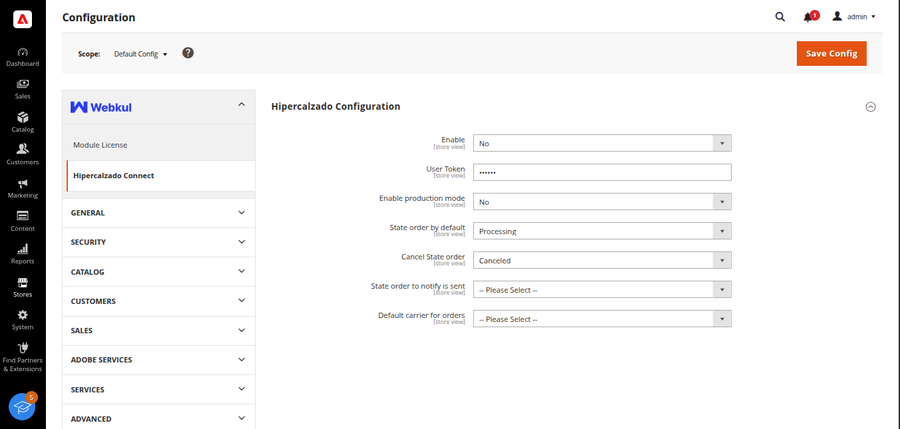
Configuration Field Reference
| Configuration Field | Description & Guidance |
|---|---|
| Enable | Set to Yes to activate the Hipercalzado Connector features on your Magento store. |
| User Token | Enter your Hipercalzado API Token obtained from your Hipercalzado seller account. |
| Enable Production Mode | Set to Yes for live marketplace operations; set to No when testing with sandbox credentials. |
| State Order by Default | Select the default Magento order status assigned upon importing a Hipercalzado order (e.g., Processing). |
| Cancel State Order | Trigger automatic cancellation on Hipercalzado when an order enters this status in Magento. |
| State Order to Notify Is Sent | Order status that triggers shipment notification and tracking code dispatch to Hipercalzado. |
| Default Carrier for Orders | Select the default shipping carrier (e.g., DHL, FedEx, UPS) applied to imported marketplace orders. |
Shipping Carrier Alignment
Ensure the Default Carrier for Orders selected in Magento exists and matches carrier configurations on Hipercalzado to guarantee smooth shipment tracking updates.