
Spell Correction & "Did You Mean"
Typos and misspelled words are among the leading causes of zero-result search pages in online stores. The Webkul Magento 2 Elasticsearch module features intelligent, real-time spell correction powered by Elasticsearch fuzzy matching and phrase suggesters.
Spell Correction in Search (Fuzziness)
Under Stores > Configuration > Webkul > Elastic Search Settings > Search Settings, configure the Allow Spell Correction in search setting:
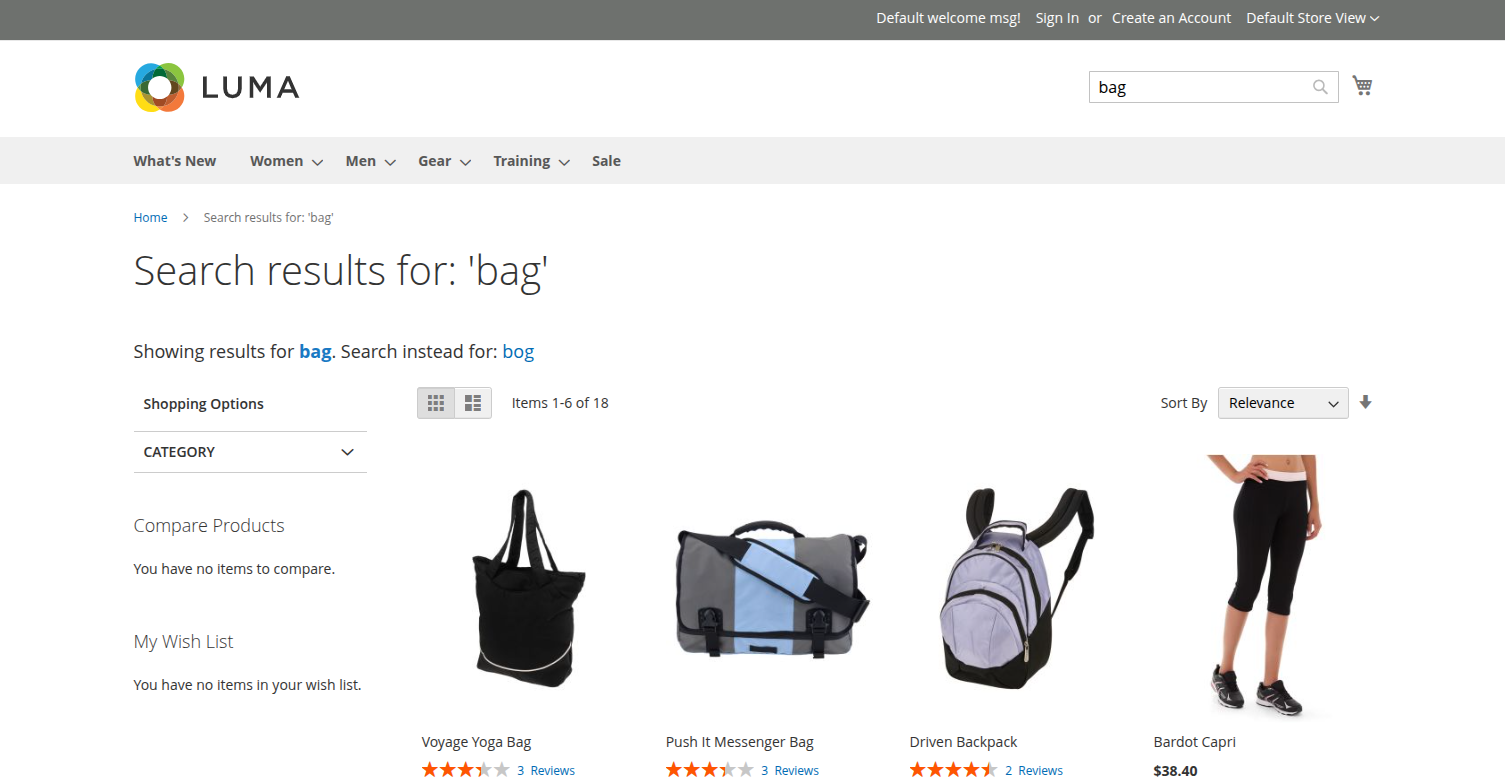
Hyva Theme Spell Correction Results
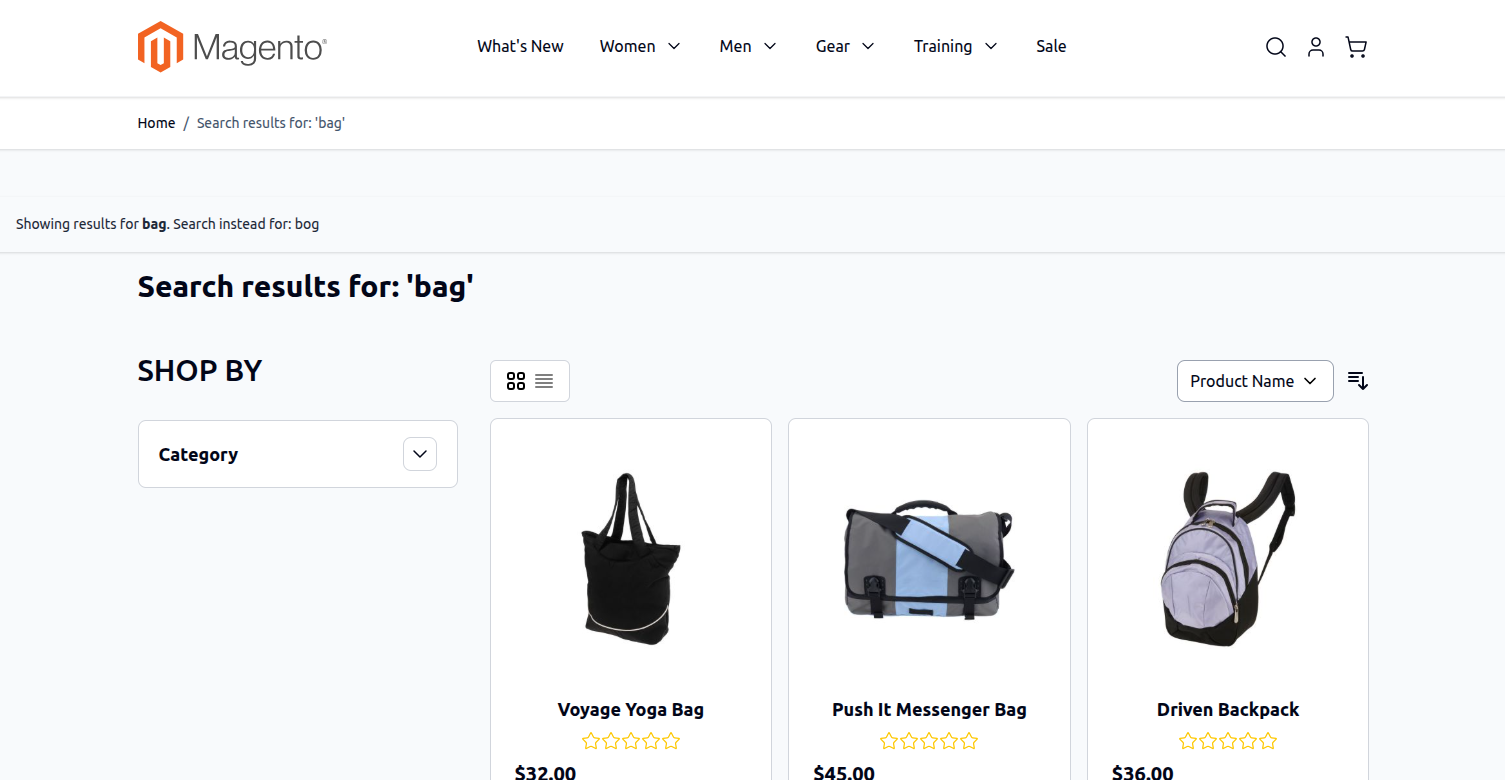
Fuzziness Levels Explained
- Level 0 (Exact Match Only): Disables fuzzy tolerance. Elasticsearch only returns products containing the exact term entered by the shopper.
- Level 1 (Single Edit Distance): Tolerates 1 character alteration (insertion, deletion, substitution, or transposition). For example, searching for
"phne"finds"phone". - Level 2 (Two Edit Distances): Tolerates up to 2 character alterations. For example, searching for
"phonn"finds"phone". Recommended for stores with complex product names or multi-language shopper bases. - Auto (Dynamic Threshold): Dynamically applies fuzziness based on query string length:
- 0–2 characters: Exact match only.
- 3–5 characters: 1 edit allowed.
- Greater than 5 characters: 2 edits allowed.
Automated Typo Correction Notification
When a shopper enters a misspelled term and Elasticsearch detects a clear high-confidence match, the search engine automatically runs the corrected query and displays an informational notification banner:
Showing results for: Phone
Search instead for: Phne
- Instant Results: Shoppers are immediately presented with relevant products rather than a discouraging "No results found" screen.
- Literal Search Bypass: If the customer genuinely intended to search for their original term (e.g., a proprietary model number or slang), clicking Search instead for: [Original Term] bypasses autocorrection and evaluates the literal query.
"Did You Mean" Alternative Suggestions
When a query is ambiguous or produces zero direct matches, the extension provides a Did You Mean suggestion box:
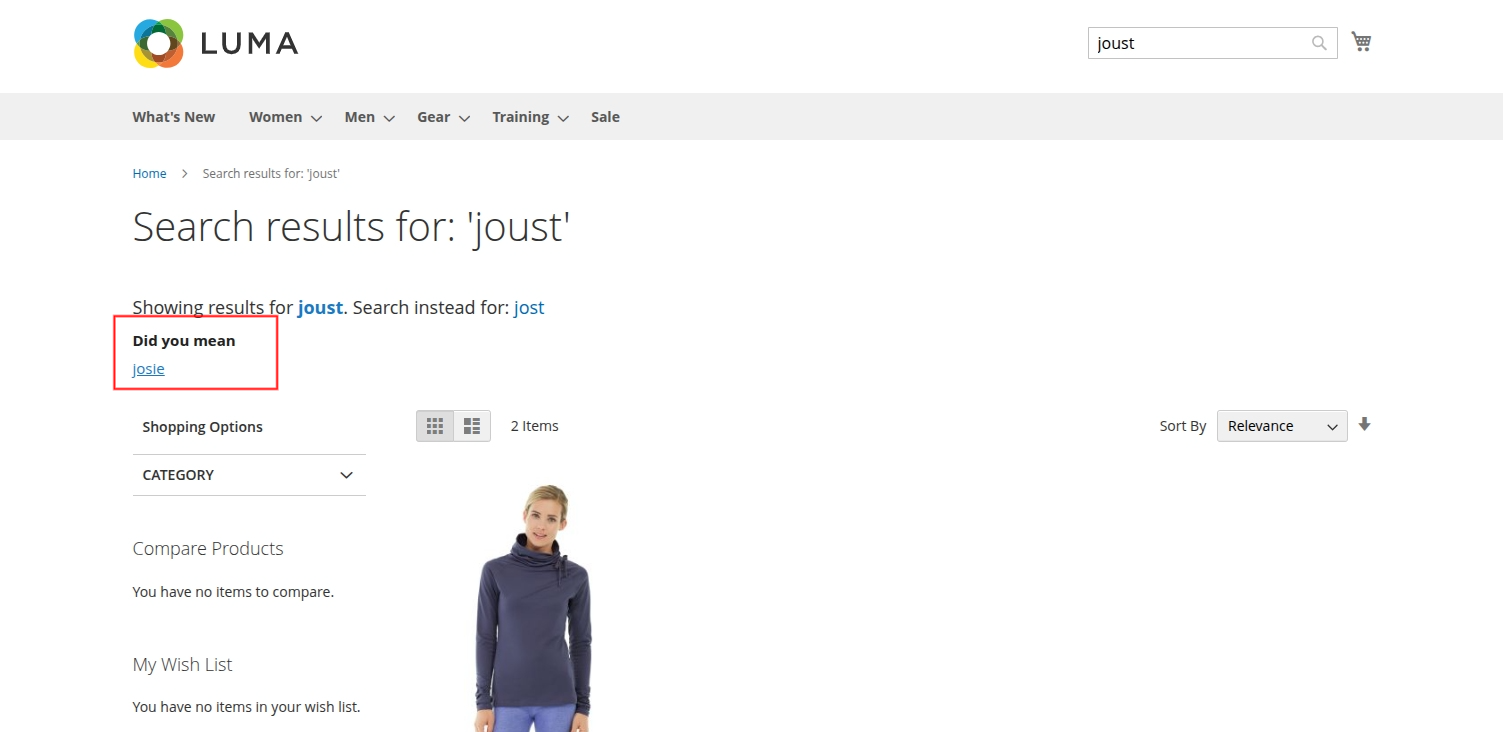
Hyva Theme Did You Mean Suggestions
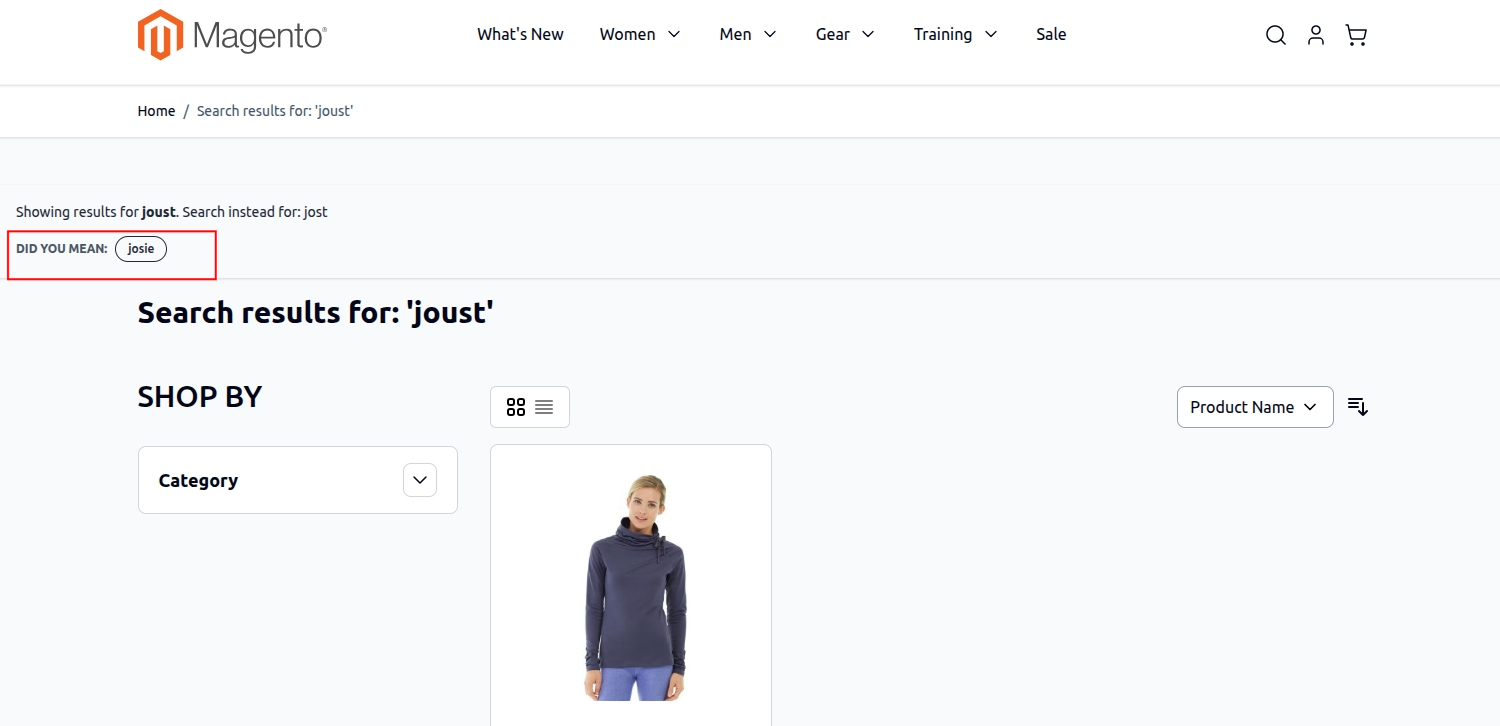
- Recommends nearby vocabulary words indexed from the catalog.
- Displays related product recommendations, keeping shoppers engaged and browsing rather than abandoning the site.