
Website & Channel Mapping
In modern e-commerce architectures, a single Magento installation often hosts multiple websites, stores, and store views. The Akeneo Connector provides granular mapping between Magento store scopes and Akeneo channels, locales, and currencies.
Configuring Store View & Channel Mappings
- In the Magento Admin, navigate to Stores → Configuration → Webkul → Akeneo Connector.
- Expand the Akeneo Connector Configuration section.
- Locate the channel and store mapping fields:
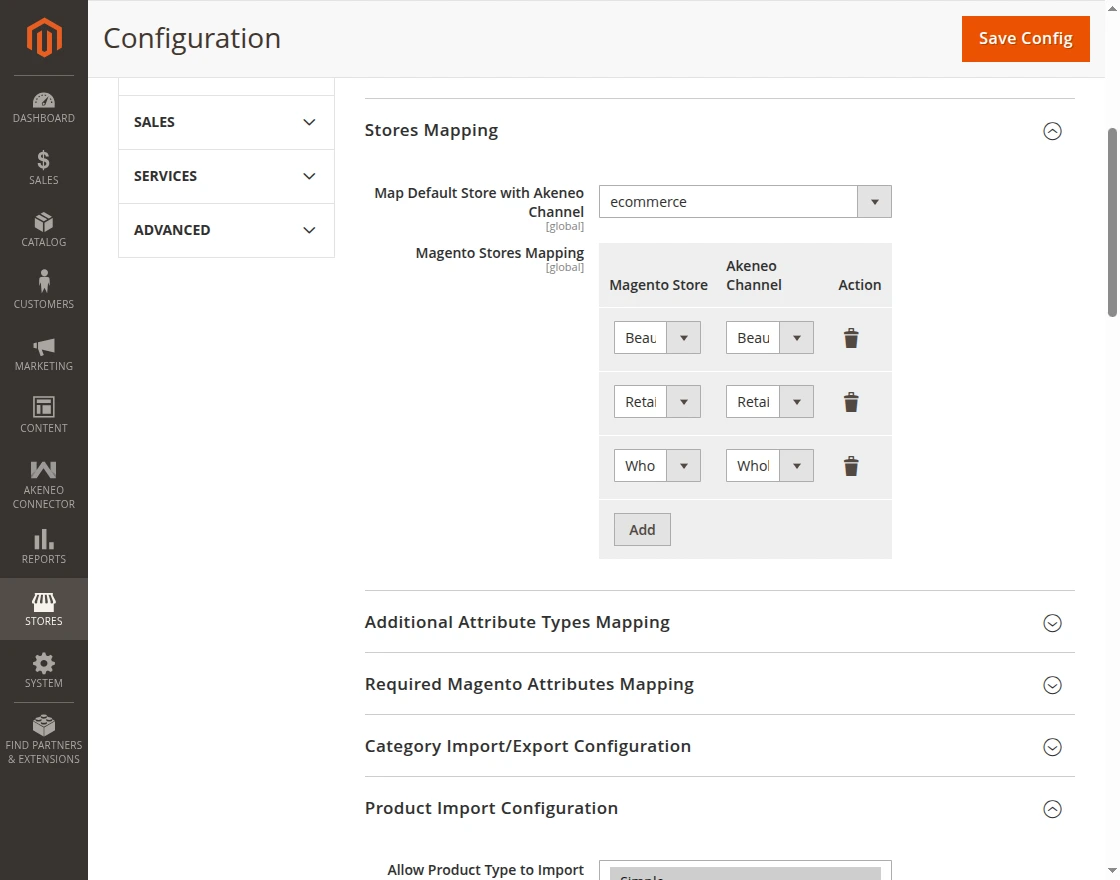
Mapping Fields Explained
1. Map Default Store with Akeneo Channel
Select the primary Akeneo channel and locale to associate with your default Magento store view (for example, ecommerce-en_US-USD-master).
All baseline product definitions, standard pricing, and global category names synchronized during import jobs will reference this channel configuration.
2. Magento Stores Mapping
For multi-language or regional store views, configure explicit pairings:
| Field | Description | Example |
|---|---|---|
| Magento Store | The target Magento Store View receiving localized data. | German Store View |
| Akeneo Channel | The matching Akeneo Channel, Locale, and Currency combination. | ecommerce-de_DE-EUR |
Adding and Removing Rows
- Click Add to create an additional store view mapping row.
- Click the Delete (trash bin) icon to remove an unwanted mapping row.
- Always click Save Config after modifying store view mappings.
Multi-Currency & Locale Behavior
When importing products, the connector checks store mappings to determine which localized attribute values (such as translated descriptions or localized prices) apply to each Magento store view.