
API Credentials Setup
To establish bi-directional communication between Magento 2 and Akeneo PIM, an API connection key must be created inside Akeneo PIM and entered into Magento's system configuration.
1. Creating API Connection in Akeneo PIM
- Log in to your Akeneo PIM Admin Panel as an administrator.
- Navigate to Connect → Connection Settings from the left navigation bar.
- Click the Create button in the upper-right corner.
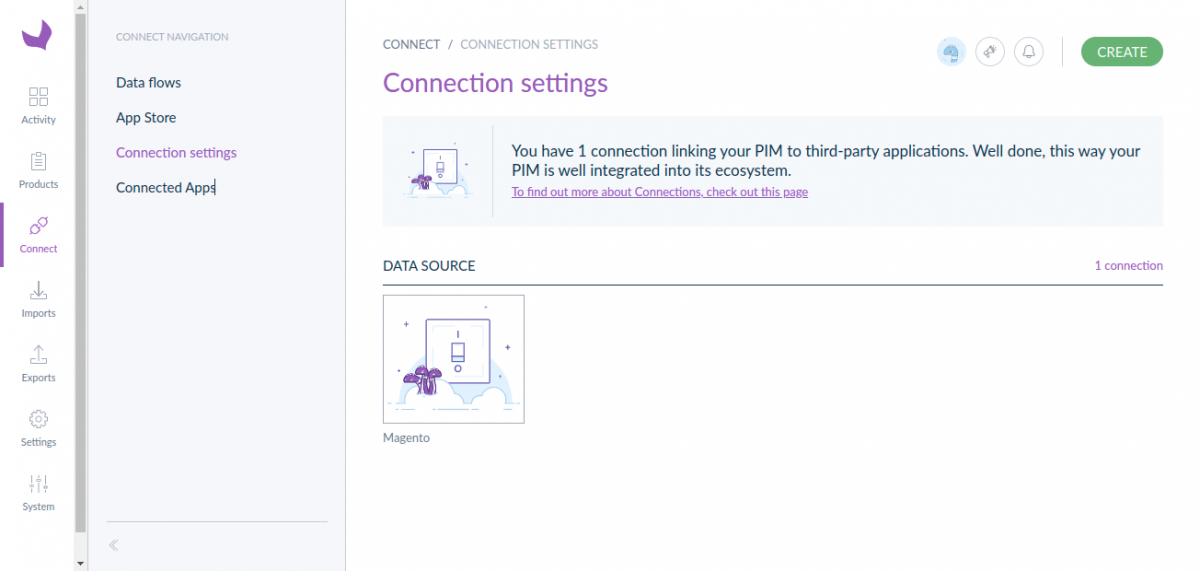
- In the creation modal:
- Label: Provide an identifiable name (such as
Magento 2 Connector). - Flow: Data source and destination.
- User role: Assign an administrative role with permission to read and write attributes, families, categories, products, and channels.
- Label: Provide an identifiable name (such as
- Click Save. Akeneo generates your dedicated API credentials:
- Client ID
- Secret
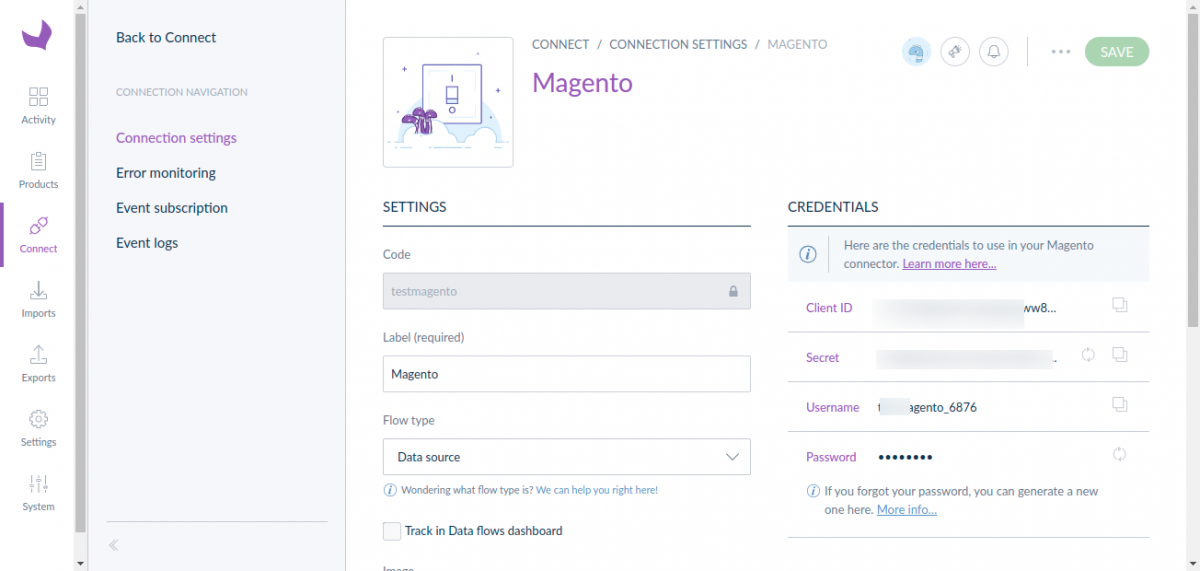
User Permissions
Ensure the API user assigned to this connection has active read/write permissions for all target locales, channels, and attribute groups you intend to synchronize.
2. Configuring API Credentials in Magento Admin
- Log in to the Magento 2 Admin Panel.
- Navigate to Stores → Configuration → Webkul → Akeneo Connector.
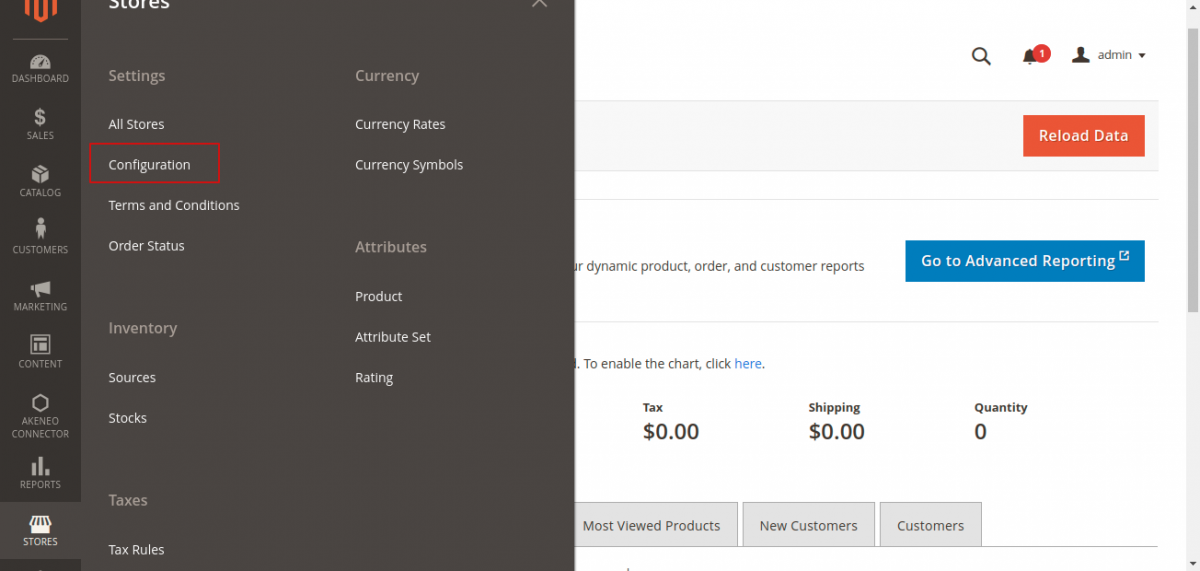
- Expand the Akeneo Connector Configuration group:
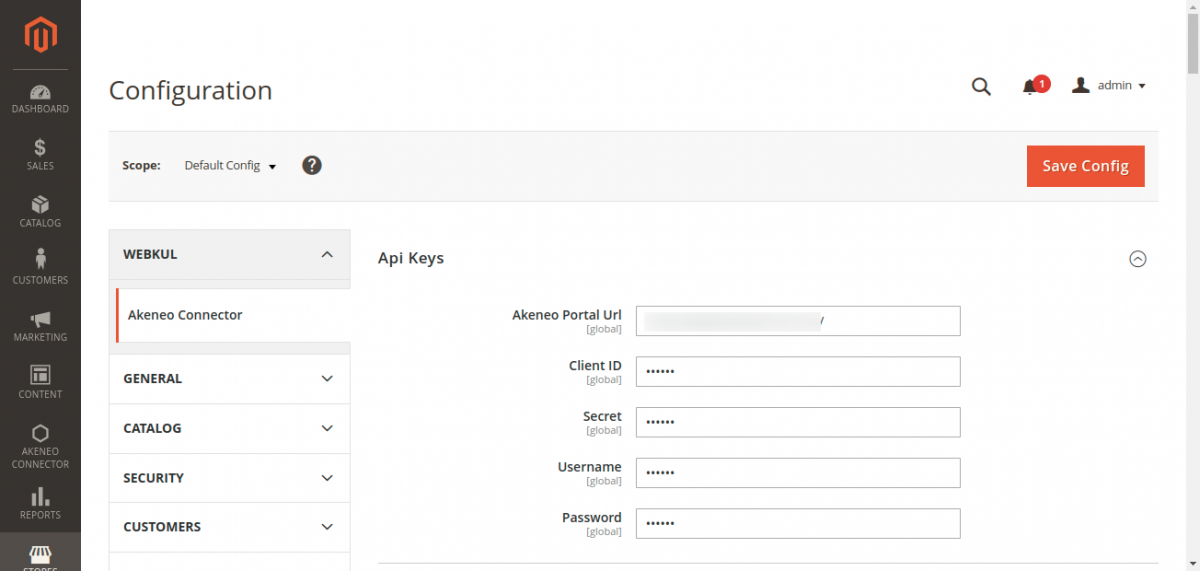
- Populate the fields with your Akeneo credentials:
| Configuration Field | Description | Example Value |
|---|---|---|
| Enable Akeneo Connector | Global kill switch to enable or disable the Akeneo connector integration. Set to Yes. | Yes |
| Akeneo Portal URL | Full HTTPS base URL of your Akeneo instance (without trailing slash) | https://akeneo.example.com |
| Client ID | Client ID generated from Akeneo Connection Settings | your_akeneo_client_id_xxxxxx |
| Secret | Secret key generated from Akeneo Connection Settings | your_akeneo_secret_key_xxxxxx |
| Username | Username of the Akeneo admin or API user | your_akeneo_username |
| Password | Password of the Akeneo admin or API user | your_akeneo_password |
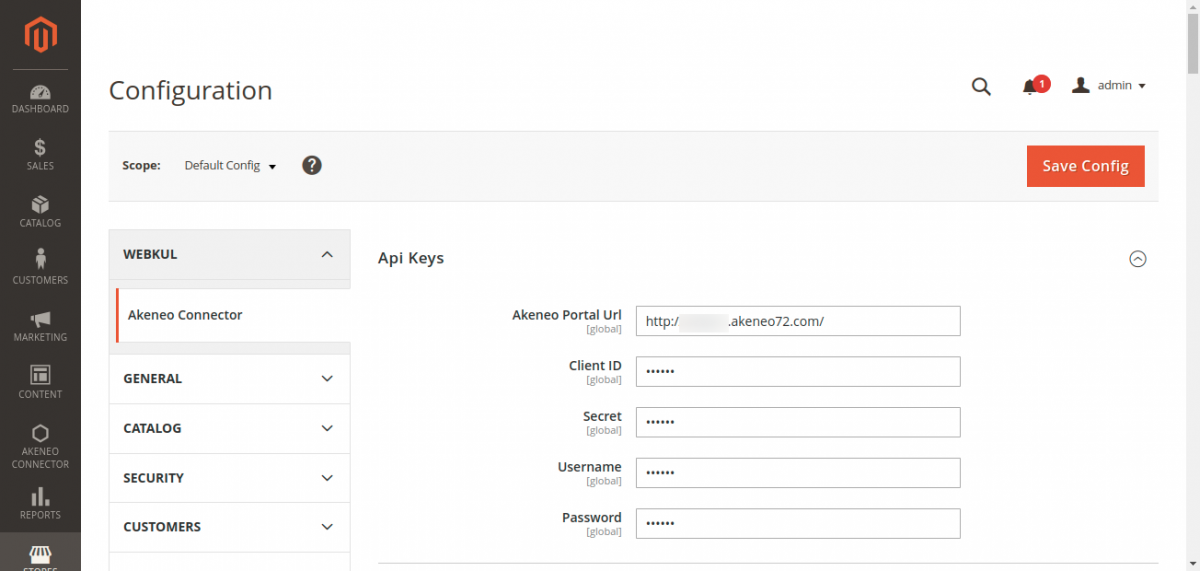
- Click Save Config at the top of the page.