
Magento 2 Zoho SSOMagento 2 Zoho SSO
Buy Now
Support
Buy Now
Support
  • Getting Started

    • Introduction
    • Key Features
    • How It Works
  • Installation

    • Requirements
    • Install the Module
    • Enable & Compile
    • Verify the Installation
  • Setup

    • Activate Your Licence
    • Register a Zoho Client
    • Connect Magento to Zoho
    • Test the First Sign-In
  • Configuration

    • Overview
    • Settings Reference
    • Data Centers
    • Redirect URI
    • Scope & Store Views
    • Admin Menu
    • Access Control
  • Storefront

    • Customer Login
    • Create Account
    • Checkout Sign-In
    • Popup & Mobile Behaviour
    • Accounts & Matching
    • Messages
  • Developers

    • Routes & Endpoints
    • Data & Sessions
    • Logging
  • Help

    • Setup Problems
    • Sign-In Problems
    • FAQ

Customer Login

Page: /customer/account/login/

When Zoho SSO is enabled, the Registered Customers form gets a divider reading Or sign in with, followed by a Zoho tile. It sits below the regular Sign In button, so the email-and-password login is unchanged.
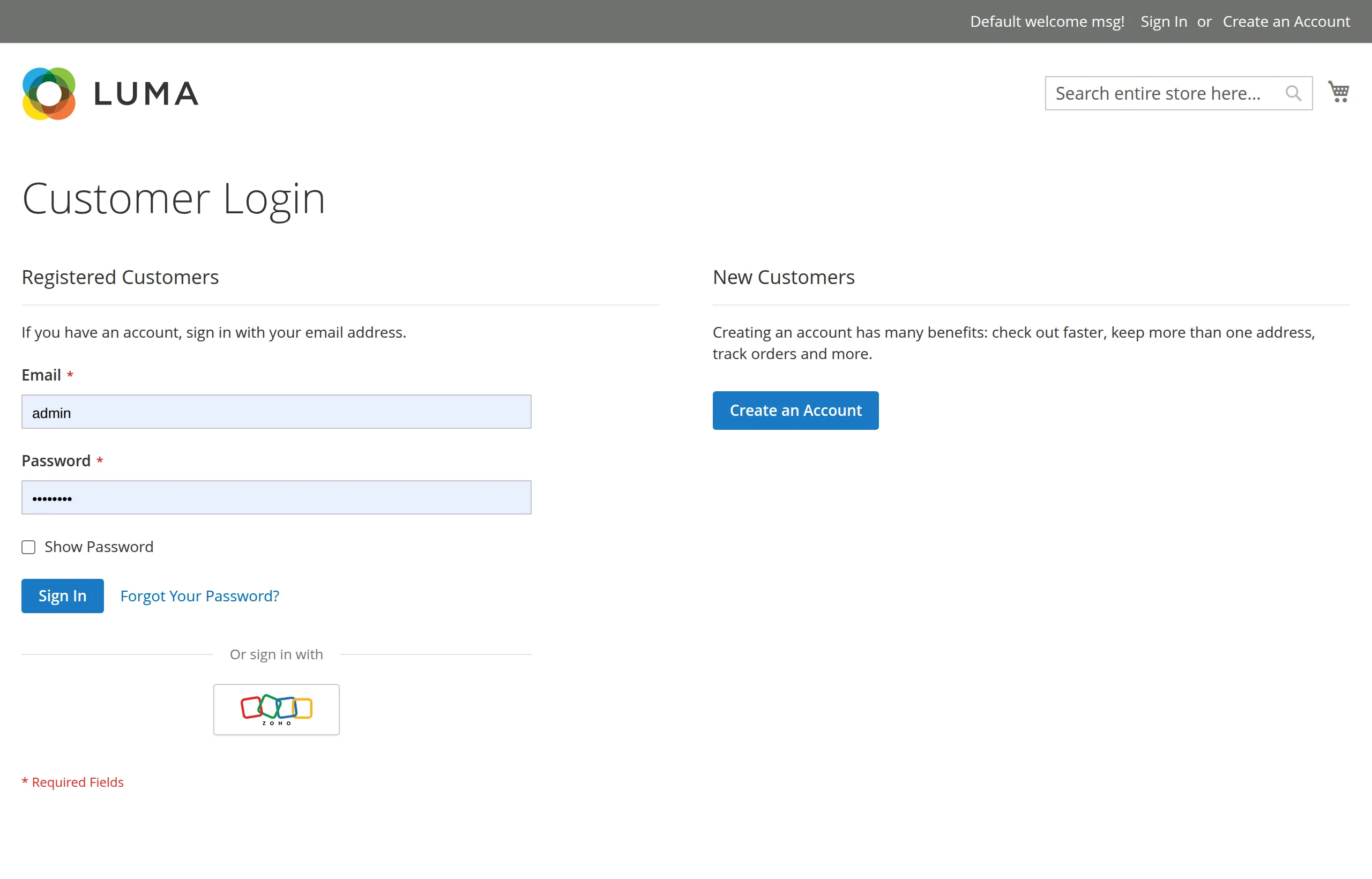
Customer Login page with the Or sign in with divider and the Zoho tile below the Sign In button

Signing in

  1. The customer clicks the Zoho tile (link title Sign in with Zoho).
  2. Zoho's sign-in page opens — in a popup on desktop, in the same tab on touch devices.
  3. The customer signs in to Zoho and allows access.
  4. They land on My Account, logged in, with a welcome message.

Already logged in

A customer who is already logged in and opens the Zoho sign-in link is sent straight to My Account. Zoho is not contacted.

Accessibility

  • The divider is a proper separator (role="separator").
  • The tile is a real link with an accessible name, Sign in with Zoho, so screen readers and keyboard users can reach it.
  • The tile has a visible focus outline.

Next: Create Account.

Next
Create Account