
Installation
This guide walks you through installing the Webkul Magento 2 Smart Device Based Promotions extension using manual zip extraction or Composer, followed by static content deployment, cache management, and multi-language translation configuration.
Option A — Install from Zip Package
Use this method if you downloaded the module archive directly from the Webkul Store.
1. Download the Module Archive
Log in to your Webkul Store account, navigate to My Account > My Purchased Products, and download the extension archive for Webkul_SmartDeviceBasePromotions.
2. Extract & Upload Files
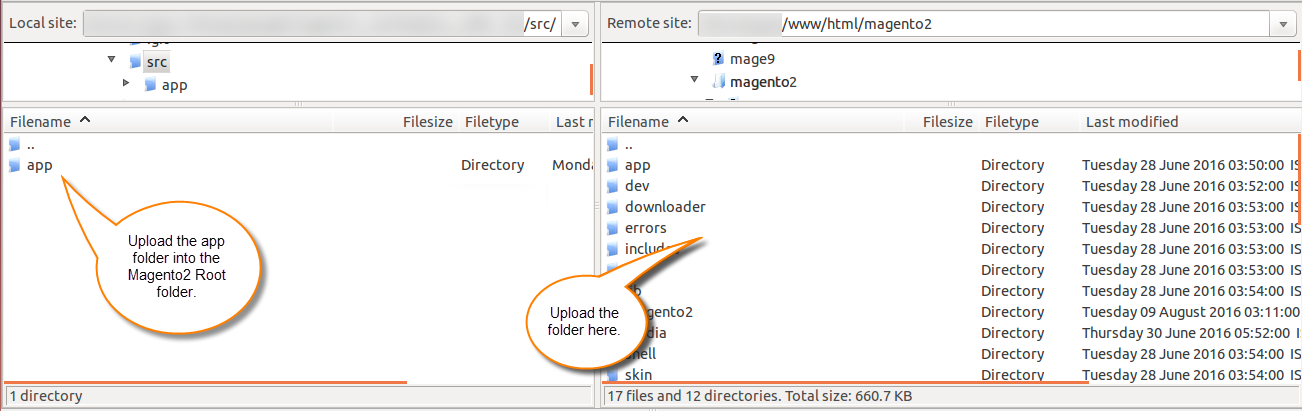
Extract the downloaded zip archive on your computer. Inside the extracted directory, locate the src/app folder. Using SSH, SFTP, or your hosting control panel, copy the contents into your Magento 2 root directory so that the module files reside under: app/code/Webkul/SmartDeviceBasePromotions/
3. Run Installation Commands
Open your terminal, navigate to your Magento 2 root directory, and execute the following commands sequentially:
php bin/magento setup:upgrade
php bin/magento setup:di:compile
php bin/magento setup:static-content:deploy
php bin/magento indexer:reindex
php bin/magento cache:flush
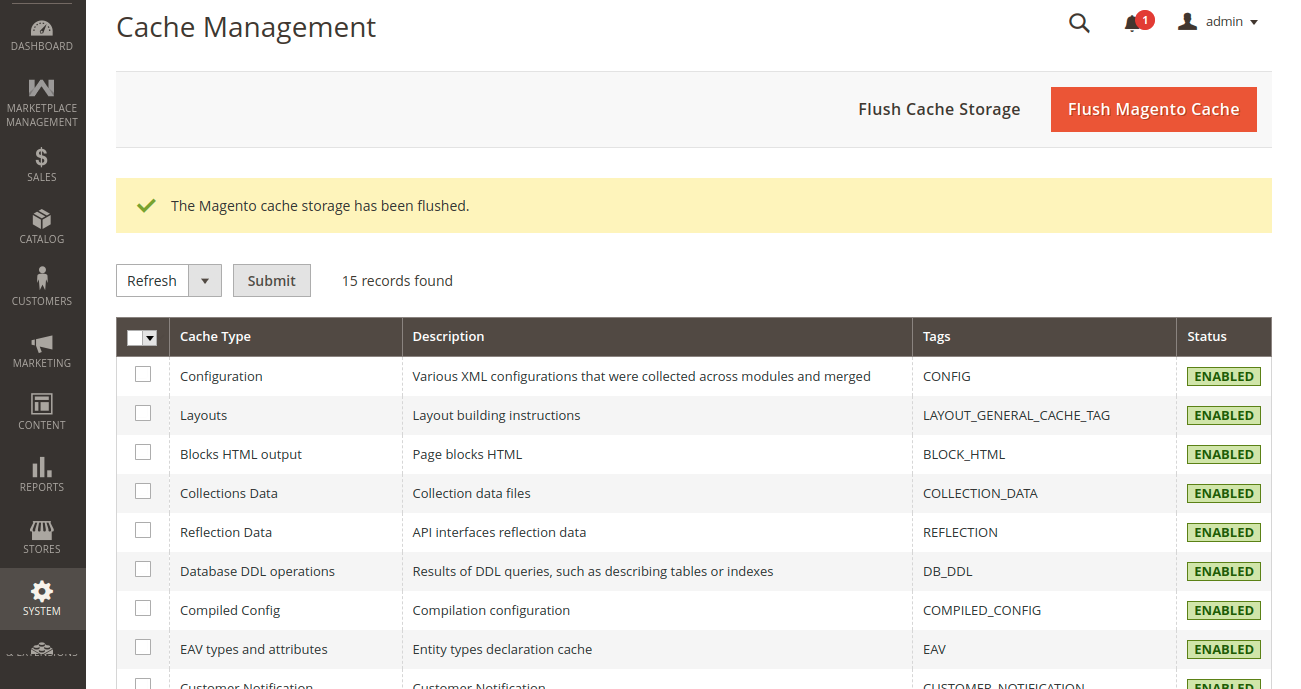
You can also flush caches directly from the Magento Admin Panel by navigating to System > Tools > Cache Management and clicking Flush Magento Cache.
Option B — Install with Composer
Use this method if your organization manages dependencies via Composer repositories.
- Add your Webkul Composer repository credentials to your server environment (
auth.json). - Run the Composer command to install the module:
composer require webkul/smart-device-base-promotions
If your store uses the Hyvä Theme, also install the official Hyvä compatibility companion module:
composer require webkul/smart-device-base-promotions-hyva
- Execute the standard deployment commands listed in Option A > 3. Run Installation Commands.
Language & Locale Translation
The extension supports complete internationalization and multilingual storefront operations for both LTR and RTL languages:
Step 1: Change Storefront Locale
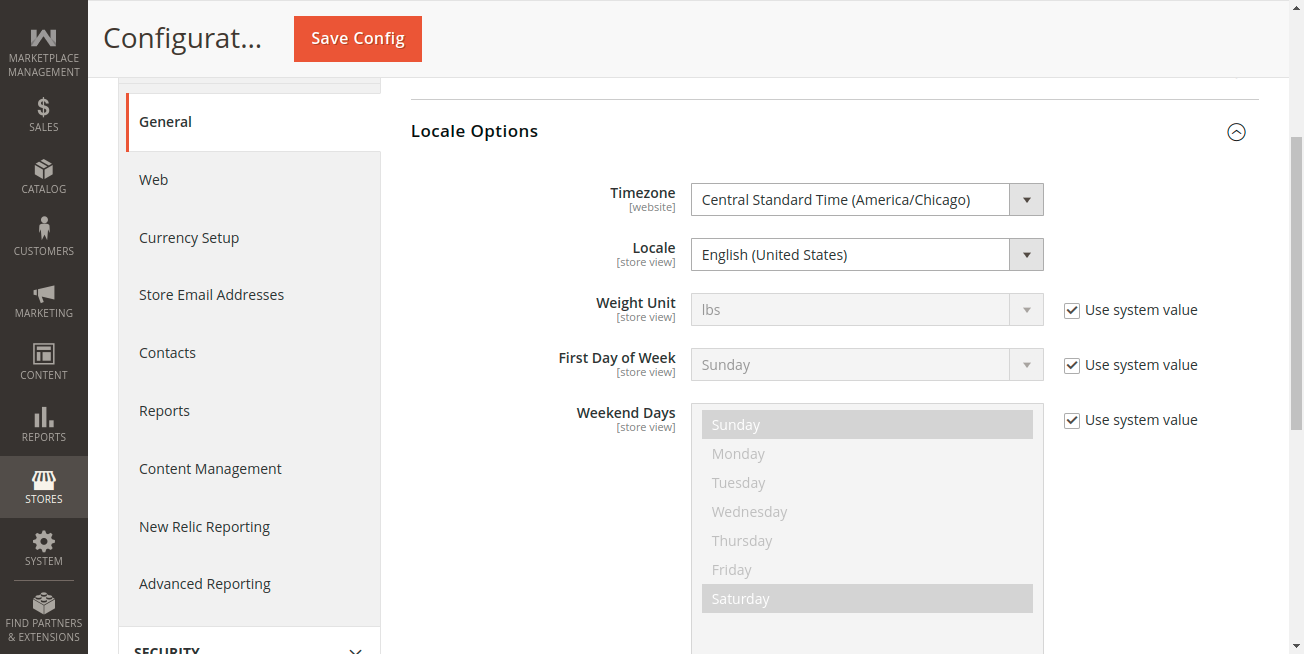
In your Magento Admin Panel, navigate to Stores > Configuration > General > General > Locale Options. Select your desired language from the Locale dropdown and click Save Config.
Step 2: Edit Translation CSV Dictionary
- Navigate to the module's translation folder on your server:
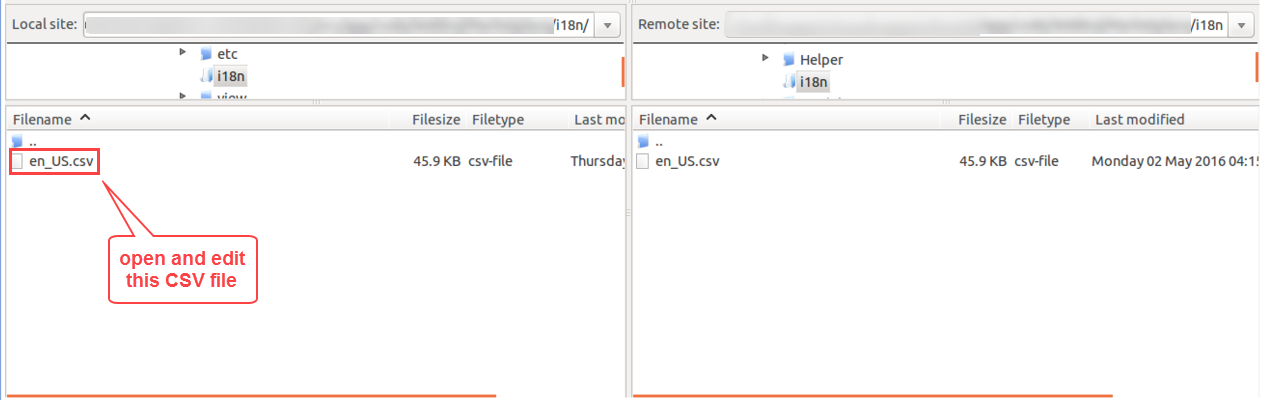
app/code/Webkul/SmartDeviceBasePromotions/i18n/.
- Open the base translation dictionary
en_US.csvin a text editor or spreadsheet application. - Replace the translated phrase on the right side of the comma while keeping the original English string intact on the left side:
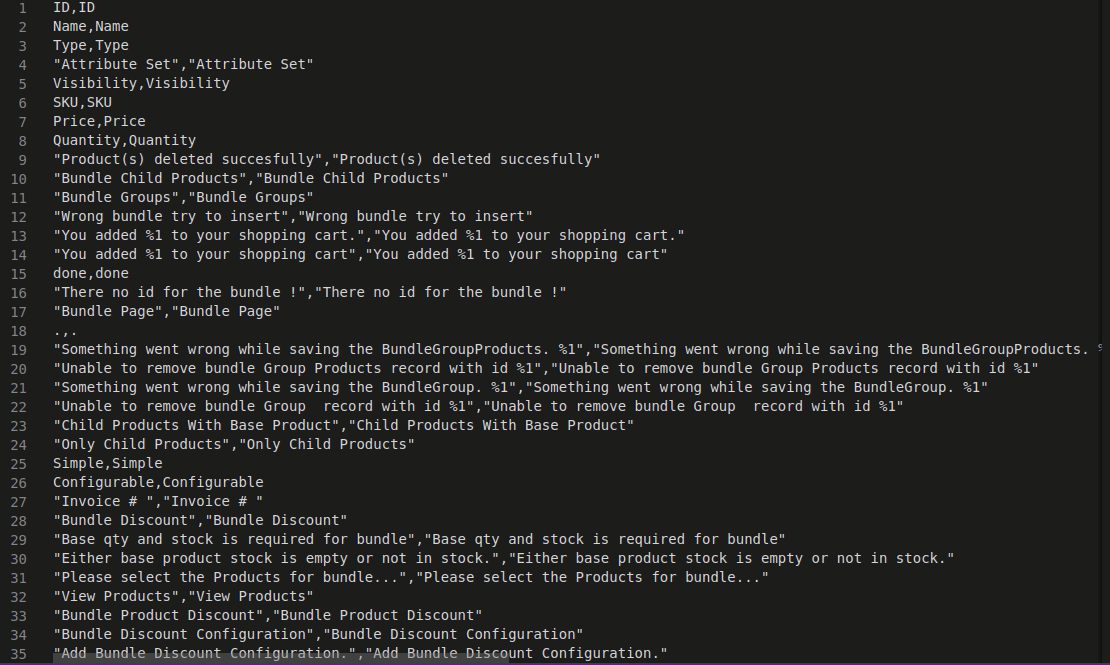
- Save the file using your target locale code (e.g.,
de_DE.csv,fr_FR.csv,es_ES.csv, orar_SA.csv) and upload it toapp/code/Webkul/SmartDeviceBasePromotions/i18n/. - Deploy static content for the new locale and clear the Magento cache:
php bin/magento setup:static-content:deploy <locale_code>
php bin/magento cache:flush