
Shopping List Workflows
Explore the customer storefront features and step-by-step user workflows supported by the Magento 2 Shopping List module.
Storefront Workflows
1. Creating a New Shopping List
Registered customers can create multiple named shopping lists directly after logging in the storefront:
- Log into your customer account.
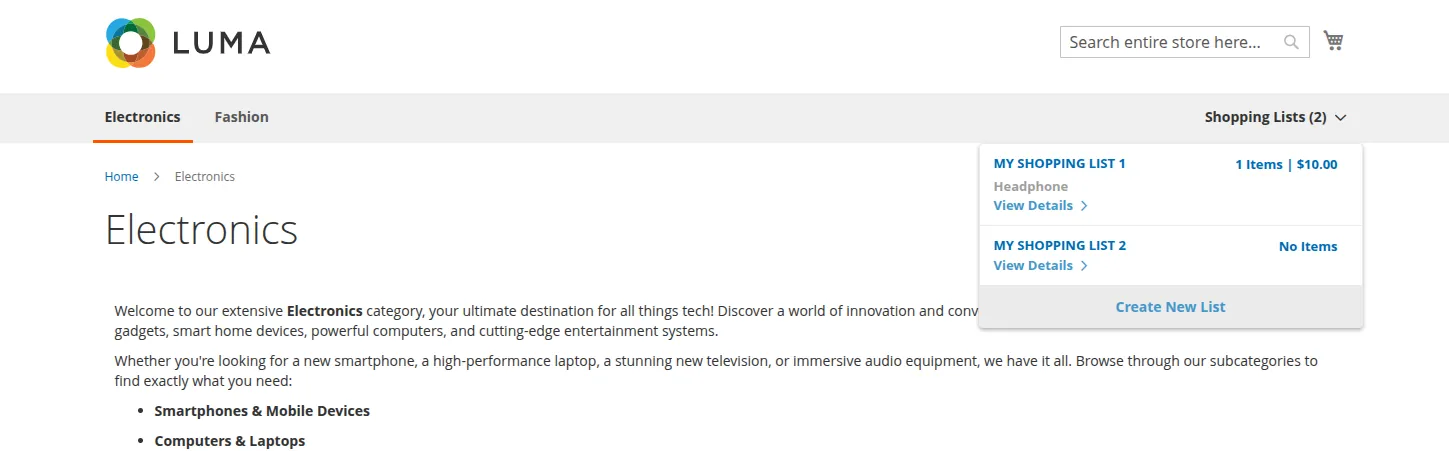
- Click on the Shopping List dropdown menu located in the header navigation bar.
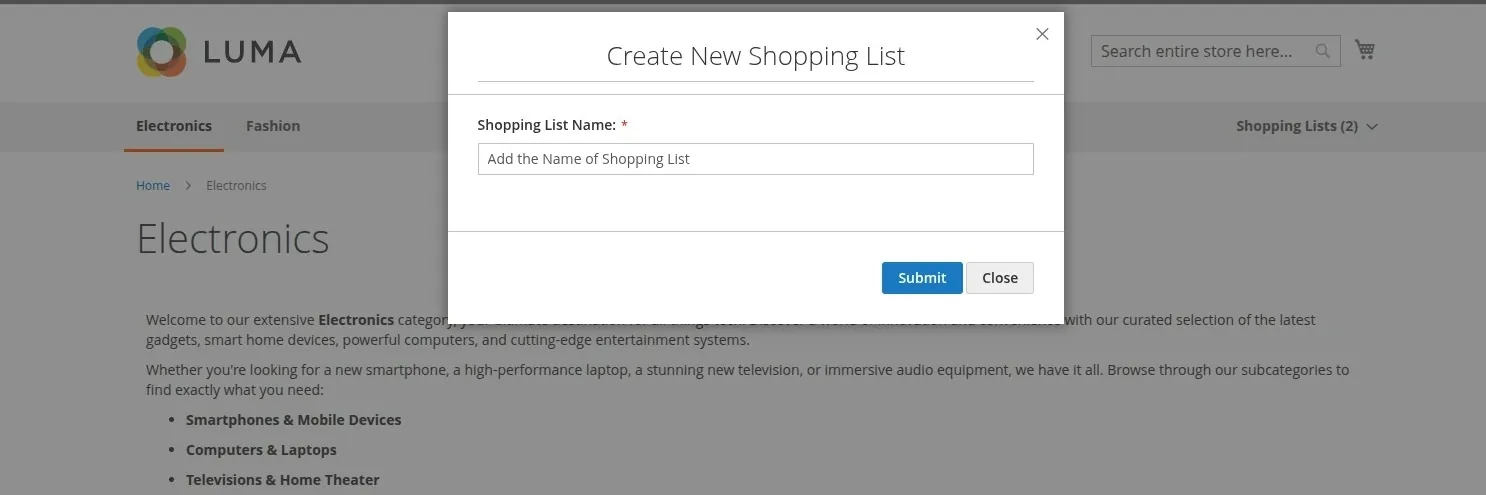
- Click the Create New List button inside the dropdown panel.
- Enter the desired shopping list name (e.g. Office Essentials) and click Save.
2. Adding Products to Shopping List
Customers can save items directly from product detail pages:
- Open any product page (Simple, Configurable, Downloadable, Grouped, or Bundle).
- Select required product options (attributes, links, or bundle choices).
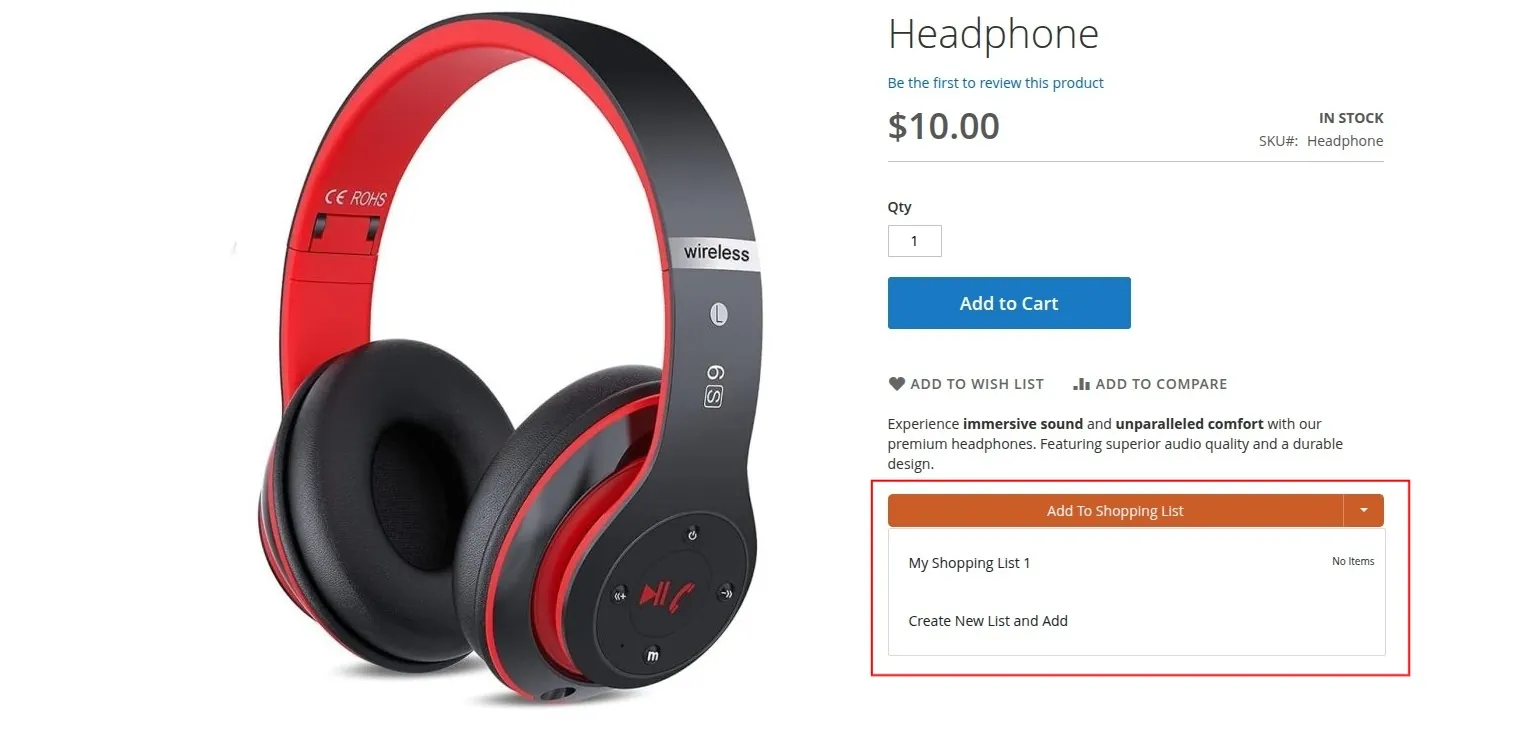
- Click Add to Shopping List.
- Choose the target list from the dropdown modal or create a new list on the spot.
3. Product Types Compatibility
The Shopping List extension seamlessly supports all standard Magento 2 product types, ensuring that customer selections, custom options, and quantities are accurately stored:
- Simple Products: Added directly to the shopping list with the desired quantity.
- Configurable Products: Preserves the selected super attributes (e.g., color, size) and maps to the underlying child product variant.
- Downloadable Products: Preserves customer link choices and downloadable options.
- Grouped Products: Supports adding multiple associated child items with specified quantities in a single click.
- Bundle Products: Retains all selected bundle option sets, radio choices, checkboxes, and quantities.
4. Moving Shopping List to Cart (Order Creation)
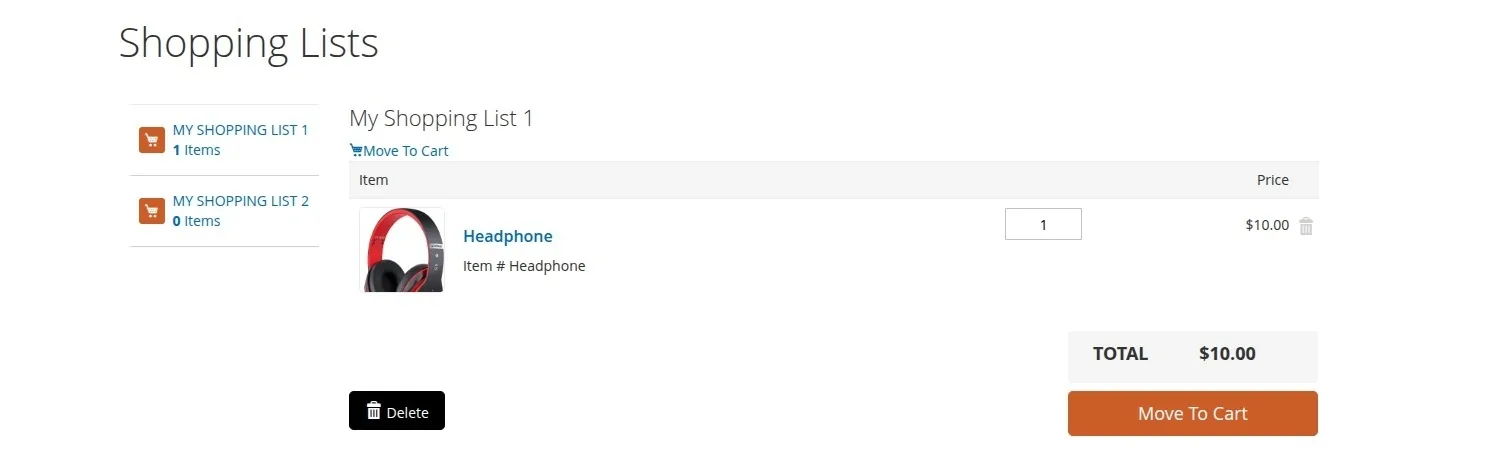
- Open My Shopping List and select a specific list.
- Review items, prices, and quantities.
- Click Move All to Cart.
- All items are validated against current catalog inventory and added directly to the active shopping cart quote.
5. Managing & Deleting Lists / Items
- Update Quantity: Modify item quantities directly in the list view.
- Delete Item: Remove specific items from a list using the delete icon.
- Delete Entire List: Remove an obsolete list completely.