
Activate the Module
Before the shopping list options and customer dashboard panels appear on your storefront, verify registration and enable the configuration in the Magento Admin backend.
Check Registration Status
To verify that Magento has recognized and registered the module, run:
php bin/magento module:status Webkul_ShoppingList
If listed under Disabled Modules, execute:
php bin/magento module:enable Webkul_ShoppingList
php bin/magento setup:upgrade
Module License Verification & Activation
The Shopping List extension features centralized Webkul license key verification via Webkul_Base.
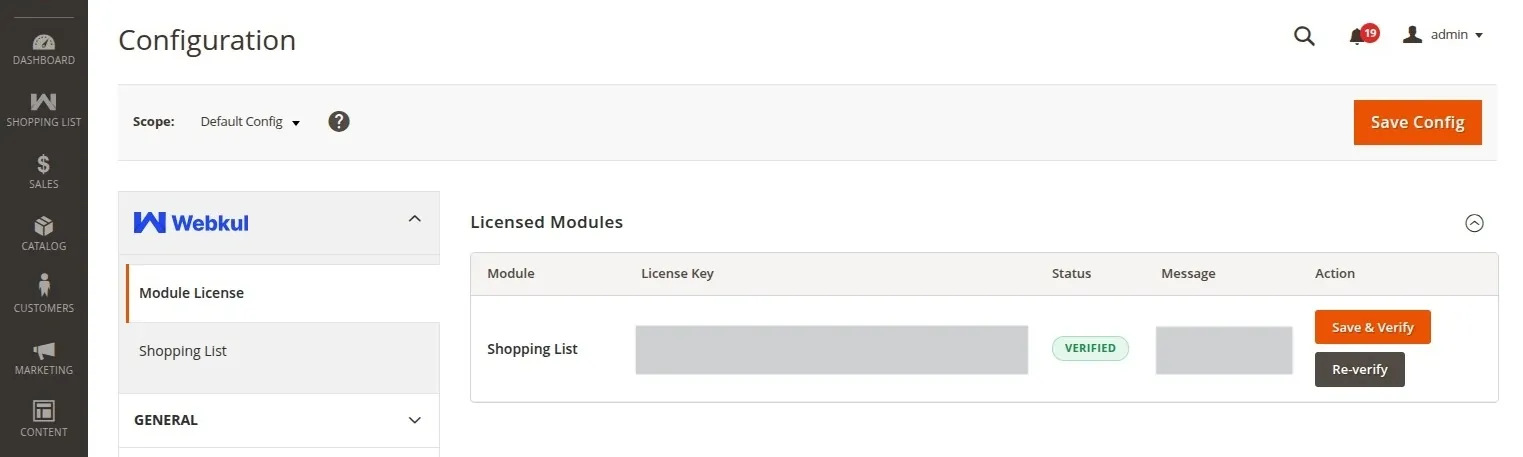
Step 1: Verify License Key
- Log into your Magento Admin Panel.
- Navigate to:
Navigation Path
Stores → Configuration → Webkul → Module License
- Locate Webkul_ShoppingList in the licensed extensions list.
- Enter your purchased License Key in the designated input field.
- Click Verify. The licensing status updates to active/verified.
Step 2: Enable Shopping List Configuration
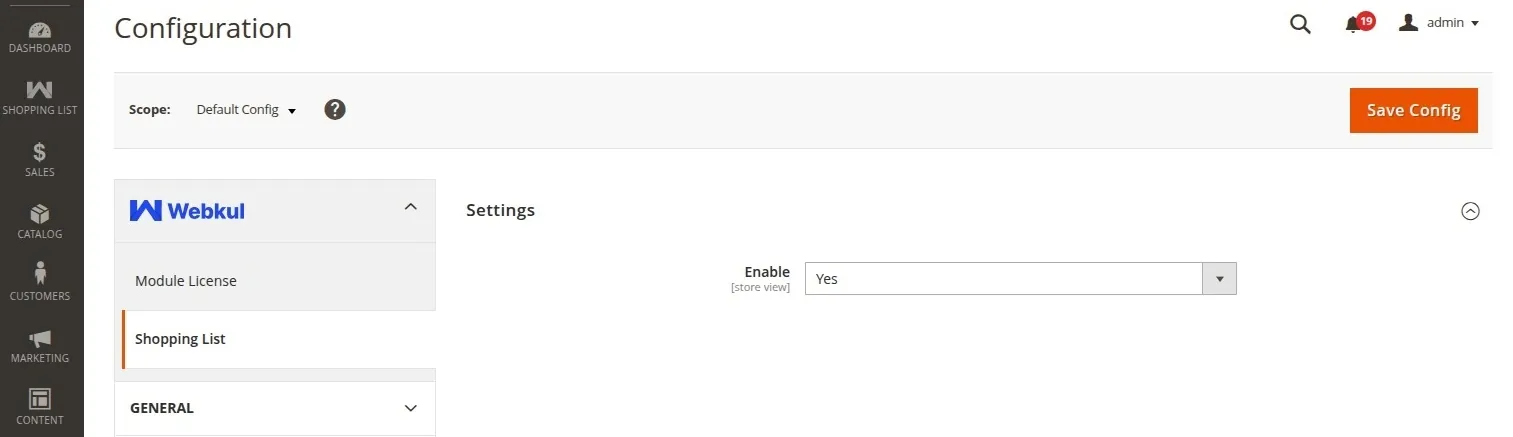
- Navigate to:
Navigation Path
Stores → Configuration → Webkul → Shopping List → Settings
- Set Enable to
Yes. - Click Save Config in the top right corner.
Clearing Cache
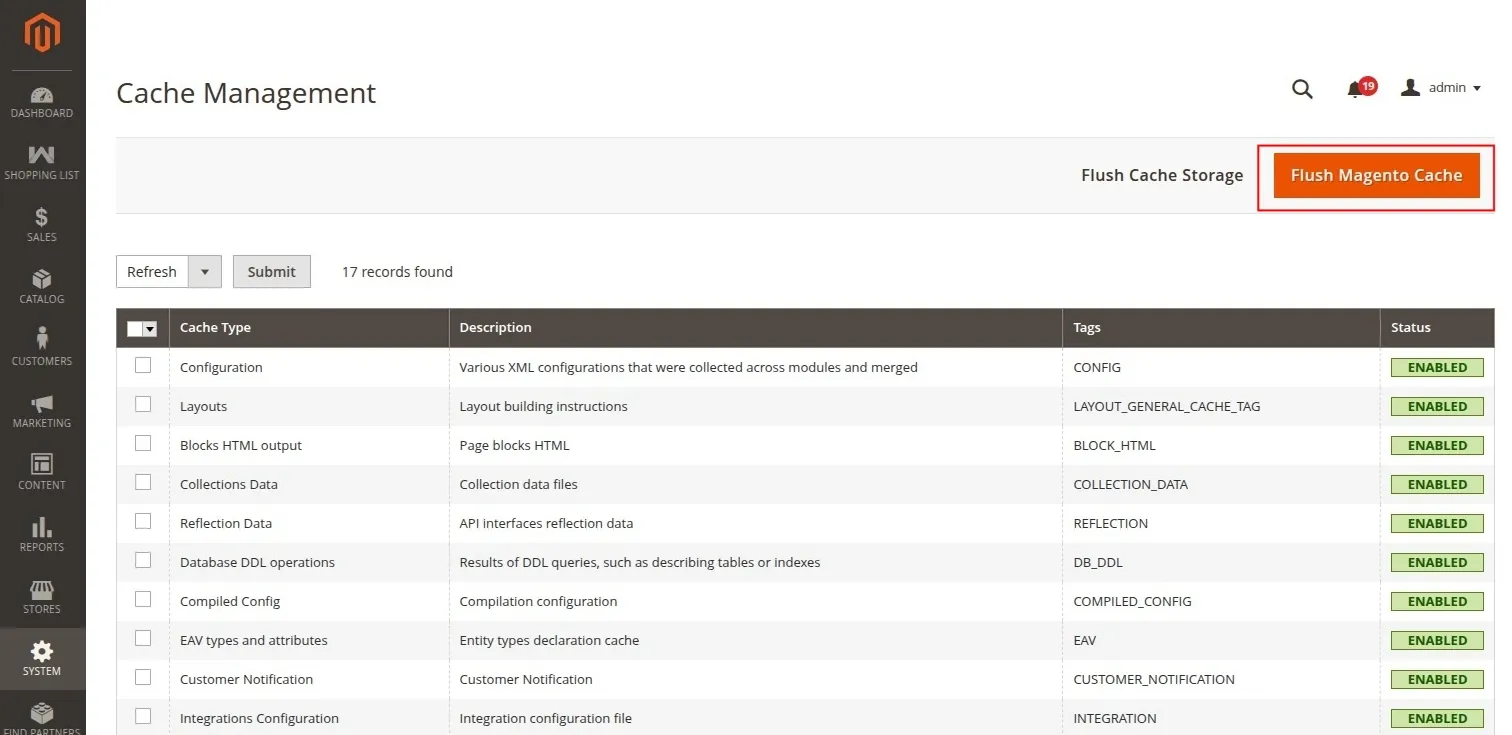
After saving configuration changes, flush the Magento cache storage:
php bin/magento cache:clean
php bin/magento cache:flush
The Shopping List feature is now active on your store front and ready for customer use.