Sales Receipts Management
The Magento 2 QuickBooks Connect extension syncs Magento store orders into QuickBooks Online as official Sales Receipts.
Automatic Sales Receipt Creation
When automatic synchronization is enabled, order export triggers depend on your Sales Receipt Create On setting in module configuration:
- Order Place: Every order placed by guest or registered shoppers is exported to QuickBooks immediately.
- Invoice Create: Orders are exported to QuickBooks as soon as an admin or automated payment workflow generates a Magento invoice.
- Order Complete: Orders are exported to QuickBooks only when full shipment and invoice processing transitions order status to
Complete.
Manual Sales Receipt Synchronization
You can also manually batch-export historical or un-synced store orders to QuickBooks Online using two administrative methods:
Method A — Export from Magento Orders Grid
- Go to Sales > Orders in Magento Admin.
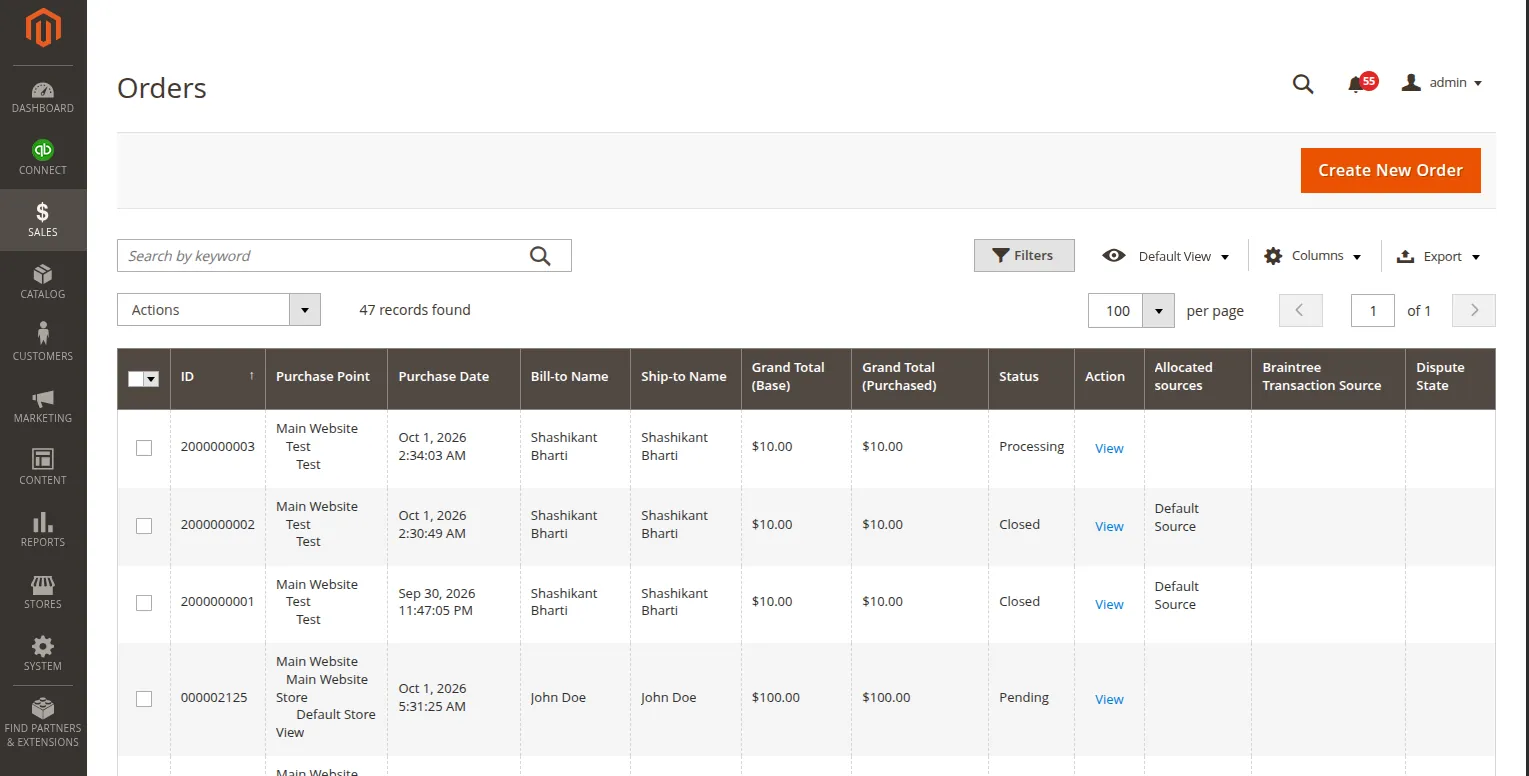
- Select the checkbox for orders you want to export.
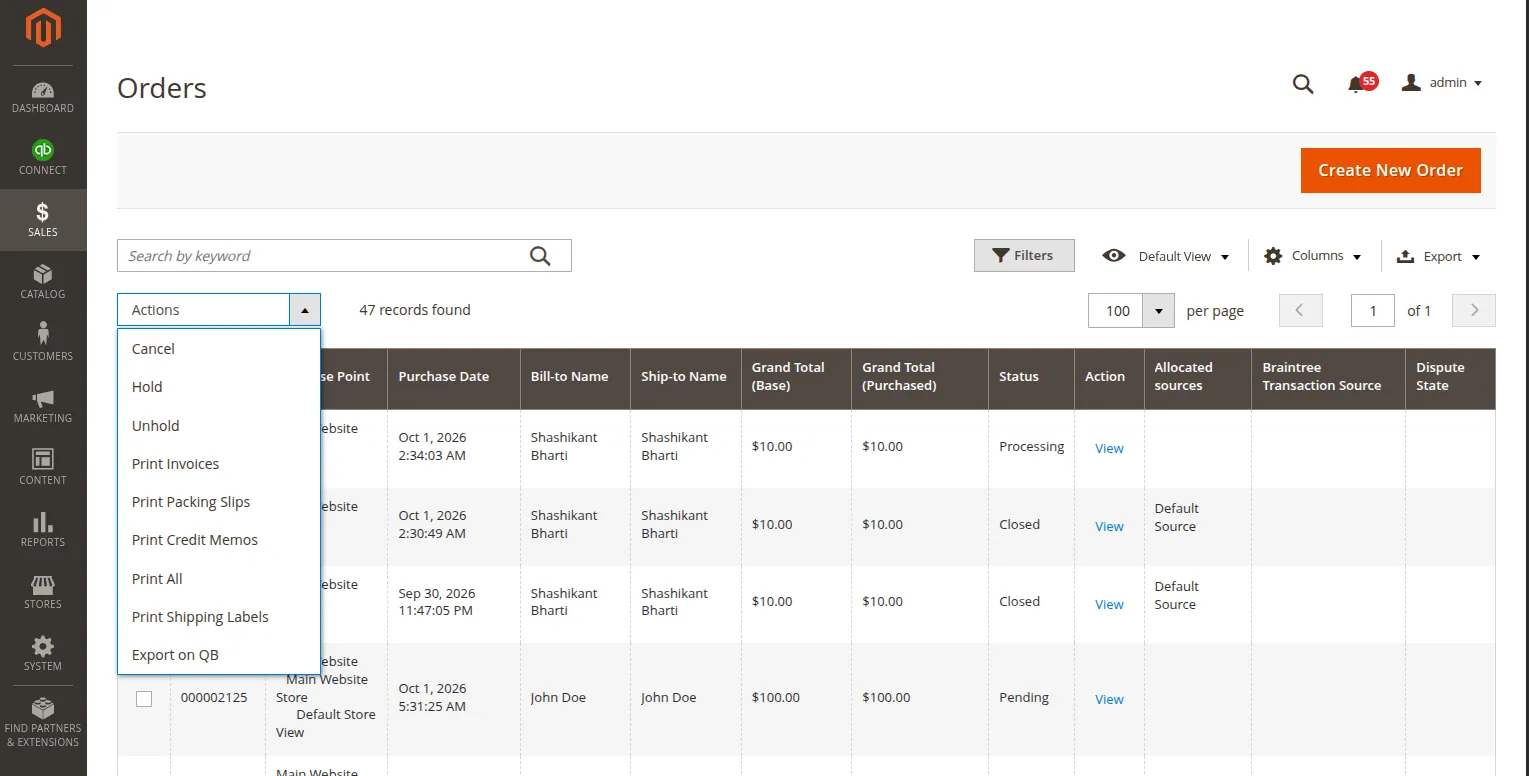
- In the Actions dropdown menu at the top of the grid, select Export on QB.
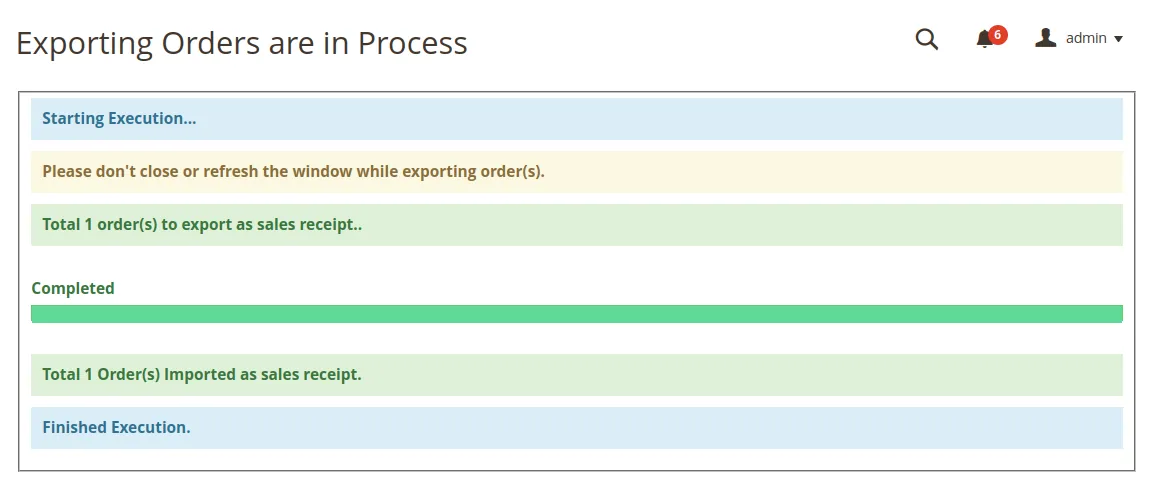
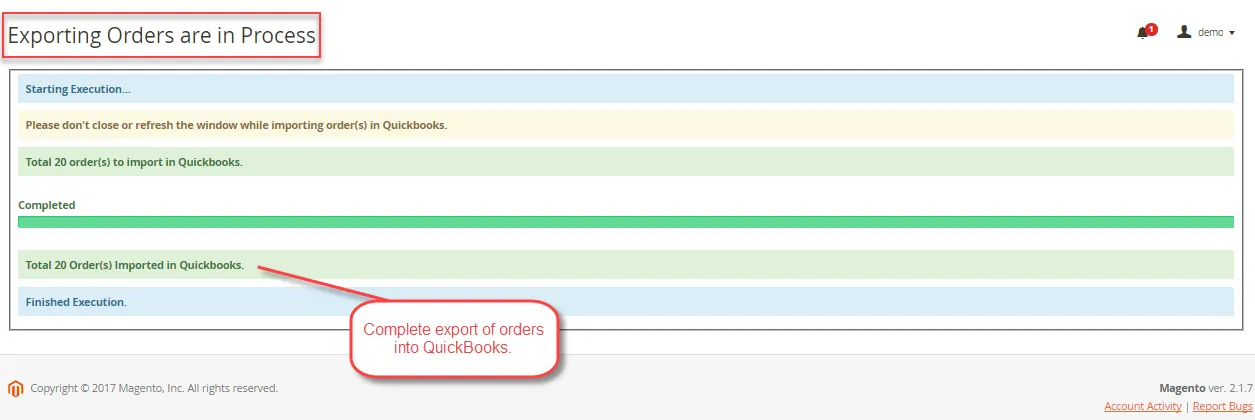
- A progress dialog window will execute the batch synchronization and show execution logs upon completion.
Method B — Export from Map Sales Receipt Grid
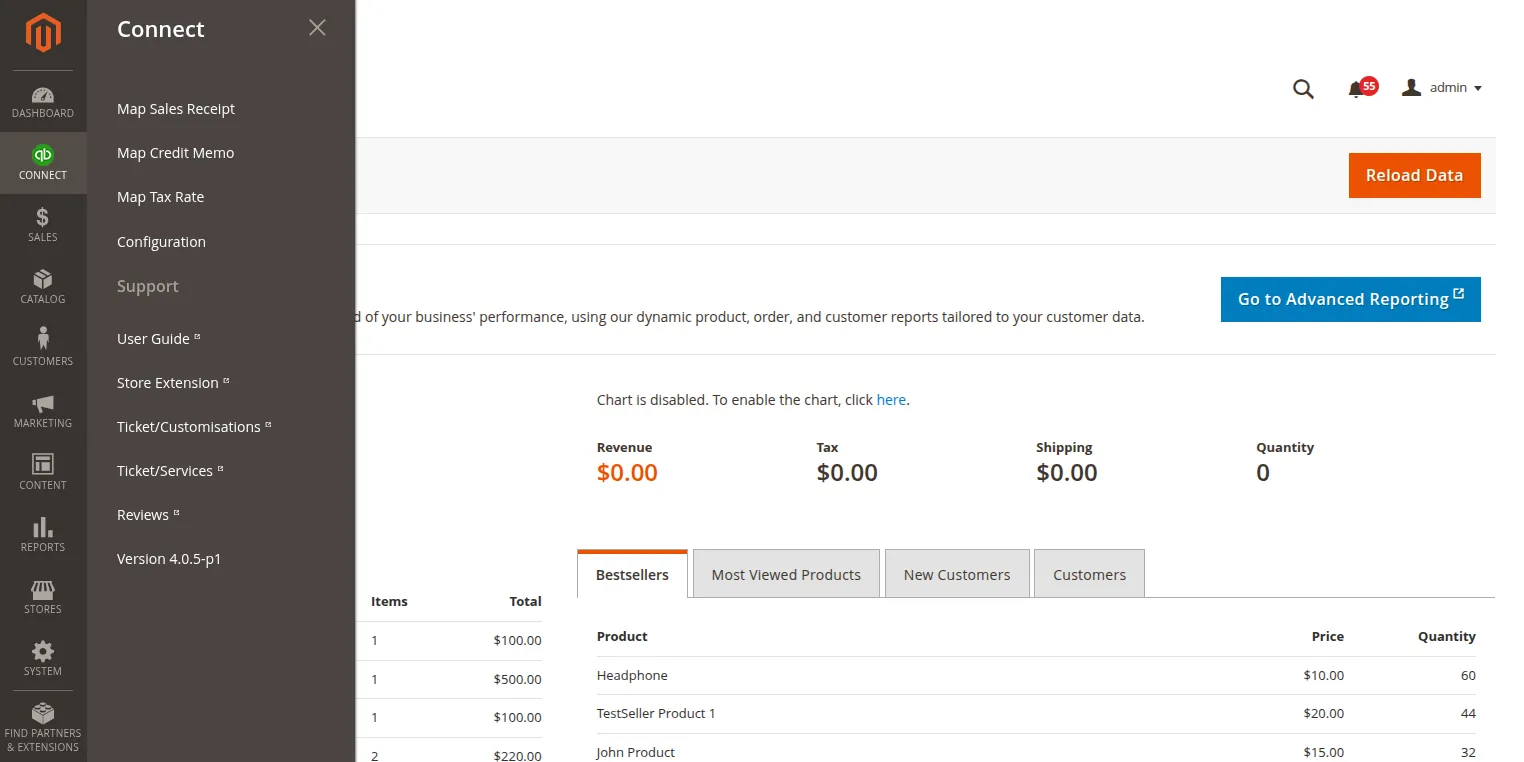
- Go to Connect > Map Sales Receipt (or Webkul QuickBooks Connect > Map Sales Receipt).
- Click the Export Orders as Sales Receipt button in the top right.
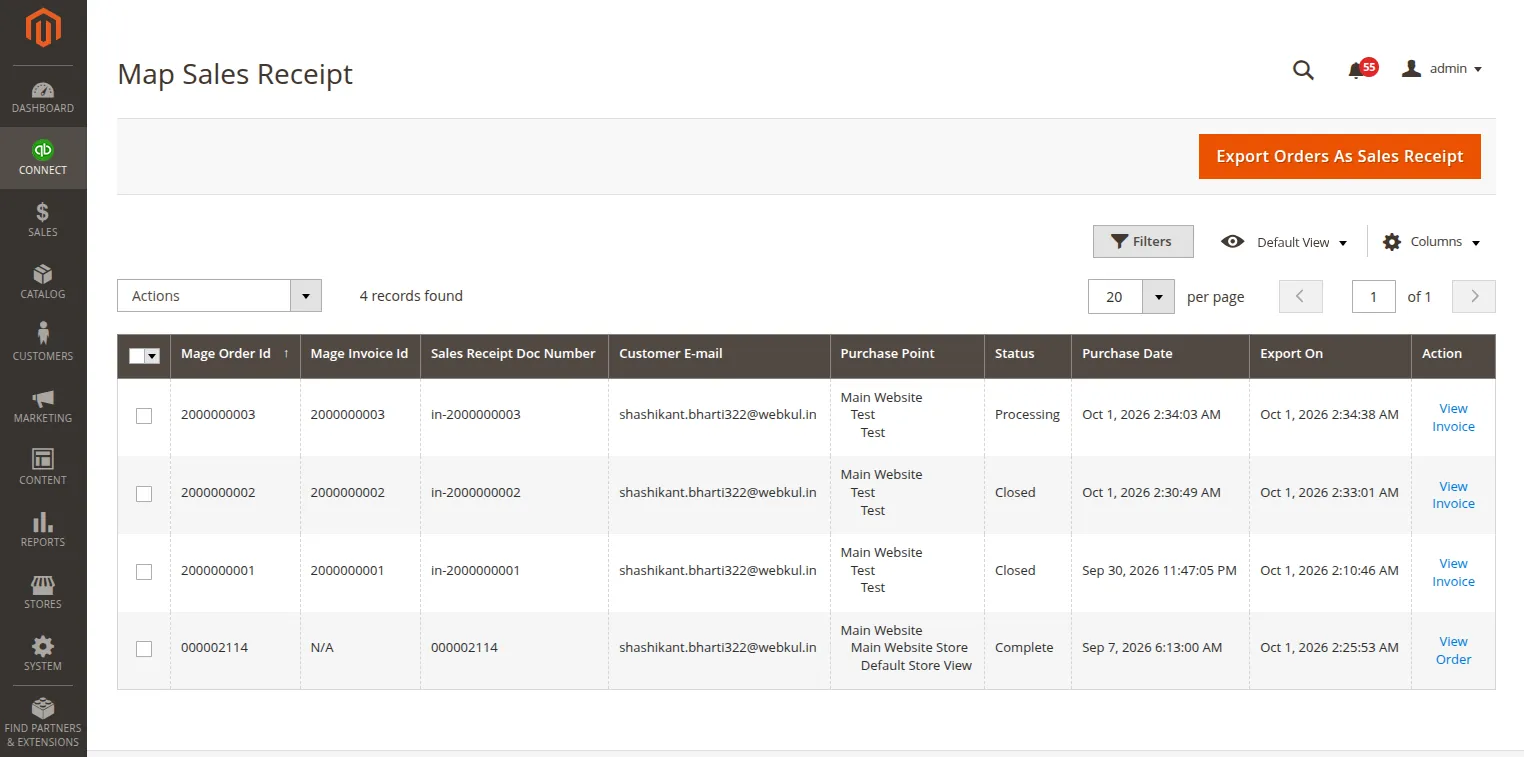
- Magento will query all orders matching your configured status filter (
Pending,Processing, orComplete) and export them to QuickBooks Online.
Map Sales Receipt Admin Grid
Navigate to Connect > Map Sales Receipt to inspect all mapped sales receipt records:
| Column Name | Description |
|---|---|
| Map ID | Internal primary key for the mapping relationship record. |
| Order ID | Increment ID of the Magento sales order (e.g., #000000012). |
| QuickBooks Receipt ID | Unique sales receipt ID generated by QuickBooks API. |
| Customer Name / Email | Billing customer name and email address exported. |
| Created At | Date and timestamp when mapping was recorded. |
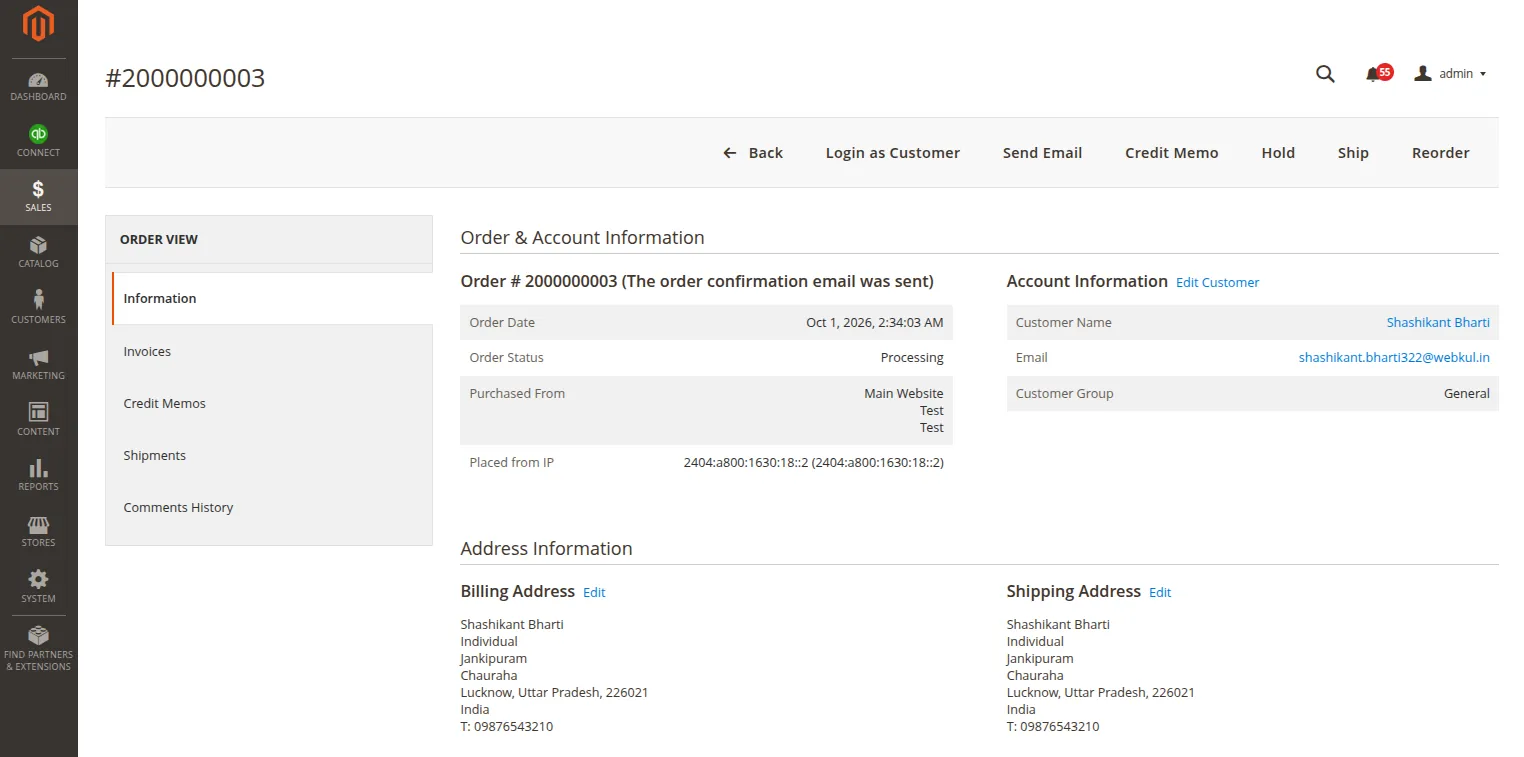
| Actions | Click View Order to inspect detail breakdown or Delete to purge mapping record. |
Clicking View Order displays full Magento order invoice details:
Inspecting Synced Data in QuickBooks
To view exported sales receipts inside your QuickBooks Online account:
- Log in to QuickBooks Online.
- Go to All Apps > Sales & Get Paid > Sales Transactions.
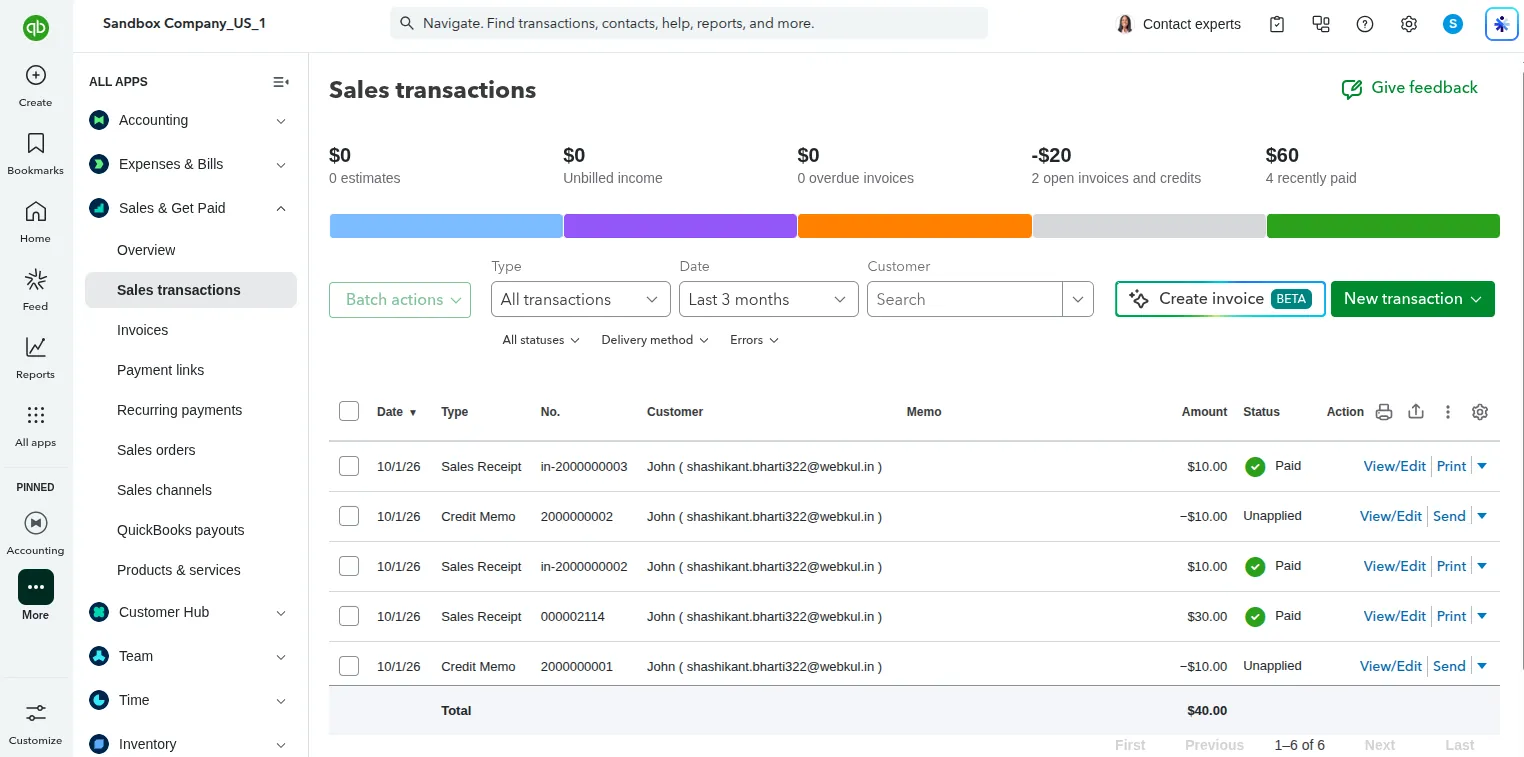
- Click on the exported Sales Receipt matching the Magento Order Number:
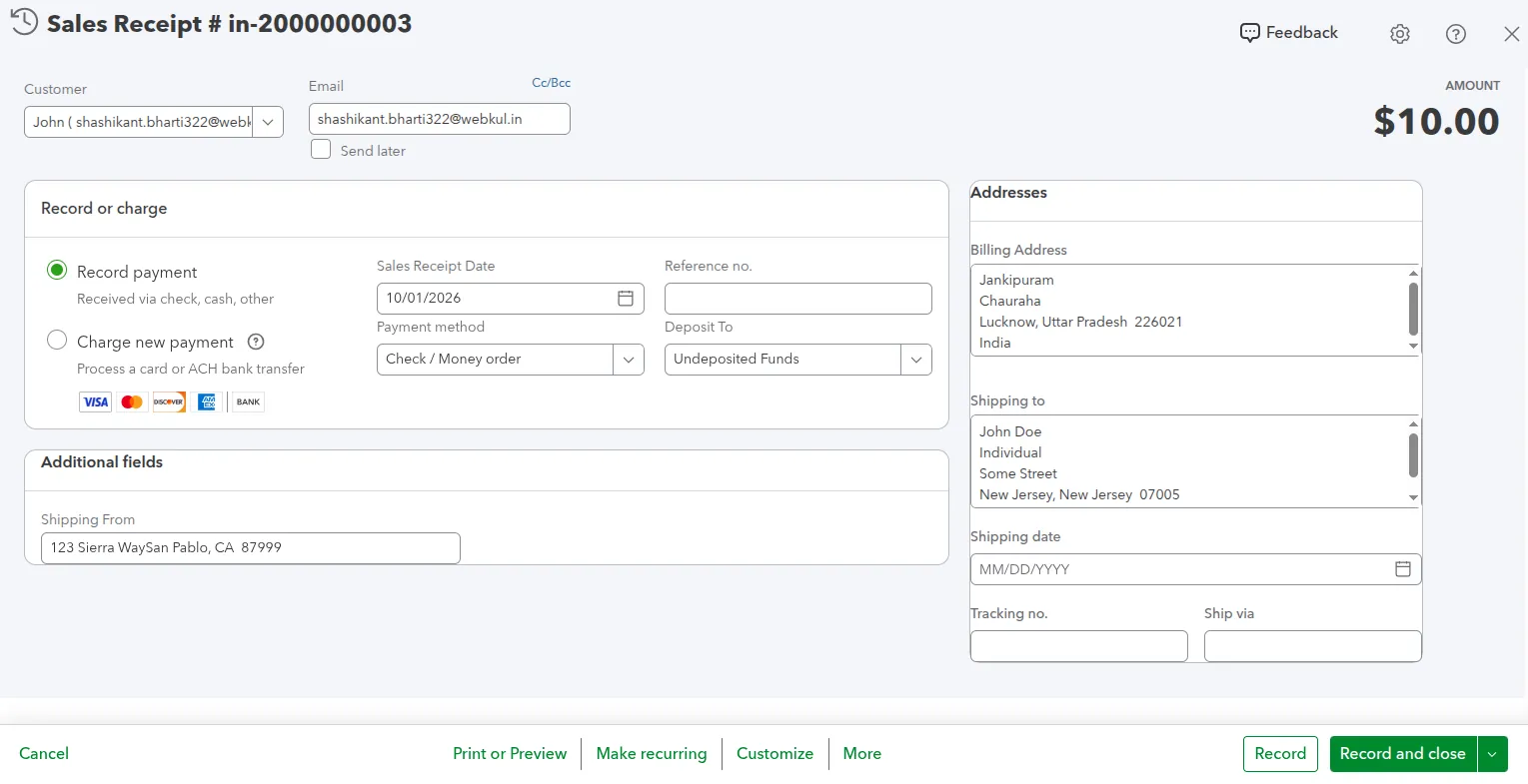
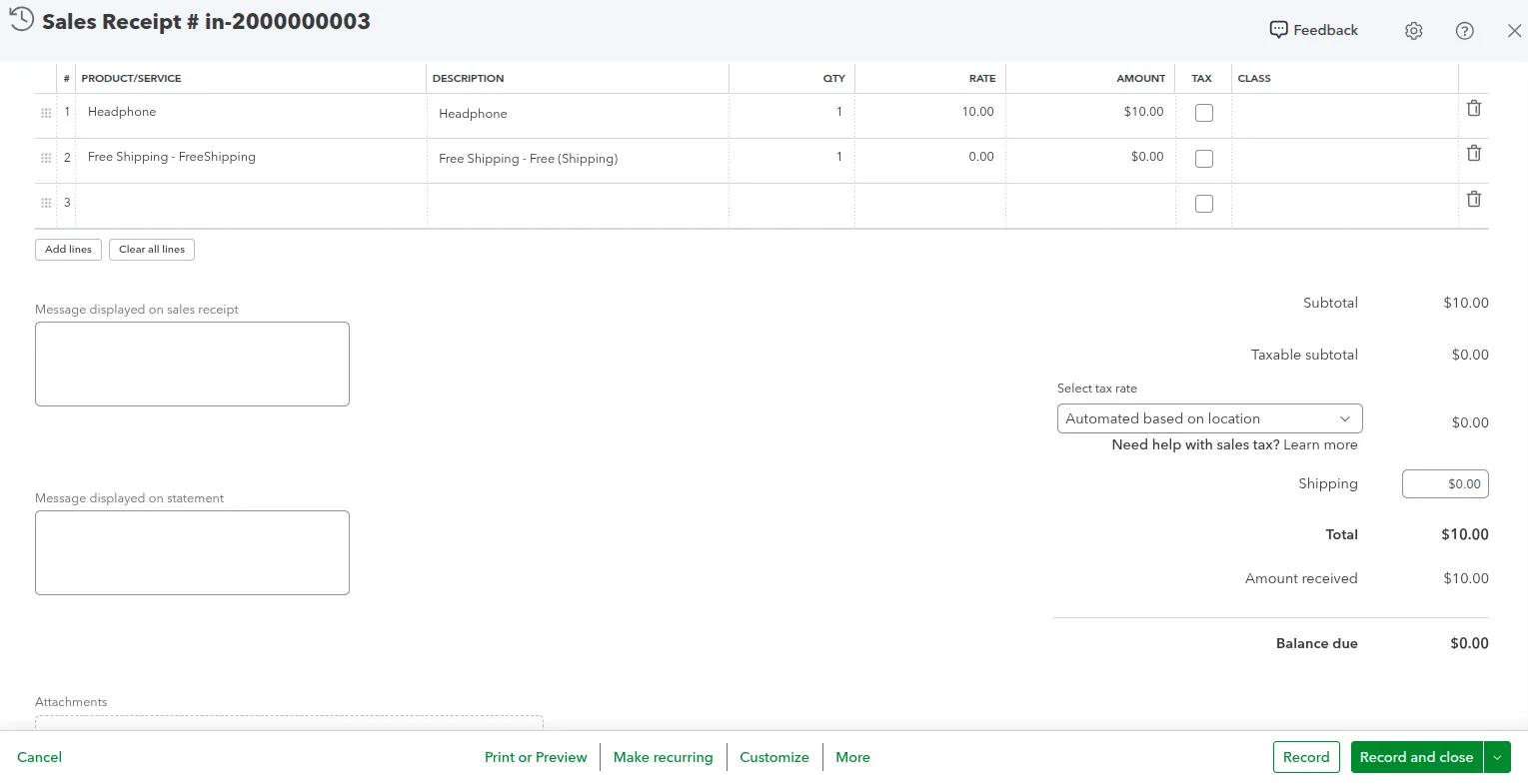
- To inspect the account mapping on exported products, go to All Apps > Sales & Get Paid > Products and Services:
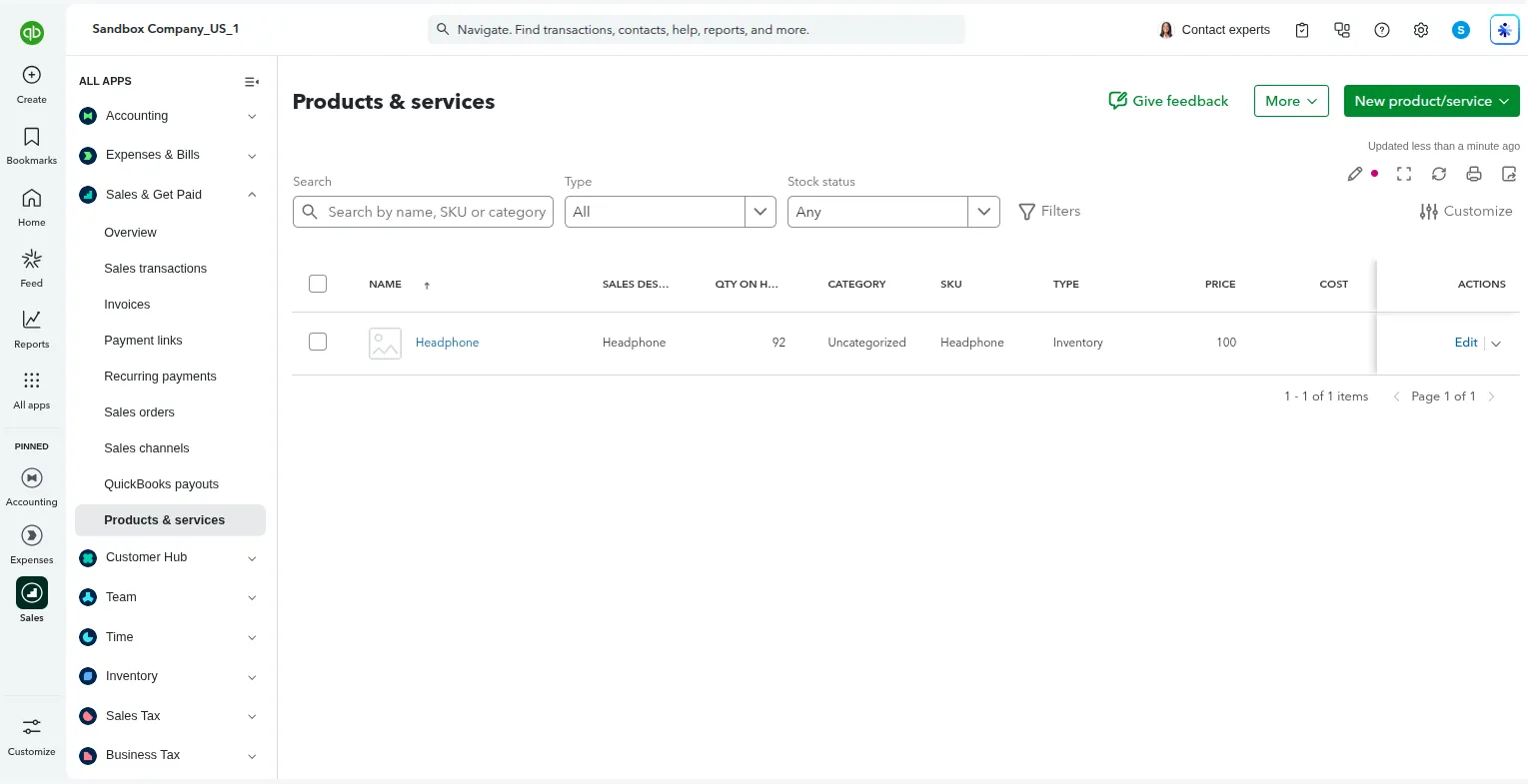
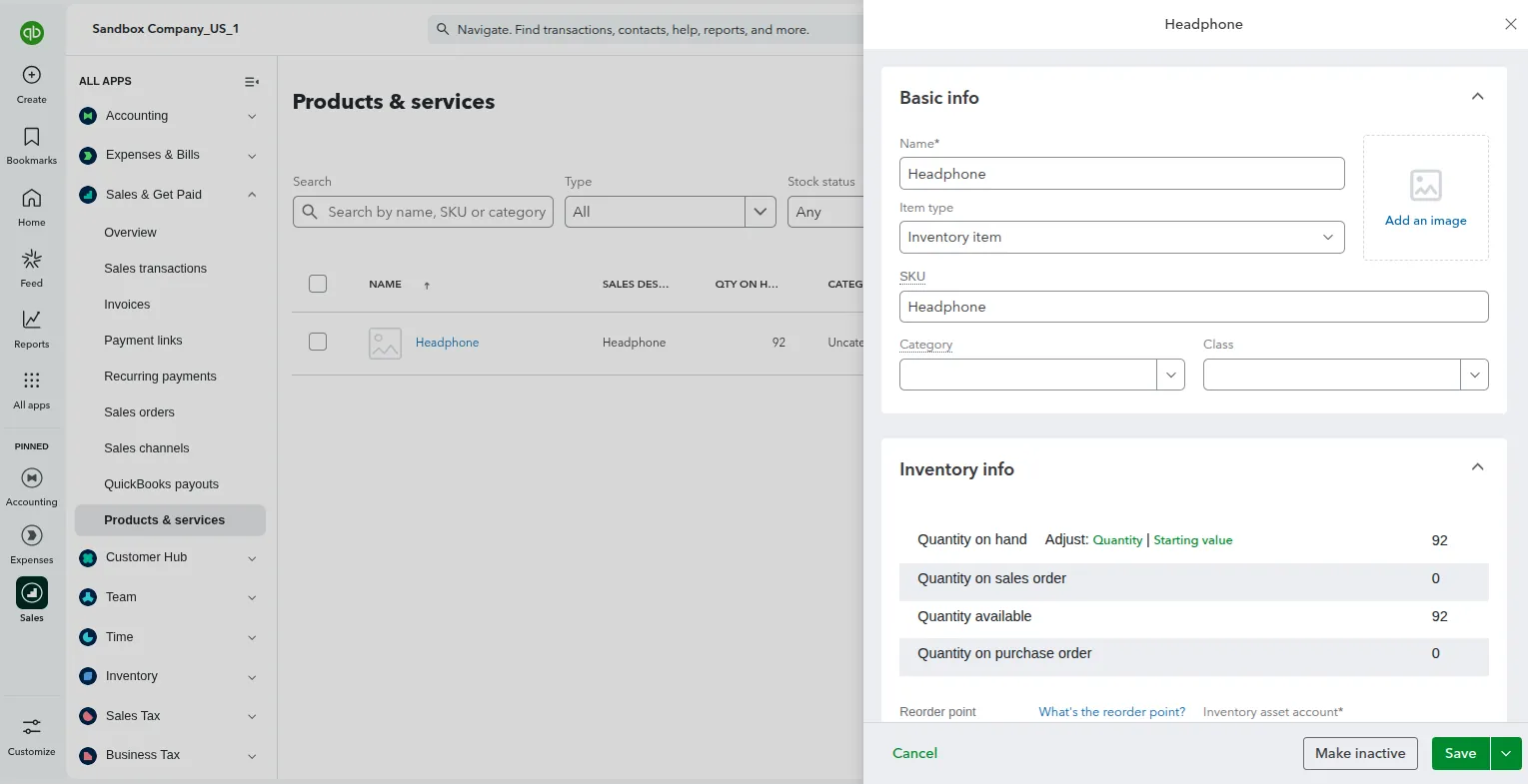
- Click Edit on any item to view its linked Inventory Asset, Income, and Expense accounts: