
RMA Analytics & Management
Marketplace administrators have access to an overarching analytics dashboard and centralized management console to monitor return patterns across all marketplace sellers, audit buyer-seller communications, and intervene when escalations arise.
Navigate to Marketplace Management > RMA System > RMA Analytics (or Manage All RMAs).
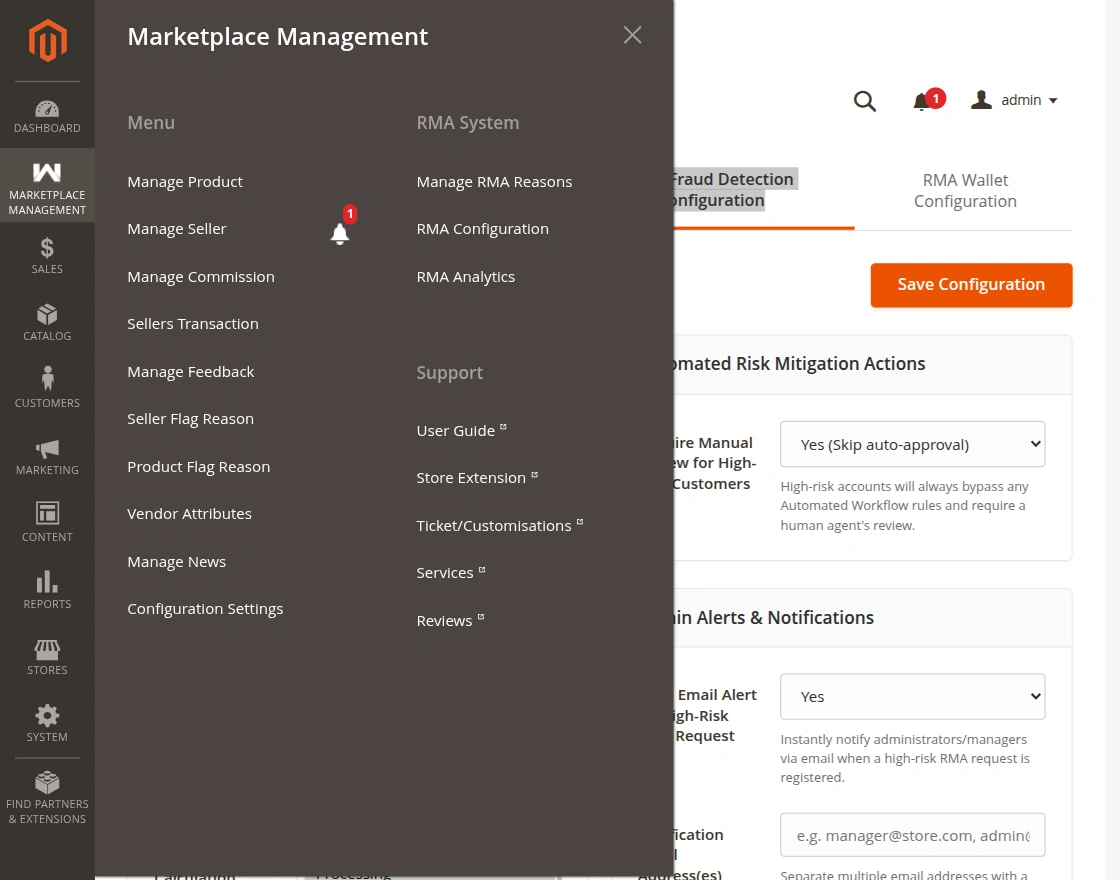
RMA Analytics Dashboard
The analytics dashboard provides visual charts and key performance indicators summarizing marketplace returns over selectable date ranges:
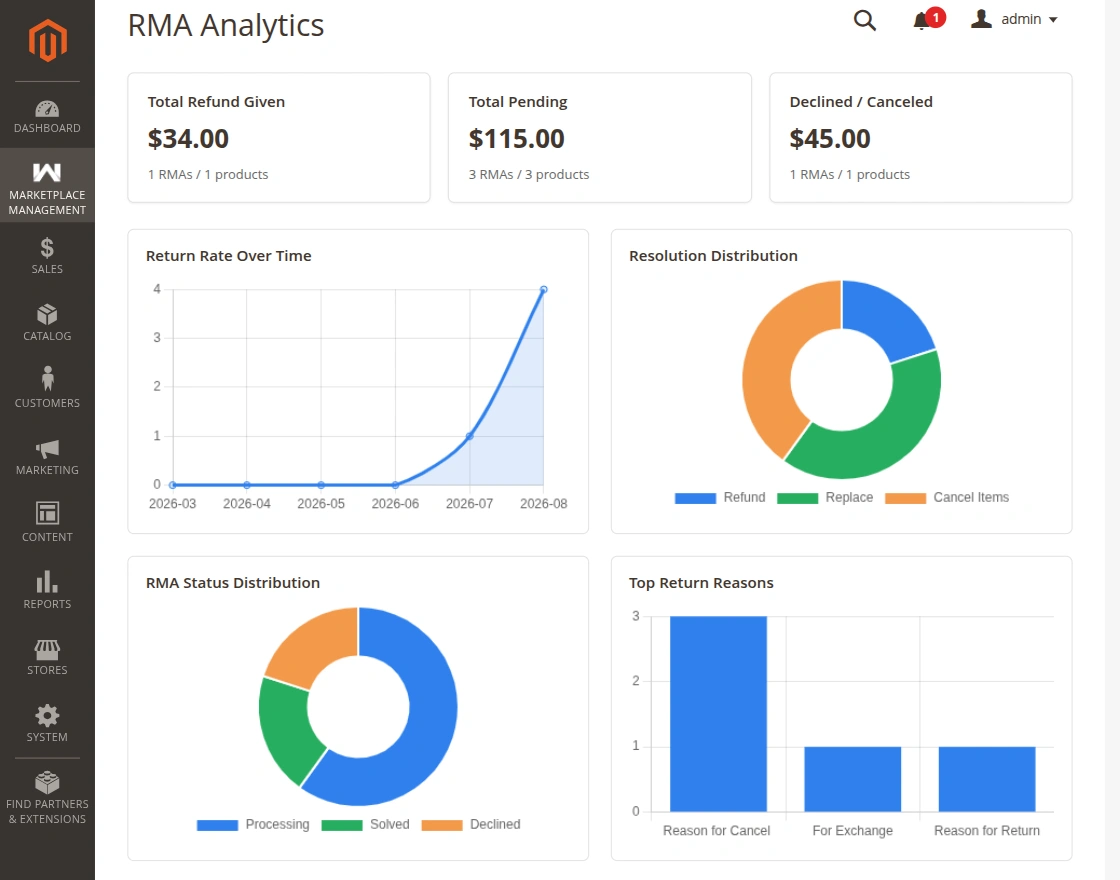
- Return Volume Trends: Line and bar visualizations mapping total RMA requests over time to reveal seasonal return spikes.
- Resolution Breakdown: Distribution of buyer requests across Cancel Item, Refund, and Replace.
- Status Overview: Instant count of tickets in Pending, Processing, Solved, and Declined states.
- Top Return Reasons: Highlights recurring product or fulfillment defects across vendors.
Centralized RMA Grid
The administrative grid lists all RMA requests filed across the multi-vendor storefront:
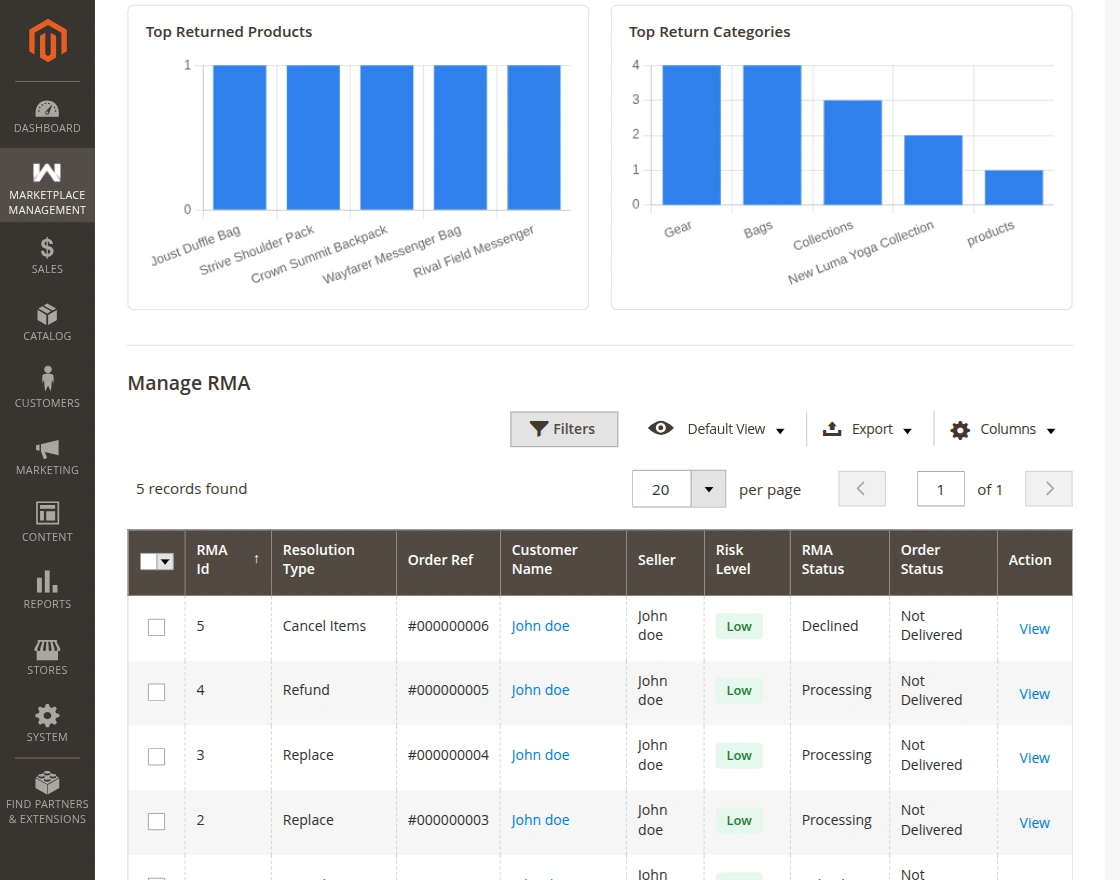
Key columns include:
- RMA ID & Order ID: Unique tracking identifiers linking the RMA ticket to the Magento sales order.
- Customer Name & Email: Direct buyer identification.
- Seller Name: The marketplace vendor accountable for the purchased items.
- Resolution & Status: Current phase in the return lifecycle.
- Risk Score / High Risk Badge: Automated indicator flagging serial returners for closer scrutiny.
RMA Detail View & Interventions
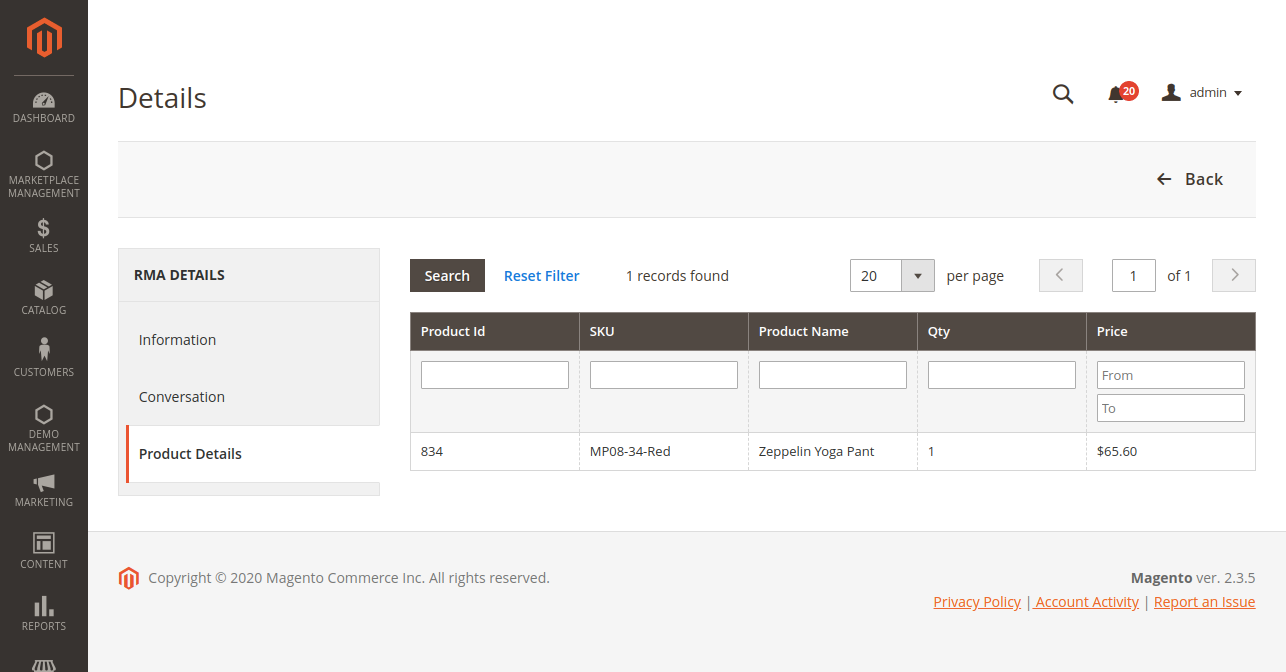
Clicking View on any grid row opens the complete ticket dossier:
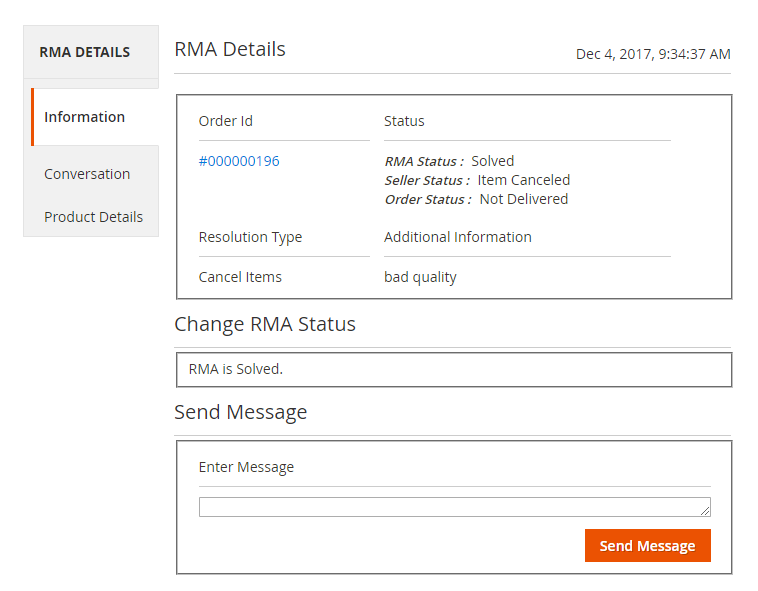
Two-Way Messaging Channel
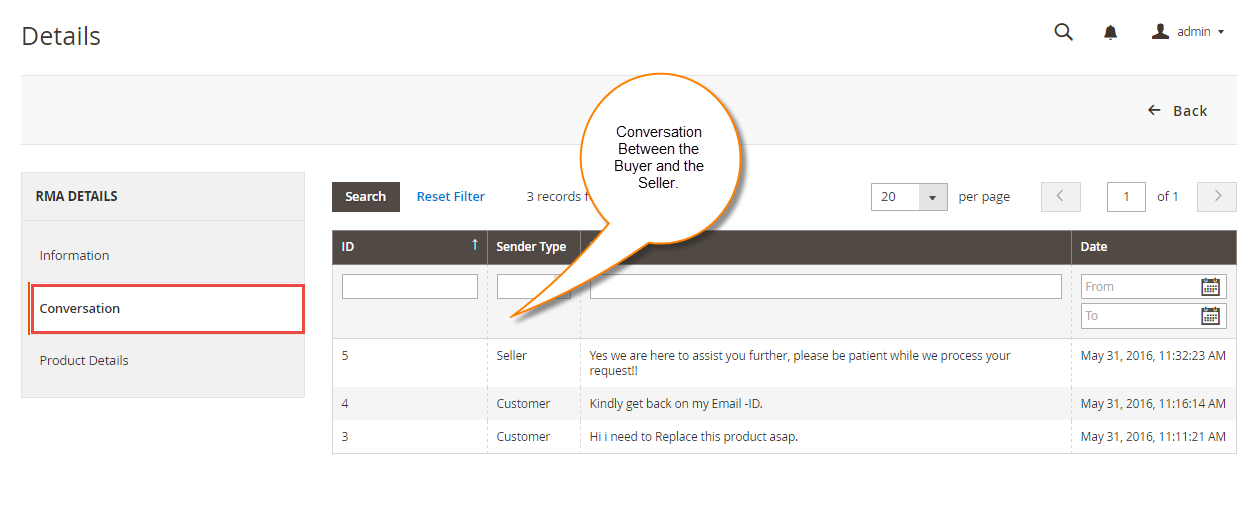
Administrators can inspect the unedited conversation thread between the seller and buyer, as well as post administrative messages or mediation instructions directly into the ticket timeline:
Administrative Status Override & Resolution
Administrators possess master authority to resolve tickets or update package transit statuses:
- Review the submitted images and customer statements.
- Select the updated package status from the dropdown.
- If the return has been fully satisfied, set the RMA Status to Solved.
- Click Save Status to finalize the resolution and send confirmation emails to both parties.