
Admin Configuration
After installing the extension, you must configure the backend settings to activate the module, setup email notification templates, specify admin notification contacts, and establish expiration limits.
Navigate to Stores > Configuration > Webkul > Gift Card in your Magento Admin Panel.
Module License
The admin needs to verify the module license to use it properly. Navigate to Stores > Configuration > Webkul > Module License.
Here, the admin will find the list of all the licensed modules. For the Marketplace Gift Card module, the admin needs to enter the License Key and click on the Save & Verify button to verify the license.
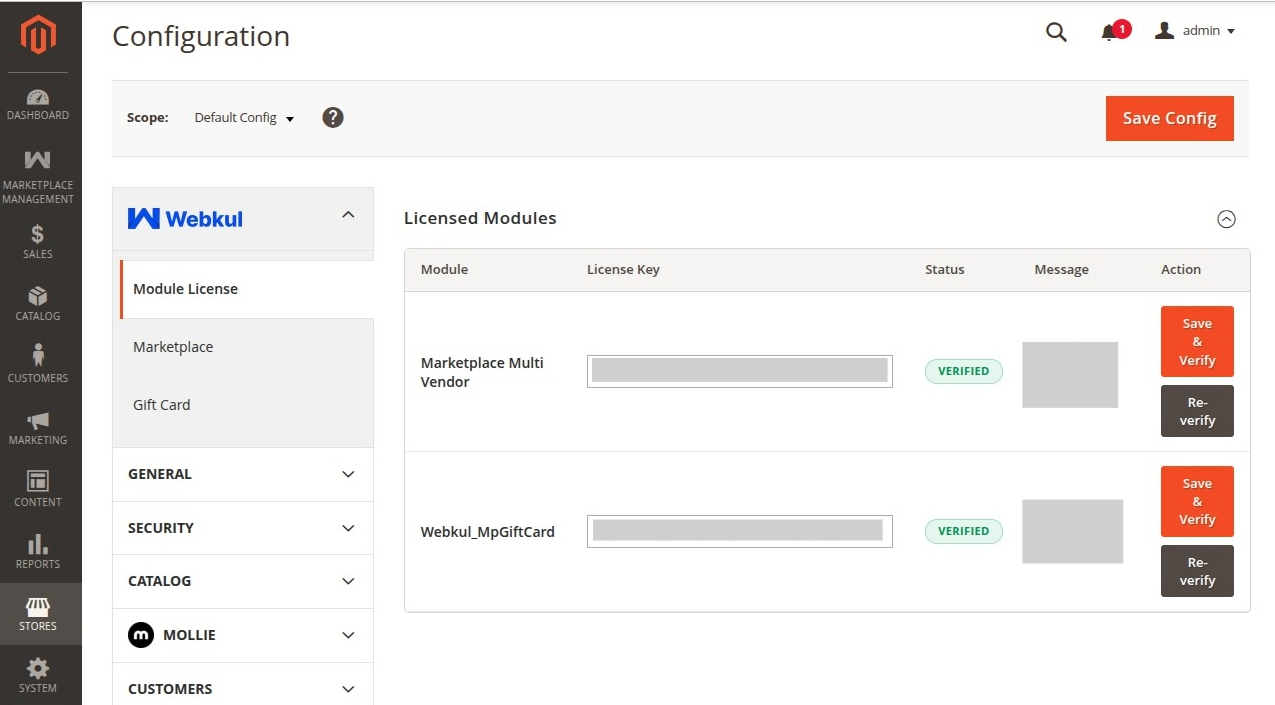
Configuration Settings Overview
Detailed Setting Groups
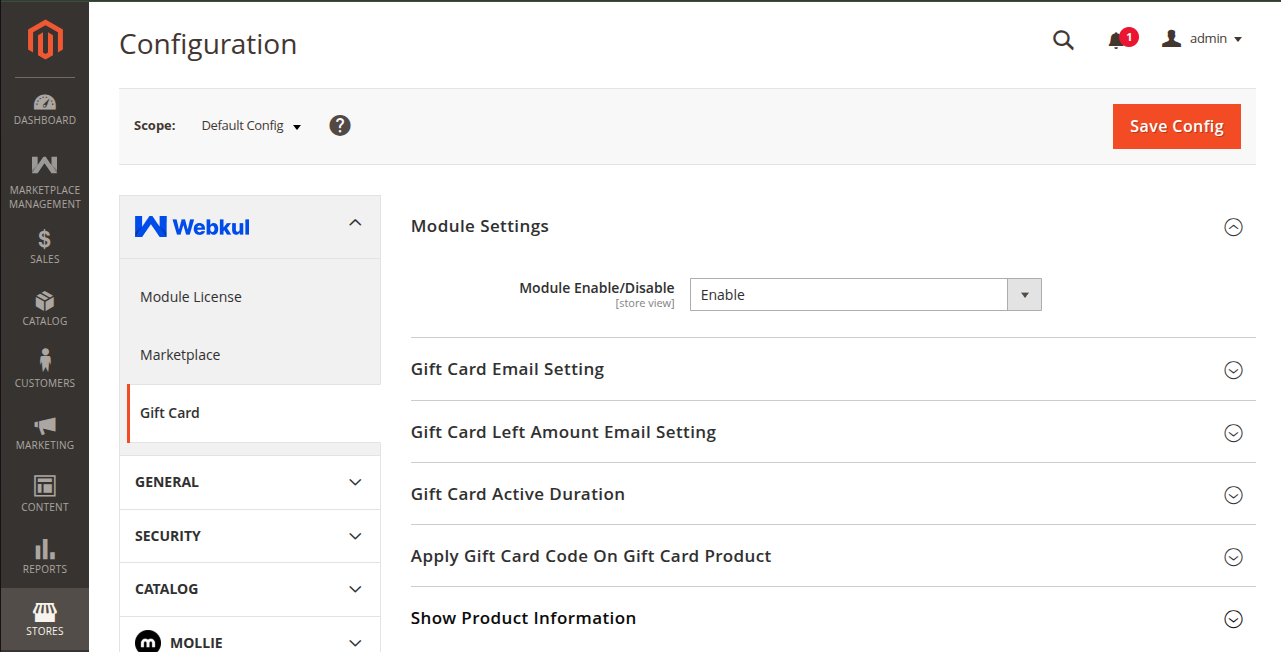
1. Module Settings
- Module Enable/Disable: Select Enable to activate Gift Card functionality across the store and vendor panels. Select Disable to hide gift card options.
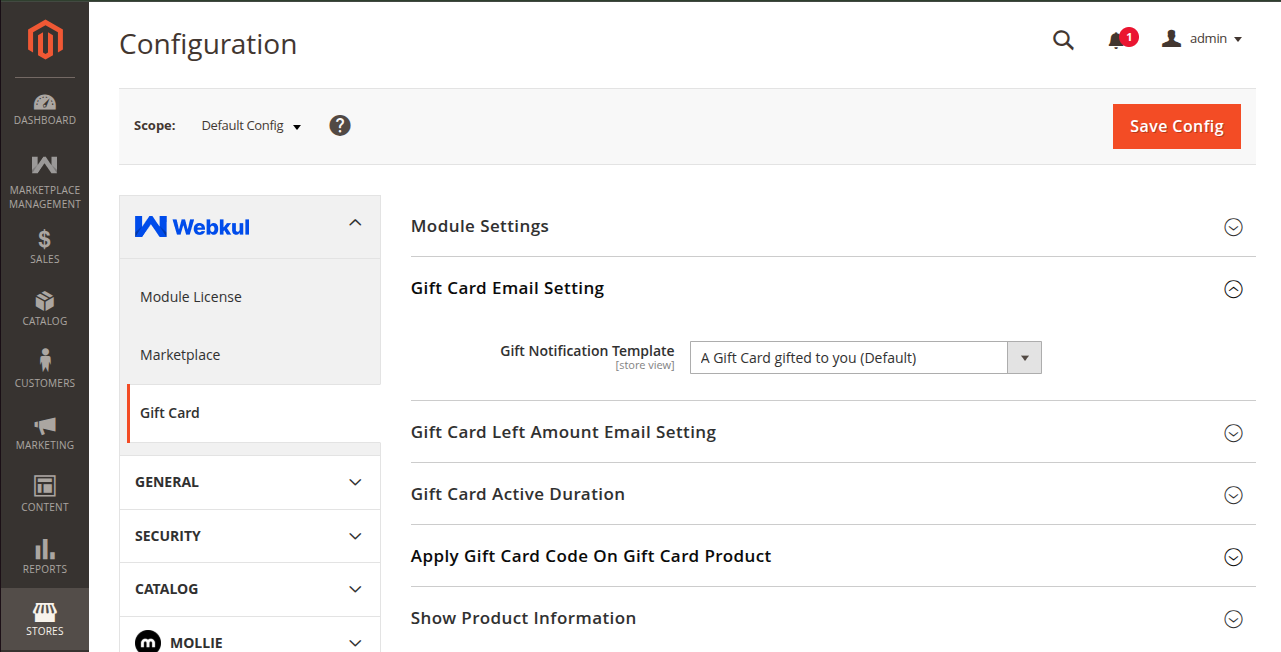
2. Gift Card Email Setting
- Gift Notification Template: Select the transaction email template sent to the gift recipient when a gift card is purchased. (Default: Gift Notification Template).
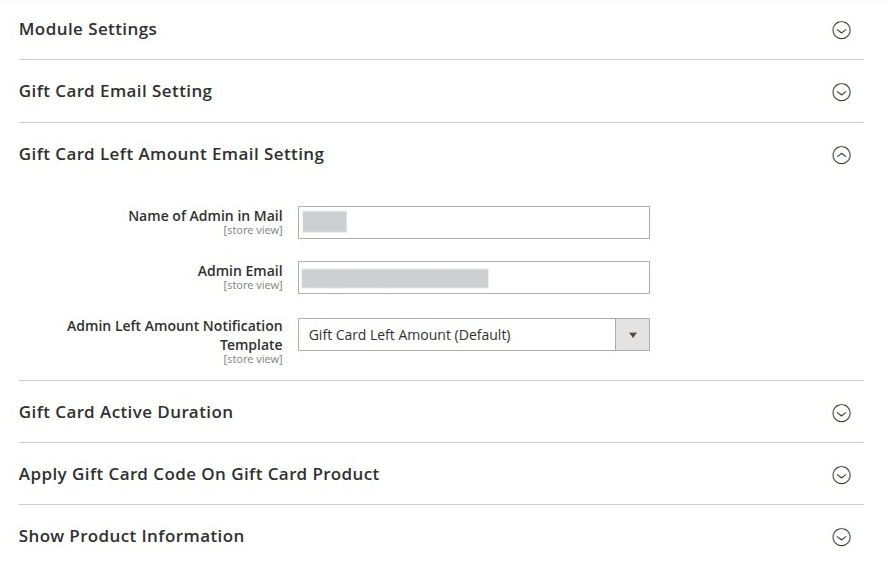
3. Left Amount Email Setting (Admin Balance Alerts)
- Name of Admin in Mail: Enter the sender display name used in balance update emails sent to customers and admins (e.g.,
Store Manager). - Admin Email: Enter a valid admin email address (e.g.,
[email protected]) to receive notifications whenever a gift card's balance is updated or partially redeemed. - Admin Left Amount Notification Template: Select the transaction email template used for sending left amount alerts.
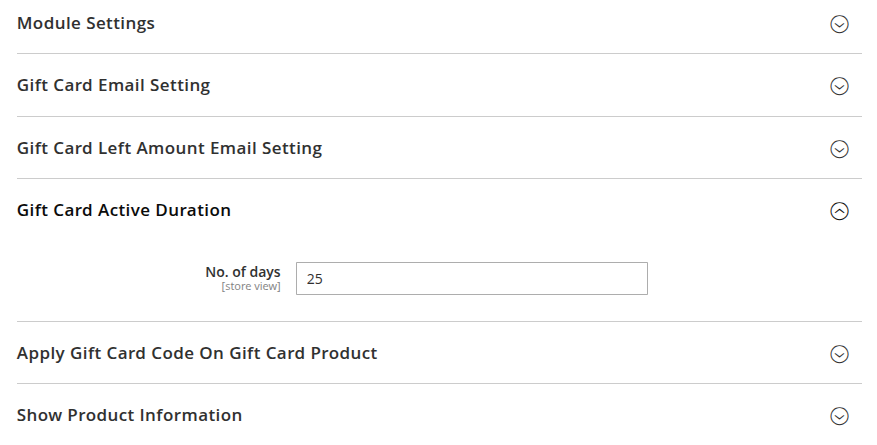
4. Gift Card Active Duration
- No. of days: Enter an integer value representing the number of days a gift card remains valid from its creation/issue date (e.g.,
365for 1 year validity).
[!IMPORTANT] Once a gift card exceeds the configured active duration, it is marked as Expired and can no longer be redeemed at checkout.
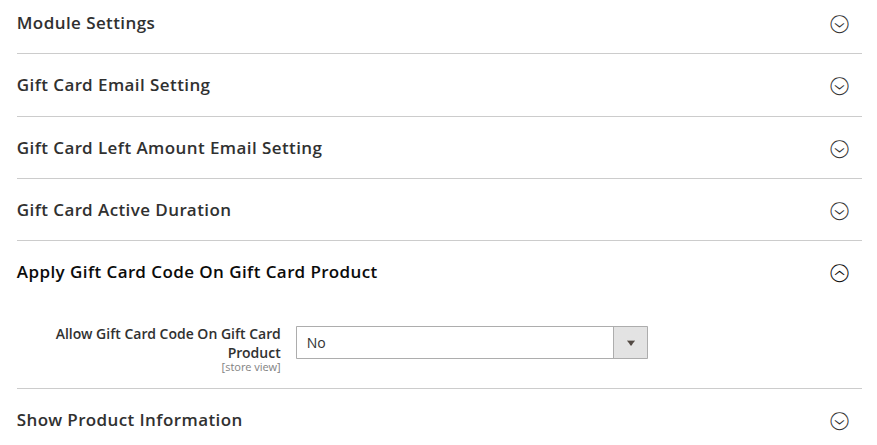
5. Apply Gift Card Code On Gift Card Product
- Allow Gift Card Code On Gift Card Product:
- Yes: Customers can pay for a new Gift Card product using an existing Gift Card code.
- No: Gift Card codes cannot be applied to orders containing Gift Card products.
Configuration Summary Table
| Field Name | Path in Admin | Description | Recommended Value |
|---|---|---|---|
| Module Enable/Disable | mpgiftcard/modulesettings/enable | Enable or disable the extension globally | Enable |
| Gift Notification Template | mpgiftcard/email/gift_notification_mail | Transactional email template sent to recipient | Webkul Gift Card Template |
| Name of Admin in Mail | mpgiftcard/adminEmail/gift_admin_mail_name | Admin display name in emails | Store Administrator |
| Admin Email | mpgiftcard/adminEmail/gift_admin_mail_email | Receives copy of balance updates | [email protected] |
| Admin Left Amount Template | mpgiftcard/adminEmail/admin_amt_notification_mail | Left amount notification template | Left Amount Alert Template |
| No. of days | mpgiftcard/activeDuration/gift_admin_active_days | Active lifetime of generated gift code | 365 |
| Allow Code On Gift Product | mpgiftcard/applyGiftcardCpupon/... | Allow gift cards to buy gift cards | No |
Saving Configuration
After making adjustments, click Save Config in the top-right header and clear the Magento Cache:
php bin/magento cache:flush