
USPS Developer Account Setup
To connect Magento 2 with the United States Postal Service, both the store administrator and independent sellers who wish to manage their own shipping accounts need to obtain API credentials from the USPS Developer Portal.
Step 1: Register on the USPS Developer Portal
- Open your web browser and navigate to the official USPS Developer Portal.
- Click Sign Up or Register in the upper-right corner.
- Complete the registration form with your business contact details, company name, phone number, and administrative email address.
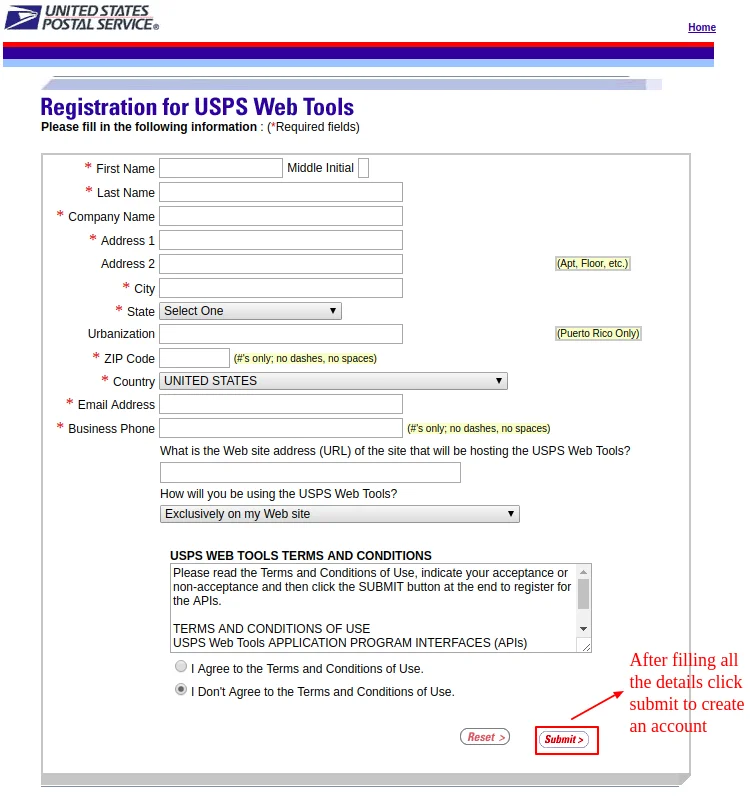
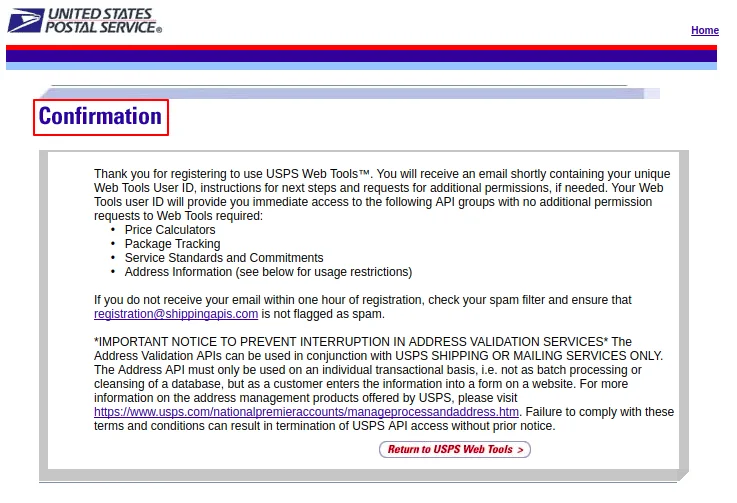
- Submit the registration. The portal presents a confirmation screen indicating that your registration request has been received.
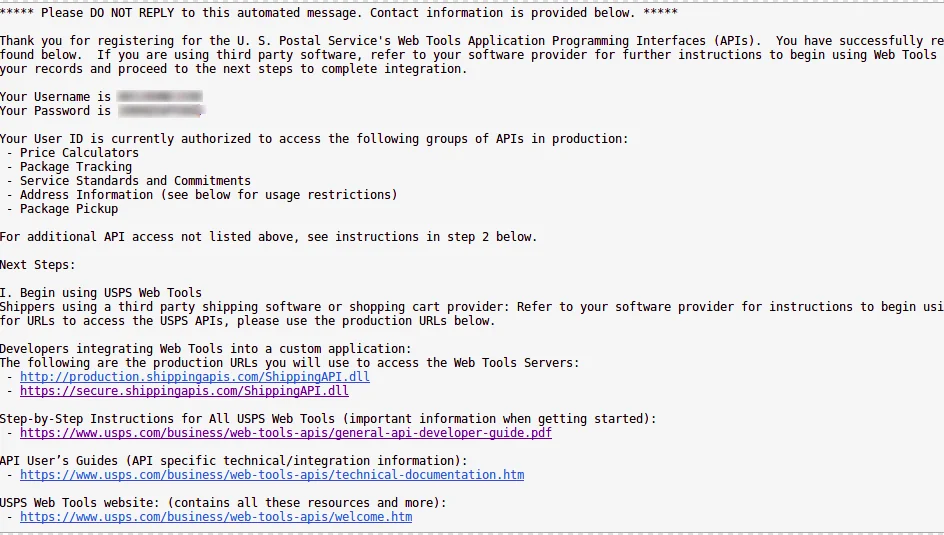
- Check your email inbox for a verification email from USPS. Follow the confirmation link to activate your developer account and set your secure password.
Step 2: Create an App to Generate API Credentials
Once logged in to the USPS Developer Portal:
- Navigate to My Apps in the developer dashboard.
- Click Add App or Create New App.
- Provide an App Name (e.g.,
Magento2-Marketplace-Shipping) and a brief description. - Under API Access, ensure the following REST API products are enabled:
- Prices & Rates API (V3) — Needed for domestic and international rate calculation.
- Labels API (V3) — Needed for generating and printing official shipping labels.
- Tracking API (V3) — Needed for live tracking status updates.
- Save the App.
- The dashboard displays two critical credentials:
- Consumer Key: This is your User ID / Client ID in Magento.
- Consumer Secret: This is your Password / Client Secret in Magento.
Keep Credentials Secure
Never share your Consumer Secret publicly. The module encrypts both fields in Magento's core database using AES-256 encryption.
Step 3: Environments (TEM vs. Production)
USPS provides two operating environments:
| Environment | Endpoint URL | Use Case |
|---|---|---|
| Development (TEM) | https://apis-tem.usps.com | Sandbox testing environment using mock test packages. Set Mode = Development in Magento. |
| Live (Production) | https://apis.usps.com | Live operational environment with real postage charges and tracking numbers. Set Mode = Live in Magento. |
Step 4: Postal Identifiers Required for Shipping Labels
While rate calculation only requires your Consumer Key and Consumer Secret, generating official downloadable PDF shipping labels requires your postal business identifiers:
1. Payment Account Type
Select how postage will be paid when labels are created:
- EPS (Enterprise Payment System): Modern USPS payment framework replacing CAPS. Enter your 10-digit EPS Account Number.
- METER: PC Postage meter number.
- PERMIT: Permit Imprint account. Requires the Permit Number and associated Permit ZIP Code.
2. Customer Registration Identifier (CRID)
A unique numeric code assigned by USPS that identifies a specific business location. You can retrieve your CRID from the USPS Business Customer Gateway (BCG).
3. Mailer Identifier (MID)
A 9-digit or 6-digit numeric identifier assigned by USPS and encoded directly into the Intelligent Mail barcode (IMb) on shipping labels.
4. Manifest MID
The unique Mailer Identifier designated for USPS electronic manifest files when consolidating shipments.