
Storefront & Checkout
This section illustrates how customers interact with Mage Table Rate shipping options on the storefront during cart estimation, checkout, and post-purchase order tracking.
Customer Checkout Experience
1. Delivery Address Entry
When a customer navigates to the checkout page:
- The customer enters their Shipping Address (Country, State/Province, and Postal Code).
- The checkout automatically requests applicable shipping rates from active carriers.
- The Mage Table Rate engine queries rules matching:
- Destination address (country, region, zip code).
- Current cart weight and item count.
- Cart subtotal.
- Customer group of the logged-in user (or guest).
- Current store view.
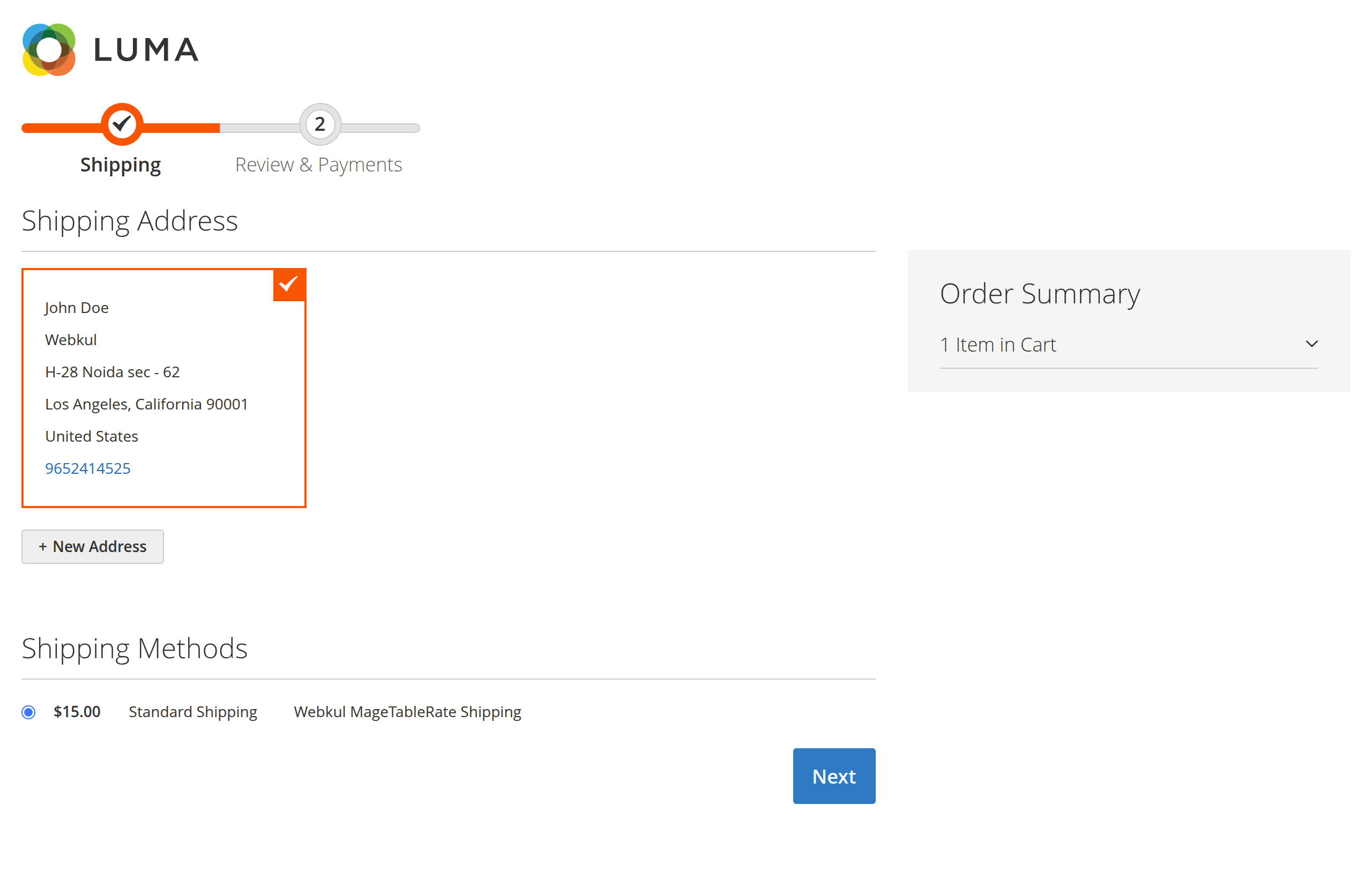
2. Shipping Method Selection
Matching rates appear under the carrier title defined in system configuration:
- Each matching rate displays its custom Method Name and calculated Shipping Cost.
- The customer selects their preferred rate (e.g., Standard Shipping for $15.00).
3. Review & Payments Step
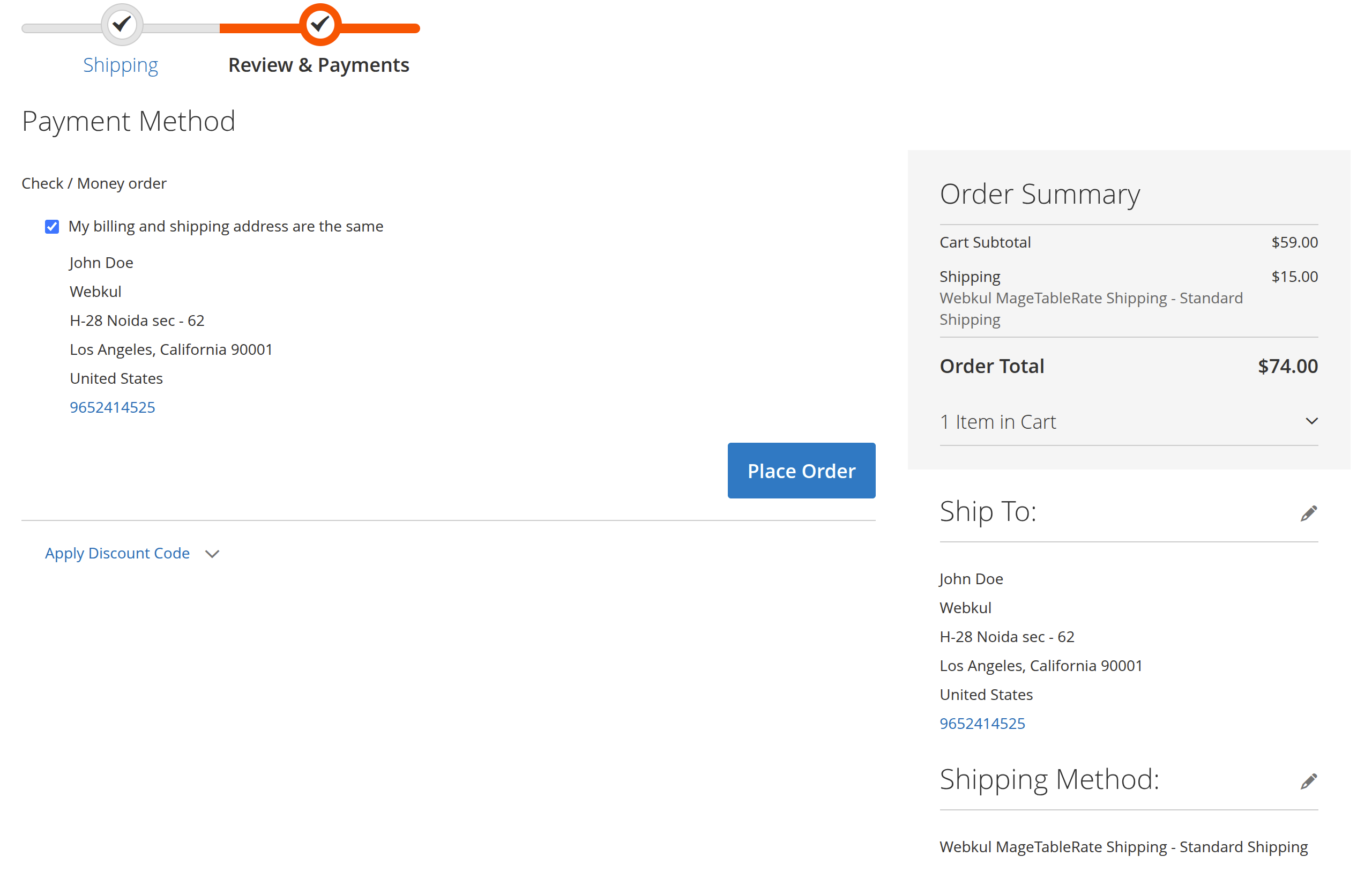
Upon proceeding to the Review & Payments step:
- The selected shipping method title and fee are itemized in the Order Summary (e.g., Cart Subtotal $59.00 + Shipping $15.00 = Order Total $74.00).
- The shipping fee is incorporated into the order grand total and shipping destination information is confirmed.
4. Order Confirmation & Customer History
Once the order is placed:
- The order confirmation email includes the chosen shipping method name and fee.
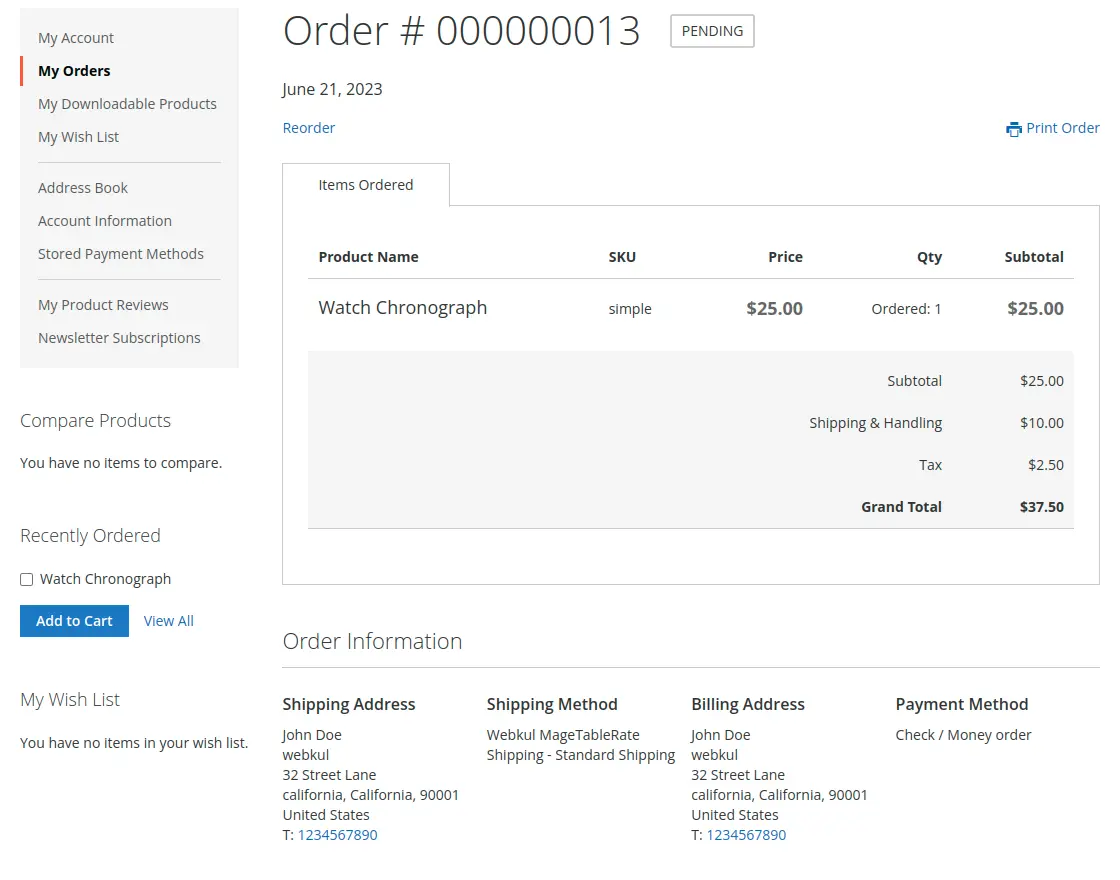
- Under My Account → My Orders, the customer can view their order details, including the selected shipping method:
Admin Order Processing
Store administrators can review and process the selected table rate method from the Magento backend:
- In the admin panel, navigate to Sales → Orders.
- Open the order view.
- Under the Shipping & Handling Information section, the admin will see:
- Carrier Title:
Mage Table Rate - Selected Method Name:
Standard Shipping - Shipping Fee:
$10.00
- Carrier Title:
- The method is preserved through invoices, packing slips, and shipment generation.
Next Step
Explore programmatic headless integration in GraphQL API.