
Seller Product Workflow
Marketplace sellers can create products in their native language and let the extension handle translations across all store views automatically.
Creating a Translated Product in Seller Panel
- Log in to the Marketplace Seller Account Panel.
- Navigate to My Account > New Products (or edit an existing product in My Product List).
- Select the Attribute Set and Product Type, then click Continue.
- To view or manage translations for specific store views, use the Store View dropdown menu located in the top-right header area.
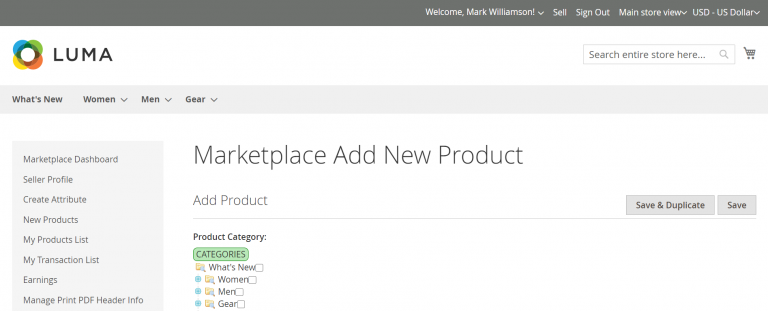
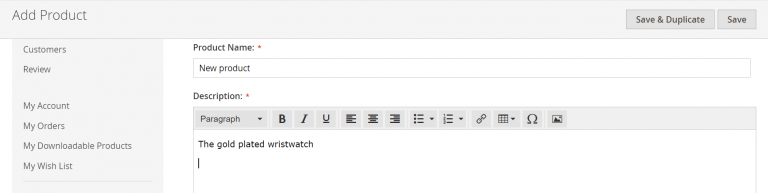
- Upon selecting the store view, all text input fields—such as Product Name, Description, and Short Description—translate automatically to match the locale of the selected store view.
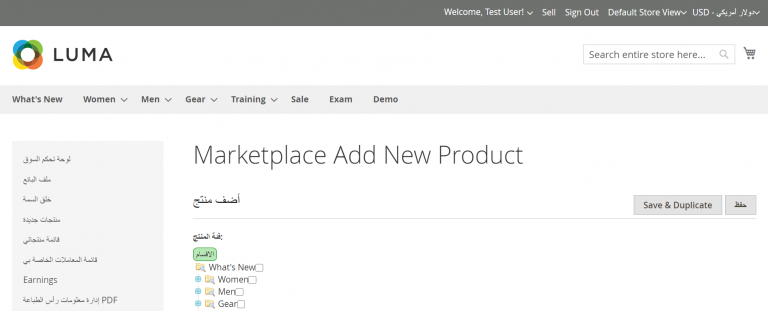
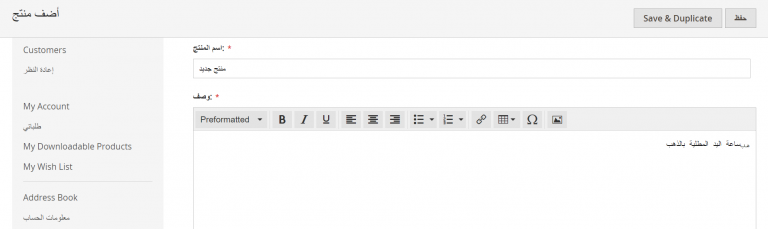
- Click Save to submit the product.
Seller Convenience
Sellers do not need to speak foreign languages or manually fill in translated text fields. The extension handles background translation via Google Cloud API instantly.