
Admin Catalog Workflow
Store administrators can manage and view translated categories and products directly within the Magento 2 Admin Panel.
Category Translation Workflow
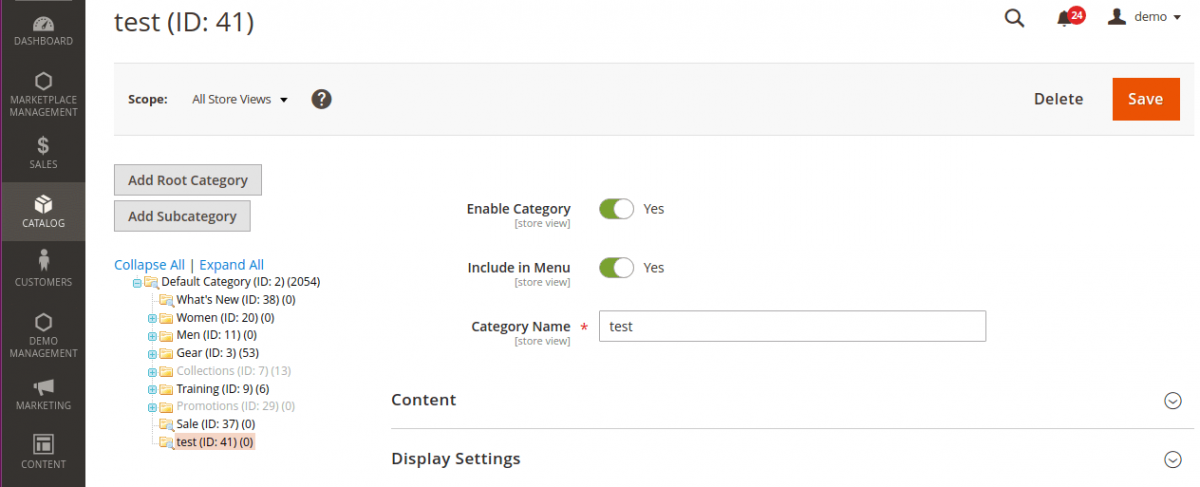
- In the Magento Admin Panel, navigate to Catalog > Categories.
- Select an existing category or click Add Subcategory.
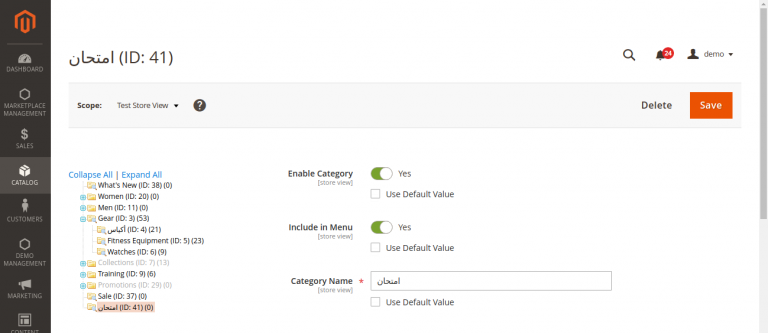
- Use the Store View dropdown menu in the upper-left corner to select your target language store view (e.g., Arabic Store View or German Store View).
- Once the store view is selected, category titles and descriptions automatically translate into the locale language specified for that store view.
Product Translation Workflow
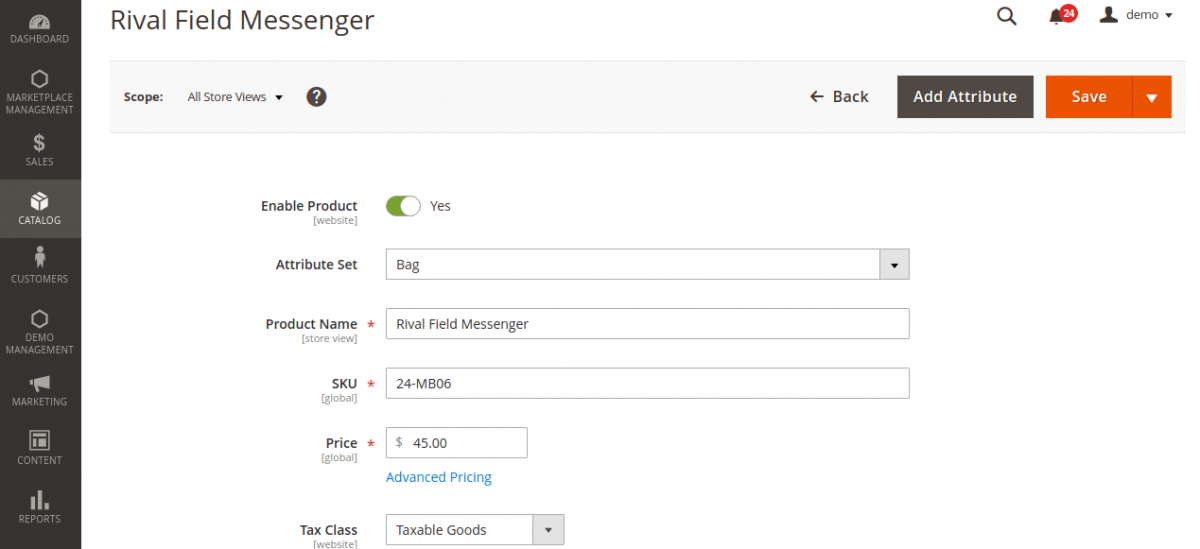
- Navigate to Catalog > Products.
- Create a new product or edit an existing product.
- Switch the Store View selector in the top-left menu bar.
- All text attributes—including product title, description, short description, meta attributes, and custom input fields—translate automatically into the selected store view language.
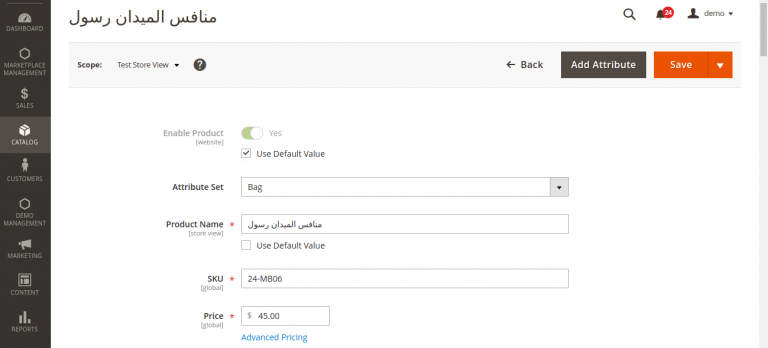
- Click Save to persist translations for the store view.