
Activate & Connect
After installing the extension, set up locale preferences and static string translations.
Setting Up Store Locales in Magento Admin
To translate content into a specific language, configure the store view locale:
- Log in to the Magento Admin Panel.
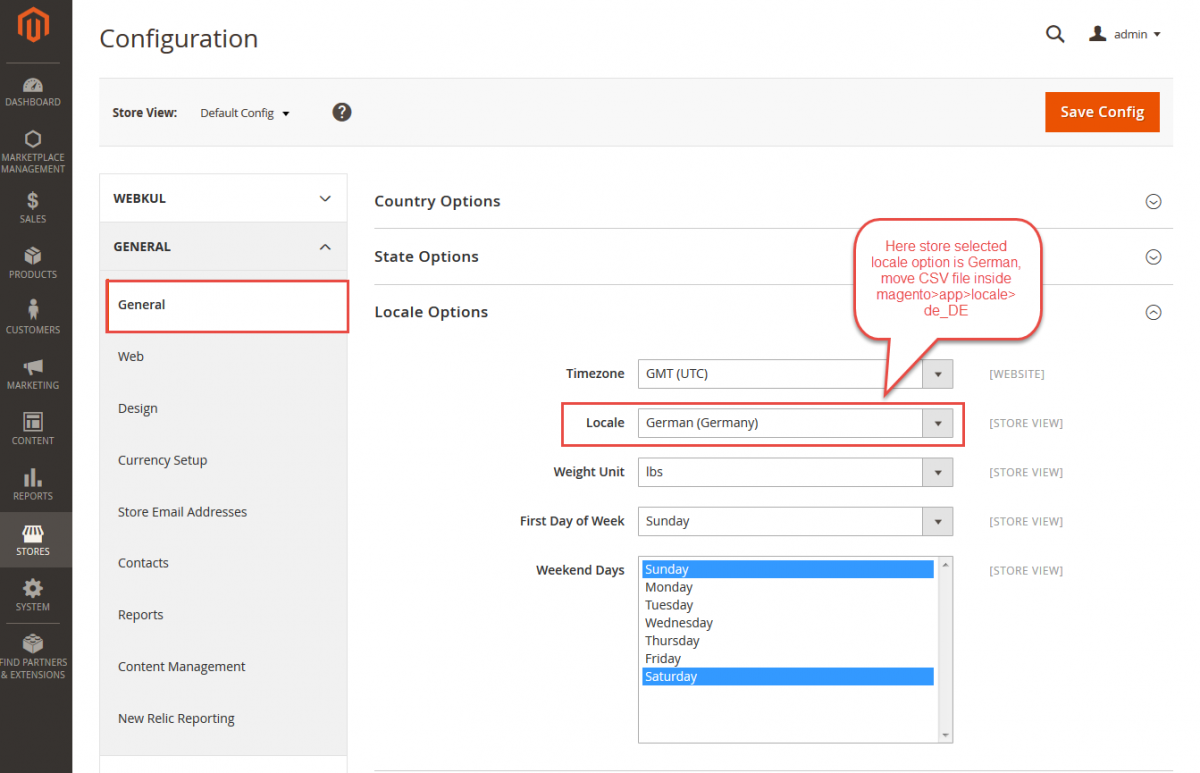
- Navigate to Stores > Configuration > General > General > Locale Options.
- Select your desired language from the Locale dropdown (e.g., German (Germany), Arabic (Saudi Arabia), French (France)).
- Click Save Config.
Developer Mode
Please switch your Magento environment to Developer Mode while testing locale changes to ensure fresh translation file loading.
Static String Translation (i18n CSV Setup)
While the extension uses Google Translation API for dynamic catalog data (product titles, descriptions, categories), static user interface strings (such as button labels, form headings, and admin menus) can be translated using Magento's native i18n CSV system.
Steps to Translate CSV Files
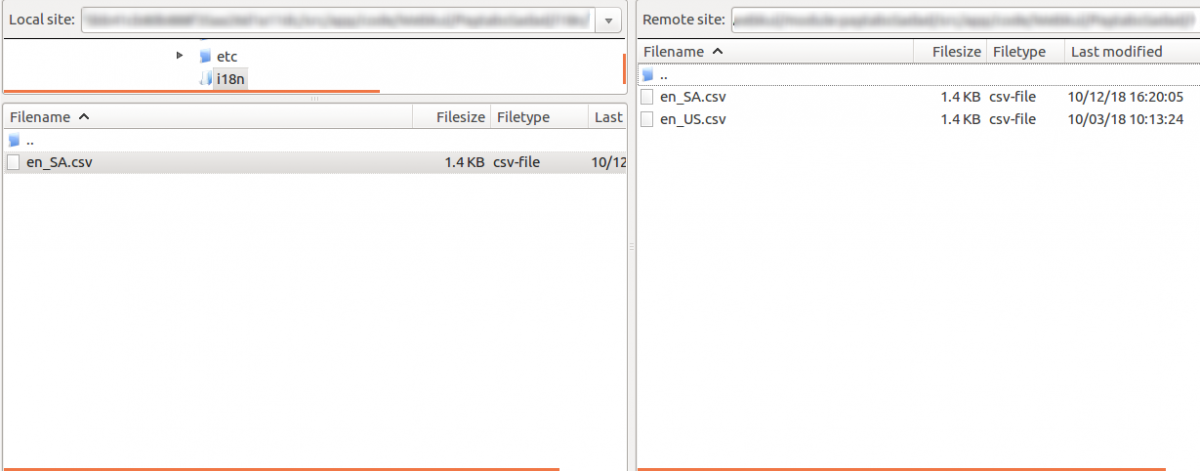
- Navigate to the module directory on your server:
app/code/Webkul/MpCatalogTranslation/i18n/ - Locate the default translation dictionary
en_US.csv. - Create a copy of
en_US.csvand name it using your target locale code (e.g.,de_DE.csvfor German,ar_SA.csvfor Arabic).
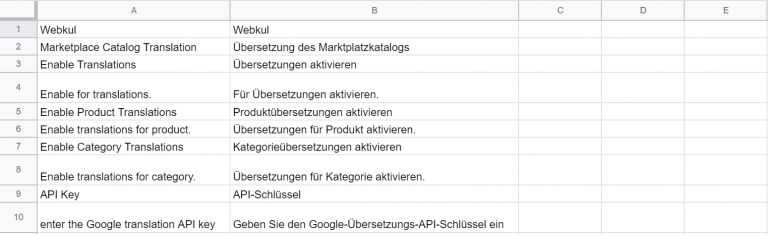
- Open the new CSV file in a text editor or spreadsheet software and translate the right-hand column entries:
"Marketplace Catalog Translation","Marketplace-Katalogübersetzung"
"Enable Translations","Übersetzungen aktivieren"
"Enable Product Translations","Produktübersetzungen aktivieren"
"Enable Category Translations","Kategorieübersetzungen aktivieren"
"API Key","API-Schlüssel"
- Save the file and flush your Magento cache.
Once saved, static admin and seller panel strings will render in the target language.