Product Settings
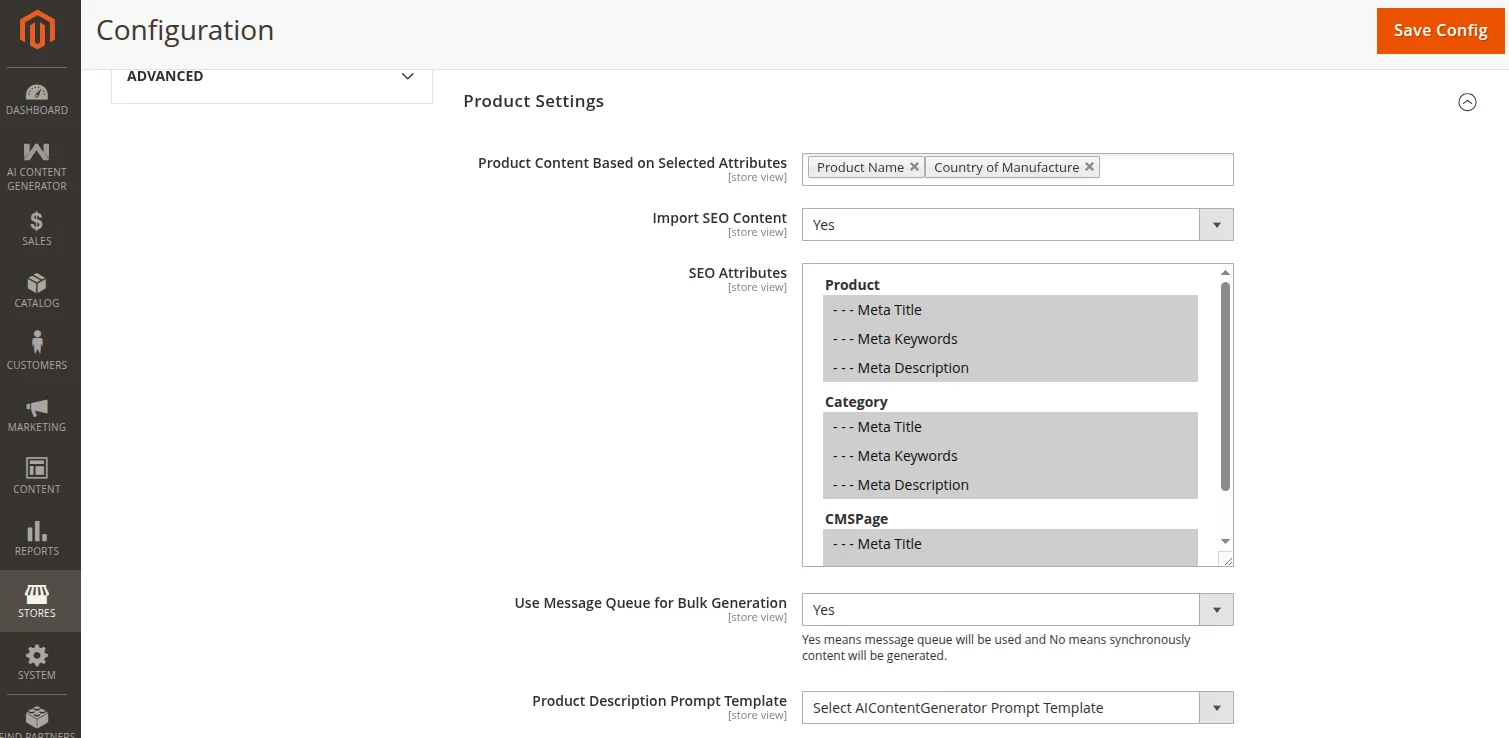
The Product Settings section configures how AI generations parse product attributes, which SEO fields are generated, and whether bulk actions execute in real-time or asynchronously in the background.
To access these settings, navigate to:
Navigation Path
Stores → Configuration → Webkul → AI Content Generator → Product Settings
Core Product Options
| Field | Options / Type | Description |
|---|---|---|
| Product Content Based on Selected Attributes | Searchable Multi-select | Define which attribute(s) the AI uses as context when generating product descriptions and SEO content. You can select multiple EAV attributes (e.g. Name, SKU, Description, Color, Price). |
| Import SEO Content | Yes / No | When enabled, adds a button in the Product Edit → Search Engine Optimization tab allowing on-demand SEO metadata generation. |
| SEO Attributes | Multi-select | Choose which SEO fields to generate. Options: Meta Title, Meta Description, Meta Keywords. |
| Use Message Queue for Bulk Generation | Yes / No | When set to Yes, bulk product updates via Catalog Grids will submit tasks to a background consumer queue. Set to No to process them synchronously in the browser. |
Product Prompt Templates
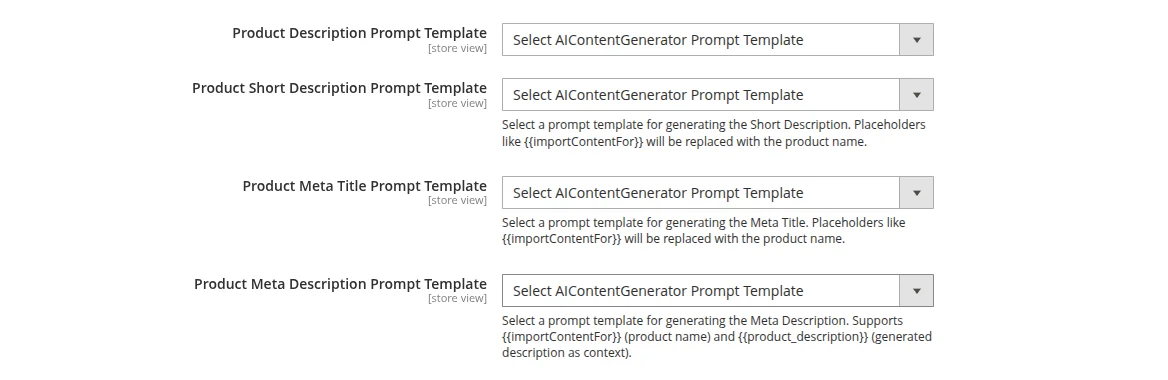
If Enable Prompt Templates is toggled under General Settings, you can select custom templates for each product field:
- Product Description Prompt Template: The template mapped to generate the main description.
- Product Short Description Prompt Template: The template mapped to generate the short description.
- Product Meta Title Prompt Template: The template mapped to generate the
meta_title. - Product Meta Description Prompt Template: The template mapped to generate the
meta_description.
Product Attributes Placeholder
Prompt templates support the {{product_attributes}} placeholder, which dynamically injects the values of the configured selected attributes in the format Attribute Label: Value. If the placeholder is not explicitly placed in the prompt template, the system will append the attributes context automatically at the end of the prompt instructions. If data loading for any attribute fails, it will gracefully fallback to the product name.
Product Generation Status Chart
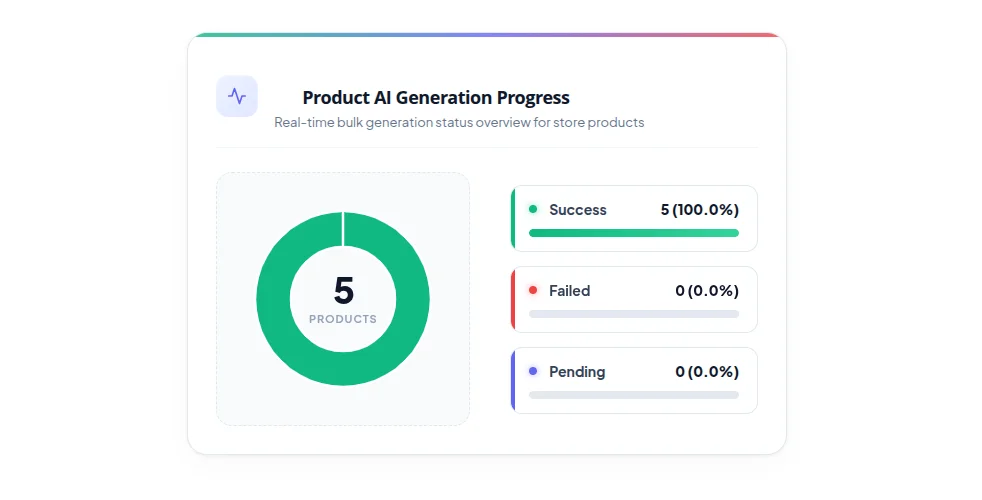
When Use Message Queue for Bulk Generation is enabled, a real-time doughnut chart appears in the system configuration view:
- Pending: Tasks submitted to the queue but not yet picked up by the background consumer.
- Success: Products that successfully completed content generation.
- Failure: Tasks that failed (e.g., due to API key errors, rate limits, or network timeouts).
The chart updates automatically via cron runs or log modifications, giving administrators visual oversight of bulk generation progress.